How to change credit card number on existing account with new card number
A security issue forced me to update the card # on a Chase account. I've followed the suggested steps to change the account: deactivate online services, clear old card number, add account, reconnect. I've repeated the drill several times, and everything works very smoothly, including the login to Chase, with no error messages and no sign of problems. Quicken finds the account and asks me if I want to add or link to existing; I choose link to existing. (I don't want to duplicate if I can help it, and I worry that if I choose to add a new account I'll wind up with a ton of duplicate transactions, which has happened to me in the past.) But new transactions are not downloading—nothing since mid-December, and there have been many transactions since then. I've been using Quicken for many years and I'm currently on Quicken version R65.29 on a Win11 PC.
Answers
-
Hello @Overhead10,
Thank you for reaching out! To clarify, the issue is that the card number changed, you deactivated and reconnected/linked the account, but no new transaction are downloading?
If that is the case, then please start troubleshooting by following these steps from our article on missing transactions/transactions not downloading:
Be sure to follow these steps in order:
1. Go to Edit > Preferences > Downloaded Transactions. The option Automatically add to banking registers needs to be unchecked.
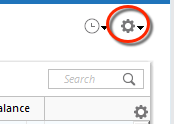
2. Refresh your online account information by clicking the Actions Gear Icon on the upper right of the register, and select Update Now. Follow the on-screen instructions to complete the update.
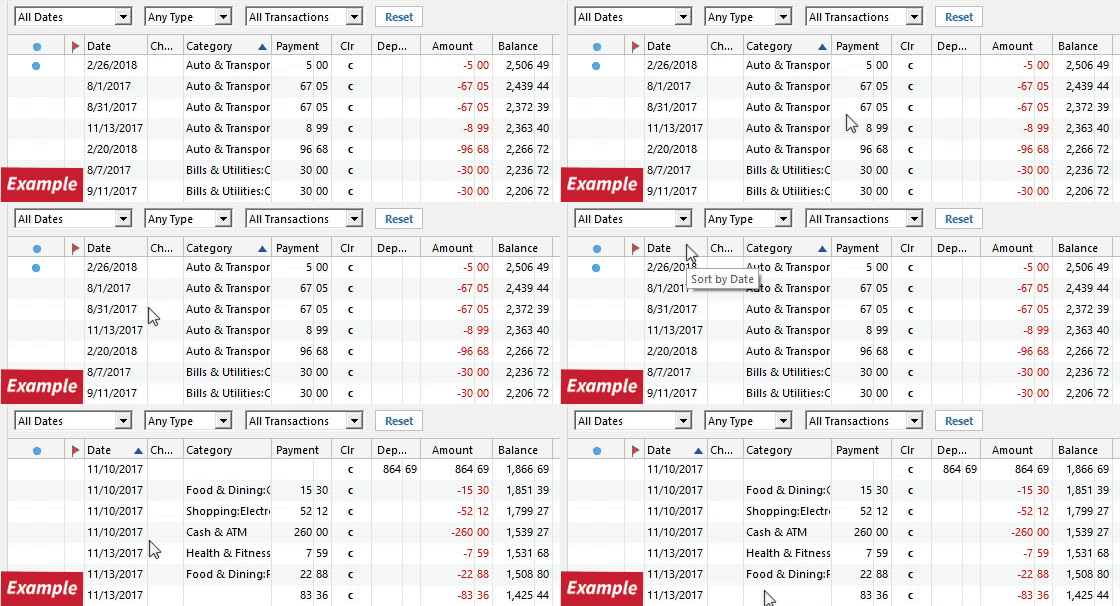
3. Confirm that the Sort Order in your account is by Date; just click the top of the Date column in your account register. It's possible the transactions are in your register, but not where you thought they'd be.
4. Click the Reset button at the top of the register. This will confirm that there's no filtering in your account register.
5. Try refreshing your login session: To do this, go to Help > Refresh Sign in. After completing the log-in process, trying running a One Step Update again.
6. Go to Actions (Gear Icon) > Register Columns > Check Downloaded Payee in the account register. This allows you to search by Payee to confirm the transactions haven't been renamed unexpectedly.
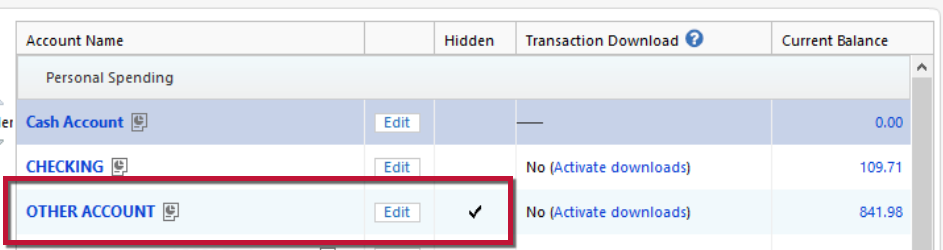
7. Go to Tools > Account List and check Show Hidden Accounts at the bottom left. Confirm the missing transactions haven't been added to a hidden account by clicking on the name of any account that appears with a check mark in the Hidden column.
I hope this helps!
Quicken Kristina
Make sure to sign up for the email digest to see a round up of your top posts.
0
Categories
- All Categories
- 49 Product Ideas
- 35 Announcements
- 225 Alerts, Online Banking & Known Product Issues
- 18 Product Alerts
- 504 Welcome to the Community!
- 673 Before you Buy
- 1.4K Product Ideas
- 54.9K Quicken Classic for Windows
- 16.6K Quicken Classic for Mac
- 1K Quicken Mobile
- 824 Quicken on the Web
- 120 Quicken LifeHub