CC-503 with Multiple Financial Institutions [Edited]
I have a question for everybody (he says tongue-in-cheek)… who's loving all of the CC-503's with Quicken?
FYI: Quicken Classic Premier version R65.29 build 27.1.65.29, Windows 11 with all updates installed for both Windows and Dell, up to the posting date.
Not that this necessarily matters to the question at hand, but very recently I've gotten sick and tired of seeing "damaged data block" when I do file validations on the Quicken data file that I've had running for so many years that I lost count (it has to be at least 15 years or more). So I followed some advice I found here some time ago, and did the "complete copy" hoping that the new version of my data file will be cleaner. And, voila, it was - no damaged data blocks. Hurray.
However, as anyone who has ever done this before knows, a complete file copy resets all of the bank connections and you have to reinitialize them.
I was hoping that the "refresh" would solve the various CC-503 errors that I reported in a discussion post last year. But alas, most (thankfully not all) of them are still present.
So, for the benefit of Quicken Support, the current list of CC-503's that I'm getting include these banks/FI's:
- Synchrony: this is a HUGE one for many people I'm sure, because they hold a practical monopoly on many store/branded cards. Specifically for me, these include: ALL of the PayPal cards (Smart Connect, PayPal Credit, PayPal Cashback Mastercard), OnePay (the new Walmart-affiliated card), Lowes, Sams Club, and CareCredit. Interestingly, the PayPal accounts themselves go through fine, but the PayPal credit accounts won't. I wouldn't whine so much about them IF PayPal hadn't changed their system so you can't even download transactions into a QIF anymore.
- Comenity: Dell, Petco, and Bread Financial.
- Barclay Bank
- SoFi (Social Finance): this one perplexes me, because prior to my "refresh", this was working perfectly for everything: bank accounts, investment account, and credit card. Now it won't.
- First Bankcard (FNBO): various branded cards including Sheetz and BP.
Just to verify things, I tried connecting these same accounts via Quicken Mac and Quicken Business & Personal (Web) - on all three, I'm getting CC-503's every time. I even tried over a period of 3 days. No joy.
So, I'd like to see if anyone else is having the same issues with the same or similar accounts and if Quicken Support has any input on where these are coming from (because it doesn't seem to me to be from the software itself, but from the connection attempts upstream from the software).
Comments
-
Also getting CC-503 since 2/11 when trying to connect to Synchrony Savings.
0 -
I used to be able but not for the past week, make a connection to ALLY bank, Sam's credit card, Belks, Amazon, Venmo, and Target. The Amazon, Belk's and Sam's personal card are all tied to Synchrony. Ally and Venmo are not
0 -
Hello All,
Thank you for taking the time to bring this to our attention!
Synchrony Accounts
——
We do currently have this open Community Alert specifically regarding CC-503 errors with Synchrony-branded cards and accounts. This issue has already been escalated internally and is actively being worked on.
At this time, we do not have an ETA to provide. Please refer to the Community Alert for ongoing updates and any new information as it becomes available.Venmo
——
There is also this open Community Alert for Venmo connection issues. While the error code listed in that Alert may differ, the behavior being reported here could potentially be related. We recommend reviewing that Alert as well for details and updates.Other Financial Institutions (Ally, Barclays, SoFi, FNBO, Comenity, etc.)
If you are receiving CC-503 errors for institutions not listed in an active Alert, please review the information and follow the troubleshooting steps below:A CC-503 error means that the financial institution is reporting the login credentials as invalid. Below are the recommended steps to try (which you can also find in this support article):
Step One: Verify your bank login information- Type your password/PIN into a text application, such as Notepad, WordPad, or other text/word application.
- Note: This is a way of confirming you don't have typographical errors in this field.
- Highlight the "confirmed" password and then copy it (Ctrl + C) and paste it (Ctrl + V) into the appropriate fields in Quicken.
Step Two: Verify your bank login at the bank's website
- Go to your bank's website and confirm that you're able to log in with the expected username and password.
- Once you are logged in, review your account at the website for notifications (such as pending messages in a mailbox or message center) to confirm if further action is required to grant Quicken access.
- Some banks will require a separate login, password, or both to access accounts on third-party software. Also note, you may need to go to your settings at the website to access these prompts for new credentials.
New passwords: If you are required to make a new password, be aware that some special characters may cause errors in Quicken. These special characters are the ampersand (&), left carat (<), right carat (>), backslash (\), and forward slash (/). Additionally, while Quicken does not have a character limit, your bank may have one.
Step Three: Update your password(s) in Quicken
- Launch Quicken and go to Tools > Password Vault > Add/Edit Passwords.
- Click on the account in the Password Vault.
- Choose Delete Password for the account.
- Complete a One Step Update, you will be prompted to enter the password manually.
- Type in the password (the same one used on the bank's website) and check in the box marked Save next to the password field.
- Click Update Now.
If there is no option to delete and update the password, or if the login ID/username also needs to be changed:
- Choose Tools > Account List.
- Click the Edit button next to the account you want to change the login ID for.
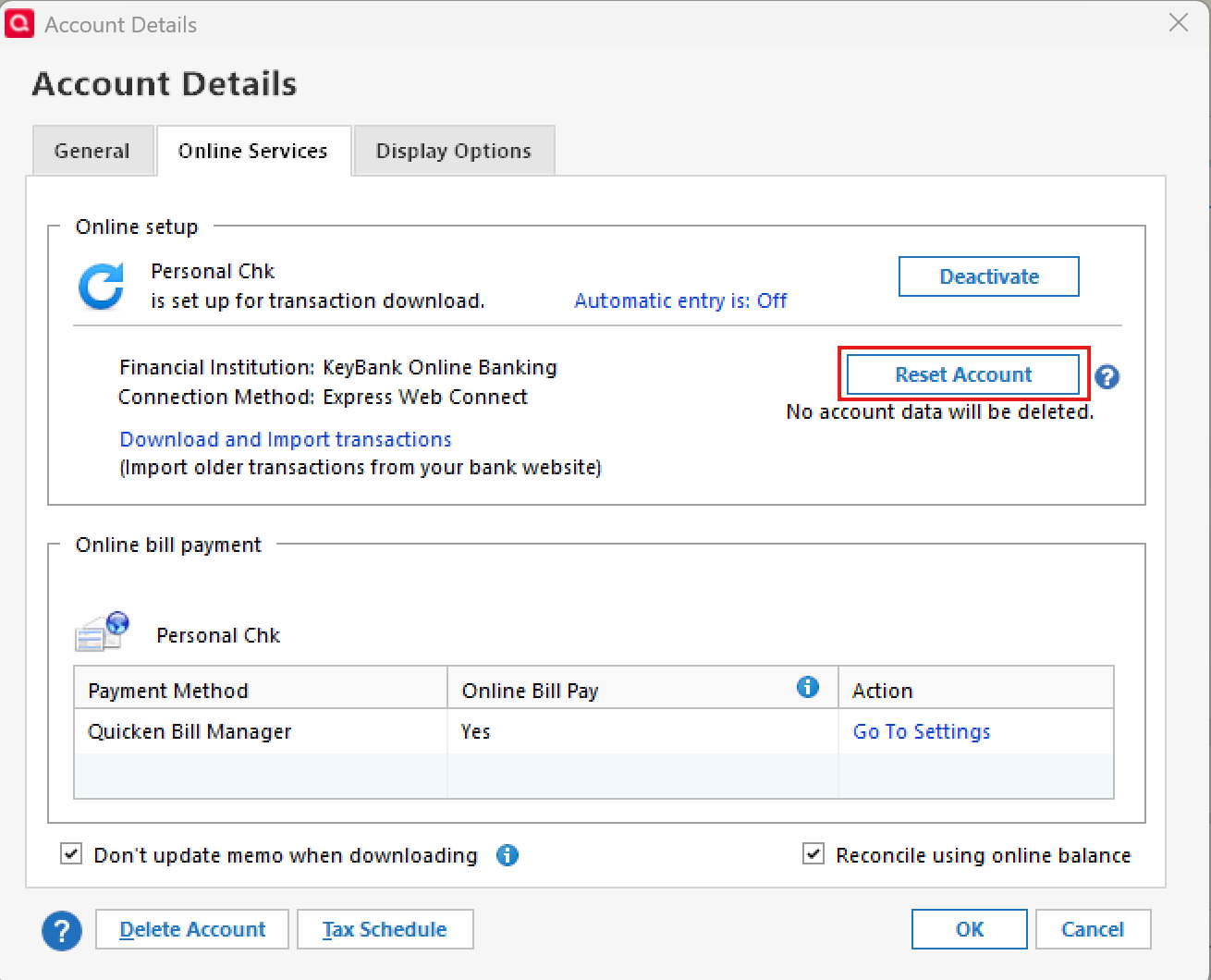
- In the Account Details window, click the Online Services tab.
- Click Reset Account.
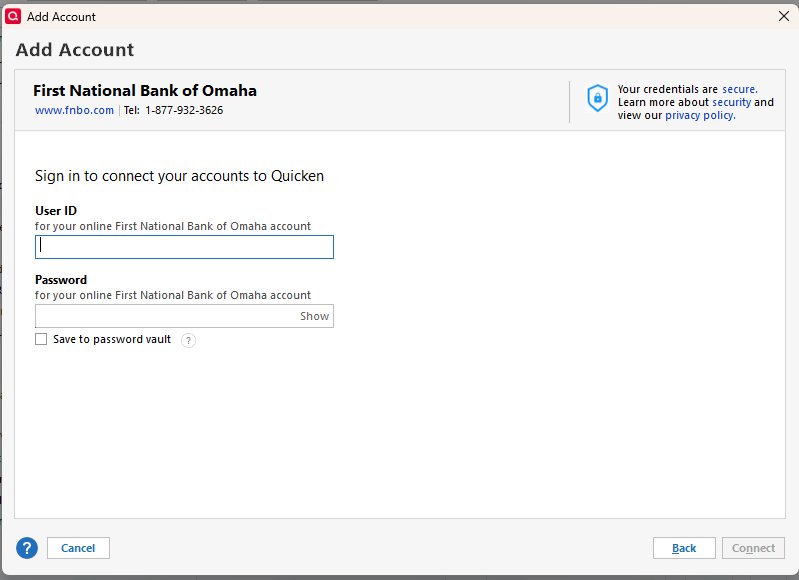
- Enter the correct login ID and follow the on-screen prompts to complete the reset.
- If prompted, carefully LINK the accounts found to the existing accounts in Quicken.
After the reset process is complete, attempt your online session again.
If the issue persists
Try Deactivating and Reactivating the affected accounts:
- Choose Tools > Account List.
- Click the Edit button next to the account you want to change the login ID for.
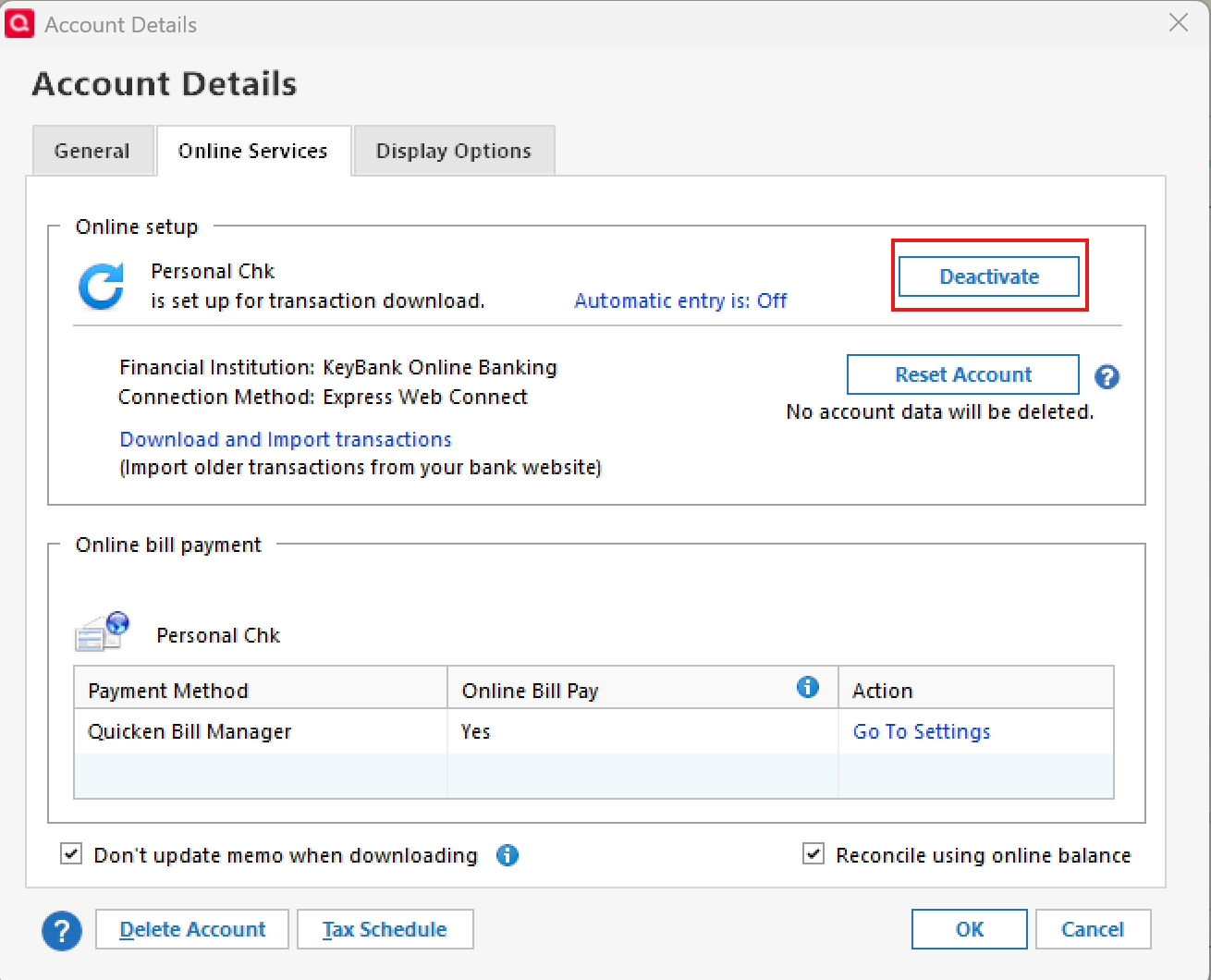
- In the Account Details window, click the Online Services tab.
- Click Deactivate, and then click Yes to deactivate online services.
- Click Yes again, if necessary, to confirm your choice.
- Repeat these steps to deactivate all accounts at this same bank.
- Return to the Online Services tab and click Set up Now for each account you've deactivated.
- Enter the correct login ID and follow the on-screen prompts to activate your account.
If the problem continues after following the guidance above, then we recommend contacting Quicken Support so they can review your logs and connection attempts in more detail.
Thank you!
-Quicken Anja
Make sure to sign up for the email digest to see a round up of your top posts.0 - Type your password/PIN into a text application, such as Notepad, WordPad, or other text/word application.
Categories
- All Categories
- 50 Product Ideas
- 35 Announcements
- 237 Alerts, Online Banking & Known Product Issues
- 19 Product Alerts
- 506 Welcome to the Community!
- 674 Before you Buy
- 1.4K Product Ideas
- 55K Quicken Classic for Windows
- 16.7K Quicken Classic for Mac
- 1K Quicken Mobile
- 826 Quicken on the Web
- 121 Quicken LifeHub