Cannot download transactions from Discover

JillDDD
JillDDD Quicken Windows Subscription Member

I use Quicken for Windows (subscription). I cannot download transactions from Discover. I have been prompted to re-authorize my Discover account, but the result is the attached pic. I tried deactive my account, then reactivate it; same result.

I was prompted to re-auth in January, but it didnt work then. At that time though I was able to bypass that prompt and continue to successfully download. Now, 2/13/26, I can't bypass the prompt, nor download. Efforts to re-auth only end in this error. Can you assist?
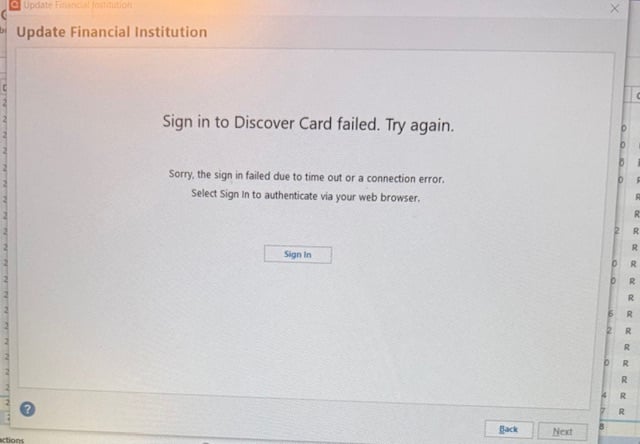
IMG_0604 (1).jpeg

Comments

  • Quicken Anja
    Quicken Anja Moderator mod

    Hello @JillDDD,

    Thank you for the detailed explanation.

    Upon review, it appears the account may currently be connected using Discover Card Account Center, which is no longer a supported connection instance. The supported connection option is Discover Card.

    To troubleshoot this, please follow the steps below carefully:

    1. Create a backup of your Quicken file first.
    2. Deactivate all Discover accounts in Quicken.
      1. Select the Tools menu and select Account List....
      2. In the Account List, select the account you want to deactivate, and then click Edit.
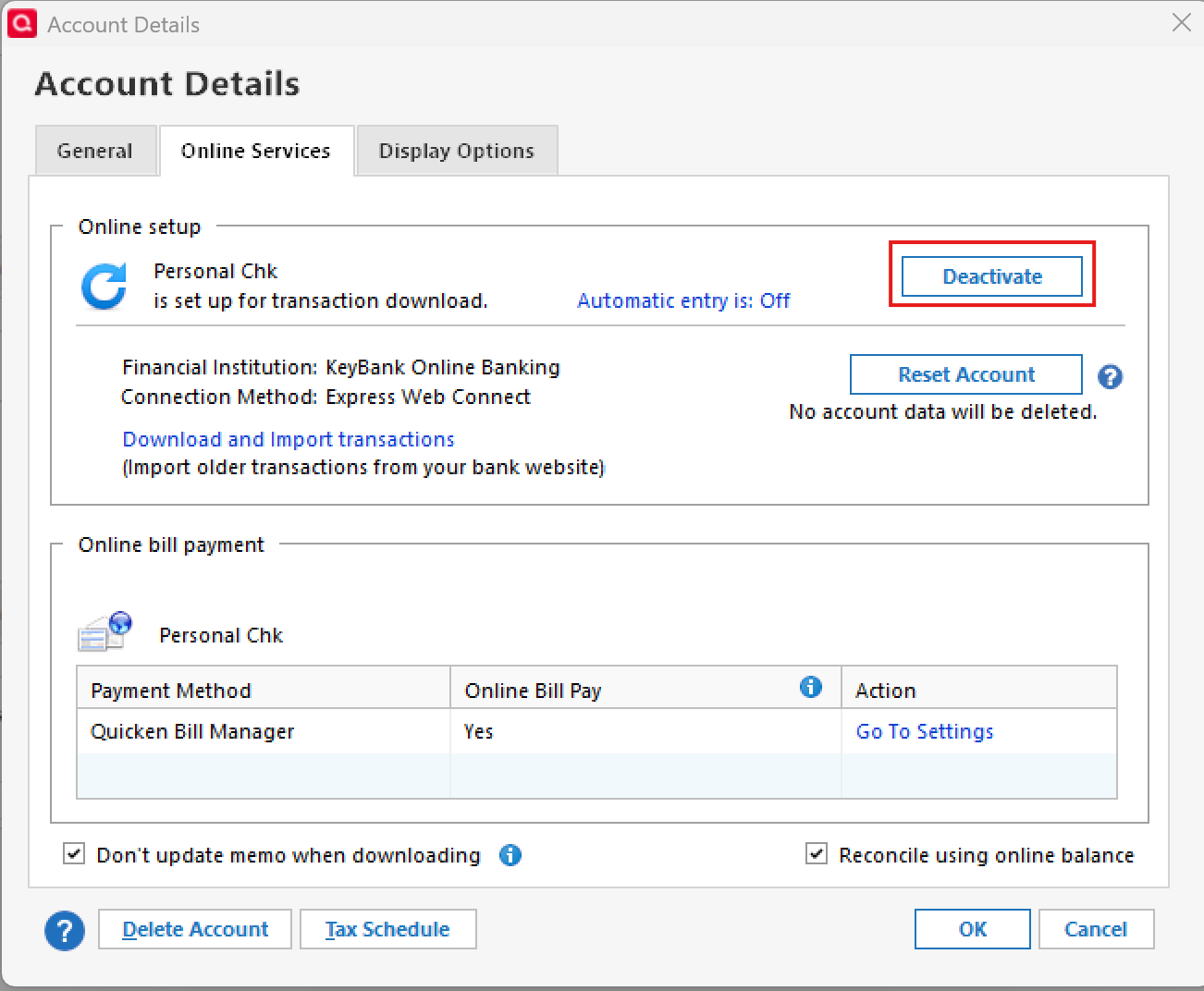
      3. In the Account Details window, click the Online Services tab.
      4. Click Deactivate next to the service you want to disable. image.png
      5. Click Yes to the message confirming if you want to disable this service. Note: If you do not receive this message, additional information is available below.
      6. Click OK to the confirmation message.
      7. If you have an investment account that is linked to a cash account, you need to deactivate the online services from the investment account which will automatically deactivate the linked cash account.
      8. Important: If you are deactivating/reactivating an account to fix an issue, you'll need to deactivate all the accounts with the affected financial institution that you have activated in Quicken (including hidden ones). Once they're all deactivated, then you can follow the steps to reactivate.
    3. Revoke Quicken’s third-party access from your Discover account on their website.
    4. Reactivate the accounts in Quicken.
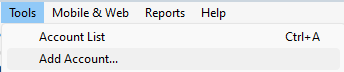
      1. Go to Tools > Add Account. image.png
      2. Select the bank for the deactivated account(s). If prompted, select the connection method.
      3. Enter your credentials and click Connect.
      4. When the list of located accounts appears, choose LINK next to each account you want to reactivate.
      5. Click Next then Done on the last prompt.

    Let us know how it goes!

    -Quicken Anja
    Make sure to sign up for the email digest to see a round up of your top posts.