Self Managed Account Types

I have been using Quicken for about 30 years. It took me about 15 years to figure out how to utilize it to zero-budget my money. Now that I have what I think is a great process for managing my personal budget, I'd like to share my ideas for some improvements to Quicken to make my life and certainly other users' lives easier.
- I have created budget accounts to keep track of my budget categories. I refer to these as "Envelope" accounts (based on Dave Ramsey's baby steps). I want to see a total for my envelope accounts but cannot do that without running reports. I'd like to be able to create my own "Envelope" account type and group that account type separately in the account bar on the left.
- I am currently creating offset transactions for every budget expense transaction I add to quicken (usually all in one credit card account). I'd like to be able to create these offset transactions automatically based on the category I select. So here's how it would work: I enter a spend transaction on my credit card, select one of the budgeted envelope categories and it automatically deducts the transaction amount from the account tied to the envelope category.
- At the beginning of each month, I create a new budget. Part of my budgeting process is to add money into the envelope accounts for the amounts I have budgeted. I'd like to be able to setup a single transaction to enter the budgeted amounts into all of my envelope accounts instead of having to type in 14 separate transactions. I'm thinking this could be done with bill and income reminders kinda like a paycheck.
Thank you for considering these ideas.
Comments
-
Hello @siemerm,
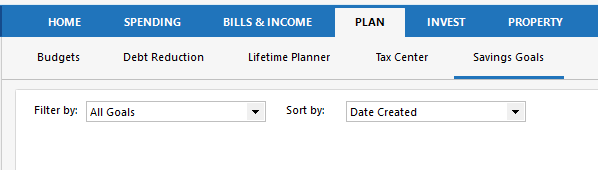
Thank you for sharing your feedback! Quicken does support envelope budgeting through the use of Savings Goals. You can set up Savings Goals by navigating to the Planning tab, then the Savings Goals tab.
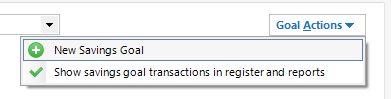
Select Goal Actions, then New Savings Goal.
For more information on setting up savings goals, please review this article:
Once the goals are set up, you'll be able to edit them, view reports, and delete them as needed. For information on working with savings goals, see this article: .
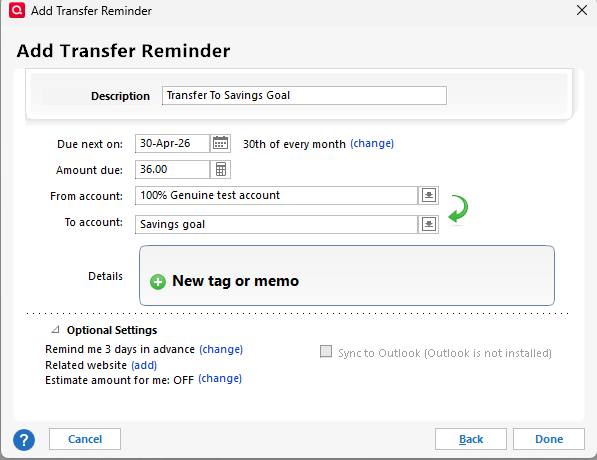
You can set up reminders to shift the funds into the savings goals. You can do a bill reminder or a transfer reminder. For a transfer reminder, the savings goal you want the funds to go to would be the To account.
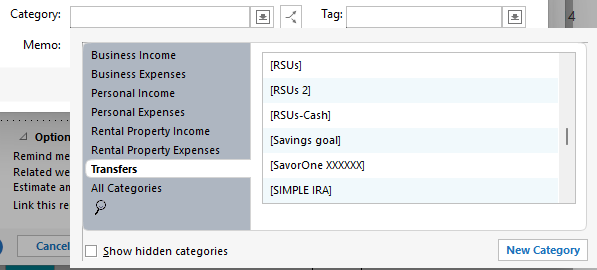
If you do a bill reminder, it would be similar, but you'd use the category field, Transfers, and select the appropriate savings goal.
When it's time to take the money back out of the Savings Goal, you would follow these steps to withdraw the funds:
- Click the Planning tab.
- Click the Savings Goals button.
- Click Withdraw in the savings goal you want to withdraw money from.
- Select the bank account to put money back into, enter the amount to withdraw from the savings goal, and change the date if necessary.
For more information on withdrawing funds from a savings goal, please review this article:
Would this meet your needs?
Thank you!
Quicken Kristina
Make sure to sign up for the email digest to see a round up of your top posts.
0
