PNC Bank - OL-297-A Error - Not Able to Connect or Download - Quicken Direct Connect
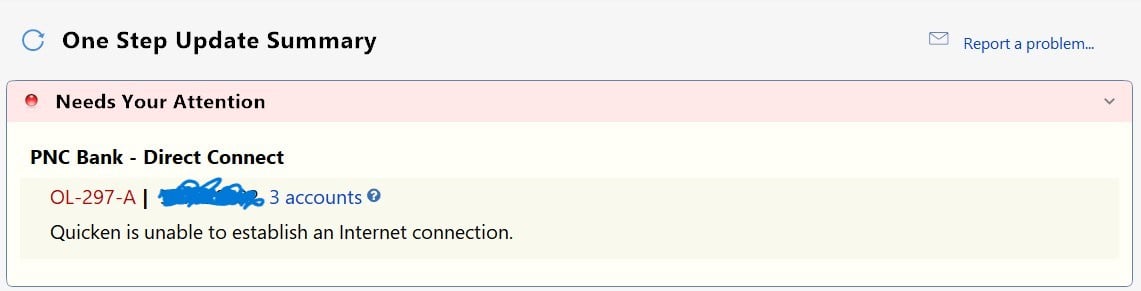
Received this OL-297-A error now for the last two days with PNC Bank. All of my other accounts are connecting and downloading just fine. I have PNC Direct Connect with 11 accounts. A similar problem occurred earlier in the year when PNC updated their website, however that problem was ultimately fixed. This current problem feels eerily similar. I tried rebooting. I really don't want to go through the whole deactivate/activate cycle if I can help it. Takes too long. Anybody else having this issue?
Comments
-
3/27 @ 5:36am Update - Just validated my Quicken file and attempted an update directly from one of my PNC accounts. Same OL-297-A error received. Unable to establish an internet connection. This error hits almost immediately upon attempting to connect with PNC.
0 -
Same issue for me the last two days…much like in the recent past I agree. I have tried it from two pc's on two different networks and still doesn't work
0 -
Thanks for reaching out! The OL-297 error in Quicken typically occurs when Quicken cannot establish a secure connection to your bank’s servers. This doesn’t mean your internet is down—you may still be able to log in to PNC’s website directly.
This error often happens around times when banks update their security settings or perform server maintenance, which can temporarily prevent Quicken from connecting.
Please follow the steps below that usually help resolve the issue:
Update your internet security settings
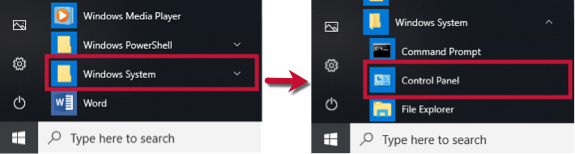
1. Click the Start button and select the Control Panel.
- Windows 10: The Control Panel is located in the Windows System folder in the Start menu.
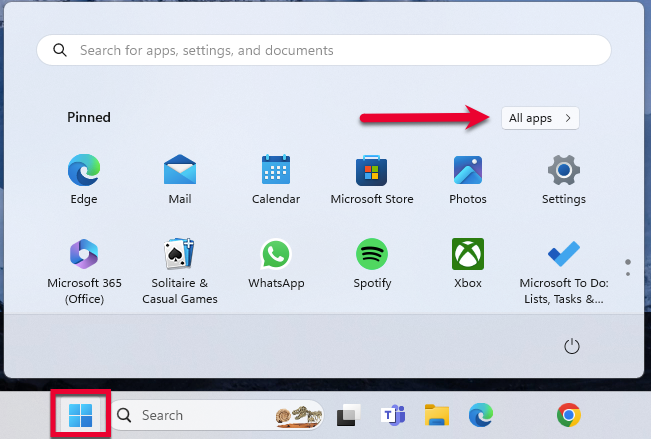
- Windows 11: Go to the Start menu and select All apps.
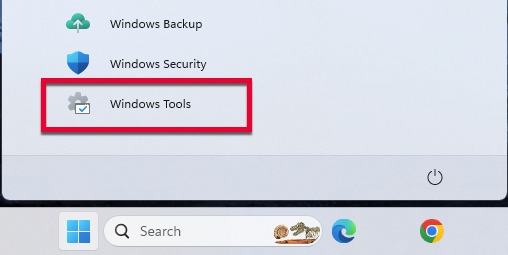
Then, go to Windows Tools and select Control Panel.
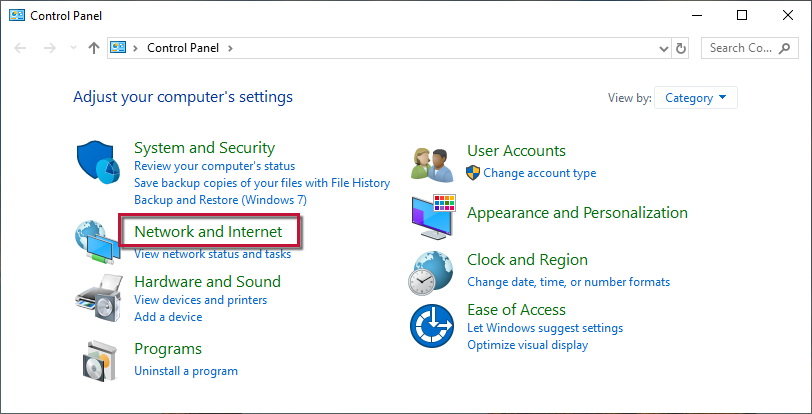
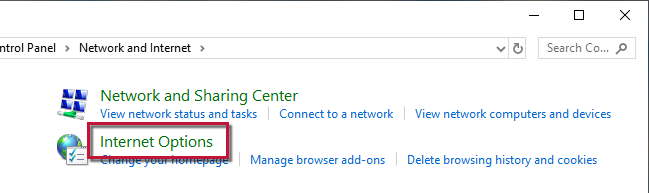
2. Select Network and Internet, then Internet Options.
3. Go to the Advanced tab.
4. Scroll down to the Security Section.
5. Verify TLS 1.2 is checked.
- If it is not, check it.
- If it is already checked, continue to the If the issue persists section below.
6. Click Apply, then OK.
7. Try your update in Quicken again.
If the issue persists
If updating the Advanced settings does not resolve the error, follow the additional steps below.
If you get this error with all of your banks
Check your system date and time settings
- Right-click the clock on the task bar at the bottom right corner of your screen and select Adjust date/time.
- In the Date & Time section, check to see if the time is correct. If it is not, fix it.
- To fix it, turn Set time automatically off, then click Change and make the necessary adjustment.
- Sometimes the time zone may be incorrect. In the Time Zone section, make sure it is set to the correct time zone.
- If you made any changes to the time or time zone, open Quicken and attempt your online request again.
Restart your computer
- Save your work and close all open applications.
- From the Start menu, choose Restart.
- Select Restart and click OK.
- Once you're back up and running, try your Quicken online request again.
Reconfigure your firewall
- Verify that the Quicken program (qw.exe) has full and unrestricted access to the Internet. For more information, take a look at Configuring Firewalls.
If you get this error with some (not all) of your banks
If only one bank is showing this error, it's likely a temporary issue; if this is the case, wait until the next business day and then try to update again.
In the meantime, make sure the settings are correct for accepting cookies.
1. Click the Start button and select the Control Panel.
- Windows 10: The Control Panel is located in the Windows System folder in the Start menu.
- Windows 11: Go to the Start menu and select All apps.
Then, go to Windows Tools and select Control Panel.
2. Select Network and Internet...
...then Internet Options.
3. Select the Privacy tab.
4. Click on the Advanced button.
5. If available, check the Override automatic cookie handling option.
6. Confirm that First-party and Third-party Cookies are both set to Accept.
7. Press OK, then Apply and OK again.
8. Close Internet Options and try updating Quicken again.
If the issue persists only with PNC, it is likely temporary. Since Quicken does not have access to the bank’s servers, you will need to contact PNC’s Online Services support for assistance. Ask to speak with a representative who handles transaction download issues. Sometimes a brief escalation is required if the standard support team cannot resolve it.
Thank you!
-Quicken Anja
Make sure to sign up for the email digest to see a round up of your top posts.0
Categories
- All Categories
- 6 Product Ideas
- 34 Announcements
- 250 Alerts, Online Banking & Known Product Issues
- 19 Product Alerts
- 265 Welcome to the Community!
- 301 Before you Buy
- 1.5K Product Ideas
- 55.8K Quicken Classic for Windows
- 16.9K Quicken Classic for Mac
- 1K Quicken Mobile
- 834 Quicken on the Web
- 129 Quicken LifeHub