I added a custom view under the "Home" tab and can't reset default settings on my charts - Ideas?

Purchased July 2025 - Windows 11 - Quicken Classic Premier
I am keeping the default "Dashboard" under the "Home" tab and also adding my own custom views. I have added several "Expense" "Cards" (Tiles?) to experiment with my options. There is an icon in the top right corner of each "Card" which I click and select "Customize This Graph." This action brings up a "Customize" window. When I was getting started I was selecting accounts by using the add/delete/move up/ move down style selection process. I was in a hurry one time and closed the window quickly and a warning popped up asking me something about "are you sure you want to revert to old style selection? You can go back by selecting…." I didn't pay attention and closed it out. Now I have some old style selection options where you have to click to expand or collapse each item and click the checkbox next to it.
Does anyone know how I can get the new style selection option back?
I've searched everywhere and can't figure it out.
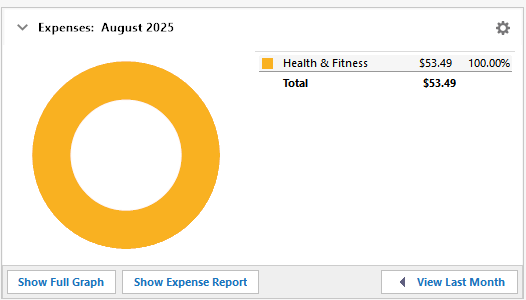
Tile in new view I created under Home tab
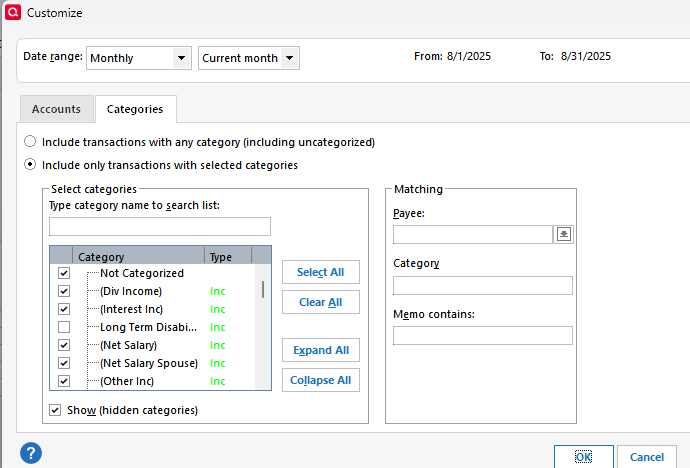
This is what the customize window looks like now.
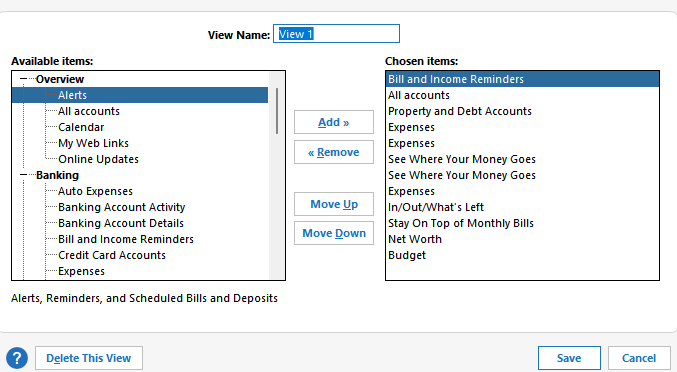
This is the menu for a different item. This is what my graph options looked like before and I can't get back there.
All help appreciated.
Thanks
Answers
-
Hello @Johnathan_1972,
We appreciate you reaching out about this!
Is the box shown below the message you saw?
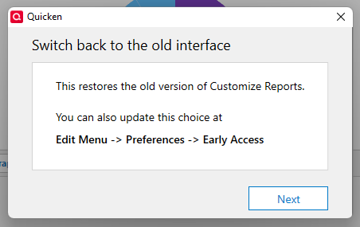
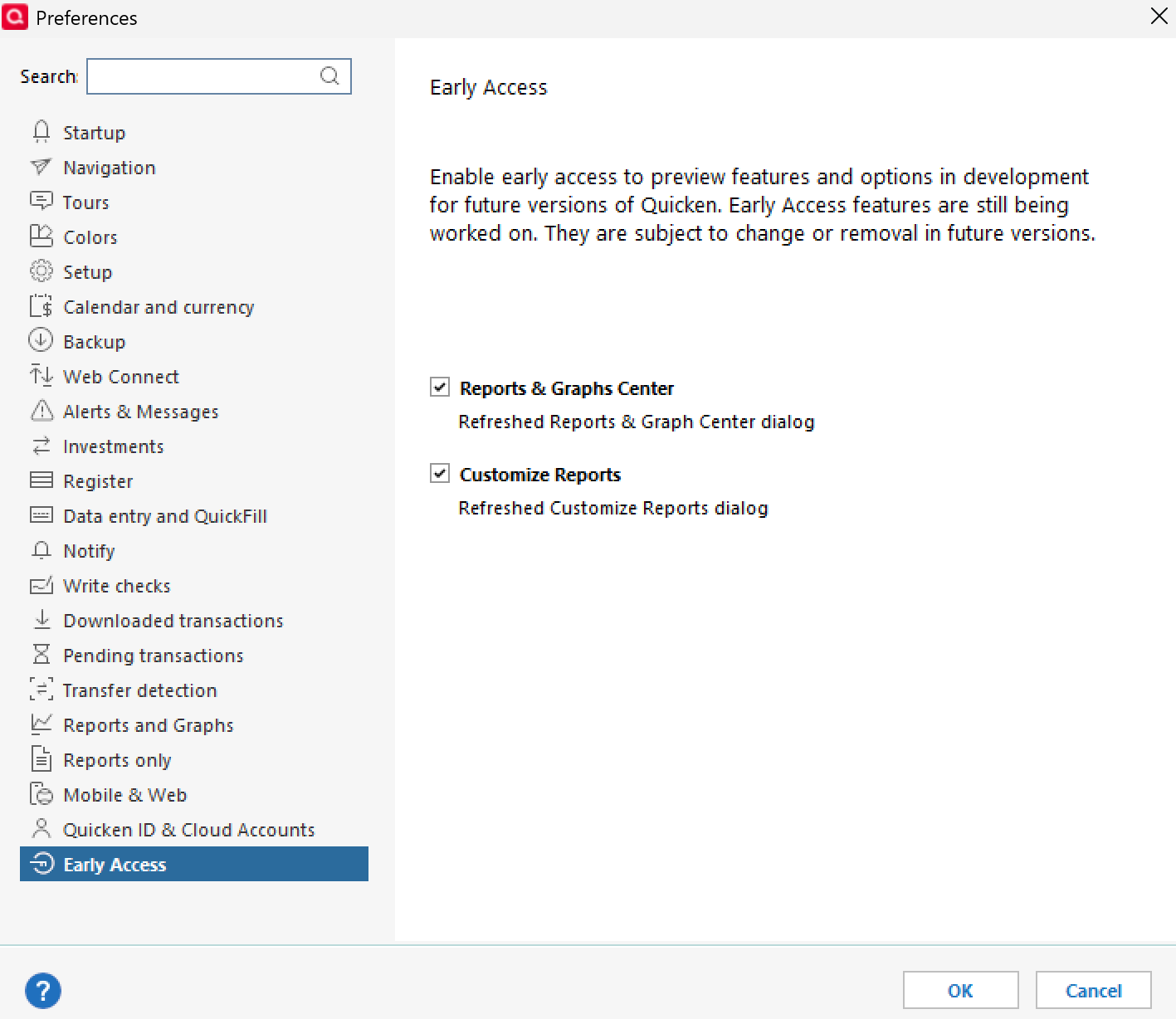
If so, you can follow the steps in that window by going to Edit > Preferences > Early Access, and then check both boxes in the window shown below.
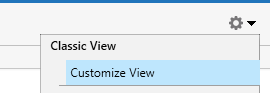
Additionally, when you click on the Gear Icon located at the top-right corner of one of your custom views on the Dashboard, you’ll see the option for Customize View.
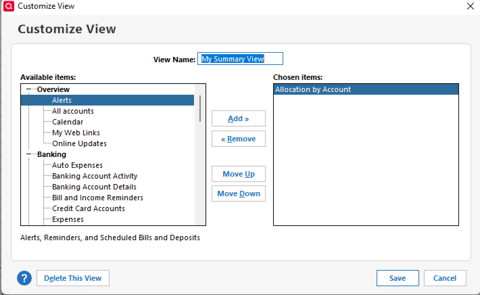
Clicking this brings up the screen shown below.
However, if you click the lower Gear icon in the custom graph tile itself—
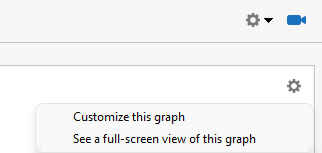
—you’ll be presented with a different customization window like the one shown here.
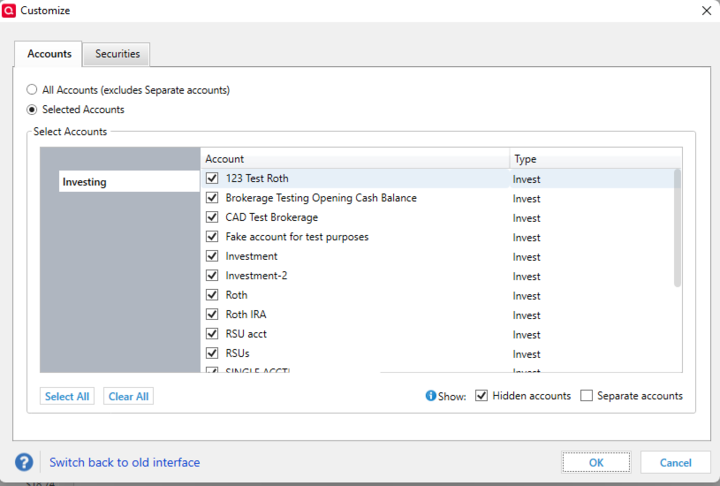
Hope this helps!
-Quicken Anja
Make sure to sign up for the email digest to see a round up of your top posts.1 -
ANJA SOLVED!!!!!
Thank you! That was exactly the issue. I saw Early Access in Preferences when I was troubleshooting but I didn't think it had anything to do with it and I didn't want to make things worse!
Thank you sooooo much!
1 -
You're very welcome! Glad I was able to help figure this out for you.
-Quicken Anja
Make sure to sign up for the email digest to see a round up of your top posts.1
