How do I delete a check that I accidentally set up to print that I don't want to print?

Best Answer
-
Hello @jr-two,
Thanks for reaching out with your question! Here’s how you can do that:
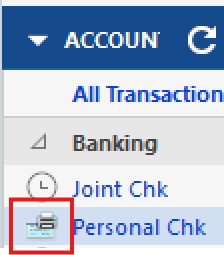
- In the Account list, look for the icon next to your account name indicating there are checks to print.
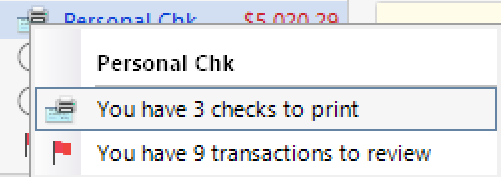
- Click on that icon and select "You have # checks to print" to see the list of pending checks.
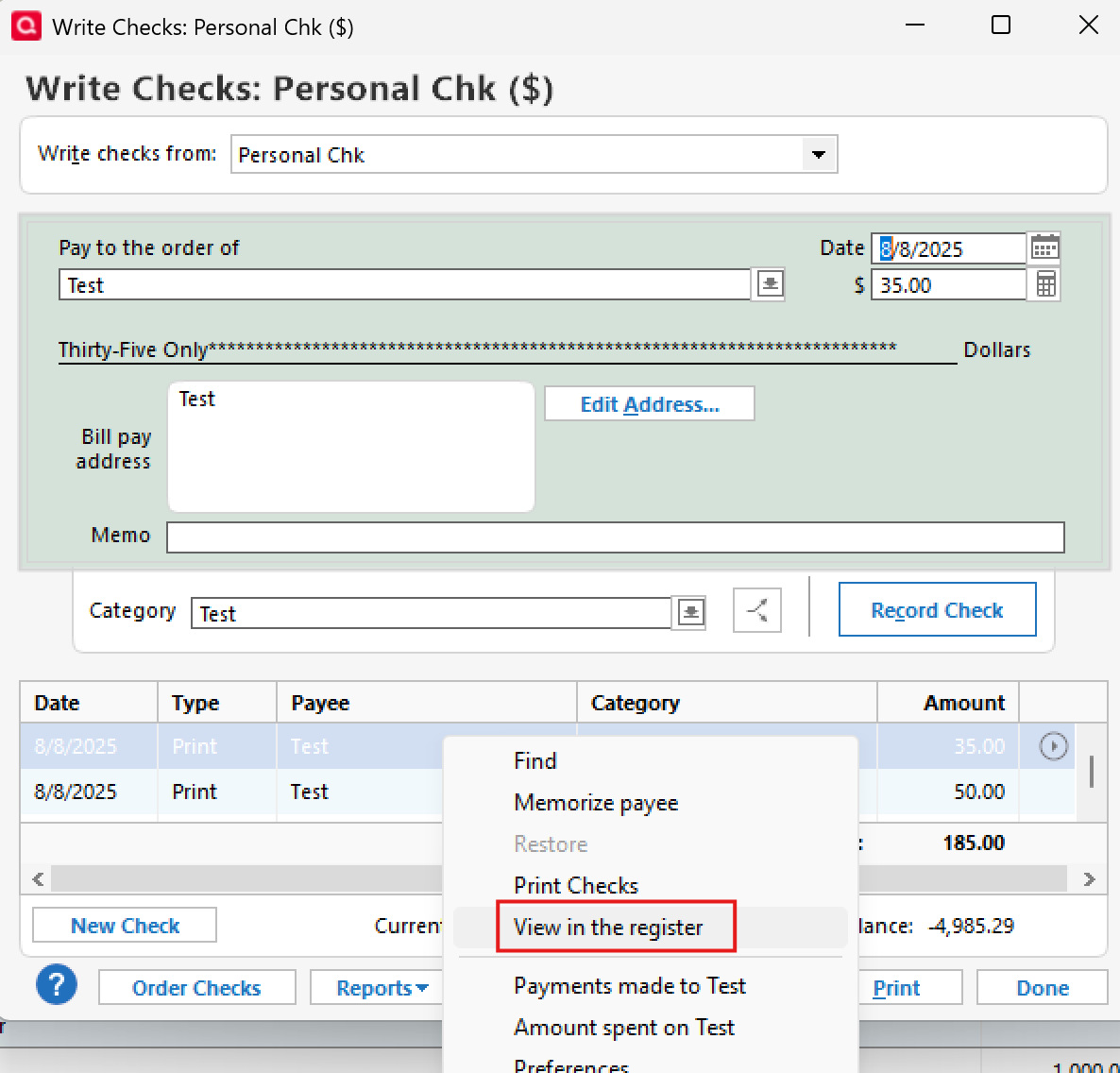
- In the list, right-click the check you want to remove and select "View in the register."
- This will open the transaction in the register.
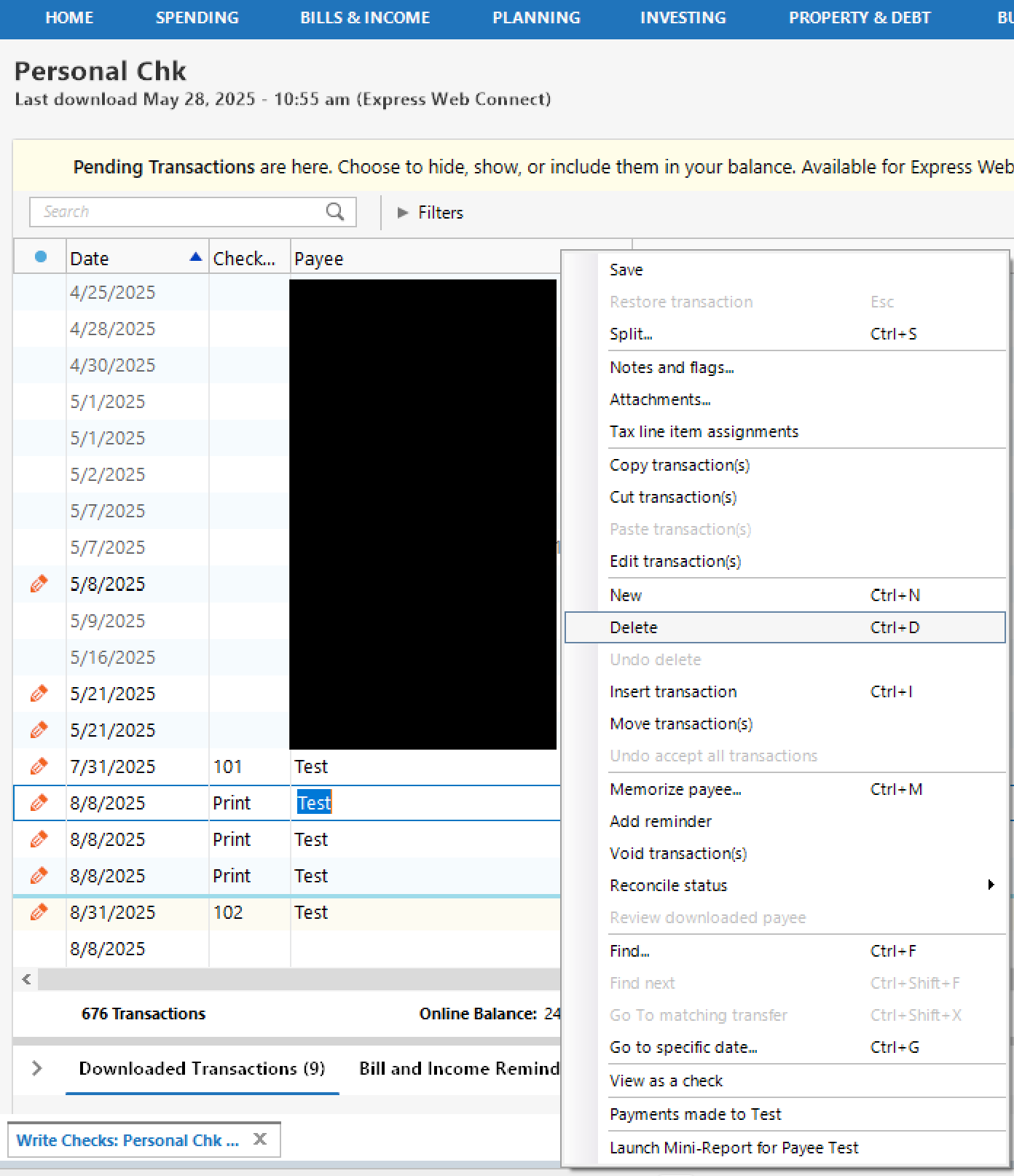
- If you want to delete the transaction entirely, right-click it and choose Delete.
- If you want to keep the transaction but remove it from the print queue only, simply clear the word "Print" from the Check # field and save the change.

- If you want to delete the transaction entirely, right-click it and choose Delete.
Please note that these instructions align with the latest version of Quicken (R64.19). Since you are still running R60.20, we do advise updating your program to the latest version. You can do so by navigating to Help > Check for updates.
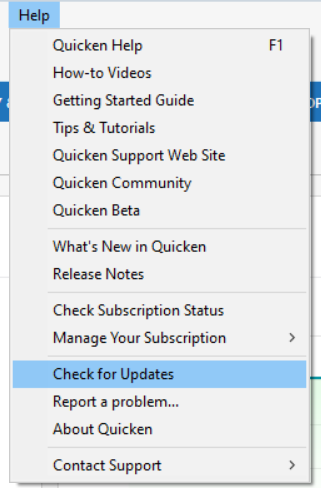
Alternatively, you can also download and install the Manual Patch via this support article.
Hope this helps!
-Quicken Anja
Make sure to sign up for the email digest to see a round up of your top posts.1 - In the Account list, look for the icon next to your account name indicating there are checks to print.

Answers
-
Hello @jr-two,
Thanks for reaching out with your question! Here’s how you can do that:
- In the Account list, look for the icon next to your account name indicating there are checks to print.
- Click on that icon and select "You have # checks to print" to see the list of pending checks.
- In the list, right-click the check you want to remove and select "View in the register."
- This will open the transaction in the register.
- If you want to delete the transaction entirely, right-click it and choose Delete.
- If you want to keep the transaction but remove it from the print queue only, simply clear the word "Print" from the Check # field and save the change.
- If you want to delete the transaction entirely, right-click it and choose Delete.
Please note that these instructions align with the latest version of Quicken (R64.19). Since you are still running R60.20, we do advise updating your program to the latest version. You can do so by navigating to Help > Check for updates.
Alternatively, you can also download and install the Manual Patch via this support article.
Hope this helps!
-Quicken Anja
Make sure to sign up for the email digest to see a round up of your top posts.1 - In the Account list, look for the icon next to your account name indicating there are checks to print.
-
It worked!! Thank you so much.
0 -
Thanks for the update! Glad to hear that worked for you.
-Quicken Anja
Make sure to sign up for the email digest to see a round up of your top posts.0 -
Please remember that, if this check transaction originated from an entry in the Memorized Payee List or a Scheduled Reminder, do not forget to edit this entry and change the "Print to check" option to "Payment" or uncheck "Print check with Quicken", so that future transactions do not appear as checks to be printed.
0

Categories
- All Categories
- 6 Product Ideas
- 34 Announcements
- 253 Alerts, Online Banking & Known Product Issues
- 19 Product Alerts
- 265 Welcome to the Community!
- 301 Before you Buy
- 1.5K Product Ideas
- 55.8K Quicken Classic for Windows
- 16.9K Quicken Classic for Mac
- 1K Quicken Mobile
- 834 Quicken on the Web
- 129 Quicken LifeHub