renaming rules not being saved

I am using Quicken Classic R58.8 on Win 11 Within the past month or so, I did an update to Quicken, and noticed I had no renaming rules, so I started (re) creating them. However, they only last from the most recent session of creating rules in Quicken. When I add new one(s) in a future session, the older ones disappear permanently. How can I fix this?
Answers
-
Hello @njfiddler,
Thank you for bringing this up! Since you’re currently on R58.8, the first step we recommend is updating to the latest release (R64.30). There have been several updates since R58.8 that included fixes and improvements, so it’s possible that updating could resolve the renaming rules issue you’re seeing.
You can update by going to Help > Check for Updates in Quicken.
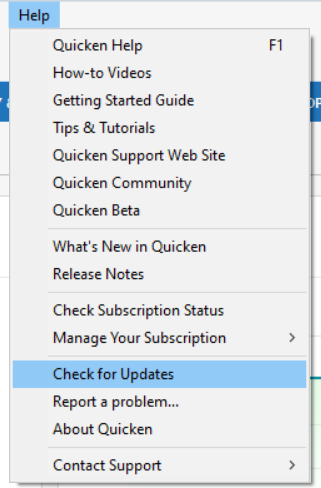
If the problem continues even after updating, please let us know so we can dig deeper.
Thank you!
-Quicken Anja
Make sure to sign up for the email digest to see a round up of your top posts.0 -
I updated Quicken to R64.30, and it got worse. Now in a new Quicken session, ALL of my renaming rules disappeared!
0 -
@njfiddler I’m sorry to hear the update made things worse. At this point, the safest next step is to restore a backup from before this issue started to see if your renaming rules return.
Also, could you let me know where your Quicken data file is stored? Is it on your local hard drive (C: Drive) or on a cloud-based/external drive (e.g., OneDrive, Dropbox, USB, etc.)? This can help determine if file location might be contributing to the rules not being saved.
Thank you!
-Quicken Anja
Make sure to sign up for the email digest to see a round up of your top posts.0 -
Okay, I need some help in answering your question. I thought a couple years back I switched to have the Quicken data file in the Quicken cloud, and I remember seeing a popup saying something like "sync to the cloud" when I closed the app. However, when I look in BACKUP folder under my profile folder "John Feaver", I see a current backup file, then the most recent one is from August of 2024. It was dated yesterday until I closed Quicken today, then it overwrote the same file name with today's date. That doesn't sound right, as it undermines the restore function.
I don't want to go back a year to restore that file.
The renaming file is not that important to me, but now my bigger concern is this: is my backup setup correct?
0 -
@njfiddler Thanks for your detailed explanation—I can definitely help clarify.
First, regarding Quicken Cloud: it’s a common misconception, but Quicken Cloud does not serve as cloud storage for your Quicken data file or backups. Its purpose is only to sync information from your desktop data file to the Quicken Mobile and Web companion apps so you can view and enter transactions on the go. More details can be found in this support article.
For your backups, Quicken creates both automatic and manual backups depending on your preferences. From your description, it sounds like the automatic backup might be overwriting with the same file name rather than keeping multiple versions.
To better understand what’s happening, could you please share:
- A screenshot of your backup folder showing the backup files there.
- A screenshot of your backup settings in Quicken, which you can find by going to Edit > Preferences > Backup.
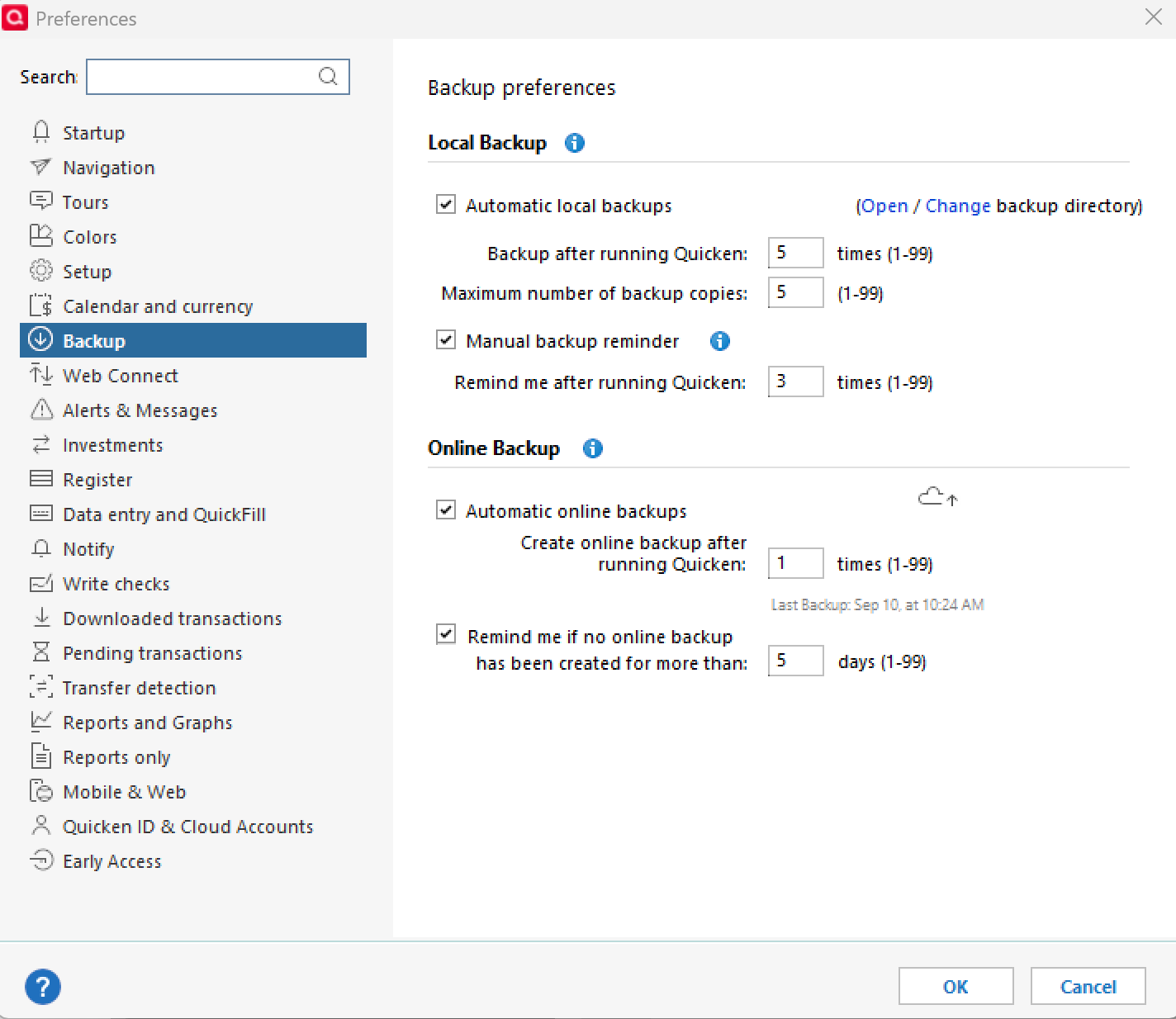
That will help us confirm if your backup settings are configured correctly or if you just need to adjust them so multiple backups are saved instead of overwritten.
If needed, please refer to this Community FAQ for instructions on how to attach a screenshot. Alternatively, you can also drag and drop screenshots to your response if you are not given the option to add attachments.
Thank you!
-Quicken Anja
Make sure to sign up for the email digest to see a round up of your top posts.0 -
Here you go…
0 -
Feedback, please?
0 -
Hello @njfiddler,
Thank you for providing the screenshots—they’re very helpful. From what you’ve shared, it looks like your backup folder is only showing files from a year ago, even though your backup settings are configured to auto-save recent backups.
To help pinpoint where your recent backups are being saved, please try this:
- In Preferences > Backup, go to the top right corner of the Backup screen.
- Click Open Backup Directory.
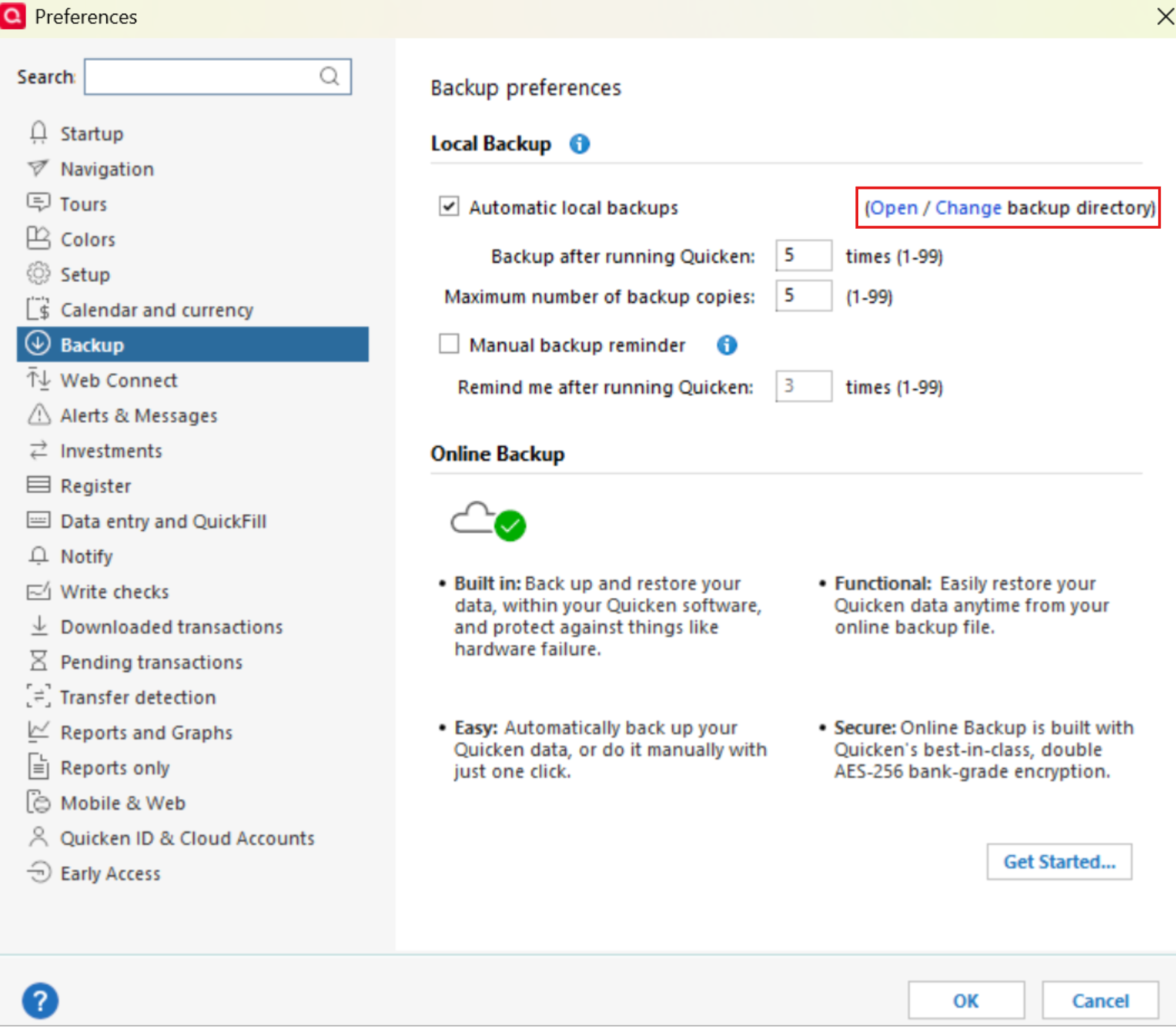
This will open the folder that Quicken is currently using for backups and should show your most recent backup files.
Once you see where the recent backups are being saved, we can confirm whether the settings need adjustment or if there’s another issue causing older backups to appear in your folder.
Thank you!
-Quicken Anja
Make sure to sign up for the email digest to see a round up of your top posts.0 -
Thanks. This revelaed that my backups are working just fine in the BACKUPS/BACKUPS directory. So I believe I'm okay on that front.
However, I still don't know why renaming rules are not being preserved. Just so I'm clear, if I download a payee as XXXXXABCXXXX, can I 1) rename that to ABC, and 2) assign a category based on the payee? Right now, I can't even get #1 to work.
0 -
Hello @njfiddler,
Thank you for providing the additional information and for trying the steps we discussed earlier — that’s very helpful.
Regarding your renaming rules: it’s possible that the behavior you’re seeing is related to saved category rules or multiple memorized payee entries. For example, if a payee has more than one line with different categories saved, Quicken may default to one or may not apply the renaming or category assignment at all.
To check this, please try the following:
- Go to Tools > Memorized Payee List.
- Locate the payee(s) that are giving you trouble.
- Check if the payee has multiple lines with different categories assigned (for example, a payee like “Albertsons” could have 5 lines with different categories).
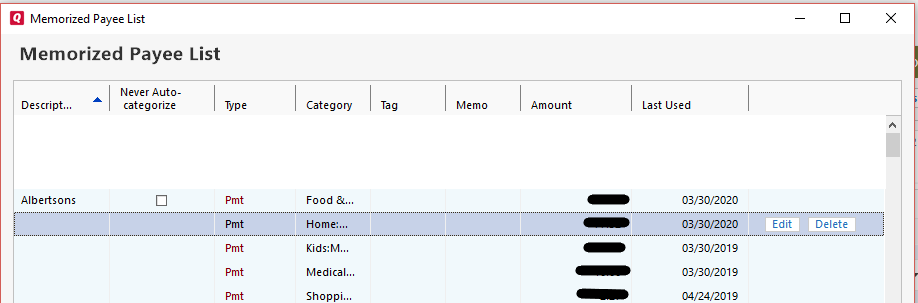
- If you see multiple entries, delete any lines with undesired categories and keep only the line with the category you want.
After doing this, try renaming the payee again and see if it sticks. This should help ensure that your renaming and category assignments are applied consistently.
Thank you!
-Quicken Anja
Make sure to sign up for the email digest to see a round up of your top posts.0 -
I cleaned up a few of those, but they aren't the ones giving me trouble. A couple days, I created a renaming rule, but today the list is empty. Another agent suggested I go a backup file, but at this point it seems I would have to go back several months to get back to a version that works, then re-download all those transactions. If there's no better way, I'll just have to live without renaming and memorizing, although that is a hassle.
0 -
@njfiddler Thank you for the detailed updates and for cleaning up your memorized payee list — that definitely helps narrow things down. Before resorting to restoring an older backup, there are a couple more steps we can try, as this behavior could be related to a data file issue.
Important: Please save a backup of your data file before performing these steps.
Validate your data file:
- Go to File > Validate and Repair File…
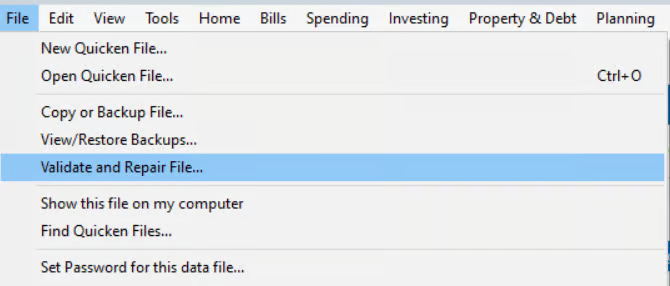
- Click OK
- Close the Data Log once it finishes
- Close Quicken completely (leave it closed for at least 30 seconds)
- Reopen Quicken and check if the renaming rules now persist
If the issue persists, proceed to Super Validate. If the issue is resolved after performing validation, then please disregard the instructions to Super Validate.
Super Validate your data file:
- Go to File, then hold CTRL + Shift and click Validate and Repair File…
- Choose Super Validate File
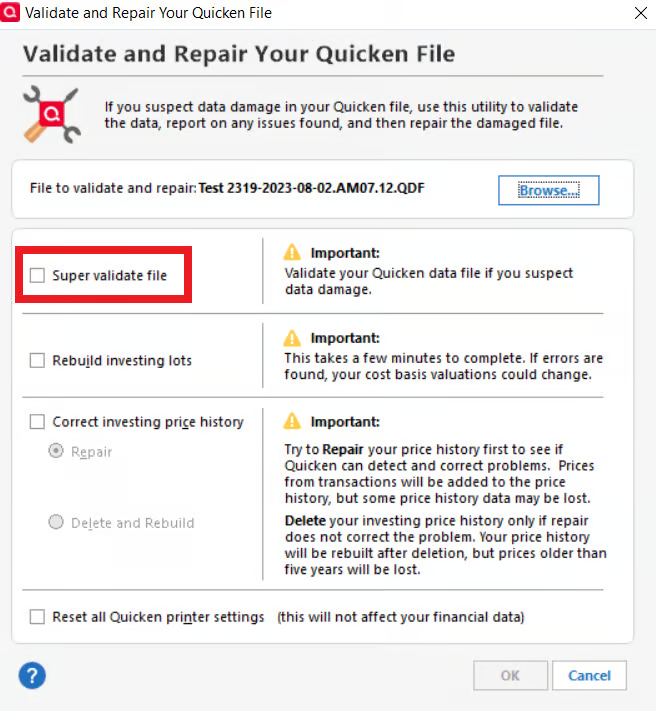
- Click OK
- Close the Data Log
- Close Quicken completely (leave it closed for at least 30 seconds)
- Reopen Quicken and test the renaming rules
These steps often resolve issues with rules and memorized payees that fail to save due to minor data file corruption.
Let us know how it goes!
-Quicken Anja
Make sure to sign up for the email digest to see a round up of your top posts.0 - Go to File > Validate and Repair File…
-
I had to use Super Validate, and for a while it seemed to make a difference. That is to say, each day I would close Quicken, and when re-opening, the renaming rules would be retained. I was waiting for those rules to have an opportunity to be used, but this morning all of the rules are gone.
What's next?
0


