Fidelity web-connect

I tried updating my Fidelity account in Quicken, and when I try to do so, I get the notice that I cannot do so until I accept previous downloaded transactions. When I check my Quicken Fidelity account, there are no downloaded transactions to accept.
Also, my other Fidelity accounts, when I try to connect to Fidelity, I receive duplicate transactions from Fidelity that I already had in my account. MAJOR PROBLEM. Please advise. I've been a VERY long term subscriber to Quicken, and this is a major mess-up. Bob
[Edited - Readability/Language]
Comments
-
Hello @rkr833,
Thank you for reaching out! To address the first issue you are encountering, please follow these steps from our article on when Quicken says there are transactions to accept, but you don't see any:
First, turn automatic entry off
1. Press Ctrl+A on the keyboard to bring up the Account List, then click the Edit button next to the affected account in the list.
2. In the Account Details window, click on the Online Services tab then click Automatic entry is.
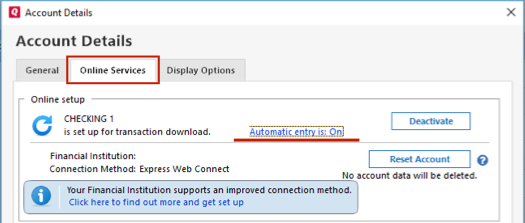
3. Select No on the next dialog box and click OK. Automatic entry should show as "Off" now.
4. Click OK to close the Account Details window, then click Done on the Account List.
5. Close Quicken, wait a few seconds, then re-open it. The transactions should appear upon re-opening Quicken.
Note: If you have multiple accounts affected by this issue, you can make the change outlined above to all the accounts at once by going to Edit > Preferences, then going to Downloaded transactions and unchecking the box next to Automatically add to banking registers.
Then, check the account register and Online Center
Quicken will show you downloaded transactions in multiple locations. The following information shows you how to check for downloaded transactions in the account register and Online Center.
- Open the account register and select Downloaded Transactions at the bottom of the register.
- If there are transactions listed, accept them to the register.
- If there are not any transactions listed, proceed with the next step.
- Choose the Tools menu > Online Center.
- Select the appropriate financial institution and account.
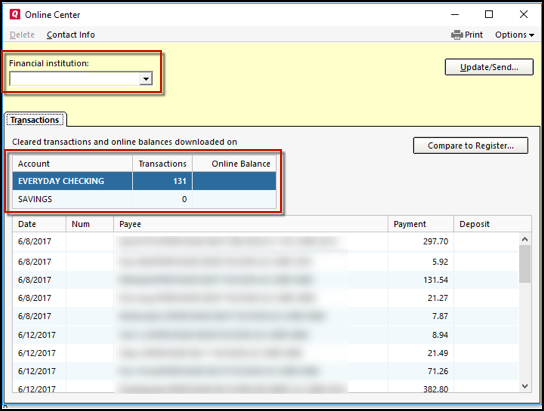
4. Select Transactions.
- If transactions are listed, click Compare to Register and accept the transactions. Note: Compare to Register will display online payments on the initial screen. After accepting your online payments, click Continue, Next or Done to see the rest of your downloaded transactions.
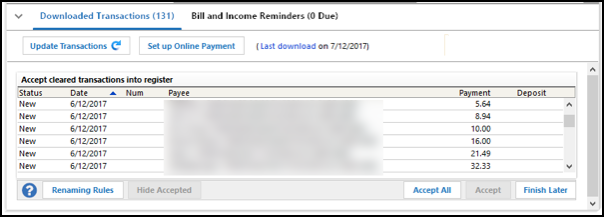
- If no transactions are listed or Compare to Register does not allow you to accept the transactions, proceed to the next section.
Lastly, correct data issues
If the Quicken data file is damaged, you might receive prompts about downloaded transactions when you don't have any downloaded transactions.
If you know when this issue began, the best solution is to restore a backup created before this issue began.
If you do not have a backup to restore, Quicken has a built-in utility, Validate, that will correct many data issues. Please note this does not correct all issues and these steps should be taken if the other steps outlined did not resolve the problem.
- Choose the File menu > Copy or Backup File.
- Select Create a copy or template, then click Next.
- Accept all defaults and click Save Copy.
- Open the New Copy when prompted.
- Choose File > Validate and Repair File.
- Select the new copy created in step 3 and click OK.
Note: Depending on the size of your data file, you may need to wait a while for the validation process to finish. Do not use the Task Manager to close Quicken. Quicken displays an error message if it cannot validate the file. If Quicken is able to validate the file and any errors are found, Quicken displays a message, "Data losses were found in your file." You can view the log file for more information.
When the validation process is complete, you will need to Reactivate your accounts for transaction download in the new file copy.
- Go to Tools > Add Account.
- Select the bank for the deactivated account(s). If prompted, select the connection method.
- Enter your credentials and click Connect.
- When the list of located accounts appears, choose LINK next to each account you want to reactivate.
- Click Next then Done on the last prompt.
- After all of your accounts have been Reactivated, complete the Check the account register... section steps above again.
For the second issue you mention, the issue with duplicate transactions, please provide more information. Does this happen just one time, once you reconnect the accounts under the new connection, or does this happen every time you run One Step Update? If this happens just one time, that is normal behavior. The change to the connection makes it harder for Quicken to see that the transactions are already in your register, so you may see 30-60 days worth of duplicate transactions the first time you connect using the new method.
I hope this helps!
Quicken Kristina
Make sure to sign up for the email digest to see a round up of your top posts.
0 - Open the account register and select Downloaded Transactions at the bottom of the register.
-
Fidelity Investments doesn't (has never) support "Web Connect", where you initiate the download of transactions/etc from their website in a Q-accepted format.
They previously supported Direct Connect, and have recently converted to "Express Web Connect+", but that's not the same as Web Connect.
And, it's not at all unusual for a change in download methods (DC to EWC+) to result in redundant transactions … but that's a one-time event for the 1st download after the conversion.
SO, please elaborate upon exactly what you're asking.
Q user since February, 1990. DOS Version 4
Now running Quicken Windows Subscription, Business & Personal
Retired "Certified Information Systems Auditor" & Bank Audit VP0


Categories
- All Categories
- 46 Product Ideas
- 34 Announcements
- 248 Alerts, Online Banking & Known Product Issues
- 22 Product Alerts
- 513 Welcome to the Community!
- 679 Before you Buy
- 1.4K Product Ideas
- 55.4K Quicken Classic for Windows
- 16.8K Quicken Classic for Mac
- 1K Quicken Mobile
- 829 Quicken on the Web
- 123 Quicken LifeHub