Current Fidelity Instructions

@Quicken Kristina and others, I know in the last week or two I saw an entry in one of the many Fidelity threads concerning current suggested steps to follow for the Fidelity reauthorization process. It wasn't as easy as "deactivate all Fidelity accounts and then reauthorize" if I remember correctly.
I'm unable to find that now … there's just too much discussion for a search on "Fidelity instructions" to bring it visible.
Could one of you create a new entry in either the Announcements or Alerts channels with the current recommendations, so they're easier to find?
Answers
-
Hello @Bob@45,
Thank you for reaching out! The process to follow varies a bit, depending on what issue you're encountering. For most people, just using the reauthorize prompt and making sure to carefully link the accounts works. Below are the instructions for the issues that most often come up:
- If you need to reauthorize your accounts, but are not getting the reauthorize prompt, then you would want to backup your file, deactivate the accounts, then reconnect by navigating to Tools>Add Account and following the prompts, making sure to carefully link the accounts to the correct nickname in Quicken.
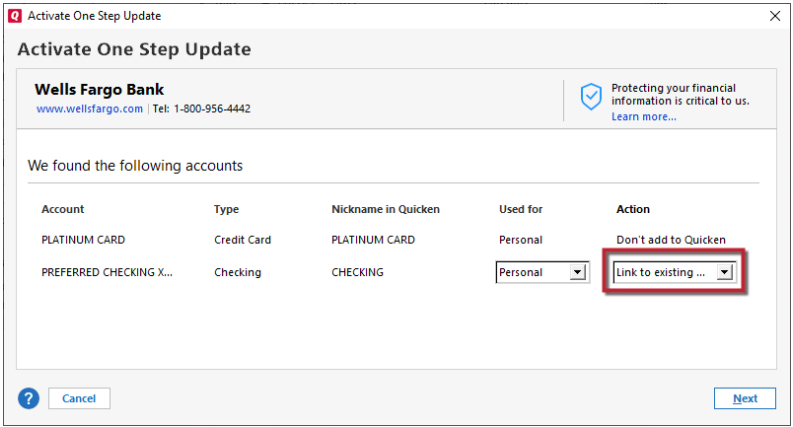
2. If you are unable to link your accounts due to Quicken showing "Don't add to Quicken", and giving no option to change it, that means Quicken thinks the accounts are already connected. In that instance, you would need to take note of the Nickname that Quicken sees for the problem accounts, backup your file, navigate to Tools>Account List, select Show hidden accounts if you see the option, and then locate & deactivate the accounts that Quicken thinks the problem accounts are connected to.
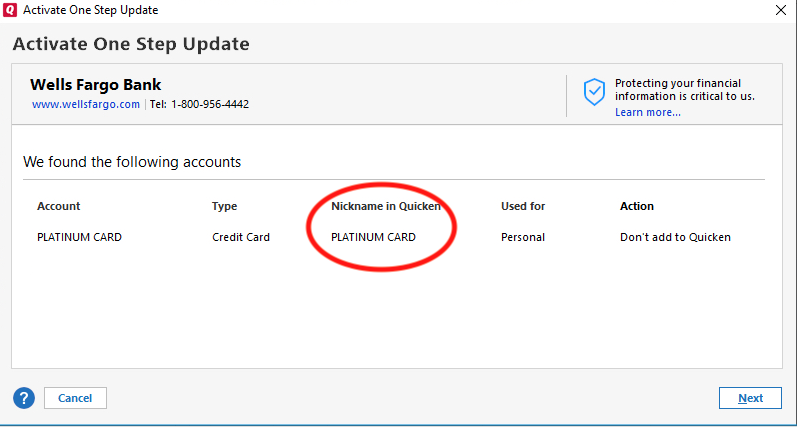
Once the accounts are deactivated, you should be able to connect the problem accounts by navigating to Tools>Add Account and following the prompts, making sure to carefully link the accounts to the correct Nickname in Quicken. If the accounts that were causing the problem are duplicate accounts, then you would want to delete them.
3. If you are getting CC-800 or CC-506 errors, then you would want to backup your file and deactivate the problem accounts. Then, navigate to Tools>Account List and click the Edit button next to the problem account. On the General tab, remove the Financial Institution and Account Number information, then click OK.
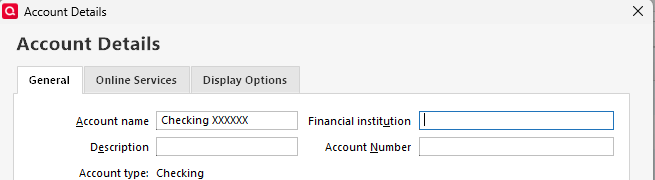
Do that for each problem account. Then, reconnect the accounts by navigating to Tools>Add Account and following the prompts, making sure to carefully link the accounts to the correct Nickname in Quicken.
4. If you are getting constant reauthorization prompts, even though you already reauthorized your accounts, the prompt should show you the names of the problem accounts. What usually causes this problem is if one or more accounts got added as new instead of linked to the existing account.
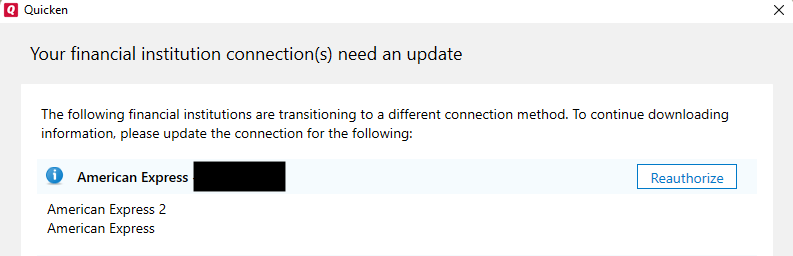
Take note of those account names, then navigate to Tools>Account List, select Show hidden accounts if the option is visible, and review the list to find those accounts. Once you find the problem accounts and identify if there are any duplicate accounts, you would need to backup your Quicken file, delete any duplicate accounts, deactivate the original accounts, then navigate to Tools>Add Account and follow the prompts, making sure to carefully link the accounts to the correct Nickname in Quicken.
5. If you are getting invalid token errors, FDP-350 errors, CC-901/902 errors, or constant reauthorize prompts that are not explained by having one or more accounts still on the old connection, then backup your file and deactivate your Fidelity accounts. Once the accounts are deactivated in Quicken, navigate to Fidelity's website and revoke the authorization for Quicken. Normally authorization for 3rd party apps can be found under security or a data security dashboard. Once the authorization for Quicken is revoked, return to Quicken, navigate to Tools>Add Account, and follow the prompts, making sure to carefully link the accounts to the correct Nickname in Quicken.
I hope this helps!
Quicken Kristina
Make sure to sign up for the email digest to see a round up of your top posts.
0 -
This content has been removed.
-
This is ridiculous. Every time I use Quicken, I am asked to reauthorize my accounts. No matter how many times I do this, I need to do it again next time. And even when I do it, it appears some of the accounts are not updating. Quicken users should not have to jump through hoops to get the product to work, and Quicken should not be issuing updates that don't work.
1 -
I have just deactivated all of my Fidelity accounts. I am entering transactions manually until this settles down.
0 -
Is this problem not yet solved? I figure I’d login here to check the status. I’ve been manually adding Fidelity transactions for over two months now.
If this keeps up another month i’ll have no need to continue my quicken subscription.
0 -
Hello @Gabe878787,
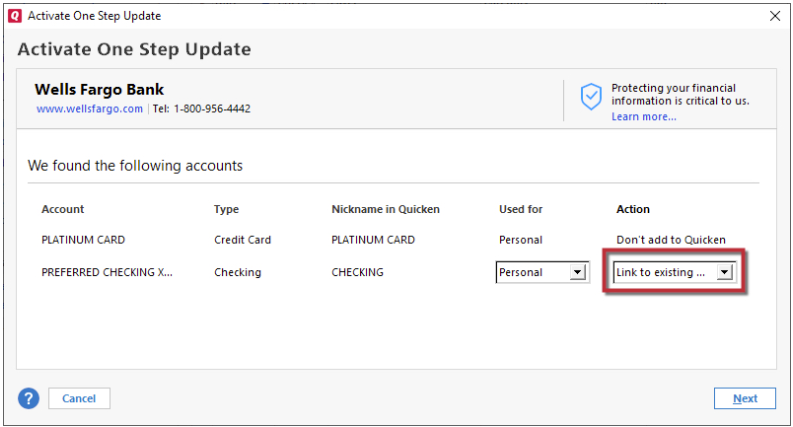
Thank you for letting us know you're seeing this issue. If you are getting constant reauthorization prompts, even though you already reauthorized your accounts, the prompt should show you the names of the problem accounts. What usually causes this problem is if one or more accounts got added as new instead of linked to the existing account.
Take note of those account names, then navigate to Tools>Account List, select Show hidden accounts if the option is visible, and review the list to find those accounts. Once you find the problem accounts and identify if there are any duplicate accounts, you would need to backup your Quicken file, delete any duplicate accounts, deactivate the original accounts, then navigate to Tools>Add Account and follow the prompts, making sure to carefully link the accounts to the correct Nickname in Quicken.
Hello @LindaCJones,
Thank you for reaching out. What issue(s) caused you to just deactivate and track manually?
Thank you!
Quicken Kristina
Make sure to sign up for the email digest to see a round up of your top posts.
0 -
I have 5 Fidelity accounts. After deactivating all and waiting a few days, I activated. 4 accounts successfully activated and linked to my Quicken accounts. However, the 5th account (an IRA Rollover) does not find a match when I go to link it. I can see no reason for this. It remains inactivated and none of the accounts are downloading even though they show that they are properly linked.
0 -
Thank you for your reply,
When you say the 5th account does not find a match, do you mean that it tries to add as new, and doesn't see the correct account to link to? Or is something else happening, such as showing "Don't add to Quicken" with no option to change it?
For the accounts that are not downloading new transactions, I recommend that you start troubleshooting by following these steps from our article on missing transactions/transactions not downloading:
Be sure to follow these steps in order:
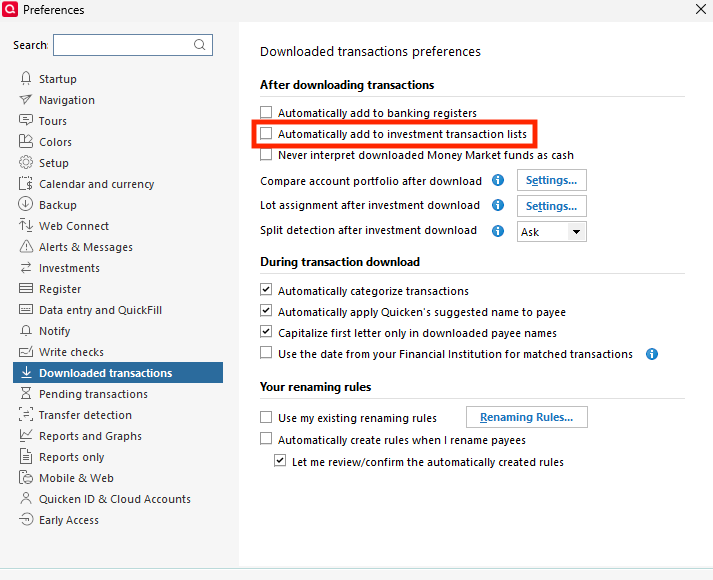
1. Go to Edit > Preferences > Downloaded Transactions. The option Automatically add to investment transactions lists needs to be unchecked.
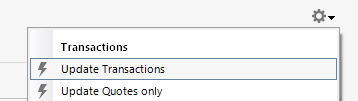
2. Refresh your online account information by clicking the Actions Gear Icon on the upper right of the register, and select Update Transactions. Follow the on-screen instructions to complete the update.
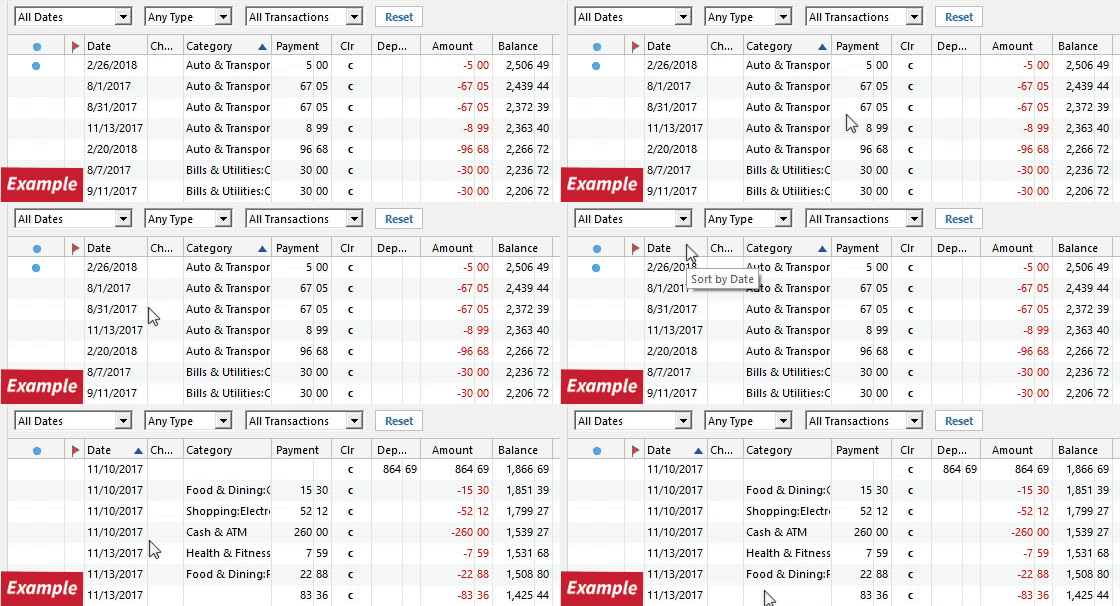
3. Confirm that the Sort Order in your account is by Date; just click the top of the Date column in your account register. It's possible the transactions are in your register, but not where you thought they'd be.
4. Try refreshing your login session: To do this, go to Help > Refresh Sign in. After completing the log-in process, trying running a One Step Update again.
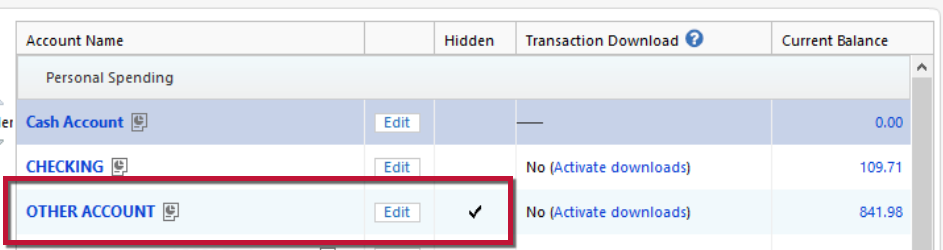
5. Go to Tools > Account List and check Show Hidden Accounts at the bottom left. Confirm the missing transactions haven't been added to a hidden account by clicking on the name of any account that appears with a check mark in the Hidden column.
Thank you!
Quicken Kristina
Make sure to sign up for the email digest to see a round up of your top posts.
0
