Unable to connect to Bank of America [Edited]

For the last couple of months I am unable to connect to my Bank of America accounts. I try to connect through one-step update. But the wheel keeps going round and round. Never connects. I have to shut down Quicken to stop.
I think the new way is to use Express Connect to connect to Bank of America. But it is not obvious how to that.
My fear is that I will have to start doing bank reconciliation the old-fashioned way. Manually!
My other banks Chase and so on don't have issue. I can download their transactions vis QFX (or is it QXF?) downloads.
Any help. Trying a variety of chats on Quicken. But they give rote answers which cannot be used.
[Removed - Disruptive]
Comments
-
Hello @nisarun,
Thank you for reaching out. To connect your Bank of America accounts, please backup your Quicken file, deactivate the accounts (if Quicken sees them as connected using Web Connect/QFX), then reconnect them by navigating to Tools>Add Account and following the prompts. When you get to the Add/Link screen in Quicken, make sure to carefully link the accounts to the correct nickname in Quicken.
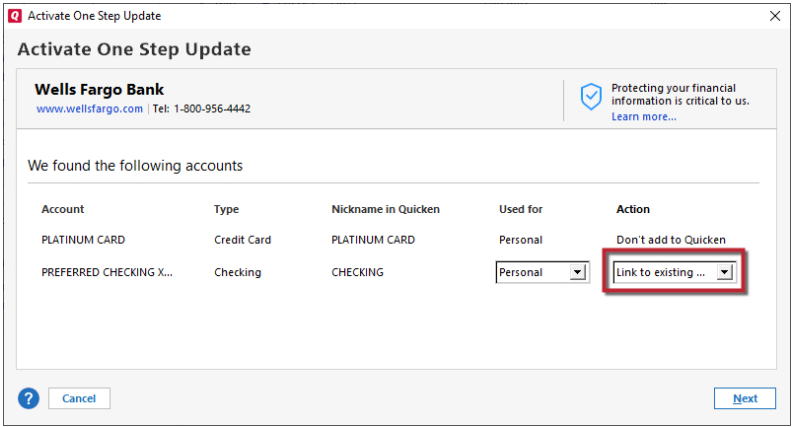
Since you are connecting by a different connection type, there is a risk of duplicate transactions downloading. Please backup your file, then review the accounts for duplicate transactions and delete the duplicates as appropriate.
Please let me know how it goes!
Quicken Kristina
Make sure to sign up for the email digest to see a round up of your top posts.
0 -
Kristina,
I don't see a "deactivate" button. Just a "delete account" on the left. See below.
Hesitate to delete an account. Is that what I should do?
When I try to set-up online stuff, Quicken cannot seem to connect to the bank. I have a separate query/post on this today (11/30/2025). Actually I cannot connect to other institution either. But for some reason I am able to do a QFX file import from those, non-Bank 0f America, institution.
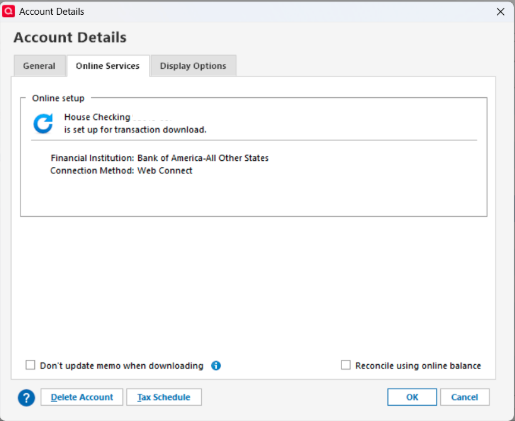
[Removed - Partial account number]
0 -
Thank you for your reply,
No, do not delete the account. If there is no option to deactivate the account, then Quicken should already see it as not connected.
Backup your Quicken file, then try connecting the account by navigating to Tools>Add Account and following the prompts. When you get to the Add/Link screen in Quicken, make sure to carefully link the accounts to the correct nickname in Quicken.
Since you are connecting by a different connection type, there is a risk of duplicate transactions downloading. Please backup your file, then review the accounts for duplicate transactions and delete the duplicates as appropriate.
Thank you!
Quicken Kristina
Make sure to sign up for the email digest to see a round up of your top posts.
0 -
Thanks for trying, Kristina.
But it gets stuck on the connect issue. Quicken seems to try to connect but never does. Not sure why.
See the screens below to see how I tried to "Add Accounts".
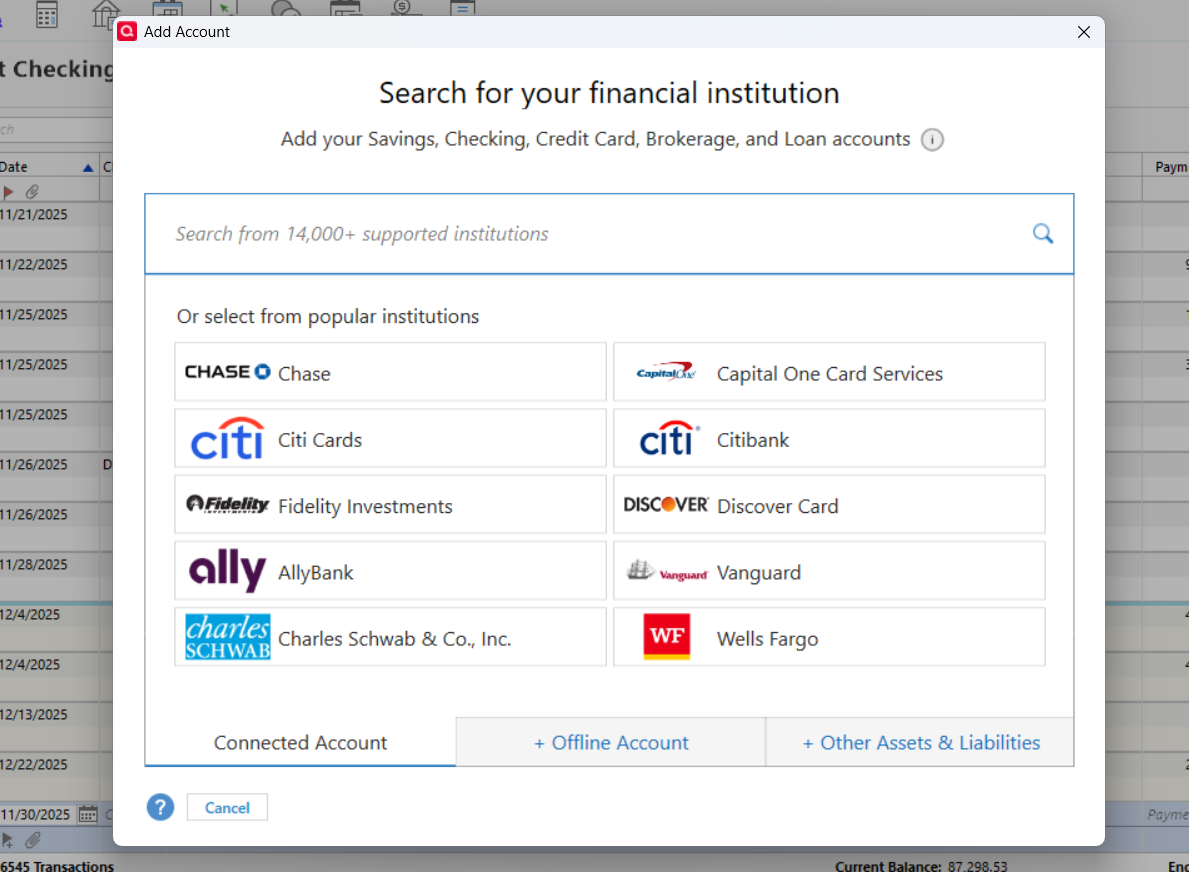
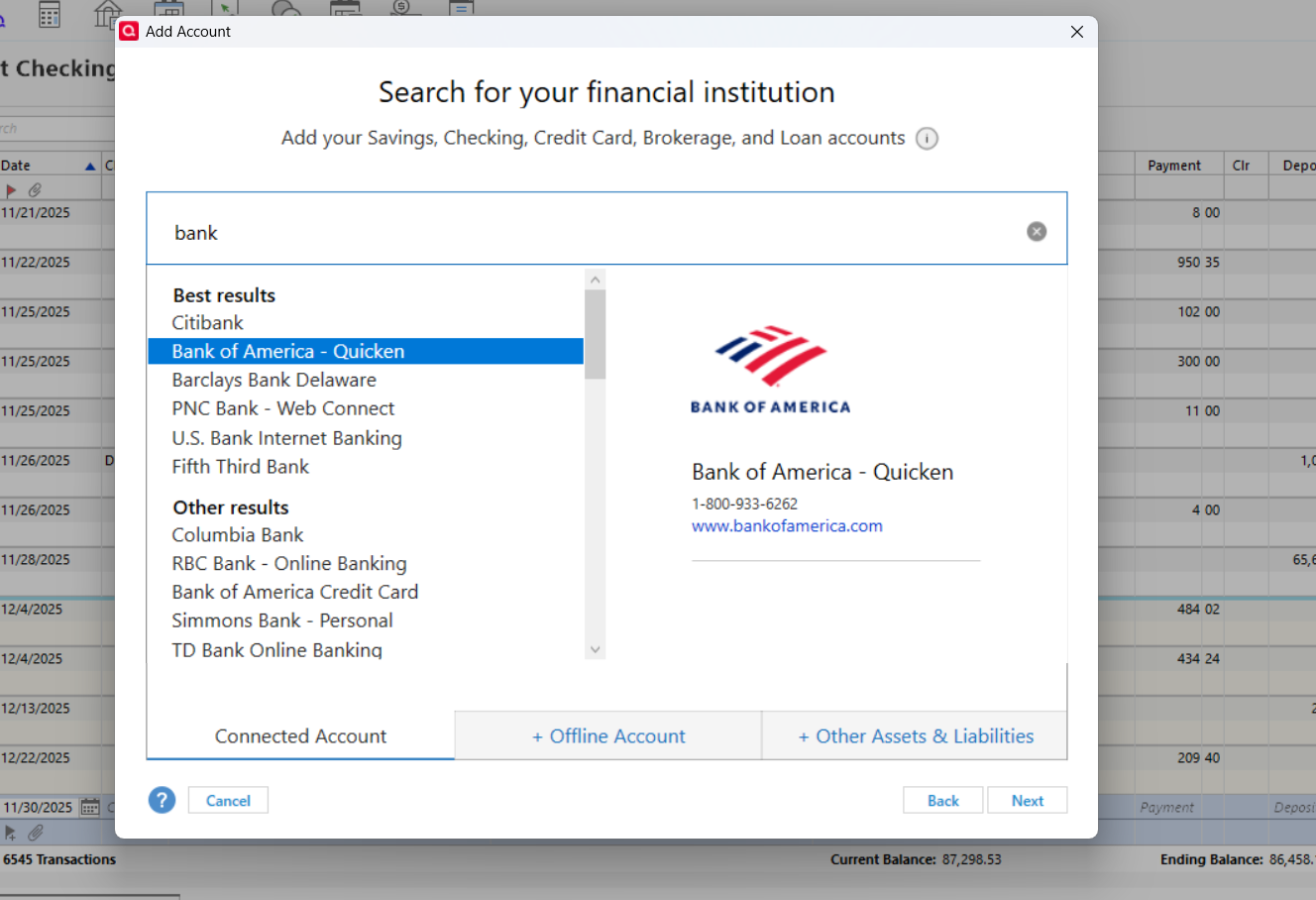
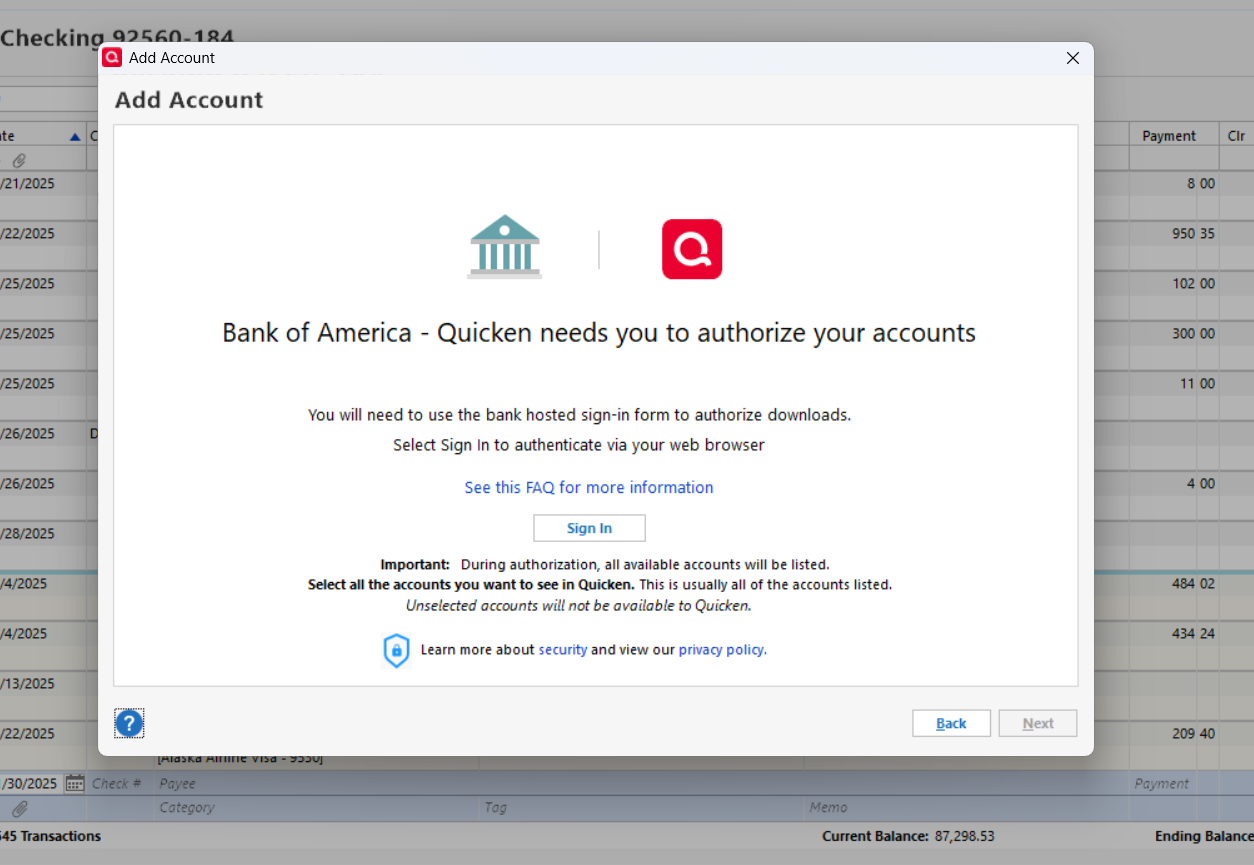
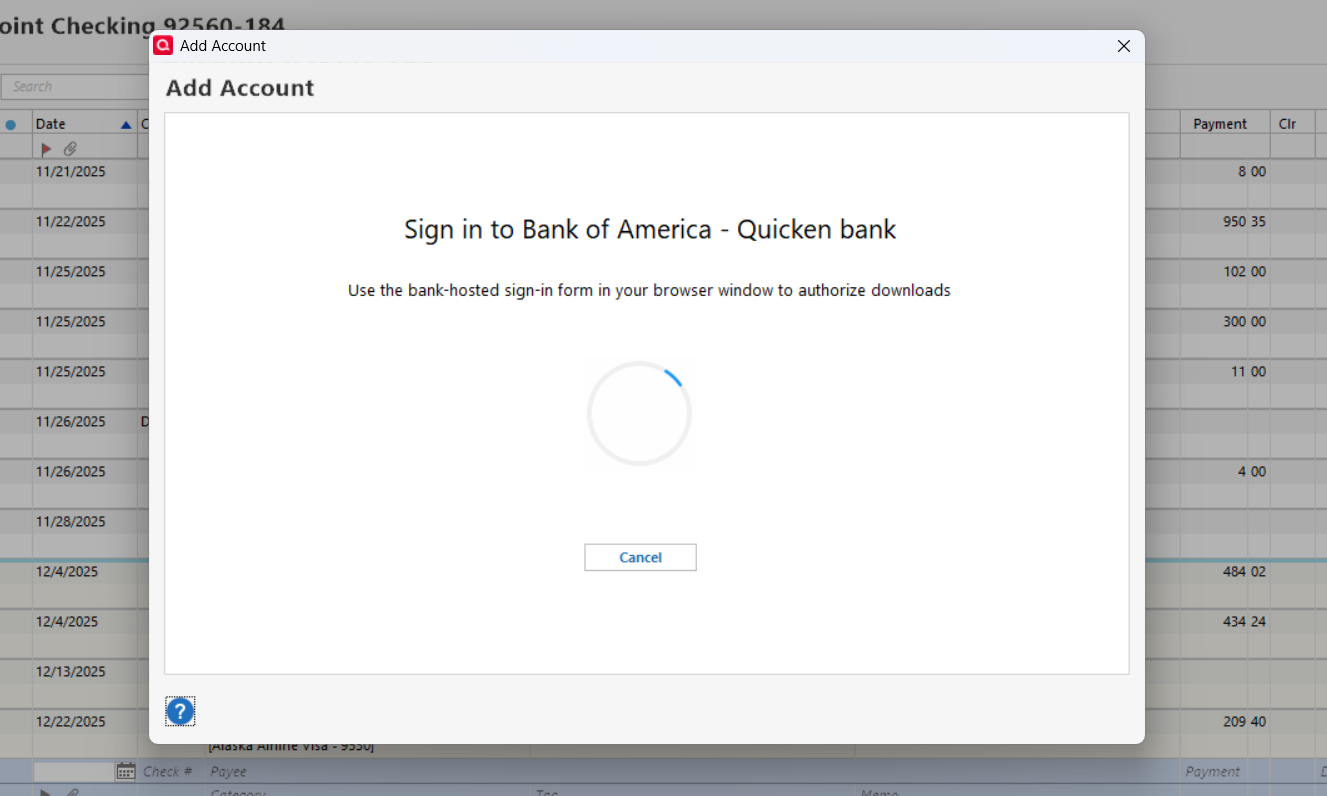
Keeps going round and round. Never connects. I cannot cancel to stop. So I do a cntrl+alt+del to stop.
0 -
Here is more for you to chew on, Kristina.
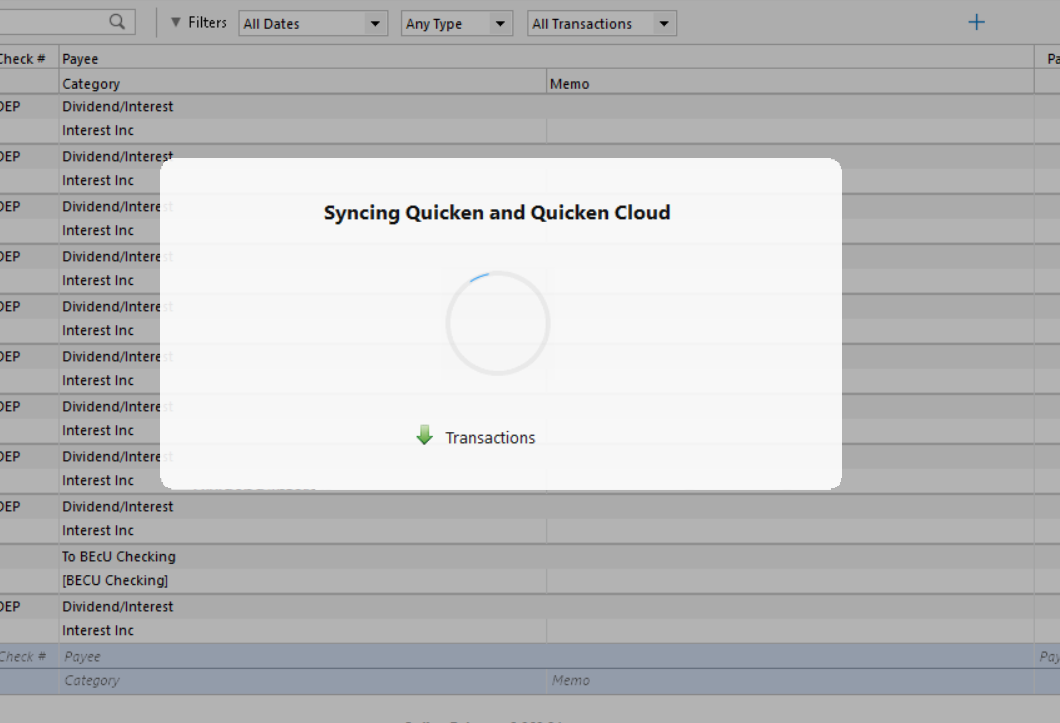
After doing the log out and log in for Quicken as you suggested, the Quicken seems to be unable to sync. Looks like a connectivity issue just like while doing the set-up above. See below.
 0
0 -
Thank you for your replies,
When you click the Sign In button during the add account process, does your default web browser open?
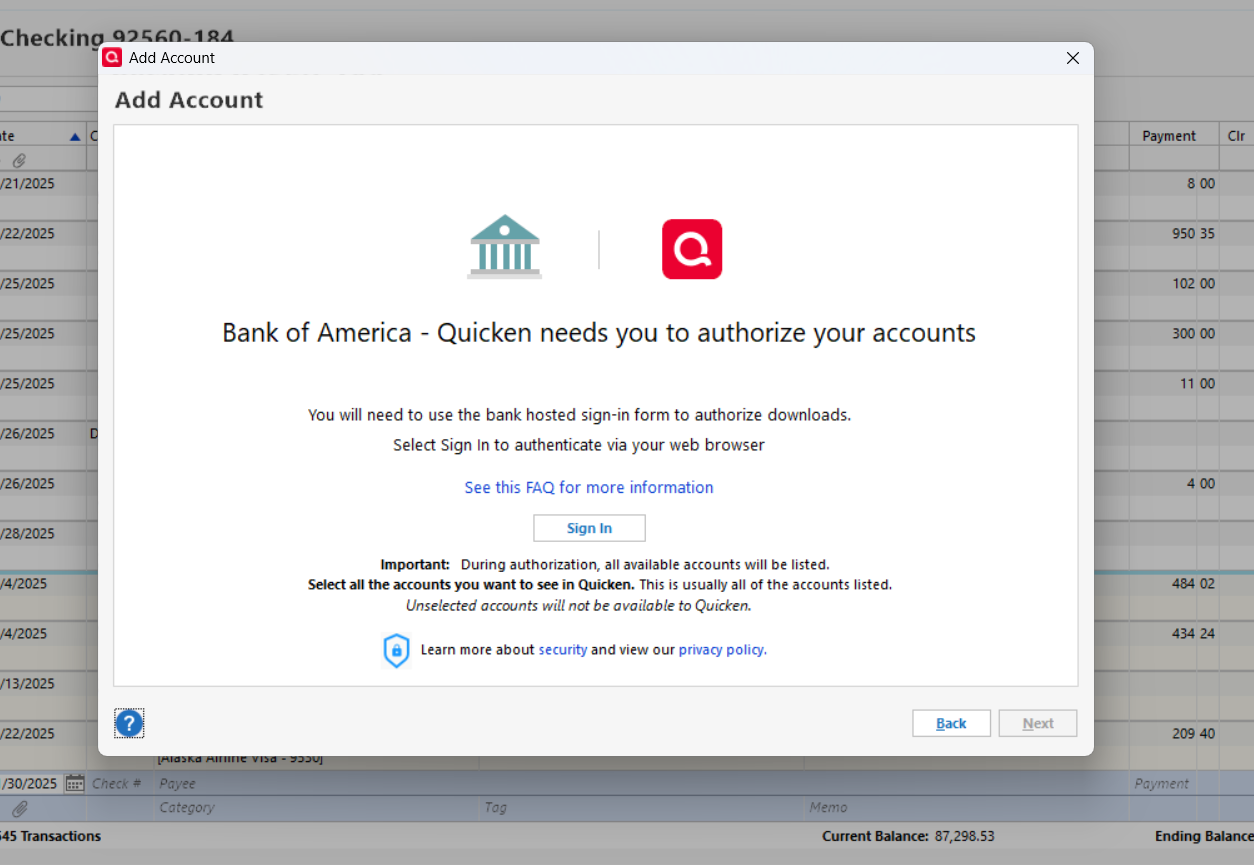
What should happen is the browser will come up to the financial institution's website so that you can authorize the connection through Bank of America.
The inability to sync makes me suspect there may be something interfering with Quicken's ability to communicate. Do you use a VPN or anti-virus? If you do, please try temporarily disabling or pausing them, then test to see if the issue persists. You may also want to check if Windows Defender is blocking Quicken from communicating (you'll usually get a pop up asking if you want to allow or deny the connection).
Thank you!
Quicken Kristina
Make sure to sign up for the email digest to see a round up of your top posts.
0 -
Resolved!
Here is what I did. It worked for me. Hopefully it is generic enough a solution for others.
Looks like I had two problems. Probably they were interrelated.
First was that I couldn't connect to Bank of America after their so-called "high security" update.
At least that's what I thought. But I couldn't connect to any financial institution. I didn't realize this until I tried to connect to Chase and others. I had not suspected any issues there because all the non-Bank of America institutions were downloading the QFX files correctly.
The second was I also couldn't sync my Quicken to the Quicken Cloud.
I randomly tried the following:
I reset the Quicken Cloud using
Edit>Preferences>Quicken ID and Quicken Accounts>Sign in as different user
After I re-signed as me Quicken took a while to sync to Quicken Cloud. But thankfully it did.
Then I took another shot at connecting with Bank of America using
Tools>Account List>clicked on one of Bank of America accounts and then >Online Services
This opened up a sign-in for Bank of America. And it was able to connect with "Express Web Connect +"
So that's resolved.
Problem still remains that with no download of the QFX files available for Bank of America, reconciling account statement is a lot more work doing it manually.
Will save that issue for another day.
.
0 -
Thank you for the follow-up,
I'm glad to hear you resolved the issue! Thank you also for sharing the solution you found.
Unfortunately, the other issue you mentioned was caused by Bank of America deciding to no longer support QFX imports into Quicken. Please see this announcement for more information:
While it is no longer officially supported, some have shared work arounds which may or may not work for you. For example, here's one that was shared in October:
Thank you!
Quicken Kristina
Make sure to sign up for the email digest to see a round up of your top posts.
0 -
I may have spoken too soon…
The Sync with Quicken Clouds worked for a couple of days. And then it was back to square one. It is unable to sync and goes on forever until I ctr+alt+del, End Task for Quicken.
When I tried to fix the problem by the method I wrote in my post, it doesn't work anymore. I tried multiple times and gave up.
The only upside is that my Bank of America connect problem was resolved and the "connect to financial institution part" still works.
My question for you (all) is:
- If I don't use Quicken on mobile devices, do I care whether the data is sync'd with the cloud? I use a laptop to do Quicken. If sync'ing is only for facilitating Quicken use on the mobile devices, then I won't worry about this problem. Though I believe it is Quicken's interest to help to get this solved.
- Is there an official phone/zoom support available at all? This community support thing is nice but the solutions here are a hit and miss. I won't mind paying to talk to an expert, share my desktop and walk the problem together.
Thanks.
0 -
Thank you for your reply,
If you haven't already checked, make sure that your Quicken file is not synced to a cloud service like OneDrive, iCloud, or Dropbox. If one of those services is trying to sync with your file while you're running One Step Update or syncing with the Quicken Cloud, that could explain why the process is getting stuck. Usually, if your file is synced with one of those services, it will reflect in the file location. You can check the file location in your Quicken program by clicking the File menu option and looking at the most recently accessed files (listed above the Exit option).

To answer your questions:
- If you do not use Quicken on the Web or the Quicken Mobile app, then you do not need to use cloud sync.
- You can contact Quicken Support directly via phone or chat. Quicken Support's contact information can be found through this link here. Phone support is available from 5:00 am PT to 5:00 pm PT, Monday through Friday. Chat support is available from 5:00 am PT to 5:00 pm PT, 7 days a week.
I hope this helps!
Quicken Kristina
Make sure to sign up for the email digest to see a round up of your top posts.
0 -
Thanks, Kristina.
I checked and see that the file used by Quicken is on the OneDrive. (Not my C: Drive?)
Not sure out to turn off sync'ing with OneDrive until the sync'ing with the Quicken Cloud is done.
But for now, I will just turn off the Quicken Cloud sync'ing feature.
Thanks.
0 -
Thank you for the follow-up,
Most Windows 10 and Windows 11 computers have certain folders, such as Documents and Pictures, set to sync with OneDrive by default. It is still on your local hard drive; it is a folder that will also upload the files stored there to OneDrive. If you're not sure how to unsync those folders or you're not sure how to move your file to a folder that isn't synced with OneDrive, I recommend reaching out to Microsoft for assistance.
I hope this helps!
Quicken Kristina
Make sure to sign up for the email digest to see a round up of your top posts.
0
