Unable to deactivate account due to "transactions to accept" error message

This discussion was created from comments split from:
Merrill Lynch changed connection types? How can I fix account?
.
Comments
-
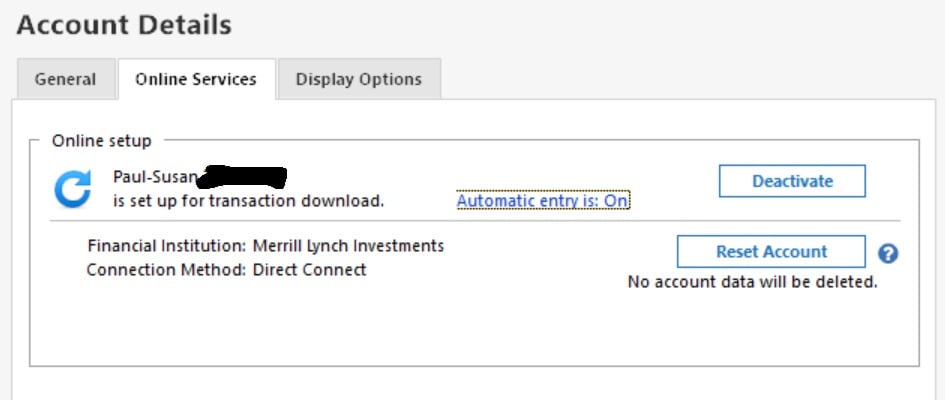
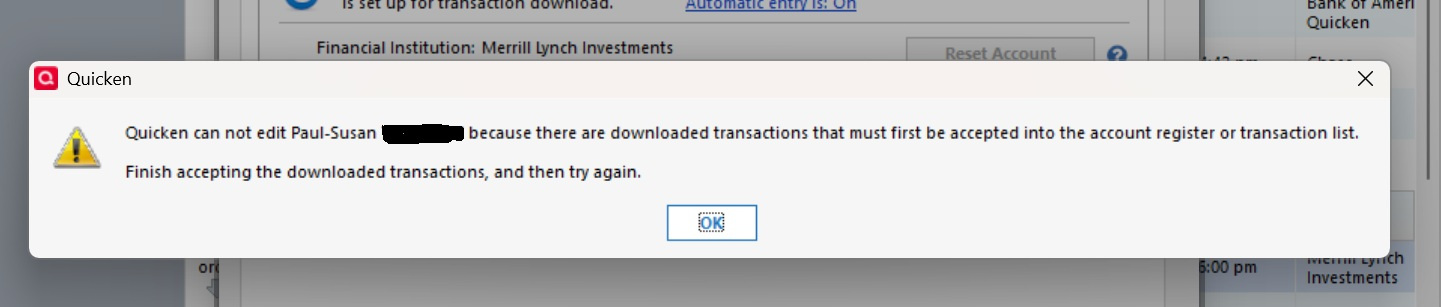
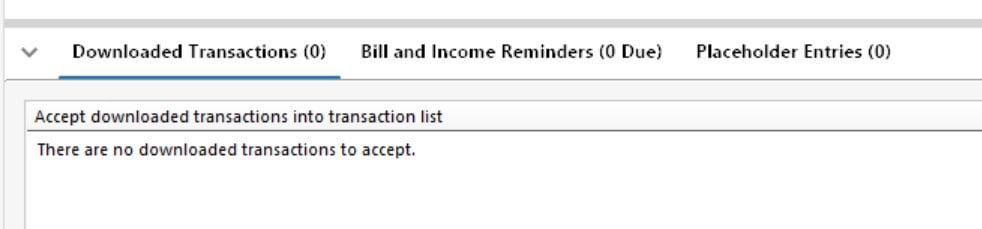
This change is a royal PIA. I've been downloading transactions from Merrill Lynch into Quicken for ages without an issue. So now they "improve things and nothing works. I tried to follow the directions in this post and deactivate the direct connect but Quicken says I can't as I have downloaded transactions that need to be accepted. But I don't have any downloaded transactions. See sequence of screen shots. HELP!!
 0
0 -
Hello @pcmendy,
Thank you for reaching out! To troubleshoot the issue with Quicken saying there are transactions to accept, while none are visible, please backup your Quicken file and follow these steps from our article on that issue:
First, turn automatic entry on
1. Press Ctrl+A on the keyboard to bring up the Account List, then click the Edit button next to the affected account in the list.
2. In the Account Details window, click on the Online Services tab then click Automatic entry is.
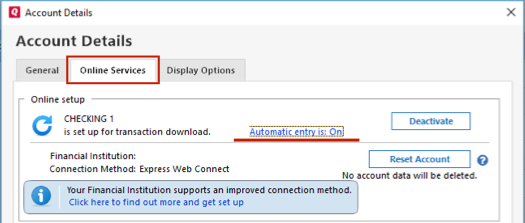
3. Select Yes on the next dialog box and click OK. Automatic entry should show as "On" now.
4. Click OK to close the Account Details window, then click Done on the Account List.
5. Close Quicken, wait a few seconds, then re-open it. The transactions should appear upon re-opening Quicken.
Note: If you have multiple accounts affected by this issue, you can make the change outlined above to all the accounts at once by going to Edit > Preferences, then going to Downloaded transactions and checking the box next to Automatically add to investment transaction lists.
Then, check the account register and Online Center
Quicken will show you downloaded transactions in multiple locations. The following information shows you how to check for downloaded transactions in the account register and Online Center.
- Open the account register and select Downloaded Transactions at the bottom of the register.
- If there are transactions listed, accept them to the register.
- If there are not any transactions listed, proceed with the next step.
- Choose the Tools menu > Online Center.
- Select the appropriate financial institution and account.
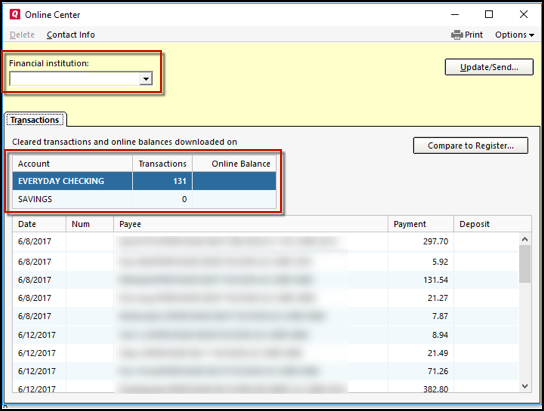
4. Select Transactions.
- If transactions are listed, click Compare to Register and accept the transactions. Note: Compare to Register will display online payments on the initial screen. After accepting your online payments, click Continue, Next or Done to see the rest of your downloaded transactions.
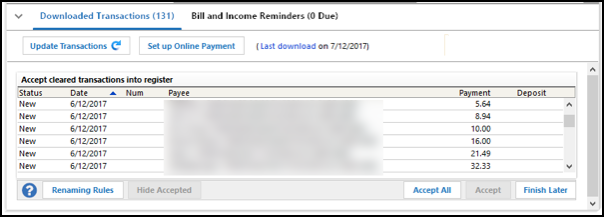
Please let me know how it goes!
Quicken Kristina
Make sure to sign up for the email digest to see a round up of your top posts.
0 - Open the account register and select Downloaded Transactions at the bottom of the register.
-
Quicken Kristina
Make sure to sign up for the email digest to see a round up of your top posts.
0

