What is going on with the qfx from APPLE gving me an installation error?

Never had an issue with Apple until now. When I open a QFX file from APPLE it is giving me an installation error (see attached)! Is this a new glitch after a recent update or is this a known issue that is being worked handled currently or does this have to do with what APPLE is doing on their end?
Answers
-
Hello @Baller,
Thank you for sharing your experience.
Definitely puzzling as to why you would be getting installation errors when trying to import a QFX file. Please try uninstalling and reinstalling Quicken. If needed, check out this Support Article for steps to uninstall.
To reinstall your software, you can go to Quicken.com and sign in to the My Account section.

Once signed in, you can select the Quicken for Windows download.
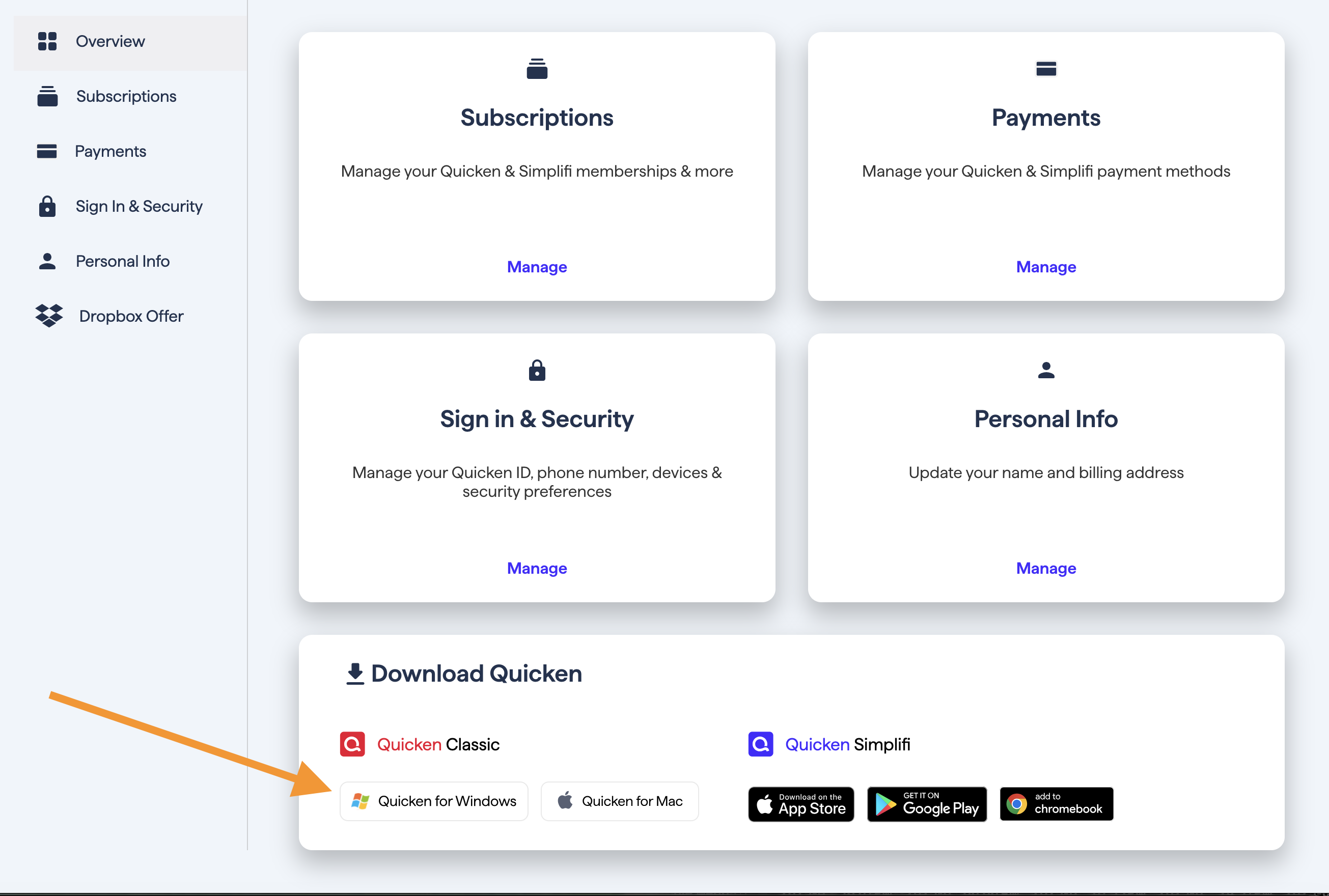
Go through the installation prompts, and once you are back in your file, try importing the file again.
This issue has been reported. If you would like to aid in the investigation, you can go to Help>Report a problem>Send to Quicken, from within your Quicken software, and send over your log files.
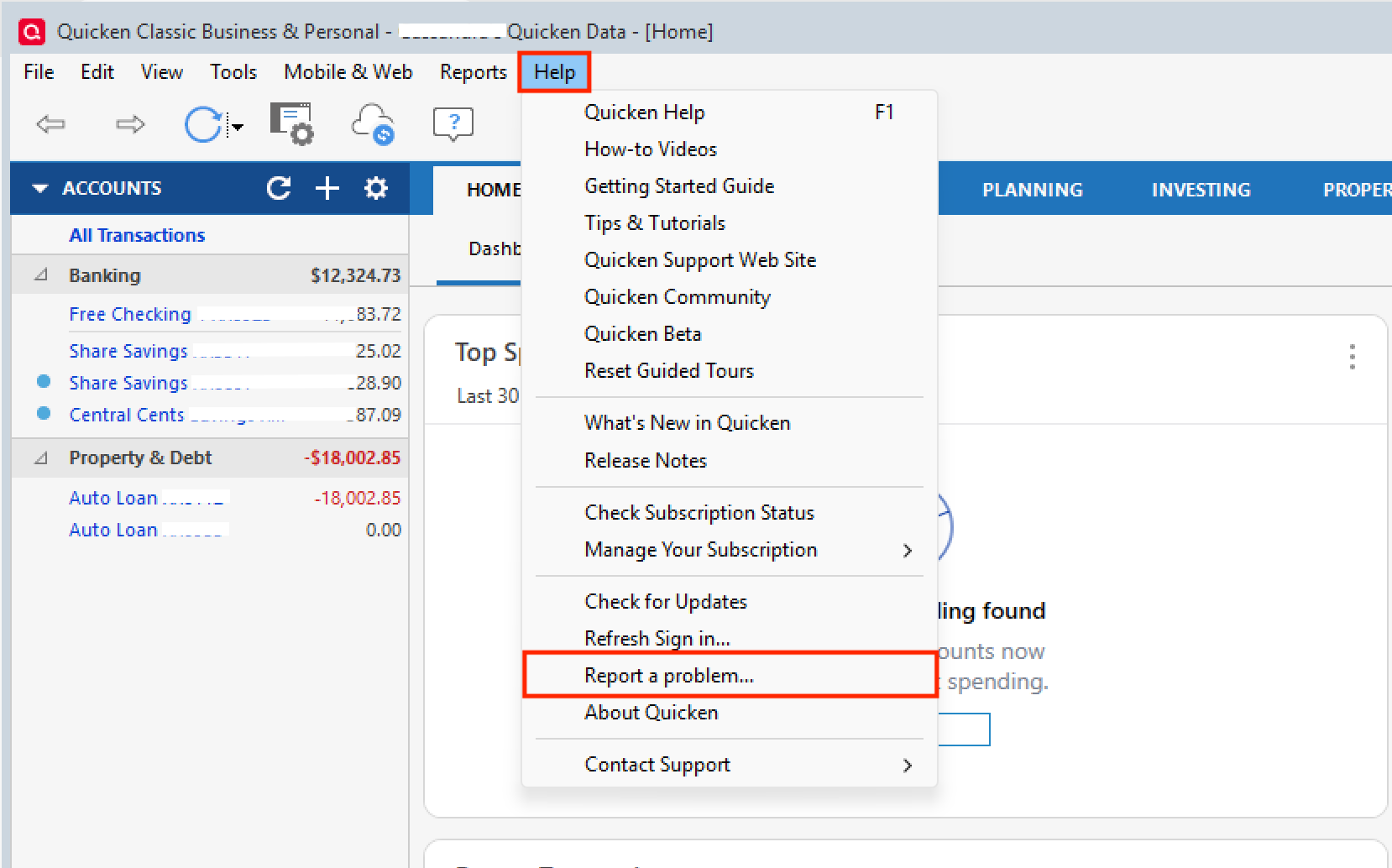
Please let me know once you have sent it so I can add it to the ticket.
Thank you.
[CBT-944]
Quicken Alyssa
Make sure to sign up for the email digest to see a round up of your top posts.
0 -
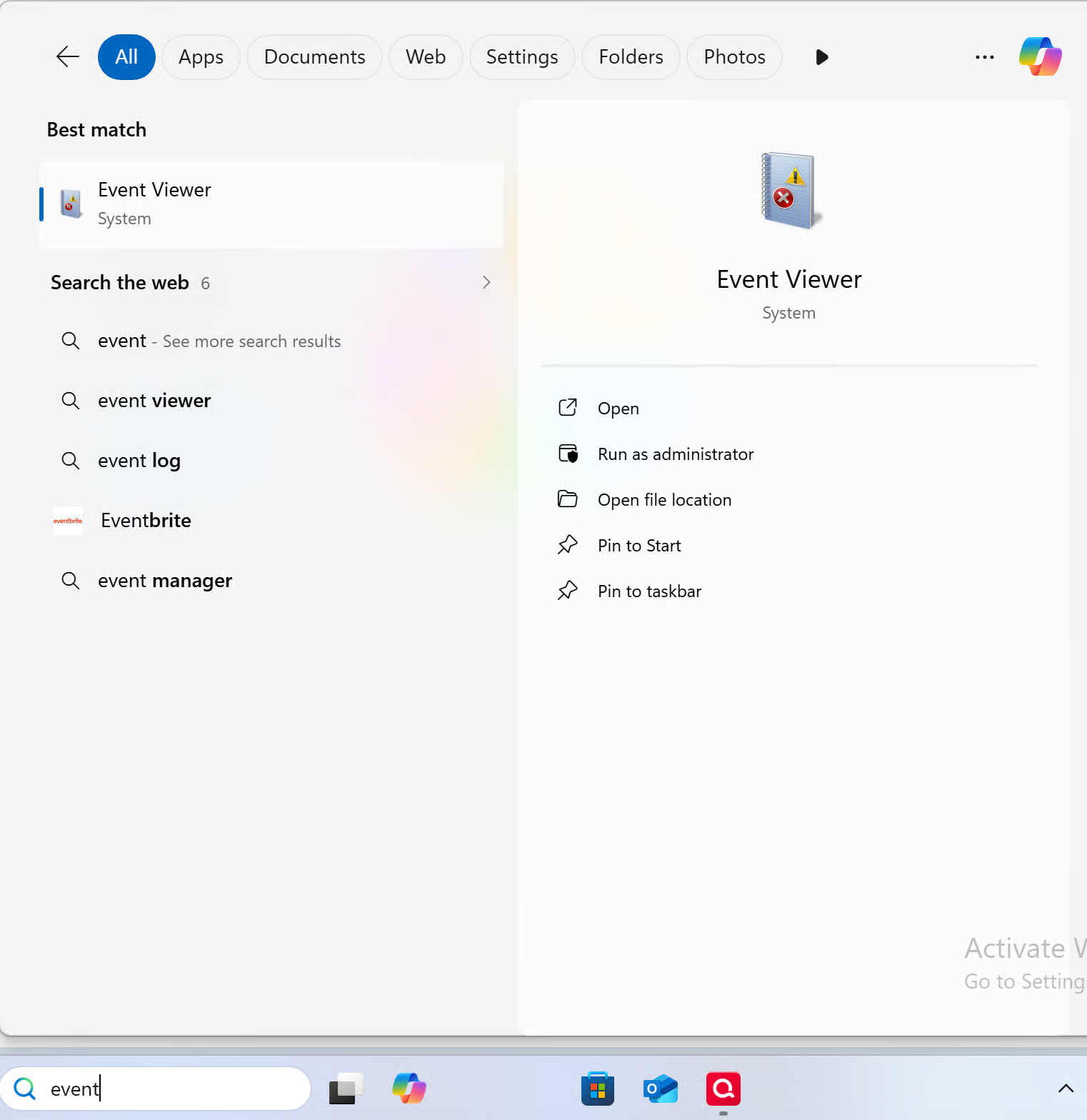
The team handling this escalation has requested that we gather Event Viewer logs. If you are willing to do this, you can follow the steps below.
- Search for the application "Event Viewer" and open it.
- Double-click on the "Windows Log" folder and select "Application."
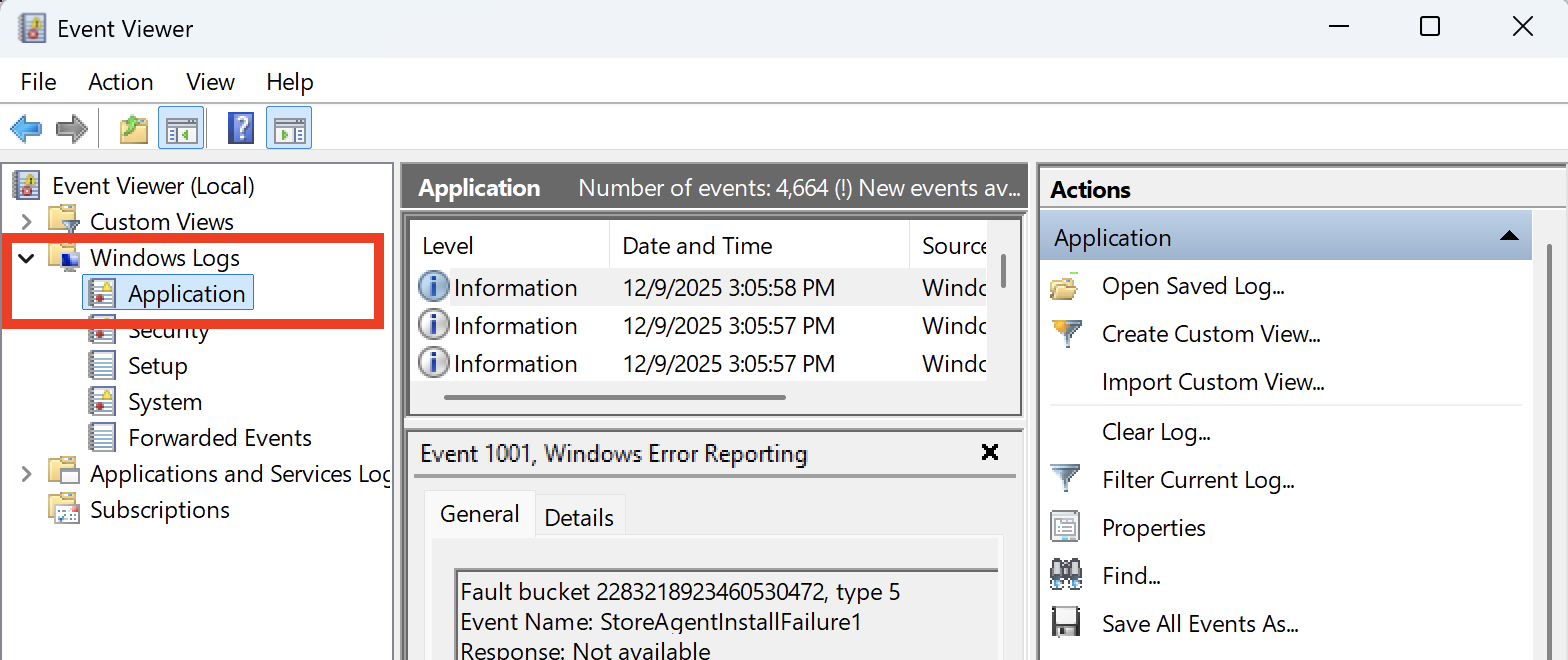
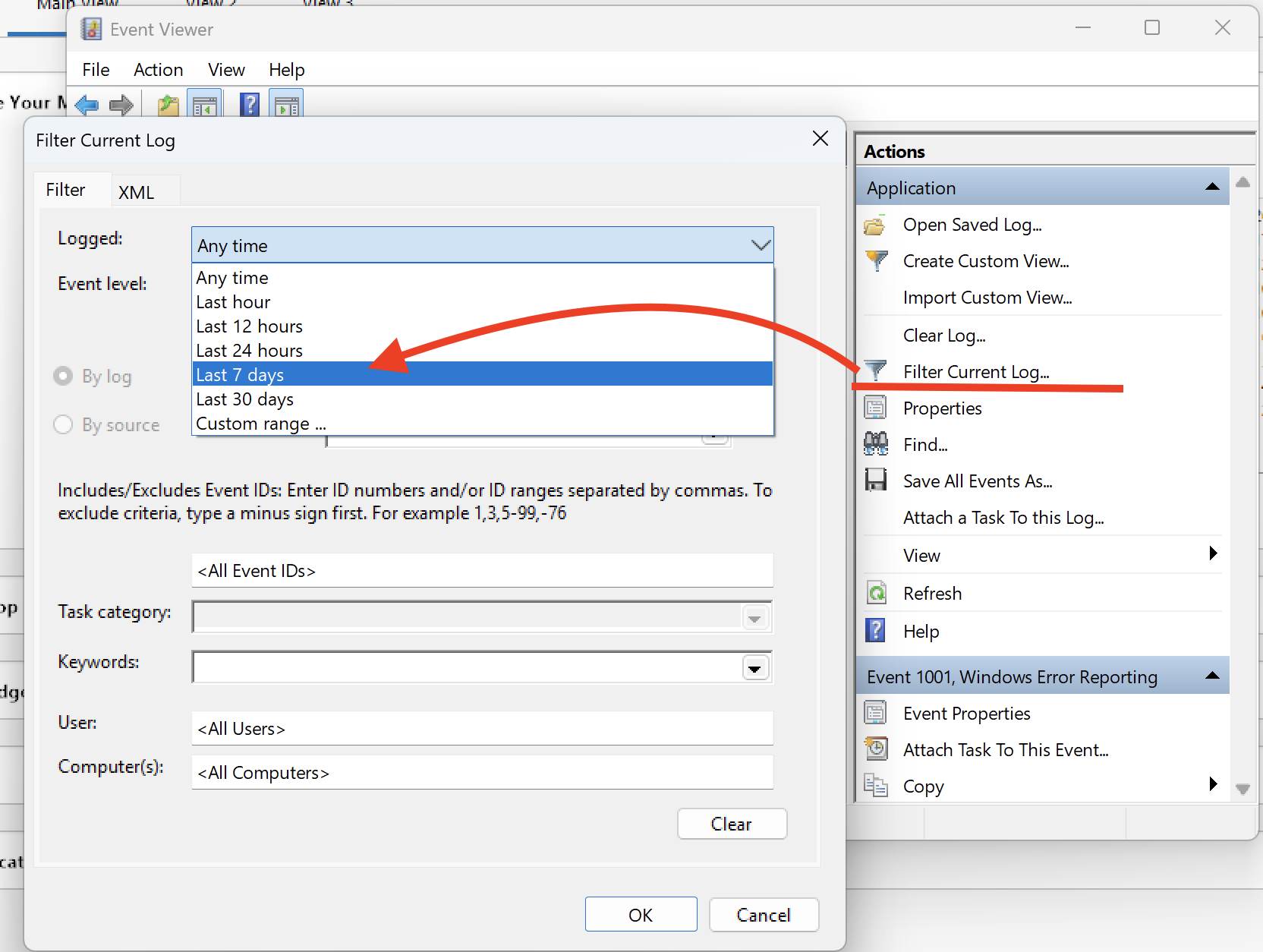
- On the right side, click on "Filter Current Log," and where it says "Logged," change the time range from "Anytime" to "Last 7 days."
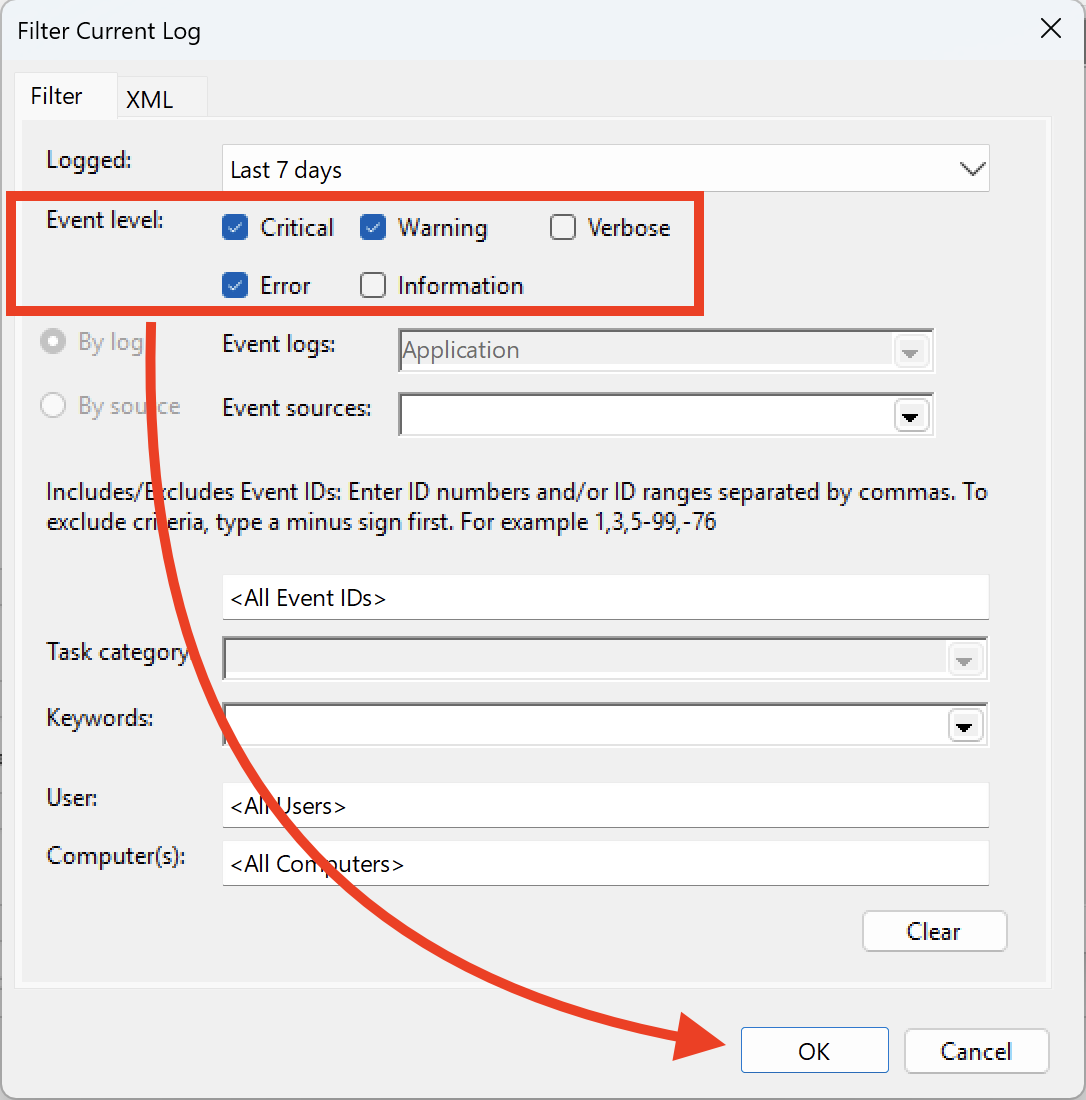
- Ensure that you select "Critical, Warning & Error," and then click OK.
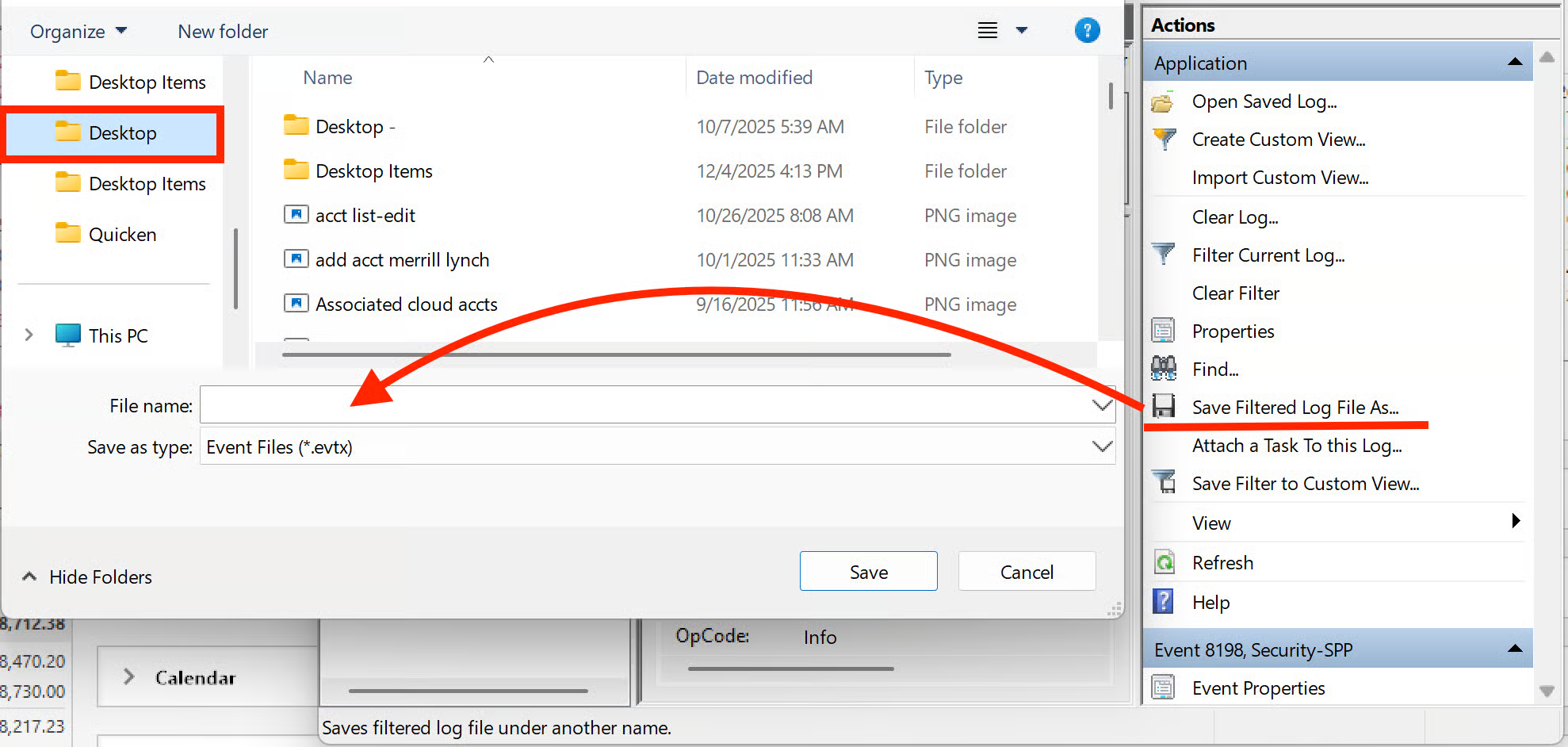
- Next, click on "Save filtered log file as" and save it to the desktop.
Let us know once you have gathered it, and we will provide guidance on how to send it over.
Thank you!
Quicken Alyssa
Make sure to sign up for the email digest to see a round up of your top posts.
0 - Search for the application "Event Viewer" and open it.
-
I get the same thing when I try to open a QFX file downloaded from Optum.
0 -
Hello @TinyElvis,
Thank you for adding to this discussion. To resolve this issue, you can follow the steps outlined here.
If you want to aid in the investigation, you can follow the steps to provide Event Viewer Logs, here.
Hope this helps!
Quicken Alyssa
Make sure to sign up for the email digest to see a round up of your top posts.
0

