Bank of America - Quicken (newest way to download)

I have a Quicken subscription, working on Windows. Have used the product for decades. I've deactivated all my BofA accounts and reactivated with the new Bank of America - Quicken link(s).
My issue is that my transactions are not downloading. My balances seem to be adjusting (online balance at the bottom of the page).
Additionally, it takes about a hour, sometimes longer, to get the download to complete. I've had to do the dreaded ctrl+alt+delete several times, as it'll just hang.
Extremely frustrated! Anyone have better success? What should I try next?
Comments
-
Additional note - my husband has accounts too - so I have two separate lines for Bank of America - Quicken. I have tried to update both at the same time and also one at a time. Neither is working properly.
0 -
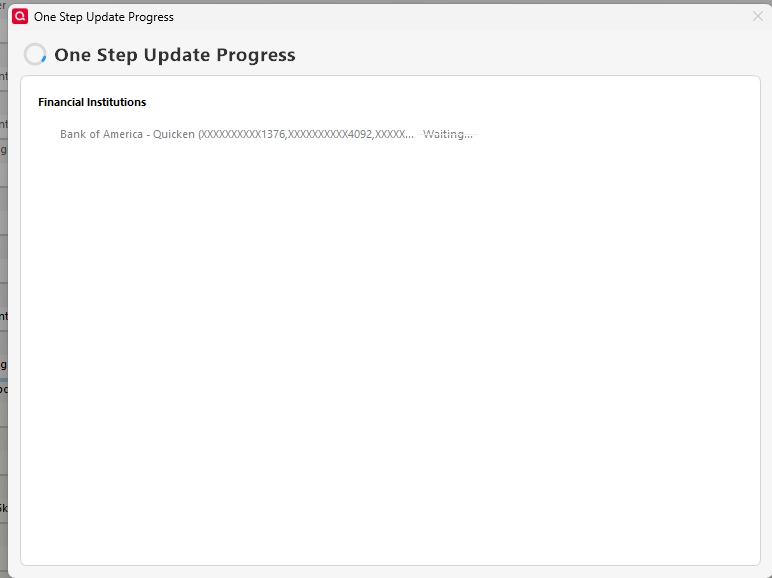
Here's a screenshot
0 -
Hello @hh311,
Thanks for taking the time to let us know what’s happening.
Freezing or hanging during One Step Update is usually caused by either a specific account failing during update or something interfering with Quicken’s connection process. Please review this support article that walks through all the recommended troubleshooting steps for this exact issue:
Some of the key steps included are:
- Updating each connected account individually to identify which one may be causing the freeze
- Deactivating/reactivating the affected account once identified
- Disabling Mobile & Web Sync if it’s turned on
- Resetting your Cloud Sync data
- Turning off Pending Transactions
- Refreshing your Online Connected Services token by signing out/in
- Installing the latest Manual Patch even if you’re already on the current version
- Temporarily disabling VPN/antivirus/firewall software
- Running Validate & Repair on your file
- Uninstalling and reinstalling Quicken
Hope this helps!
-Quicken Anja
Make sure to sign up for the email digest to see a round up of your top posts.0 -
I've done all this. I then downloaded. Downloaded back to 2024. I went through hours of clean up. Fixed all the accounts.
Did a download just now - took forever. My balances have changed again - somewhere in each account I think it's auto dumping/deleting data.
I'm EXTREMELY FRUSTRATED. The hours I've spent on trying to fix this is absurd!
Help!
0 -

I entered the balance number and it matches the bottom number, but somewhere expenses have been removed.
0 -
It is adding in additional charges/credits when I update. I was once again able to supersleuth this out, but this is not a viable way of going forward.
0 -
Just did a reboot and did an update. It's downloading, in some cases, back to 2024. Both Bank of America and Capital One. How do I fix this?
0 -
@Quicken Anja - can you please help with the newest challenge? It's downloaded up to two years back on each download.
0 -
@hh311 Thanks for sharing all the details and screenshots—I completely understand why this has been so frustrating. It sounds like the original connection issue has been resolved, but now the recent downloads are pulling older transactions, which may result in duplicates.
Was this a one-time occurrence that caused duplicates, or do these keep downloading with every update?
Duplicate transactions in Quicken for Windows can happen for several reasons, including reactivating an account, changes in how the bank sends transaction IDs, or mixing manual downloads with Quicken downloads. If you notice duplicates, you can identify them using the Downloaded ID column in your register, which helps Quicken determine which transactions have already been downloaded. Depending on the type of duplicate, the solution may involve deleting manual entries, removing duplicates with single-line display, or contacting your bank’s online banking support if their system is sending the same transaction with multiple IDs.
For step-by-step guidance, please see this support article on resolving duplicate transactions in Quicken for Windows. You can also restore a backup from before the issue started if needed.
Thank you!
-Quicken Anja
Make sure to sign up for the email digest to see a round up of your top posts.0 -
@Quicken Anja - HELP! I had everything working. Made a back up. Did a download. Messed with some of my accounts, but not all (added items in, downloaded 2 years of data).
Tried again with an earlier back up. Had to reinstate my BofA accounts - only did this for my accounts so far, not my husbands. Here's what has been downloaded. Mind you, it was all perfectly balanced and worked properly two days ago.
HELP!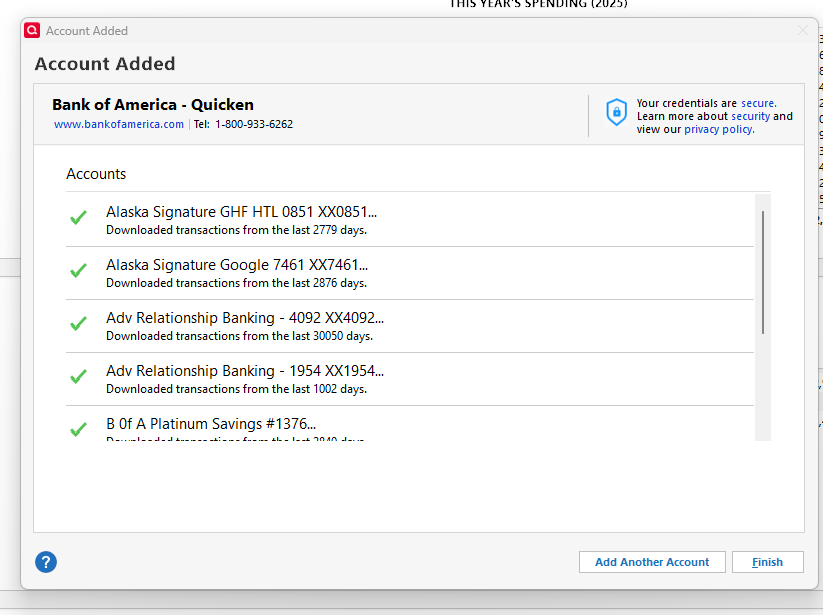 0
0 -
@hh311 Thanks for sharing all the details—it definitely sounds frustrating. Based on what you’re describing, it seems like your data file may be experiencing corruption, which can cause symptoms like balances changing unexpectedly, transactions disappearing, or downloads pulling older data.
I recommend starting with a clean point by restoring a backup again from before these issues began. Once you have the backup restored, follow the steps in this support article carefully.
In particular, pay attention to the Copy and Validate instructions. Creating a copy of your file is important because it rebuilds internal lists and database tables. This step helps fix potential corruption, which can prevent unexpected changes. Below you can find instructions for both, though they are also provided within the support article linked above.
- Go to File > Copy or Backup File and select Create a copy or template (do not choose Year End Copy for this procedure).
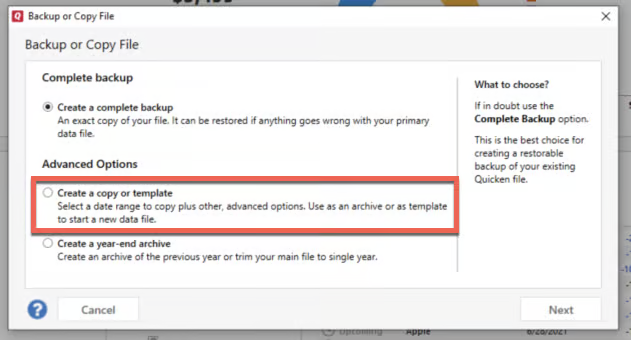
- Please note, a file copy is disconnected from online services, such as transaction download. Online services would need to be reconnected if you wish to use them in the file copy.
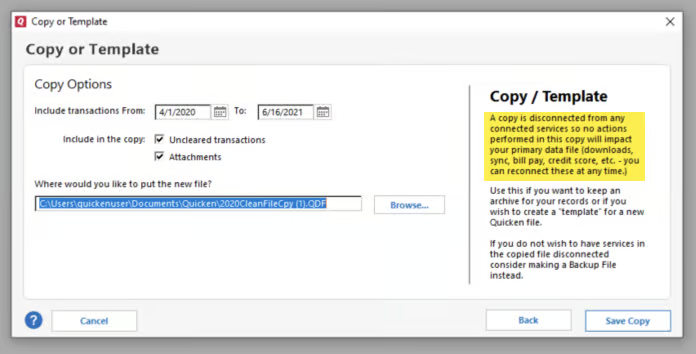
- Please note, a file copy is disconnected from online services, such as transaction download. Online services would need to be reconnected if you wish to use them in the file copy.
- Leave all the settings, including file name and checkboxes, at their default (change nothing on this screen). Simply click Save Copy.
- After the Copy is complete, choose to Open New Copy.
- In the New Copy, go to File > Validate and Repair File and select the Validate file option.
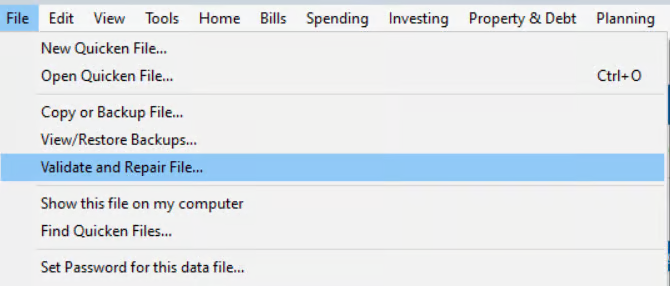 This is to ensure there are no lingering issues with the data in this file.
- If your issue was with Investment account(s) slowness or other data issues with an investment account, be sure to also select Rebuild Lots during this procedure.
- After the Validation process is finished, you will see the Data_Log appear in a Notepad window. This file is a summary of the Validation results.
- Review the Data_Log.txt for messages pertaining to the quality of your data and resolve any that are advised with instructions you should follow. This may require that you delete, edit, or reenter transactions manually.
Example of Data Integrity Issues in Data Log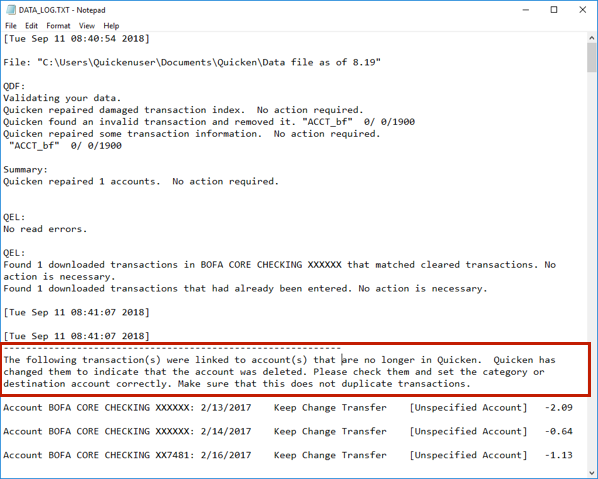
In the example above, further instructions are given advising to review and set the categories correctly.- If you receive the message "Damaged data block" in the Data_Log after the Validation completes, the file is not repairable. We recommend restoring a backup from prior to the date listed on this message.
- Test your regular procedure(s) to see if the issue you were encountering is now resolved. If the issue is resolved, continue using the new, repaired data file.
Note: Quicken saves a backup copy of this file before you Validate. This file is located in the Validate folder in the same location as your Quicken data file.
Starting with this clean, copied, and validated file should give you a stable base for future downloads and help prevent the problems you’ve been experiencing.
If issues continue after this, we recommend contacting Quicken Support for further assistance and possible escalation if needed.
Hope this helps!
-Quicken Anja
Make sure to sign up for the email digest to see a round up of your top posts.0 - Go to File > Copy or Backup File and select Create a copy or template (do not choose Year End Copy for this procedure).
