How to Save a Quicken file to Computer File Cabinet

Hello, I am a longstanding user of Quicken. Today a Quicken phone rep assisted me to update the name of one of my bank checking accounts. (My bank had changed the name but it's exactly the same checking acct. with all data remaining intact.) With the Quicken Rep, it required to "Deactivate" the original bank account in my Quicken program. And then to "Add Account" again.
In the process I have lost the ability to save a Quicken file to my PC Files (File folder). I can open it by opening my Quicken app in the PC Programs. But I like to follow the saved or backups of actual Quicken program sessions saved directly to my PC Files. (I have a Folder for Quicken.) Can you instruct how I can resume doing this? e.g.- Before closing the Quicken program, how do I save it to the PC File?
Much appreciated!!
Massachusetts
Longtime Quicken user. Use Quicken only for Reports of categories/expenses at end of year to enter in tax return only. No other services. Windows 10 (this will change to Win11) - PC only. (no mobile or app use)
Answers
-
By "save" do you mean "backup"? Because when you open a Q data file, all transactions go into that file … so it's not clear what you mean by "lost the ability to save a Quicken file".
The Save function in an account register saves it to the open file.
And, the Backup function allows you to change the target location to anything you want.
Q user since February, 1990. DOS Version 4
Now running Quicken Windows Subscription, Business & Personal
Retired "Certified Information Systems Auditor" & Bank Audit VP0 -
Did this happen after you had uninstalled/reinstalled Quicken or after you had updated the version of your Quicken installation? Some have reported that this can cause Quicken to change the folder that the data file is saved in.
If this is what happened to you it can be fixed fairly easily.
- Back up your data file before proceeding.
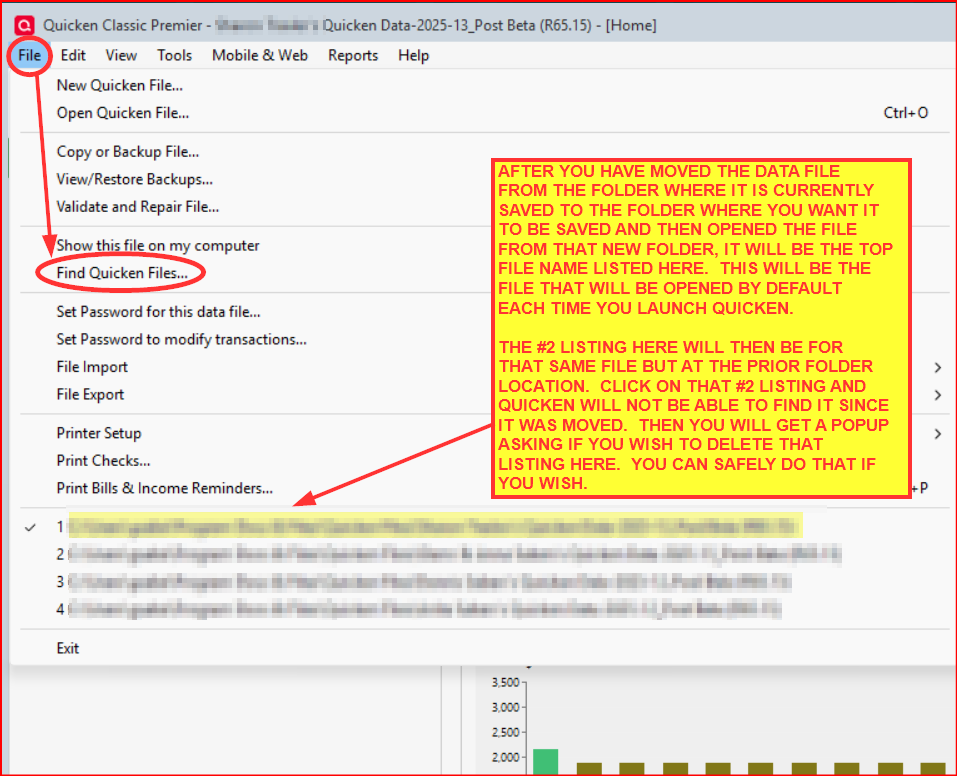
- Go to File > Find Quicken Files.
- This will identify all Quicken data files on your local drive and show you the paths where they are located. Make note of them.
- Go to the location where you most recently dated data file(s) are saved.
- Cut the appropriate data file there and paste it into the folder where you want it saved.
- Double click on that file after it has been pasted into your desired folder.. Quicken will open it.
- Quicken will now remember to open and save the file to that folder.
Did this resolve the issue for you?
Quicken Classic Premier (US) Subscription: R65.29 on Windows 11 Home
0 -
Thank you Boatnmaniac!
- Go to
File > Find Quicken Files.
Is this a search directly in the Quicken program? Or a search in the PC Files?
Didn’t think Quicken would create another location in PC files.
thank you.Longtime Quicken user. Use Quicken only for Reports of categories/expenses at end of year to enter in tax return only. No other services. Windows 10 (this will change to Win11) - PC only. (no mobile or app use)
0 - Go to
-
This search function is in the Quicken program. See the following picture.:
Quicken Classic Premier (US) Subscription: R65.29 on Windows 11 Home
0 -
Didn’t think Quicken would create another location in PC files.
From what I recall, I think this most likely happens when the data file save location is different from the Quicken default location for it. You have been saving your data file in a location that is different from the one Quicken defaults to. There is nothing wrong with that. In fact I, too, have done that.
If I am correct, it is not so much that Quicken sets up a new unique location for the data file so much as it is that Quicken sometimes reverts to the Quicken default location for it. At least that is what happened with me a while back.
Quicken Classic Premier (US) Subscription: R65.29 on Windows 11 Home
0 -
This is all good helpful info. I will have time tomorrow to try this out and will report back.
thank you for your detailed guidance.Longtime Quicken user. Use Quicken only for Reports of categories/expenses at end of year to enter in tax return only. No other services. Windows 10 (this will change to Win11) - PC only. (no mobile or app use)
0 -
I was waiting for time to work with this as it may include phone time with Quicken support. I'm hoping for the time today or soon. Just wanted to update and that I'm not ignoring your helpful info.
Massachusetts
Longtime Quicken user. Use Quicken only for Reports of categories/expenses at end of year to enter in tax return only. No other services. Windows 10 (this will change to Win11) - PC only. (no mobile or app use)
0 -
Don't know if this will help but some things to know,
There are 2 kinds of Backups in Quicken, Manual and Automatic. For Manual Backups you can tell it where to put the backup file and if you want to add the current date to the end of the name or to overwrite any existing backup file. If you add the date to the end of the name over time you will end up with a lot of files.
In addition to any manual backups you make, Quicken makes an automatic backup after so many times (which you can set). Quicken makes all automatic backups to a folder named "BACKUP" in the same folder where your Quicken data resides. So if you have data files in separate folders then each folder will have a separate Backup subfolder.
Your data is kept in a file ending in .qdf. So look for files that might have .qdf or .qdf-backup in them. Starting with the 2010 version they added "-backup" to the file extension.
I'm staying on Quicken 2013 Premier for Windows.
0 -
I'm back. I created a new File Folder under Quicken in my PC File Cabinet. Did the "Find Quicken File" and copied the first in the results, and pasted it to the new folder in PC Files.
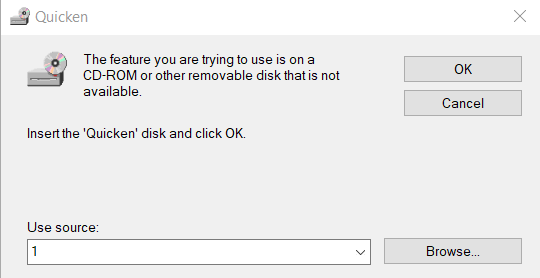
I go to open the saved file in the new folder in PC File Cabinet. It won't open. I receive this. The most recent CD I have is from 2017. I don't think I want to mess with that CD just to create or copy the current Quicken file.
I used to be able to open any saved Quicken file in my PC Cabinet regardless of clicking Quicken from my application programs, or even clicking the Icon on Desktop (I don't use icon anymore though). My own saved file in PC are dated and I always know which is the most current.
Sorry that changing the name of a bank account created this conflict. Thanks.
Longtime Quicken user. Use Quicken only for Reports of categories/expenses at end of year to enter in tax return only. No other services. Windows 10 (this will change to Win11) - PC only. (no mobile or app use)
0 -
Just reading from VolvoGirl. Thank you. I understand what you say and I pretty much did that process to save the first new Data that followed changing the bank account name.
I may need to speak with Quicken by phone. And I may forgo keeping tidy files in my own PC File Cabinet and use the Quicken app in PC at "Start", "Programs", "Quicken". That opens recent saved data. I don't know how to view a previous program session though. I will lose that ability maybe.
I can report back after speaking with Quicken. (and probably an awful time of year to contact them being it's end of year now…)
I appreciate your assistance. And this is not the worst case out there. to follow…
Longtime Quicken user. Use Quicken only for Reports of categories/expenses at end of year to enter in tax return only. No other services. Windows 10 (this will change to Win11) - PC only. (no mobile or app use)
0 -
Oh, you are using a QWin 2017 and not Subscription? I had assumed you are running an active QWin subscription.
QWin 2017 is no longer a supported version (has not been since early 2021). Quicken Inc. made some changes in their system that are not readily compatible with QWin 2017 initialization configuration (actually, not compatible with any version from QWin 2014-2017). As such, new QWin 2017 installations cannot be successfully installed and run on any computer.
There is an outside chance that you might be able to get it working, though. Some people say this process works while others have said it does not. For you it might just work since you still have your Win10 computer installation. You can read up on that process here: https://www.quicknperlwiz.com/blanklogin2014-2017.html .
If you decide to try doing this, make sure you are running the latest version of QWin 2017. You can download and install the Release 20.5 Mondo Patch for that right over what you had installed on your new Win11 system from here: .
Then first try doing the copy/paste of the Quicken.ini file option mentioned in that article at the first link above. If it doesn't resolve the issue you can then try doing the other troubleshooting steps mentioned in that article.
If the steps in this article do not help you with getting a successful installation on your Win11 system then you might need to consider continuing to use QWin 2017 on your Win10 system and not on your Win11 system.
Otherwise you can buy a QWin Subscription and install that. That will read and upgrade your 2017 data file so you can use it on Win11. But you should note that Subscriptions run for 12 months and then need to be renewed in order to retain full functionality.
If you choose not to renew your subscription after the 1st year you will still be able to manually use it but there will be some functionality restrictions and there will be reminder banners taking up 20%-30% of your screen that cannot be removed without renewing. You might want to read this Support Article about what happens (including a visual of the reminder banners) if/when you do not renew the subscription: .
Quicken Classic Premier (US) Subscription: R65.29 on Windows 11 Home
0 -
I'm still working on this, but just to clarify - I started with a CD in 2017. I receive "Updates" regularly ever since. I'm paying renewal of subscription each year. This has gone smoothly all along, even when upgrading from Win. 7 to Win. 10! And my files seemed to continue saving as I was used to. I will hold Win. 11 until this is resolved, or resolved enough. Thanks again.
On to Quicken phone lines.
Longtime Quicken user. Use Quicken only for Reports of categories/expenses at end of year to enter in tax return only. No other services. Windows 10 (this will change to Win11) - PC only. (no mobile or app use)
0 -
OK, then. So you do have Subscription. That is really good to know because it means you have not been running QWin 2017 on your Win10 computer.
That QWin 2017 CD is the problem because it is not QWin Subscription and it cannot be initialized and activated.
Instead, try downloading and installing a fresh copy of QWin from your online Quicken.com account or from this link: .
If you download and install the file from your Quicken.com account it will be installed already activated.
If you download and install it from the link I provided, during the install process you will be prompted to sign in with your QuickenID and Password. Then it will be activated.
There is only one Quicken Classic for Windows software. The subscription you have determines which edition of Quicken will be activated (i.e., which features will be enabled).
During the install process you will have the option to select the QDF file you moved to your Win11 computer and it should readily open right up.
Sorry about the prior long post. I misunderstood which version of Quicken you are running.
Quicken Classic Premier (US) Subscription: R65.29 on Windows 11 Home
0



Categories
- All Categories
- 58 Product Ideas
- 34 Announcements
- 238 Alerts, Online Banking & Known Product Issues
- 19 Product Alerts
- 511 Welcome to the Community!
- 678 Before you Buy
- 1.4K Product Ideas
- 55.3K Quicken Classic for Windows
- 16.7K Quicken Classic for Mac
- 1K Quicken Mobile
- 828 Quicken on the Web
- 123 Quicken LifeHub