One step update does not list any of my accounts

I am running Quicken Classic Premier, version R65.29 on Windows. When I select One-step update from the menu bar, none of my accounts are listed. What I have to do now is select each account, edit it, deactivate online services for the account, then go through the hassle of reactivating it. I have 15 accounts, so this is time-consuming. The one-step update function has not worked for at least 6 months for any of my accounts. Quicken support recommends going through the deactivation/activation steps above each time I want to update.
Here is what I have tried, to no avail:
quit and restart Quicken
validate and repair the data file (there are no errors), then quit and restart Quicken
rebooted laptop, then go through steps above again
uninstall then reinstall Quicken
move the data file to another drive
There are no errors or messages of any kind. Quicken support thinks the answer is to deactivate/reactivate each account each time I need to update my transactions which I think is ridiculous.
Does anyone have any other ideas? TIA
[Edited-Readability]
Best Answer
-
Hello @ktpmm5,
Thank you for sharing a detailed account of your experience.
Definitely an interesting issue you have described. Are all of these accounts with one bank, or are several banks affected?
You mentioned moving the file to another drive. I would caution against that. The data file that you are in and actively using should be stored locally, as storing it externally can cause damage to the file.
I am also curious if your data file is being synced/backed up by any third-party services like OneDrive, Dropbox, or Google Drive? If so, you should exclude your active data file from it, as it can cause data integrity issues as well.
As for file location, the default location is C:>Users>username>Documents>Quicken, and that is where we recommend keeping it. Backup files can be stored and synced elsewhere, and it is encouraged.
Most troubleshooting steps that I would recommend you have already tried. One thing I would like to try is copying your file to see if these issues still exist in a new file.
To copy your file:
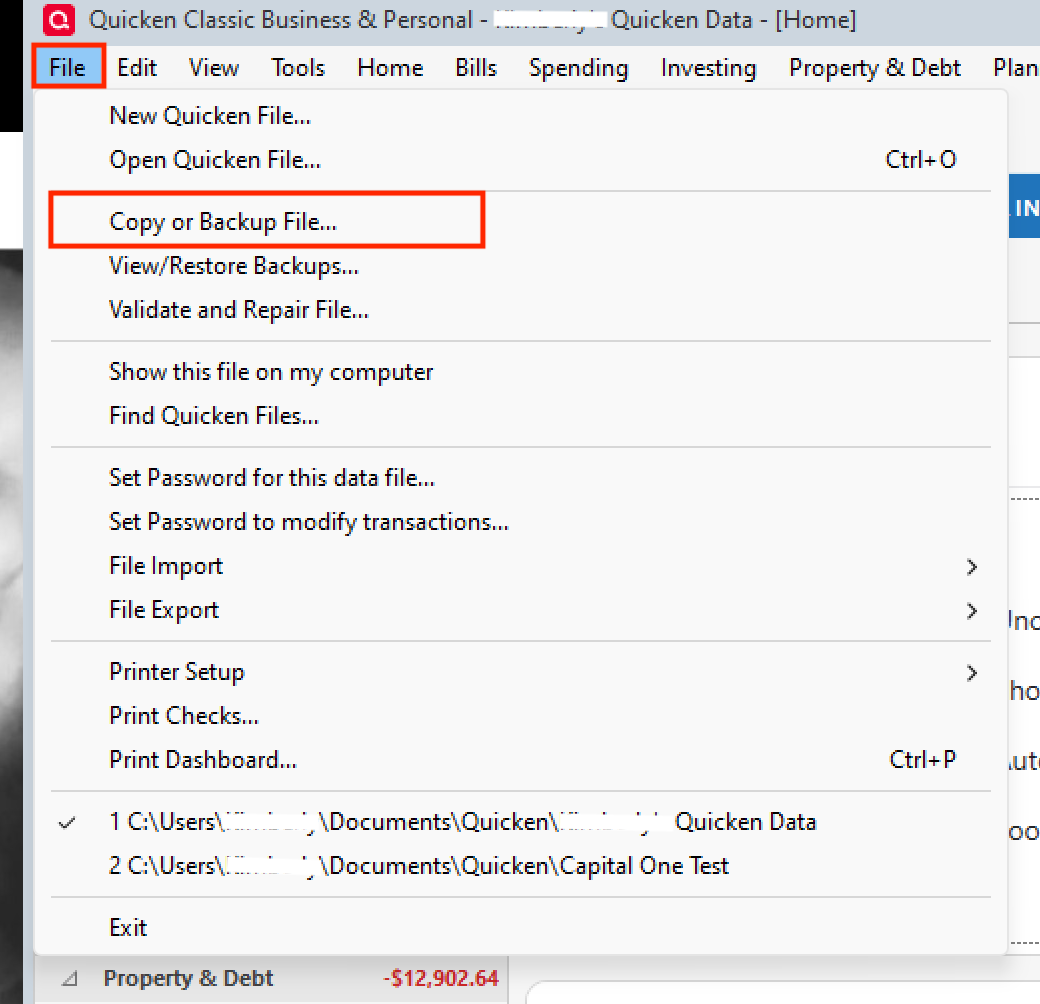
- Go to File > Copy or Backup File.
- In the Backup or Copy File window, under Advanced Options, select Create a copy or template.
- Click Next.
- Choose what you want to include in the copy.
- Name and Save the copied file.
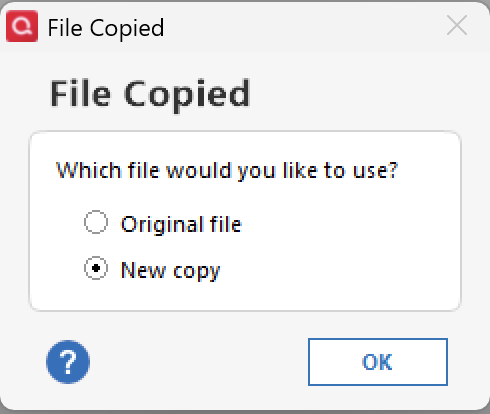
- When asked which file you would like to open, choose New Copy.
Note:
- Once you are in the new file, you will need to reconnect all of your accounts.
- If at any point you want to get back to your original file, you can do so by going to File and selecting the second file listed at the bottom of the menu.
Let us know how it goes!
Quicken Alyssa
Make sure to sign up for the email digest to see a round up of your top posts.
0 - Go to File > Copy or Backup File.

Answers
-
When you do the de- & re- activate, do you do it one account at a time or all of the de-activations and then all of the re-activations? You can do them in groups based on the financial institution.
It is always suggested that you do the later.
I only use OSU for one account, the rest are setup for manual web connect, so that is the limit of my advice.
-splasher using Q continuously since 1996
- Subscription Quicken - Win11 and QW2013 - Win11
-Questions? Check out the Quicken Windows FAQ list0 -
Hello @ktpmm5,
Thank you for sharing a detailed account of your experience.
Definitely an interesting issue you have described. Are all of these accounts with one bank, or are several banks affected?
You mentioned moving the file to another drive. I would caution against that. The data file that you are in and actively using should be stored locally, as storing it externally can cause damage to the file.
I am also curious if your data file is being synced/backed up by any third-party services like OneDrive, Dropbox, or Google Drive? If so, you should exclude your active data file from it, as it can cause data integrity issues as well.
As for file location, the default location is C:>Users>username>Documents>Quicken, and that is where we recommend keeping it. Backup files can be stored and synced elsewhere, and it is encouraged.
Most troubleshooting steps that I would recommend you have already tried. One thing I would like to try is copying your file to see if these issues still exist in a new file.
To copy your file:
- Go to File > Copy or Backup File.
- In the Backup or Copy File window, under Advanced Options, select Create a copy or template.
- Click Next.
- Choose what you want to include in the copy.
- Name and Save the copied file.
- When asked which file you would like to open, choose New Copy.
Note:
- Once you are in the new file, you will need to reconnect all of your accounts.
- If at any point you want to get back to your original file, you can do so by going to File and selecting the second file listed at the bottom of the menu.
Let us know how it goes!
Quicken Alyssa
Make sure to sign up for the email digest to see a round up of your top posts.
0 - Go to File > Copy or Backup File.
-
Quicken Alyssa, that worked! Thank you. Just to answer your questions above no data is being synced to the cloud or Dropbox. I have my data files on an encrypted area on my hard drive. I'm a little paranoid :-)
Thanks again, I appreciate the help.
1 -
Thank you for coming back to let us know the recommended steps worked to resolve the issue.
This confirmation may be helpful to others experiencing the same or similar issues in the future. If you need more help, don't hesitate to reach back out.
Thanks again!
Quicken Alyssa
Make sure to sign up for the email digest to see a round up of your top posts.
0