Specify Lots Sold in This Transaction view is truncated

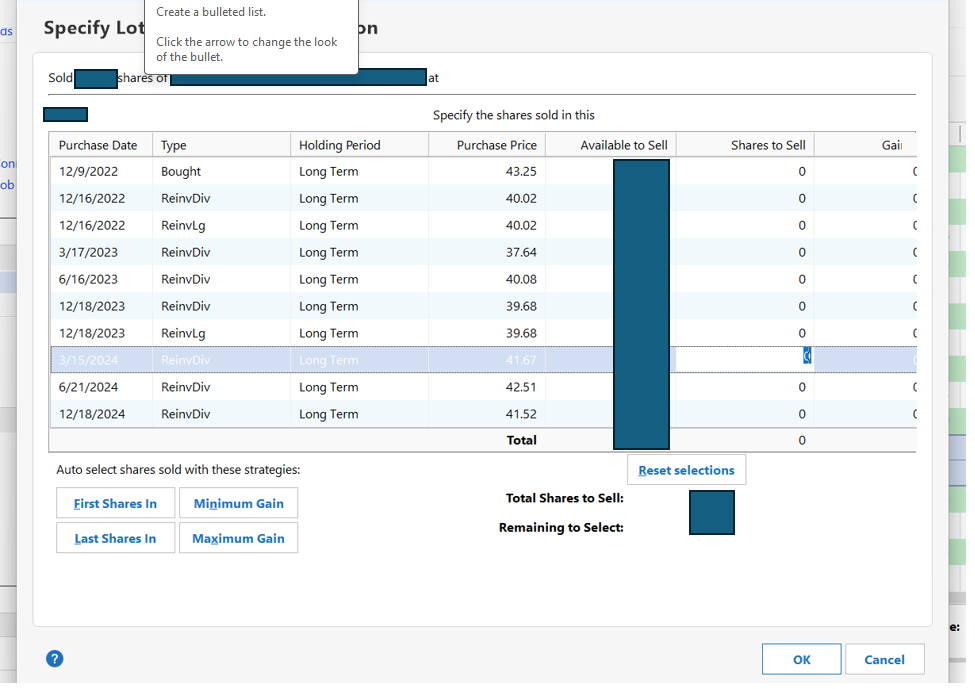
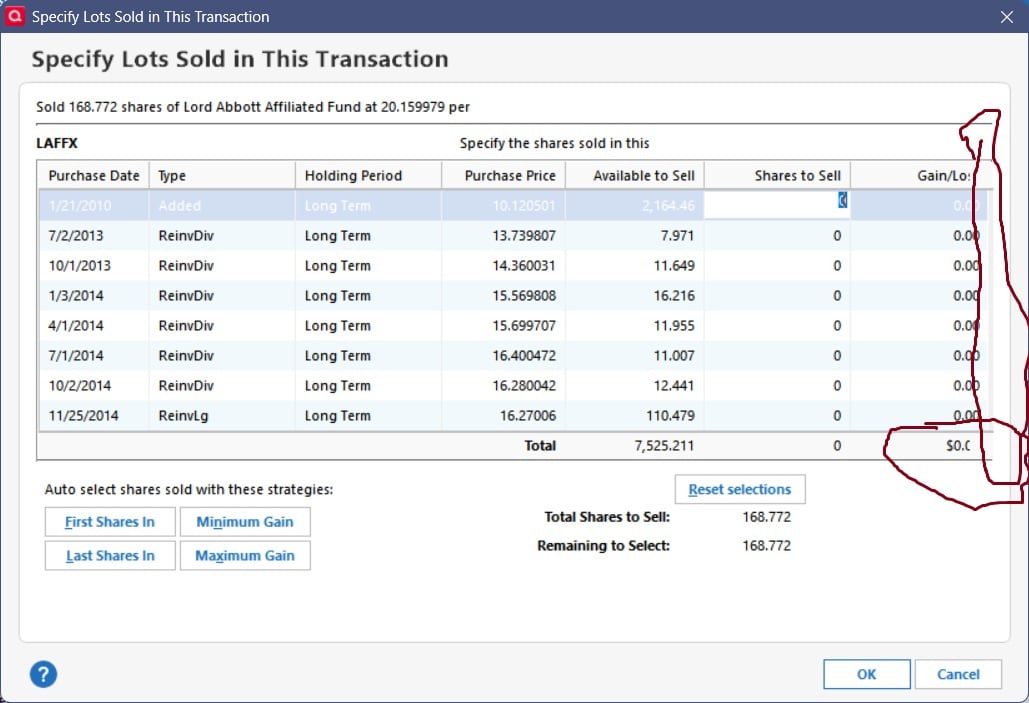
The right side of this view is truncated and does not display the entire Gains/Loss column. This makes it difficult to determine the actual Gain/Loss on a SELL transaction.
Windows OS/Quicken Version/Build - 11/R65.29/27.1.65.29
Comments
-
Even worse than that, when it calculates the gain/loss, it is simply taking the purchase price * the number of shares sold. This is not the correct calculation. I would expect it use the current price for the security minus the purchase price (cost basis) to calculate the gain/loss. Is that not right?
0 -
That screen which I use frequently is annoyingly cut off. Scroll bars are missing and numbers cut off. It has been this way for a long time.
 1
1 -
Curious - if you enter "1" share to sell next to your 7/2/2013 transaction, does the gain show 13.73…?
0 -
@rfmoskowitz Re: your second post, I suspect you did not enter the Price received per share or the total amount received before clicking on Specify Lots. In that case, Quicken is assuming that you sold the shares for zero and will show a loss of your entire cost basis.
That is correct, but probably not what you wanted to see.
I think the amount that is cut off in this window depends on your screen resolution and other display settings. My resolution is 1920x1080 with a scaling factor of 100% and my display looks more like the one in @miklk's screenshot.
QWin Premier subscription7 -
You were right, Jim, thanks. I hadn't entered the price in the previous dialog. Much appreciated!
My scroll bars are still gone… not helpful.
0 -
Can someone from Quicken help log a defect around the missing scrollbar?
5 -
Hello All,
Thank you for taking the time to visit the Community to report this issue, though we apologize that you are experiencing this.
We have forwarded this issue to the proper channels to have this further investigated. In the meantime, we request that you please navigate to Help > Report a problem and submit a problem report with log files attached and (if you are willing) a sanitized copy of your data file in order to contribute to the investigation. Please also include the display resolution you are using, if you use a multiple monitor setup, and if you are using large fonts.
While you will not receive a response through this submission, these reports will help our teams in further investigating the issue. The more problem reports we receive, the better.
We apologize for any inconvenience!
Thank you.
(CTP-15994)
Quicken Kristina
Make sure to sign up for the email digest to see a round up of your top posts.
0 -
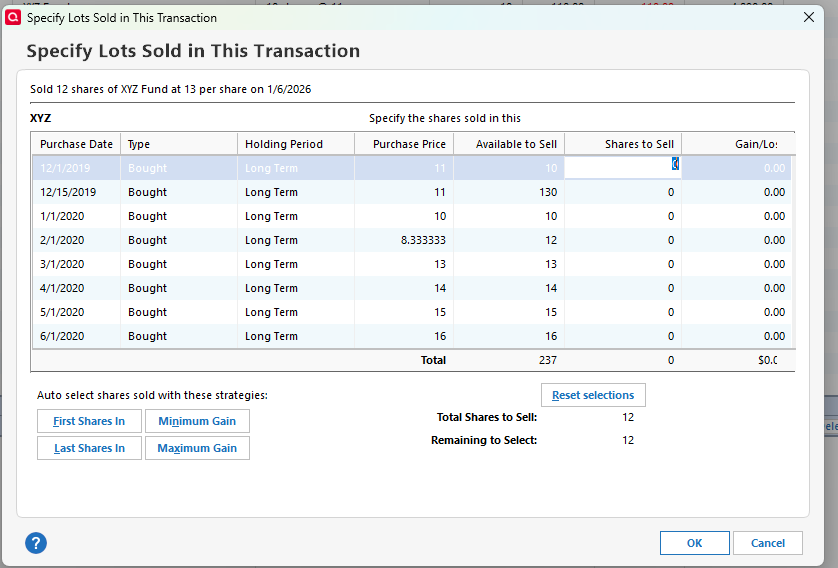
I explored this issue further and I found that for me, the Gain/Loss column is only cut off and the scroll bar missing if there are more tax lots than will fit in the Specify Lots screen. See this screenshot.
Another really annoying thing about about the Specify Lots dialog is the low contrast white on light blue color combination when one of the tax lots is selected.
My screen resolution is 1920x1080 at 100% scaling, not Large fonts.
Problem report sent.
QWin Premier subscription1 -
@Jim_Harman thank you for reporting it and providing more detail.
@Quicken Kristina can you please send the additional information through your channels as well?
0 -
Hello @Jim_Harman,
Thank you for the additional information and for sending logs! I added that information to the ticket.
Thank you!
Quicken Kristina
Make sure to sign up for the email digest to see a round up of your top posts.
0 -
Btw, the Gain/Loss column is cut off and the scroll bar missing even when there are only a few lot entries in the view. See this screenshot. It doesn't matter (for me anyway) if there is 1 lot or 100 lots. Also, screen resolution has no bearing on rendering of the display. I tried all 12 resolutions available on my PC and the view is still truncating off the right end. The problem display I originally submitted and this one are resolution 1920x1080.
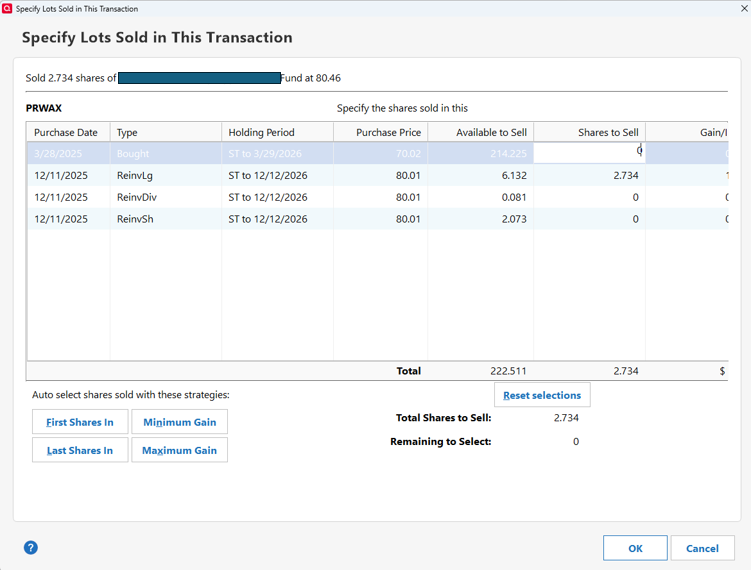
I do remember that this view used to display properly. When? Probably a year ago when working on my 2024 taxes.
6 -
@cardinaln19501 What is your screen resolution? (right click on the Windows desktop and select Display settings to see.) What is the Scale percentage?
Are you using the View > Use large fonts option?
These settings appear to have an effect on this issue.
QWin Premier subscription1 -
I am also having this issue - the UI doesn't seem to scale properly and not sure if it is just high-resolution monitors. It would be nice if we can manually resize these columns, but that doesn't currently seem to be an option.
I spoke with customer service a while ago and they wanted me to do a validate but I didn't want to do it for this issue when it's a coding problem and not a datafile problem.
Thanks.
0 -
Hello @davidmarketing,
Thank you for letting us know you're also seeing this issue. I added you to the ticket.
Thank you!
Quicken Kristina
Make sure to sign up for the email digest to see a round up of your top posts.
0 -
All this "… try this …" and "… try that …". I should ask Al (small letter "l"). But just to let everybody know that I did my due diligence.
My display settings - retrieved using right mouse click on desktop —> Display settings —> (scroll down to Scale & layout) are currently set at 100% (Recommended). My configuration (HP EliteBook with external Acer monitors) only allows scale(s) of 100%, 125%, 150%, and 175%.
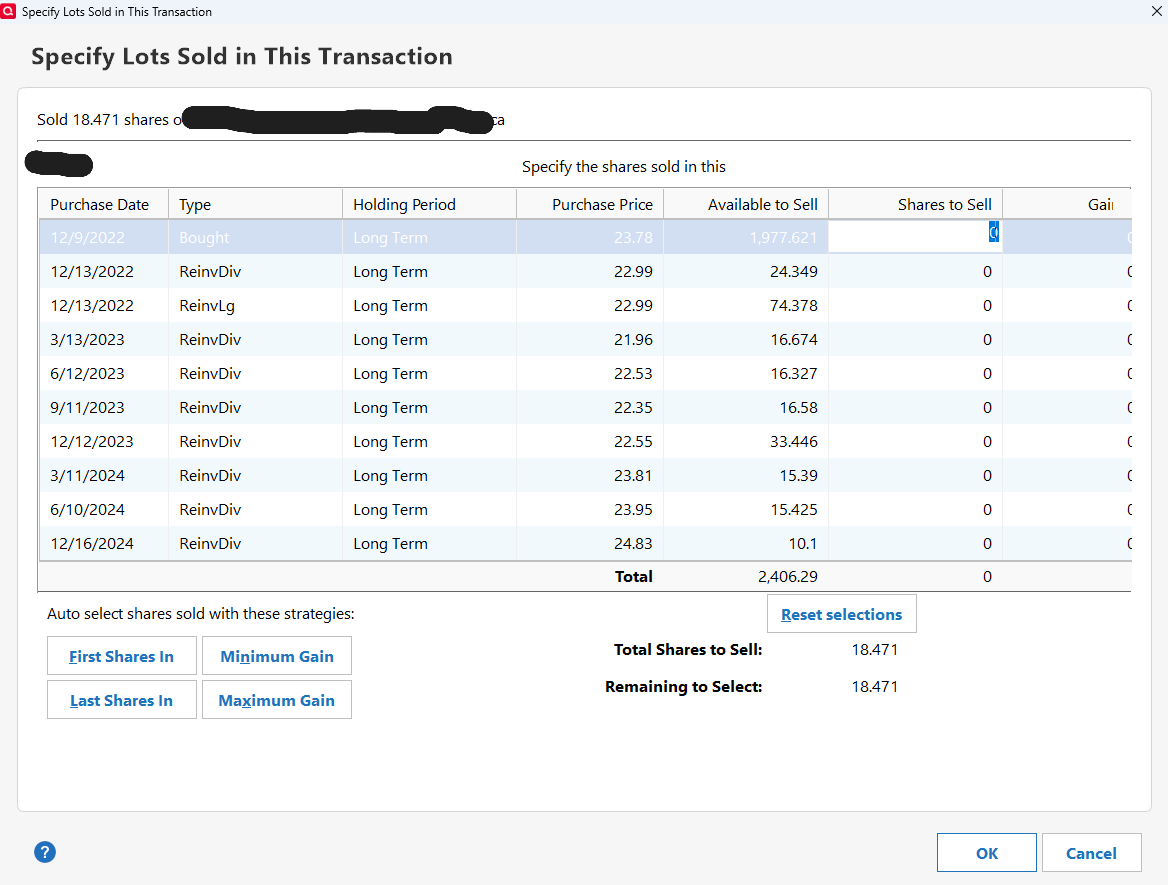
And YES. the View > Use large fonts option does make a difference. Here's the truncated view with Use large fonts CHECKED. This is the setting I had when I reported the problem 8 weeks ago.
Here's the truncated view with Use large fonts UNCHECKED.
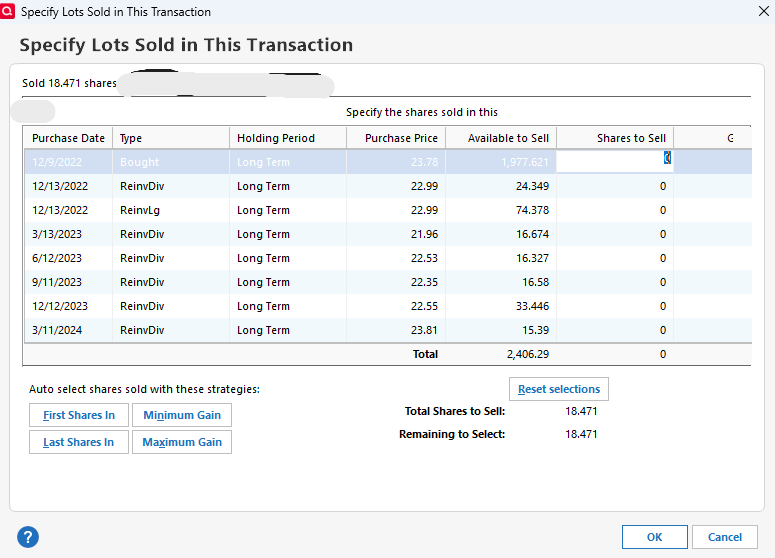
Not only did I have to pull out my magnifying glass to read the tiny font data in the view (although not really detectable here between these two PNG files) but it put less entries in the list (9 vs. 7) and it exacerbated the problem even more by truncating or chopping off more of the viewable data on the right side.
I agree @davidmarketing. Simply a coding problem. Maybe should reboot your computer😏. Computer code in whatever language allows for fixed or dynamic window sizing, the use of vertical or horizontal scroll bars and even some "white space" elimination so that the user can view ALL the data or information. And I agree with your suggestion about being able to manually resize the columns. How much space is truly needed to display the longest TYPE field or longest HOLDING PERIOD (Long Term, Short Term)? Quicken gives us the ability to resize columns with most of its other displays, why not this one?
My critique is over. I know it wasn't fixed with Version R66.12 HF1. Maybe the Quicken team could provide some outlook on when this actual problem will be fixed. Lots of good features in Quicken but regression items (breaking things) should be addressed in a timely manner.
0 -
I am also having this issue. No Large fonts are being used and no matter how many share lots Etc are used, I have never seen the complete numbers in the Gain/ Loss column. I am not real computer literate in order to send screen shots ( and delete or cover any information) but mine look like the others that have been sent.
0 -
And the "I spoke with customer service a while ago and they wanted me to do a validate …" the data is there! Just display it correctly please.
0 -
Hello @Jewel R,
Thank you for letting us know you're also seeing this issue. I added you to the ticket.
Thank you!
Quicken Kristina
Make sure to sign up for the email digest to see a round up of your top posts.
0


