Issue when I update my account on two computers

I have a desktop as my main computer and have the latest version of Quicken on it. I check it daily. I also have a laptop with the latest version of Quicken as well, which I need to use remotely. I maintain the exact same Quicken file and the same accounts on both.
I had not updated the laptop in about a month or two, but recently updated it to Windows 11, and there were a number of changes to my desktop Quicken file, so I decided to do a backup on my desktop and install that file on the laptop via USB.
Everything went smoothly. However, my recurring issue is always that when I go back to the desktop, my update fails and the error(s) indicate I have to reauthorize ALL my accounts, which is a pain.
Quite honestly, I am now hesitant to run the update on my laptop because I do not want to have to keep reauthorizing my accounts on my desktop. I am also concerned that now, when I update the laptop, it will want me to reauthorize all the accounts on that.
Is there any reason that I cannot simply update each file on the desktop and laptop whenever I choose, and NOT have to be forced to reauthorize all my accounts after I have run the update on either the laptop or desktop?
What is strange is that the error on my desktop, whose file I have not altered, indicated I may be running the program from a backup, which I ran on the laptop.
Sorry for the long post, but I am trying to make the issue as clear as I can. Thanks.
Comments
-
Hello @gulf83,
Thank you for sharing your experience and posing this question.
A Quicken data file is not meant to be used in this way on more than one computer, and doing so can lead to damage of your data file.
If you wish to use Quicken on two separate computers, you would use the desktop version on your main computer and then use Quicken on the Web on your secondary computer.
You can follow the steps below to set up Quicken Mobile & Web.
First, set up Quicken Mobile Sync in Quicken Desktop:
- Open Quicken and go to the Mobile & Web tab. Depending on the sizing of the Quicken window, the Mobile & Web tab may be located in the More tab.

2. Click Get Started to select the accounts you want to sync to your mobile device.

3. Place a check next to each account you want to sync to mobile.
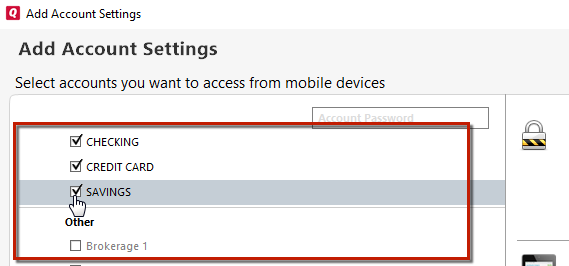
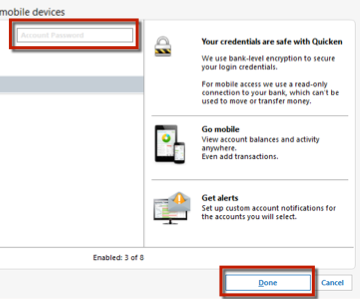
4. After selecting the accounts you want to sync, type your bank password(s) in the field(s) above the accounts and click Done. Then, click Done again on the Accounts Synced dialog.
To sync your Quicken data to Quicken Mobile:
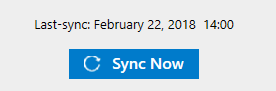
- Click Sync Now under the Mobile & Web tab
2. Go to your mobile app and sign in with your Quicken ID
3. Swipe down on the Mobile App home screen. All the data from the cloud is then downloaded to your mobile device.
Note: To sync whenever you perform a One Step Update, just select Sync to Quicken Cloud under your One Step Update settings:

Hope this helps!
Quicken Alyssa
Make sure to sign up for the email digest to see a round up of your top posts.
0 -
Rather than doing a backup/restore of the data file, just copy the .QDF file between the computers.
-splasher using Q continuously since 1996
- Subscription Quicken - Win11 and QW2013 - Win11
-Questions? Check out the Quicken Windows FAQ list1 -
If you copy the file back and forth, it is entirely up to you to make sure that if you modify one copy, you copy the updated file back to the other computer before accessing it there.
There is no way to merge two copies.
QWin Premier subscription1 -
Alyssa:
Thank you very much for your prompt and thorough reply. I will try this and hopefully it will solve my issue.
0 -
Thank you for following up!
Do let us know how it goes. If you need more help, we will be here!
Thanks again!
Quicken Alyssa
Make sure to sign up for the email digest to see a round up of your top posts.
0 -
Just checking in, we haven't heard back from you in a while.
Do you still need assistance?
Thank you!
Quicken Alyssa
Make sure to sign up for the email digest to see a round up of your top posts.
0 -
Hello again,
Checking in once more before this thread is closed.
Let us know if you still need assistance.
Thank you!
Quicken Alyssa
Make sure to sign up for the email digest to see a round up of your top posts.
0 -
Due to the lack of response, I went ahead and closed this post.
If you still require assistance, please feel free to start a new post.
Thank you!
Quicken Alyssa
Make sure to sign up for the email digest to see a round up of your top posts.
0