2 factor authentication pop ups not appearing [Edited]

How can I activate or allow a popup window when trying to update an account that requires 2 step verification? I have been able to get the popup window and enter the code that is sent to my cell phone until just recently. Now, after updating, the error says that my institution is requiring a popup, and the update doesn't proceed even though the popup window has always automatically come up in the past.
I contacted Quicken Support, and they said it was my institution fault, and my institution says its Quickens fault. I use Quicken Classic Premier on a PC.
[Edited - Readability]
Comments
-
Hello @Gdjrx,
Thank you for reaching out with this issue! I reviewed your interaction with Quicken Support, and it looks like the issue you're encountering is a CC-508 error when trying to connect/update CarMax. Is that correct?
If you haven't already done so, please follow these troubleshooting steps from our article on CC-508 errors:
First, refresh your online account information in Quicken
- From your account register, select the Actions gear icon at the upper right of your register (Ctrl + Shift + N).
- Then, select Update now.
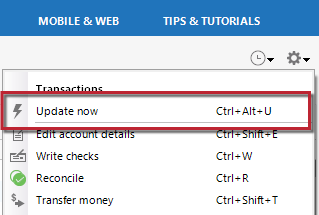
- Follow the on-screen instructions to complete the update.
- Repeat these steps for each financial institution experiencing this error.
Then, visit your bank's website
- Sign in to your financial institution's website.
- Navigate to the page you download your account information.
- When you encounter the new web page that requires your response, fill out the requested information and dismiss the screen. This could be a dialog requesting you accept terms of service or a special offer.
Important: If you have the option to not display the page or ask you again, select that option. If you do not, the error may continue to occur.
If the issue persists
- Close Quicken.
- Click the Start button and select Control Panel.
- Windows 10: the Control Panel is located in the Windows System folder in the Start menu.
- Windows 11: Go to the Start menu and select All apps.
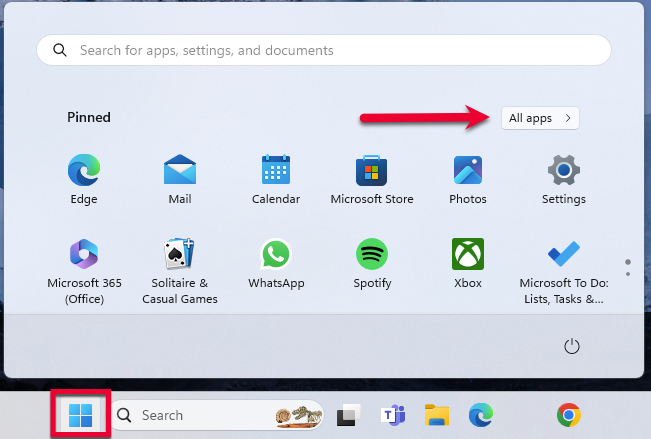
Then, go to Windows Tools and select Control Panel.
- Select Network and Internet > Internet Options.
- Under Browsing history, click Delete.
- Make sure there is a check next to Temporary Internet Files. The other checkmarks are optional.
- Click Delete.
- Then click OK when done.
- Log in to your financial institution's website and accept Cookies and any security measures, as requested by the site.
- Open Quicken and try your update again.
Note: If the Security level is set too high, it may prevent your system from storing the cookies and security necessary to continue functioning with your financial institution. Medium security level should be sufficient to store the cookies and security. You can re-elevate the security level after a successful connection with your financial institution. If the financial institution uses expiring (session) cookies or expiring security, you may have to repeat these steps each time the cookies/security expire.
Please let me know how it goes!
Quicken Kristina
Make sure to sign up for the email digest to see a round up of your top posts.
0 -
Hello @Gdjrx,
We haven't heard back from you in a while. Do you still need assistance?
Check back and let us know! Thank you.
Quicken Kristina
Make sure to sign up for the email digest to see a round up of your top posts.
0 -
Hello again,
Checking in once more before this thread is closed.
Let us know if you still need assistance.Thank you!
Quicken Kristina
Make sure to sign up for the email digest to see a round up of your top posts.
0 -
Hello again,
Due to the lack of response, I went ahead and closed this post.
If you still require assistance, please feel free to start a new post.
Thank you!
Quicken Kristina
Make sure to sign up for the email digest to see a round up of your top posts.
0
