Quicken is unable to update your account. Click here to add your account again.

I started Quicken. Did an online update. Quicken somehow screwed up a banking account when I was trying to close it out. Rather than trying to figure out how I might fix it, I decided to just restore my last backup and start over again. This has worked in the past.
I did the restore. I came back into the product. I did the online update again before moving to the banking account that I want to delete. I got an error for each of my 3 online accounts stating:
Needs Your Attention
American Express
cc-800 | 1 account
It appears one or more account(s) at American Express have been deleted. This could happen if you
have restored from a backup file. You must add the account(s) to Quicken again. Select Fix it to
resolve this error. For more information see the FAQ.
Fix It
When I click the Fix It button and enter my account credentials, I get a 501 error and tells me try again later.
Well gee, thanks Quicken! That's really helpful. NOT!
I DID NOT delete any online account and a simple restore should not have deleted any account. It never did in the past and it better not be occurring now.
So what to do now???
Win10
Version R6529
Build 27.1.65.29
Comments
-
Hello @joecomm,
Thank you for letting us know you're encountering this issue. When restoring a backup, there is a risk that some accounts will need to be reconnected. That is the most likely reason you're seeing the CC-800 errors in your newly restored file.
To troubleshoot the CC-800 errors you're seeing, backup your Quicken file, then follow these steps from our article on CC-800 errors:
First, you'll need to deactivate the affected accounts:
- Select Tools > Account List
- If present, select the Show Hidden Accounts checkbox at the bottom of the Account List
- Select Edit on each account with this error and Deactivate them on the Online Services tab
- When finished, close the Account List.
Second, reactivate the accounts:
- Select Tools > Add Account
- Complete the flow of re-adding the deactivated accounts to Quicken, using your bank login credentials and answering any security questions.
- When you reach the screen listing the accounts discovered at the financial institution, use the Action drop-downs to re-link your accounts:
- For accounts you want to re-link, select Link to existing account and choose the corresponding account to re-link with.
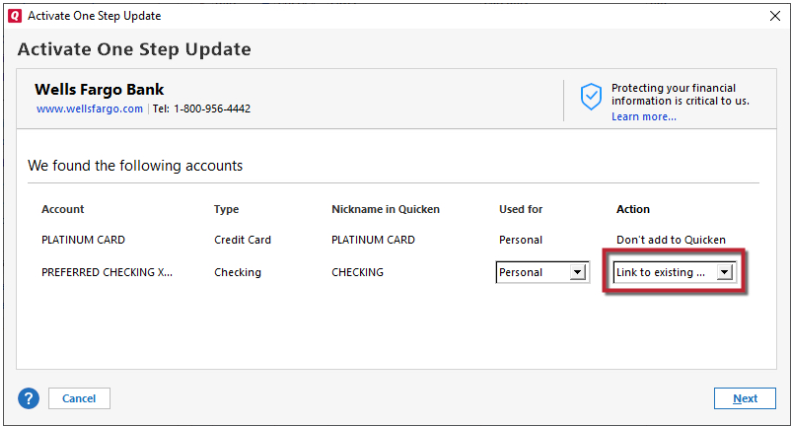
- Select Add to Quicken for new accounts you didn't previously track in Quicken.
- For accounts you don't want to link or add, select Don't add to Quicken.
- For accounts you want to re-link, select Link to existing account and choose the corresponding account to re-link with.
Please let me know how it goes!
Quicken Kristina
Make sure to sign up for the email digest to see a round up of your top posts.
0 -
This also happened to me. I have to go back and manually add 12 separate bank, investing and loan accounts?? Why does Quicken make it so difficult to like the product?
-1 -
I'm a long-time Quicken user, and from time to time I've run into the CC-800 error for a specific account; usually it was easy to fix. This weekend, I began seeing it for almost every account. When I went through the Fix It routine, it was time-consuming, but seemed to work—I logged into each provider successfully, identified the accounts, got a message that it's all good. Then I went back into Quicken and told it to link to existing for each account. I went through this with each bank and financial institution, and it seemed fixed. But it didn't stay fixed. CC-800 came back when I tried to update again.
So I went through the routine to deactivate and then reactivate every account. That seems to have fixed almost everything, except that for my Chase accounts, Quicken still gives me a CC-800 error. I click on Fix it, and almost instantly, without logging into Chase, Quicken tells me "Success! The connection to your financial institution has been restored and the error should no longer occur." Sounds good, but not true. If I exit Quicken and then return, that error comes back.
0 -
Hello @jclivings & @Overhead10,
Did you get these CC-800 errors after restoring a backup? If not, was there anything that triggered these errors?
If you haven't already done so, please follow the directions from my earlier post to resolve the errors:
I hope this helps!
Quicken Kristina
Make sure to sign up for the email digest to see a round up of your top posts.
0


Categories
- All Categories
- 6 Product Ideas
- 34 Announcements
- 249 Alerts, Online Banking & Known Product Issues
- 19 Product Alerts
- 266 Welcome to the Community!
- 301 Before you Buy
- 1.5K Product Ideas
- 55.8K Quicken Classic for Windows
- 16.9K Quicken Classic for Mac
- 1K Quicken Mobile
- 834 Quicken on the Web
- 129 Quicken LifeHub