Planning Budgets carryover year to year

The rollover balance amount on any category at the end of the year, if adjusted, doesn't update the rollover balance in next year's category, and I need to adjust each category's rollover balance to match prior yr changes. 🤔
Win11, Quicken Deluxe, Ver: R66.12, Build: 27.1.66.12,
[Edited - Readability]
Comments
-
Hello @Robert Sheran,
Thank you for letting us know you're seeing this issue. To clarify, are you saying that after you move forward to 2026, you go back to 2025, adjust the budget in a way that affects how much will roll over, but that change does not reflect in the 2026 budget? If that is what is happening, are you seeing this with overages (spent more than budgeted), surplus (spent less than budget), or both?
If that is not the case, please provide more details.
I look forward to your reply!
Quicken Kristina
Make sure to sign up for the email digest to see a round up of your top posts.
0 -
No, I don't adjust the category's budget amounts in the prior year in order to correct the roll-over balance at the end of the year because the year-to-year gets out of line. It seems that the end-of-year balance is not the same as the carryover in the 1st month of the current year when a new budget is created.
Makes no difference whether the prior year's category Roll Over Bal is in the negative or positive at the end of the year, any edit to the end of the year Roll Over Bal using the roll over edit feature in the prior year does not update the same category's 1st month current year's Roll Over Bal.
Hope that helps.
[Edited - Readability]
0 -
Thank you for your reply,
I'm not able to replicate the issue in my own Quicken file. What did you mean in your original post when you said: The rollover balance amount on any category at the end of the year, if adjusted, doesn't update the rollover balance in next year's category…
What are you adjusting?
Thank you!
Quicken Kristina
Make sure to sign up for the email digest to see a round up of your top posts.
0 -
I admit I am not an expert on budget workflow, and my observation (issue) may just be my workflow and not programing. I have 7 years of consecutive budgets. I always create new year budgets based on prior years budget. For any category items that have unpredictable monthly actual expenses I set the item to "Roll Over Balances at the end of each month", At EOY I review the Roll Over Balance. If the "Monthly Budget" amounts for the Prior and Current year are appropriate (based on Avg monthly expenses), but the accumulative "Roll Over Balance" from year-to-year is excessive (+/-), my corrective action is to open prior year and edit the December Roll over Balance to an expected value. When I open the current year budget Category item, I find the Roll over balance on 1st month does reflect what I edited in the prior year.
0 -
Thank you for your reply,
I'm not able to replicate the issue in my Quicken. When did you first notice this issue?
It is likely to be a file-specific problem. To start troubleshooting, I suggest that you try validating your data file. Please save a backup file prior to performing these steps.
Validate:
- File
- Validate and Repair File...
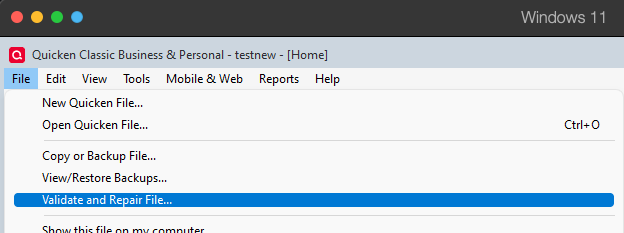
- Validate File
- Click OK
- Close the Data Log
- Close Quicken (leave it closed for at least 5 secs)
- Reopen Quicken and see if the issue persists.
Please let me know how it goes!
Quicken Kristina
Make sure to sign up for the email digest to see a round up of your top posts.
0 -
No change after following suggested process, except now my budget window no longer displays Income categories. I only see expense categories. I checked the managed budget categories selection menu, and the income categories I need are selected for display, but they don't display in Budget window. This mess is getting out of hand. Don't care about roll over balances anymore. Now I need to get my Income categories to display in my Budget window. Any help?
0 -
Thank you for your reply,
Since the validation did not resolve the issue and a new problem has appeared, the next step is to restore a backup file from before the issue started. Test to verify if the issues are resolved in the newly restored file.
I hope this helps!
Quicken Kristina
Make sure to sign up for the email digest to see a round up of your top posts.
0 -
I did Restore the Back Up file dated prior to the File Validation Process. The Budget Planning window still does not display the "income" header and income categories selected for display as it did prior to file validation process. The budget window only displays "Expense" header and categories selected (see attached). The "income" should be displayed above the "Expenses". It is like it is hidden but I don't understand why or how to recover. Thanks for your support
0 -
Thank you for your reply,
Since restoring a backup didn't correct the issue, the next step is to troubleshoot for a possible program issue. Please use the link and instructions in this article to manually reinstall the current update patch for Quicken:
Thank you!
Quicken Kristina
Make sure to sign up for the email digest to see a round up of your top posts.
0 -
Latest update R66.28 build 27.1.66.28 already installed during normal auto update couple of weeks ago. I Followed your suggestion and instructions for trouble shooting with Manual patch update install. No change, Budget Planning tool still does not display the "income header" or any of the "income categories" selected for display. Thanks for your support
0 -
Thank you for your reply,
Since the manual patch update didn't correct the issue, the next step is to uninstall and reinstall Quicken. To do that, first back up your Quicken file. Then, uninstall Quicken. You can do that by following these steps from our article on uninstalling Quicken:
Windows 11
1. Click the Start button and select Settings (gear icon).

2. Select Apps from the settings list, then click Installed apps.
3. In the Installed apps list, scroll down to Quicken, click the three dots menu, then select Uninstall.
4. Click on Uninstall again to confirm and follow through the prompts until the program is removed.
Windows 10
1. Click the Start button and select the Control Panel. In Windows 10, the Control Panel is located in the Windows System folder in the Start menu.
2. Under Programs, click on Uninstall a Program.
3. Find Quicken in the list of programs. They are alphabetically ordered. Highlight it by clicking on it once.
4. Click on Uninstall at the top of the list and follow through the prompts until the program is removed.
Once the program is uninstalled, please download the installer using the link in this article:
Then, install Quicken by following these directions from our article on downloading and installing Quicken:
Install Quicken
- Follow the on-screen instructions to complete the installation.
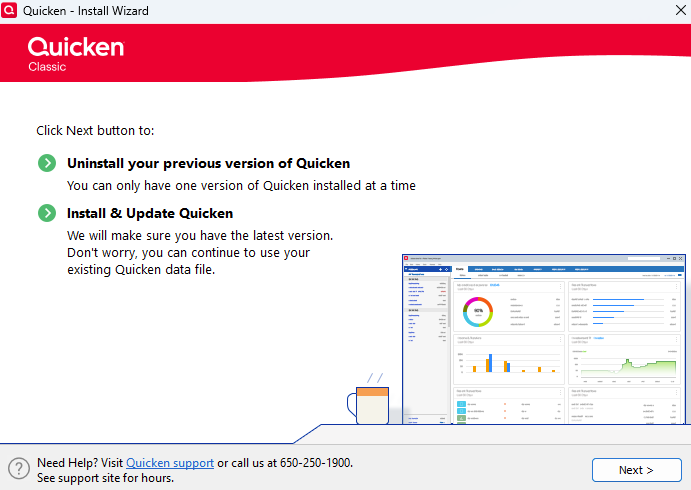
- Click Next to get started.
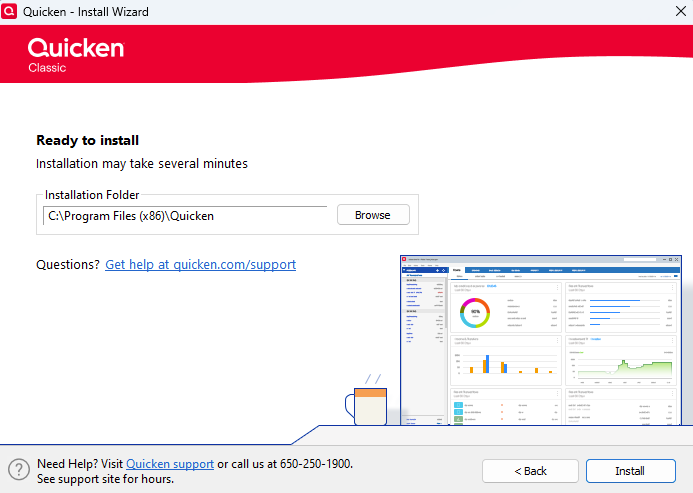
- Click Install on the Ready to install prompt.
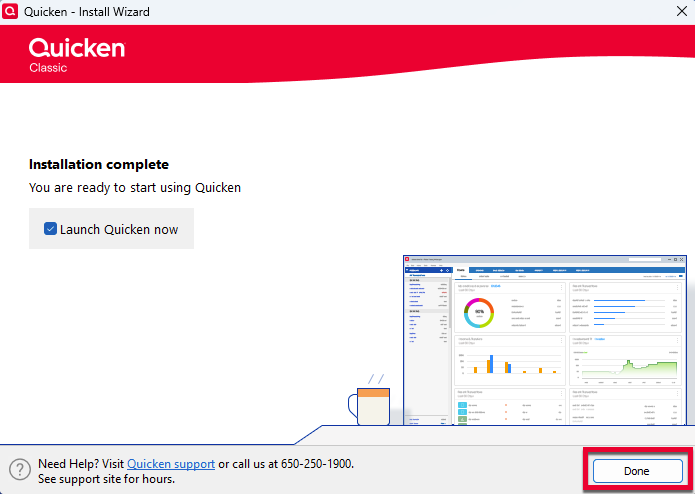
- When the installation is complete, click Done.
- Click Next to get started.
- Enter your Quicken ID and Password.
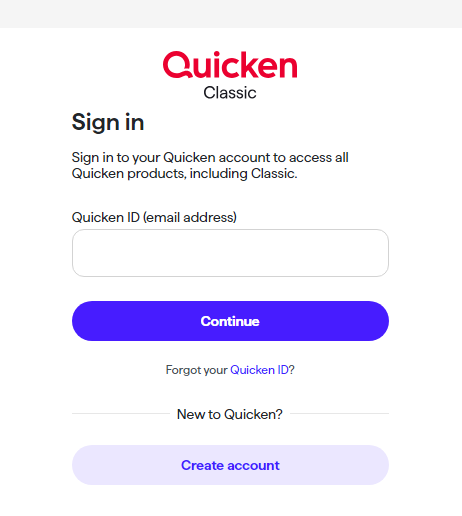
- If prompted, enter the 6-digit code. This process verifies your information and helps keep your account safe.
- Enter your Activation Code if you're prompted for one. An Activation Code is only necessary when Quicken is purchased from a retail store. You can find your Activation Code inside the box or your purchase confirmation email. For more information on product activation, click here.
Note: If you purchased from Quicken.com, you'll only need to sign in with your Quicken ID (email address) and password.
Step 3: Open your Quicken data file
- Select one of the on-screen options.
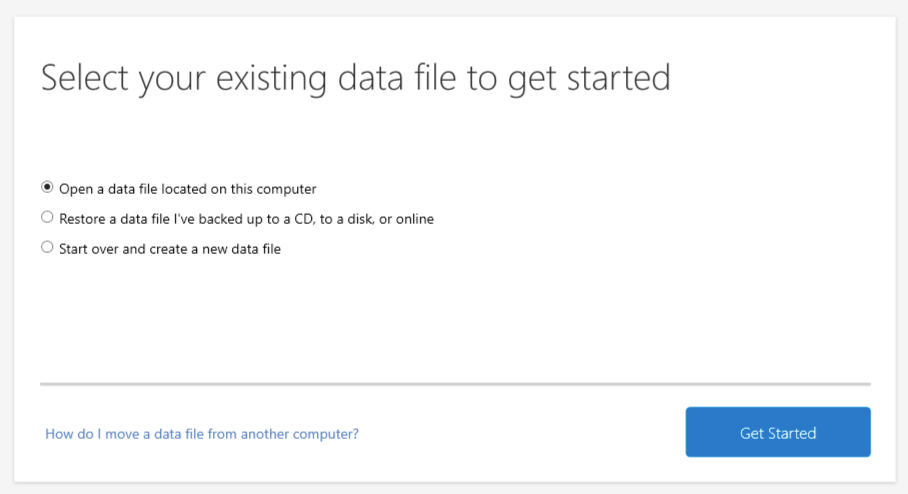
If your data file is on another computer, click here for instructions on moving your data file.
Please let me know how it goes!
Quicken Kristina
Make sure to sign up for the email digest to see a round up of your top posts.
0 - Follow the on-screen instructions to complete the installation.
-
Yuck, Thanks for your support but I think I will post pone this action at this time until my other issue with
Boing Credit Union interface issue with Direct Connect is resolved by BECU (not a Quicken issue). Thanks again for your support.
0 -
Thank you for the follow-up,
If you need further assistance, after the BECU issue is resolved, please feel free to reach out!
Quicken Kristina
Make sure to sign up for the email digest to see a round up of your top posts.
0



