BECU Business Online stopped downloading VISA transactions end of 2025

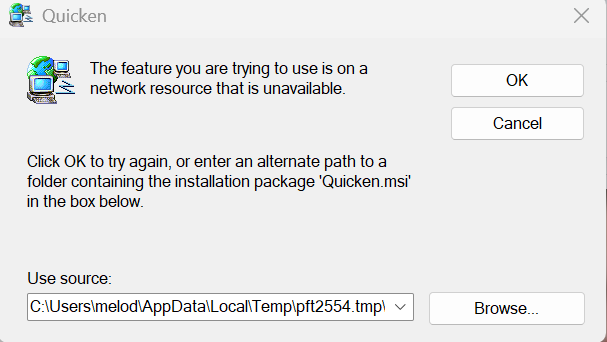
Windows Quicken Classic can't get Quicken to download the transactions. Used to be able to at least manually download and not that is not working either. Gettting the following message…
C:\Users\melod\appData\LocalTemp\pft2554.lmp\DISK1\Quicken.msi cannot be found. Verify you have acces to this location and try again or try to find where the installation package"Quicken.msi" in a folder
This seems like an old Desktop message - used to be on the desktop Quicken went sometime ago to the cloud…? BECU does see the 2 accounts (cking & SAV) but no VISA???
I tried resetting Account on the online display tab where it says BECU has a new and improved but that is only finding the 2 main accounts not the VISA account? HELP.
Comments
-
So I tried Deactivating and reactivating the Online Services. It is only finding the 2 accts (ck/SAV) and does not show the VISA??? At least before it said it was connected and activated and just not working. Now nothing.
 0
0 -
Next message….
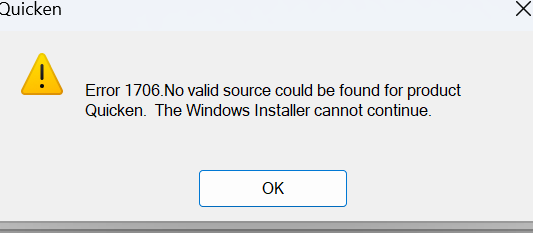
[Window Title]
C:\Users\melod\Downloads\AccountHistory (24).qfx[Content]
C:\Users\melod\Downloads\AccountHistory (24).qfxFatal error during installation.
[OK]
0 -
Hello @melodyc,
Thank you for letting us know you're encountering this issue. There is currently a known issue with downloading from Boeing Employees Credit Union. For more information, please see the Community Alert linked below:
The errors you're reporting when you try to import indicate that part of the Quicken program is either missing or not functioning correctly. To fix the issue, please uninstall then redownload and reinstall Quicken.
To uninstall Quicken, please follow the applicable instructions from our article on uninstalling:
Windows 11
1. Click the Start button and select Settings (gear icon).

2. Select Apps from the settings list, then click Installed apps.
3. In the Installed apps list, scroll down to Quicken, click the three dots menu, then select Uninstall.
4. Click on Uninstall again to confirm and follow through the prompts until the program is removed.
Windows 10
1. Click the Start button and select the Control Panel. In Windows 10, the Control Panel is located in the Windows System folder in the Start menu.
2. Under Programs, click on Uninstall a Program.
3. Find Quicken in the list of programs. They are alphabetically ordered. Highlight it by clicking on it once.
4. Click on Uninstall at the top of the list and follow through the prompts until the program is removed.
To download Quicken, please use the article linked below:
Then, once you have downloaded Quicken, please follow these instructions from the article to install it:
Install Quicken
- Follow the on-screen instructions to complete the installation.
- Click Next to get started.
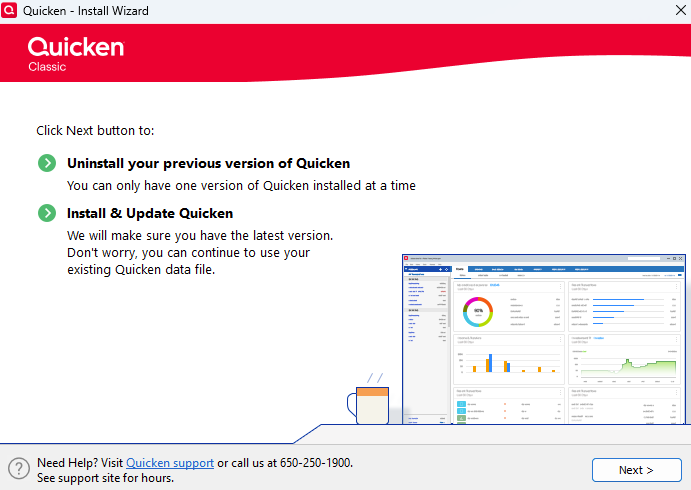
- Click Install on the Ready to install prompt.
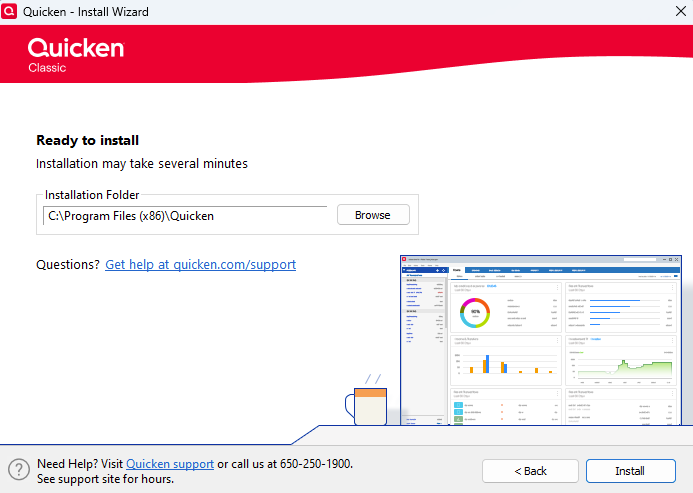
- When the installation is complete, click Done.
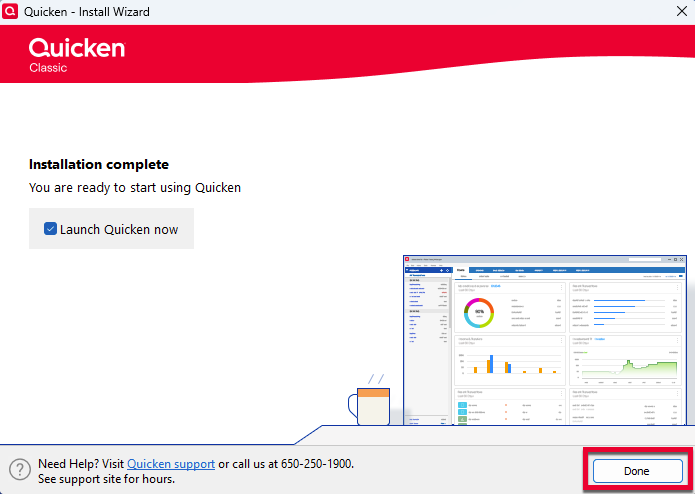
- Click Next to get started.
- Enter your Quicken ID and Password.
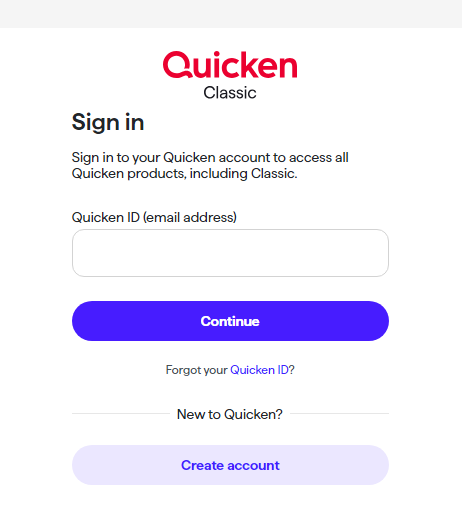
- If prompted, enter the 6-digit code. This process verifies your information and helps keep your account safe.
Step 3: Open your Quicken data file
- Select one of the on-screen options.
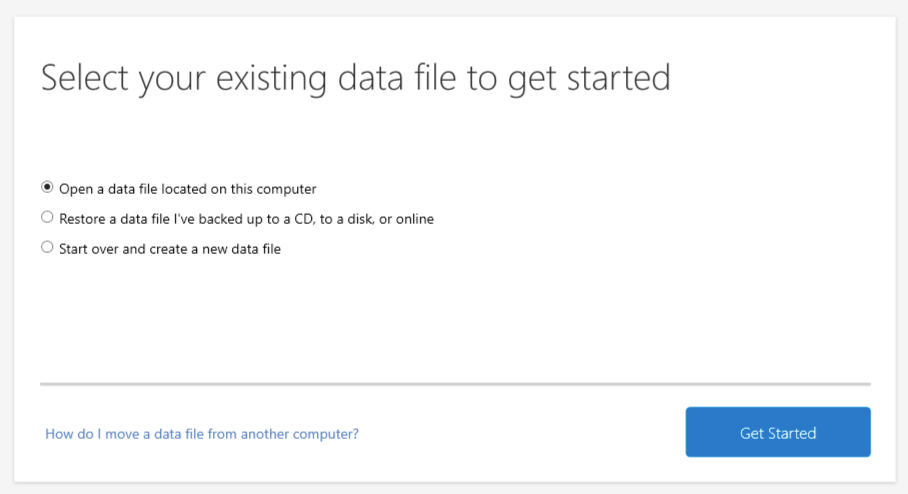
Please let me know how it goes!
Quicken Kristina
Make sure to sign up for the email digest to see a round up of your top posts.
0 - Follow the on-screen instructions to complete the installation.
-
Hello @melodyc,
We haven't heard back from you in a while. Do you still need assistance?
Check back and let us know! Thank you
Quicken Kristina
Make sure to sign up for the email digest to see a round up of your top posts.
0 -
Hello again,
Checking in once more before this thread is closed.
Let us know if you still need assistance.Thank you!
Quicken Kristina
Make sure to sign up for the email digest to see a round up of your top posts.
0
