quicken files (.qfx) from vancity will not upload to quicken

I can't automatically update my VanCity accounts any more. I am using Quicken Deluxe Canada Version 8.4.2 (Build 804.59835.100).
So as a workaround, I went to VanCity and downloaded the .QFX file for one of my VanCity accounts. The data will not upload to Quicken.
I am soooo frustrated at this point. What are my options?
Thanks,
Jean
Comments
-
Hello @JSlick,
I completely understand your frustration—especially when both connection updates and manual imports aren’t working. Let’s break this down.
After checking your account, I can see that you’re currently experiencing a repeat FDP-102 error following a failed Multi-Factor Authentication attempt. This is a known issue at the moment. I recommend referring to this Community Alert for ongoing updates, as any status changes will be posted there. At this time, there is no ETA for resolution.
Regarding the .QFX file import:
In most cases, issues with QFX files need to be addressed by the financial institution, since they generate and provide the file. However, to determine whether this is a file formatting issue or something occurring within Quicken, we’ll need a bit more detail from you.
Could you please clarify:
- What exactly happens when you try to import the file?
- Do you receive an error message or code? If so, what does it say?
- Does nothing happen at all?
- How are you importing the file—by double-clicking it from your Downloads folder, or by going to File > Import from within Quicken?
Once we have that information, we can better determine the next steps.
Thank you!
-Quicken Anja
Make sure to sign up for the email digest to see a round up of your top posts.0 -
Let's deal with the issue. This problem has been in existence for well over a month between Quicken and Vancity. [Removed -Rant/Speculation]
0 -
Try this:
- Edit > Preferences > Quicken ID & Cloud accounts > Sign in as a different user > Type "yes" on the bottom > Sign out > Then try to sign back into Quicken.
- Once you've completed the above step, then try running a One Step Update.
0 -
In Quicken Mac, to sign out of your account you simply select the "Sign Out…" option from the Quicken menu.
1 -
I believe this is an issue from the Vancity side, but it may be some incorrect information that Quicken has supplied. I found a workaround that seems to work for using the manual download and import method rather than a direct connection, but you have to delete/deactivate every Vancity update link you have in your file.
I have included more information than probably long-term users need, but new users may not be as familiar with these deeper settings:
- from the Vancity website, download the transactions you want to update in Quicken
- select a timeframe that covers back to when your link broke or the last time your reconciled your account(s)
- Download Format is "Quicken.qfx"
- in Windows File Explorer (or from the download icon in Chrome), go to the downloaded file location
- find the file (it should look something like "Account_Statement_0260_10-Mar-2026.qfx") and right click on the file
- select "Edit in Notepad"
- there is a whole bunch of information in this file, but you are looking for the "<ACCTTYPE>" entry
- old Vancity banking platform had the account types of "SAVINGS" and "CHECKING" but new platform has "SA" and CA"
- this is where the issue seems to be
- replace "SA" or "CA" with "SAVINGS" or "CHECKING" as appropriate
- save the file
- ensure that your online services are deactivated for EVERY Vancity account you may have in your file
- right click on each Vancity account
- choose "Edit/Delete Account"
- select the "Online Services" tab
- select "Deactivate" and confirm this choice
- repeat for EVERY Vancity account that you download transactions to (or had a direct connection to)
- validate that you have cleared everything
- select "Tools" from the main menu bar
- select "Online Centre"
- ensure that neither "Vancity" nor "British Columbia Credit Unions" are shown in the Financial Institutions drop-down menu (if they are still there then you've missed the account shown; if you have accounts at other BC credit unions you MAY have to break their links as well
- you should be able to either import the file (File / File Import / Web Connect (.QFX) File) or double-click on the file in File Explorer
- you will be asked whether you wish to create a new account in Quicken or link to an existing (choose this option)
- files should import
- repeat as necessary to get things working for the rest of your accounts
- you may have to manually delete some duplicate transactions in the update register (highlight the ones you need to delete and then hit the <Delete> button in the reconciliation window
I tested this on my active Quicken file plus a couple of other files to ensure it worked, but I am just one guy hacking away because this broken feature got me a bit peeved. Vancity updated their business accounts to the new platform last night and I did before and after downloads to see where the changes were. The account information changed between the two but that information didn't crash the downloads - only the <ACCTTYPE> field crashed it. I then had to figure out how to get my working file back to accepting them (didn't at first).
I'm going to post this on a number of the other threads on this same topic and will send it to Vancity to clean things up. Hopefully Vancity will update their download protocols so things get back to working and that they will post when things are fixed. If they reply directly to me that things are fixed I will post on this thread.
This thread may be relevant for any other BC Credit Union or ATB customer with a similar issue.
0 - from the Vancity website, download the transactions you want to update in Quicken
-
Further to my previous comments.
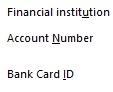
I experimented a bit with a new Quicken file and tried the Express Web Connect setup for Vancity and it worked for each of my member cards/account buckets, but still did not work when I tried with my primary member card. Experimented with a member card that just had one account and got it to work by ensuring every account was deactivated and that the "Account Number" and "Bank Card ID" boxes for each account were blank.
<Right Click> on your mouse over each linked account name to "Edit/Delete account" and then select the "Online Services" tab. <Deactivate> or other equivalent button. Then go back to the "General" tab to clear the "Account Number" and "Bank Card ID" boxes (and "Financial Institution" if it is still filled in).
When these steps are done for each of your linked accounts, open the Tools / Online Center menu from the main menu bar. Vancity Credit Union CA should NOT appear as an available financial institution in the drop-down menu. If it does, you still have another account(s) connected (look at the Transactions below to see what may be still connected).
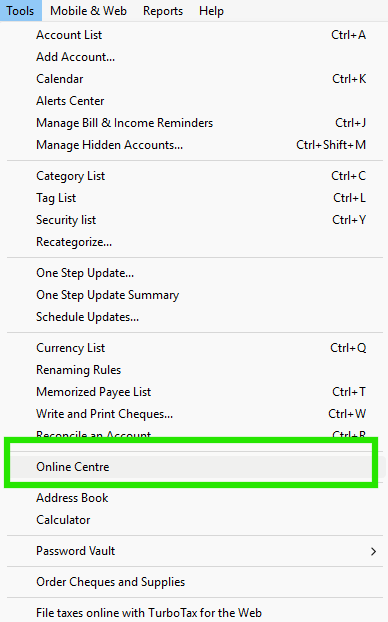
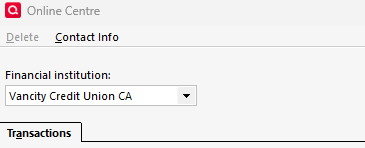
Doing these steps seemed to reset each of my Vancity accounts to be able to download using the Web Connect process in my relevant Quicken files. Try this first before doing the manual adjustment noted in my previous post. I believe the issue was the change in account type (<ACCTTYPE>) between the two versions of the Vancity banking platform messing things up.
[Edited Readability]
0