Getting an error when trying to import QFX files

Comments
-
Well, here's another glitch with my download today. I had a reminder for $249.47 for 3/15. I entered it today (3/16) as it posted overnight. Quicken excluded six transactions from One Step Update, which may be because it can't handle transactions that just posted overnight. So I exported these six transactions from my bank. When I double-click on the downloaded QFX file, Quicken doesn't import it. Instead, it tries to launch a new instance of the application and then displays an error message.
So I have to get the downloaded transactions into Quicken by importing the file. Thus, One Step Update is another function that is no longer working correctly for me. Among the transactions included in the imported download is the one for $249.47. Even though I have a transaction entered for that amount, it does not match it. Instead, it creates a duplicate transaction. When I tried to match manually for the first time, the entered transaction was not even offered as an option.
What is going on with this application? It has gone from being a useful tool to being a daily struggle to work through multiple issues. I do not have any reminders set to be automatically added. I do not sync to the web, to OneDrive, or to anything else.
[Edited - Readability]
0 -
Hello @Randy Schmidt,
Thank you for letting us know about these new issues you're seeing. To help troubleshoot, please provide more information.
When you try to import the QFX file, what is the exact error message you see? Does the transaction information import at all?
Among the transactions included in the imported download is the one for $249.47. Even though I have a transaction entered for that amount, it does not match it. Instead, it creates a duplicate transaction.
Is the transaction entered for that amount a reminder/scheduled transaction?
I look forward to your reply!
Quicken Kristina
Make sure to sign up for the email digest to see a round up of your top posts.
0 -
Hi Kristina,
To clarify, when Quicken does not download transactions from my bank — which appears to happen if the transactions just posted overnight — I use the bank's "export transactions" feature to create a qfx file. When I double-click that file, Quicken attempts to relaunch or reinstall the app:
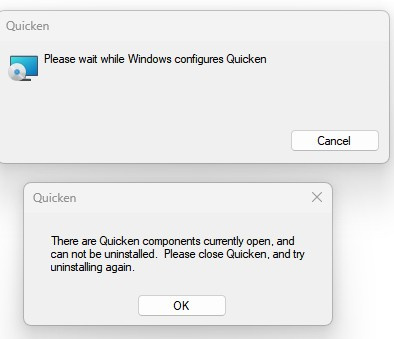
I have to OK the Warning message and Cancel the Configuration dialog box. The file that generated the above issue is "

Since double-clicking the file is problematic, I then IMPORT the file from within Quicken.
As for the $249.47 transaction, it is a transaction I had entered that was posted by my bank. Even though a transaction in that same amount was downloaded, it would not match it or allow me to manually match it. It HAD BEEN a reminder before I entered it, because it's a recurring monthly expense.
0 -
This morning I created a complete data file backup. Then I did another One Step Update. It did not download a transaction from my bank that posted overnight. So I exported it from my bank and imported it in Quicken as noted in previous replies. After the One Step Update, the same past-due reminder from January 28 shows up again in the Bill and Income Reminders view. I can't get rid of it.
0 -
WAG, try using Win File Manager to change the name of the file to just Export83.qfx and see if that works.
Q user since February, 1990. DOS Version 4
Now running Quicken Windows Subscription, Business & Personal
Retired "Certified Information Systems Auditor" & Bank Audit VP0 -
NotACPA, I downloaded a new qfx file from my bank today and renamed it just "export." Unsurprisingly, double-clicking the file caused Quicken to try to reinstall the app.
0 -
Thank you for your reply,
That error typically indicates a program issue. To correct it, please uninstall Quicken, the reinstall it. To uninstall, please backup your file, then follow these steps from our article on uninstalling Quicken:
Windows 11
1. Click the Start button and select Settings (gear icon).

2. Select Apps from the settings list, then click Installed apps.
3. In the Installed apps list, scroll down to Quicken, click the three dots menu, then select Uninstall.
4. Click on Uninstall again to confirm and follow through the prompts until the program is removed.
Windows 10
1. Click the Start button and select the Control Panel. In Windows 10, the Control Panel is located in the Windows System folder in the Start menu.
2. Under Programs, click on Uninstall a Program.
3. Find Quicken in the list of programs. They are alphabetically ordered. Highlight it by clicking on it once.
4. Click on Uninstall at the top of the list and follow through the prompts until the program is removed.
To download Quicken, please use this article to download the current install file:
Once it's downloaded, follow these instructions from our article on downloading and installing Quicken to reinstall the program:
Install Quicken
- Follow the on-screen instructions to complete the installation.
- Click Next to get started.
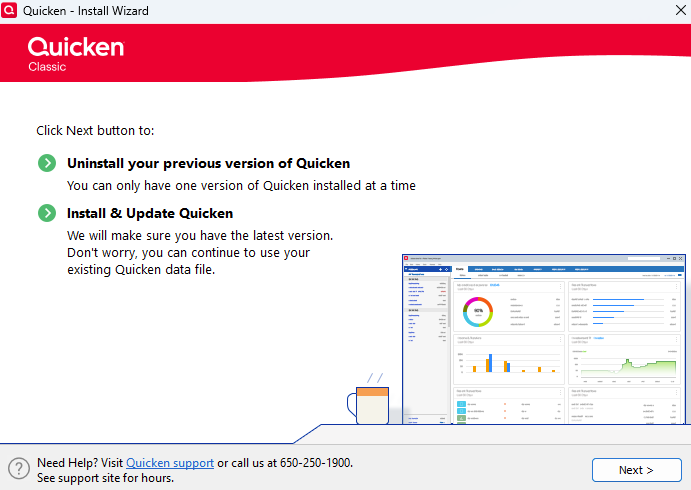
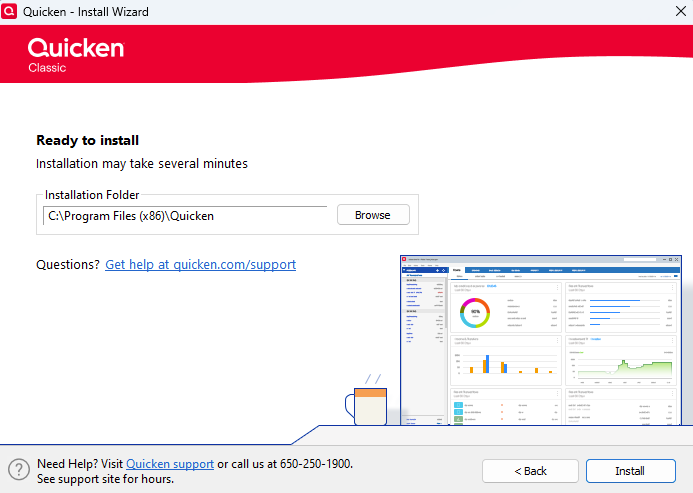
- Click Install on the Ready to install prompt.
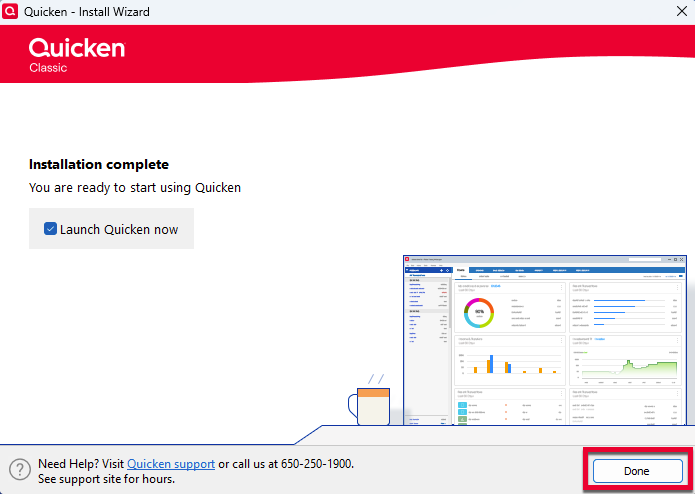
- When the installation is complete, click Done.
- Click Next to get started.
- Enter your Quicken ID and Password.
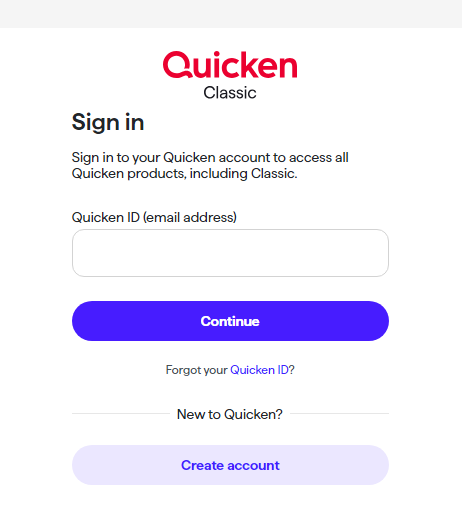
- If prompted, enter the 6-digit code. This process verifies your information and helps keep your account safe.
Step 3: Open your Quicken data file
- Select one of the on-screen options.
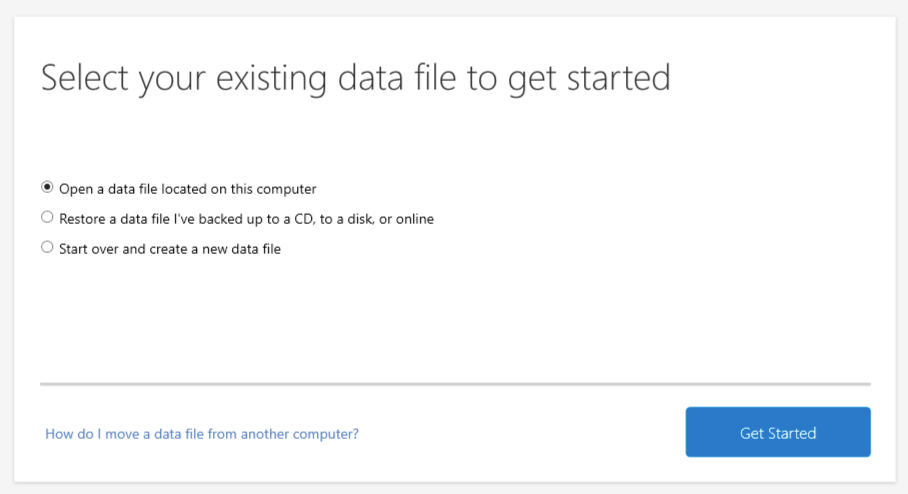
If your data file is on another computer, click here for instructions on moving your data file.
Please let me know how it goes!
Quicken Kristina
Make sure to sign up for the email digest to see a round up of your top posts.
0 - Follow the on-screen instructions to complete the installation.
-
Hello @Randy Schmidt,
We haven't heard back from you in a while. Do you still need assistance?
Check back and let us know! Thank you.
Quicken Kristina
Make sure to sign up for the email digest to see a round up of your top posts.
0


