Paypal Transaction download

Have not received any Pay transactions since March 24.
[Removed personal information]
Answers
-
Hi @alexc4406,
Thank you for reaching out! I’d be happy to assist you with this.
To better understand what may be happening, I have a few questions and troubleshooting steps for you:
- Are you receiving any error messages when updating the account?
- Are the transactions still marked as pending on your bank’s website?
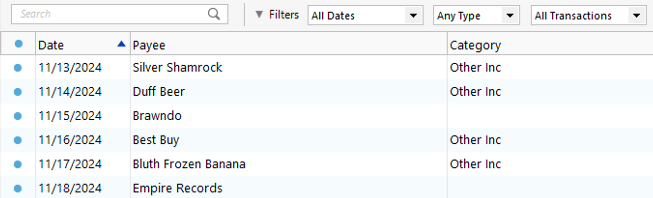
- Has the sort order in your register been changed?
- Check the Sort Order.
- Open the affected account register.
- Click the top of the Date column to ensure it’s sorted by date.
Sometimes transactions are present but appear out of order due to sorting changes.
2. Reset Register Filters
- Click the Reset button at the top of the register.
This ensures no filters are hiding transactions.
3. Try refreshing your login session
- Go to Help > Refresh Sign In
- Complete the login process.
- Run One Step Update again.
4. Check for incorrectly matched or misplaced transactions
- The missing transaction may have been matched to an existing one (this can happen with recurring payments of the same amount)
- Select All Transactions and search for the transaction
- If found in the wrong account, right-click it and select Move transaction(s) to move it to the correct account
- 5. Confirm No Backup Was Restored
If an older backup file was restored after accepting downloaded transactions, the restored file may not include those newer transactions.
6. Deleted transactions
- Deleted transactions will not download again. If needed, they can be re-entered manually or restored from a backup.
If everything looks correct with sorting, filtering, and backups, please check the account’s connection method:
Steps to check the connection method.
- Open the affected account.
- Click the Gear icon in the upper-right corner.
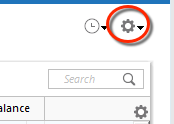
- Select Edit Account Details.
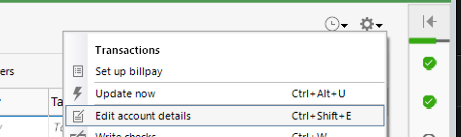
- Click the Online Services tab.
- The connection method will be listed below the Financial Institution name.
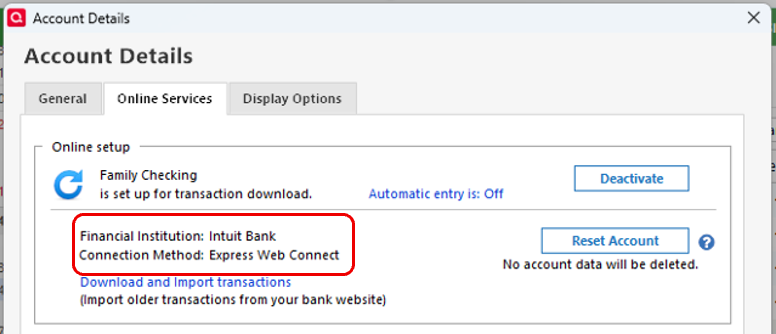
- Please let me know what connection method is shown and how it goes after trying these steps. I’m here to help!
Once you’ve had a chance to review these points, please let me know what you find. I’ll be happy to continue assisting you from there.
I look forward to your response!
Quicken Laura
Make sure to sign up for the email digest to see a round up of your top posts.
0 -
Laura,
Thank you for your comments. I have tried them all to no avail. Interesting item. The online balance is updated but the transactions are not downloaded. I suspect some connection problem with Synchrony Bank? I noticed they have changed their home page layout. So for now I guess I enter transactions manually.
Regards
Alex
0 -
Quicken Laura:
Thank you for your comments. I have tried them all to avail. Online services as follows:
Financial Institution: PayPal Credit, Mastercard, and Crypto
Connection method: Express Web Connect
I tried an update this morning (4/5/2026) to no avail. The online balance updates, but the transactions are not downloaded. No errors are indicated.
Regards,
Alex
0 -
Hi @alexc4406,
Thank you for following the steps provided earlier. I’ve refreshed your account on our end; please try updating it once more by following the steps below (make sure to save a backup first):
To update the account:
- Open your PayPal account in Quicken.
- Click the Gear icon in the upper right.
- Select Update Now.
- Confirm the update.
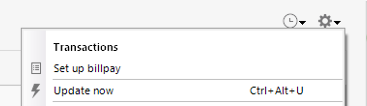
If no new transactions are downloaded, please try resetting the account:
To reset the account:
- Open your PayPal account.
- Click the Gear icon in the upper right.
- Select Edit Account Details.
- Go to the Online Services tab.
- Click Reset.
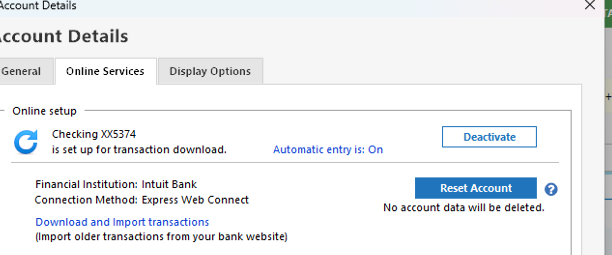
- Follow the on-screen instructions to complete the process.
If the issue persists, please proceed with re-adding the account:
To add and link the account:
- Go to Tools > Add Account.
- Search for and select the financial institution.
- If prompted, choose the appropriate connection method.
- Follow the on-screen instructions to sign in.
- When the list of accounts appears, be sure to select Link to connect to your existing account (do not choose Add, as this may create duplicates).
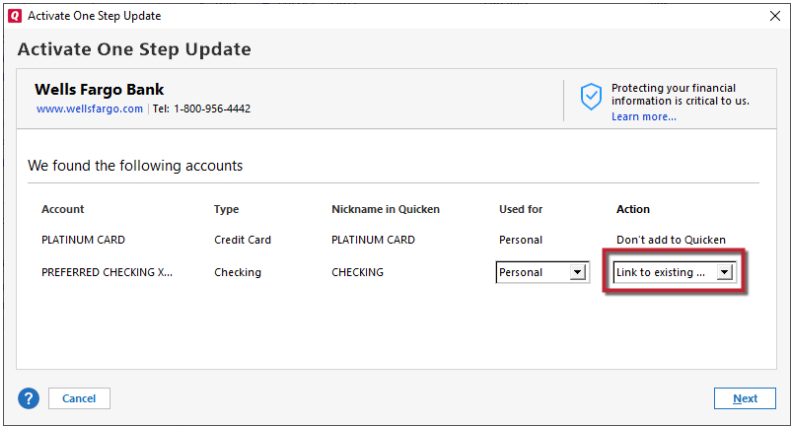
If you’re still experiencing the issue, please try the following advanced steps:
Edit the BullseyeSettings.ini file:
- Open File Explorer and navigate to:
C:\ProgramData\Quicken\Inet\Common\Localweb\Bullseye\BullseyeSettings.ini
(If you don’t see the ProgramData folder, enable hidden items by going to View > Show > Hidden items.)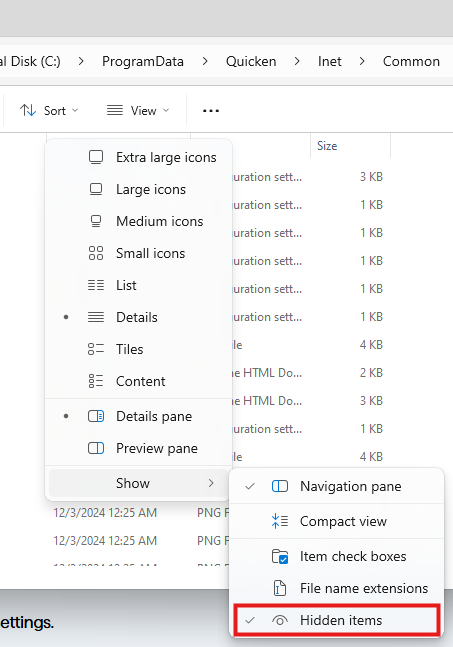
- Open the file in Notepad.
- Scroll to the bottom and add the following lines:
[Override]
AllAccounts=1
OlderTransactions=90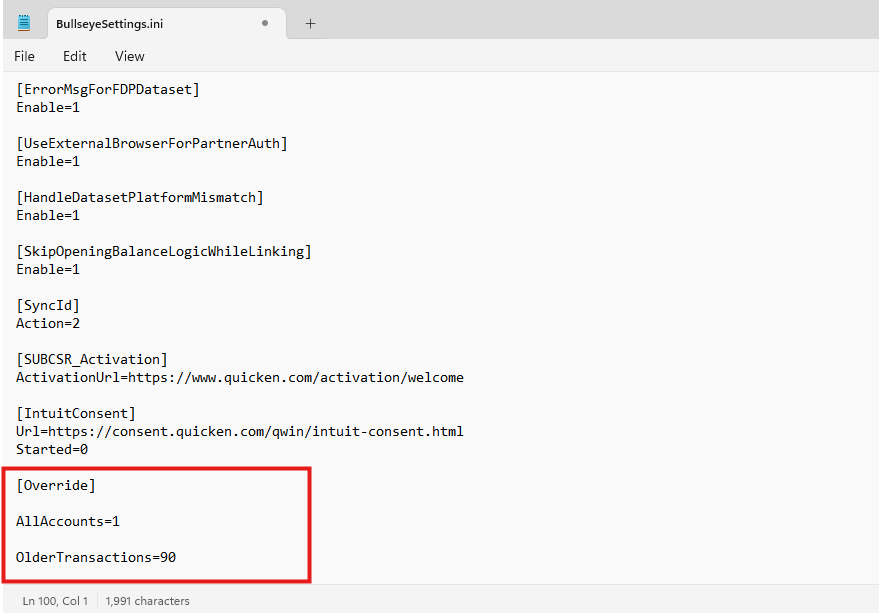
- Click File > Save.
- Return to Quicken and update the account again (Gear icon > Update Now).
Please let me know how it goes!
Quicken Laura
Make sure to sign up for the email digest to see a round up of your top posts.
0