Portfolio View Won't Open, Can't Add Securities [Edited]

Since the last update, I have been experiencing problems. Portfolio view will not open, and cannot add new securities. Also, calendar problems.
[Edited Readability]
Comments
-
Hi @drvollmer,
Thank you for reaching out. I’d like to gather a bit more information to better understand the issue. Could you please clarify the following:
- Are you seeing an error message when trying to open the portfolio or add a security, or is Quicken hanging? What exactly is happening that prevents you from performing these tasks?
- Where is your file located? To check, open Quicken, go to File, and look at the bottom under recent files. The file with the check mark next to it is the one currently open. Please provide the full file path shown there.
- Is your file being backed up or synced by any third-party services, such as Carbonite, OneDrive, or Backblaze?
- Have you tried restoring a backup from a date before the issue began?
- Could you describe the problems you’re experiencing with the calendar?
I look forward to your response!
Quicken Laura
Make sure to sign up for the email digest to see a round up of your top posts.
0 -
No response when I click on Portfolio view. Add new securities seems to work but security added is not present in security list. My file is located on Google drive. G:\My Drive\Quicken Files\QData-2025. No other backup.
I have not tried restoring.
Calendar-memorized income (e.g. Social Security) not showing in current month. Reminders not able to delete. Calendar balance not accurate.
0 -
Hi @drvollmer,
Thank you for providing those additional details; that’s very helpful.
We recommend storing your Quicken data file locally on your computer, rather than on a cloud service, network location, or external drive. Keeping the file in those locations risks encountering unexpected Quicken performance and potential data file corruption issues (which may not always be recoverable).
Before making any changes, please be sure to save a backup of your data file.
Default recommended location
The default and recommended location is:
C:\Users\username\Documents\Quicken
Steps to change the file location:
- Close Quicken if it is open.
- Open File Explorer and locate your current Quicken data file (.QDF).
- Right-click the file and select Copy (or Cut, if you prefer to move it).
- Navigate to C:\Users\username\Documents\Quicken.
- Right-click inside the folder and select Paste.
- Once copied, double-click the file from this new location to open it in Quicken
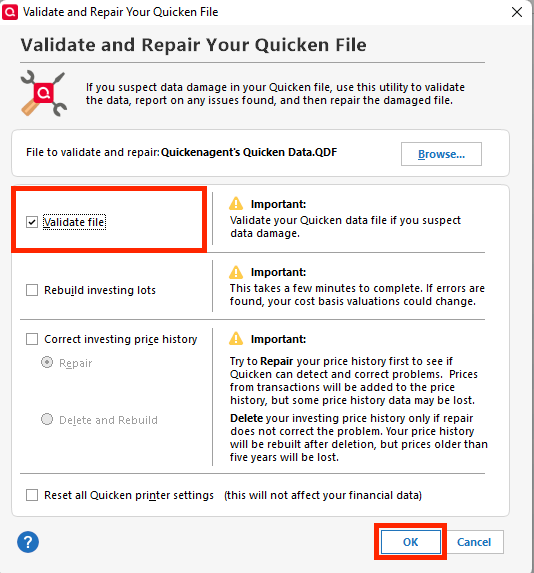
Next, please validate your data file:
To validate your file:
- Go to File
- Select Validate and Repair File
- Choose Validate File
- Click OK
Finally, please check the following:
- Are you able to open the Portfolio view?
- Are your securities listed correctly in the Security List?
- Are your transactions displaying in the Calendar?
Please let me know how it goes!
Quicken Laura
Make sure to sign up for the email digest to see a round up of your top posts.
0
