Obvious Bug: Most invoice data mangled on re-upgrade :(

A few years ago, we downgraded from Quicken H&B to Deluxe. Now upgraded again to Business & Personal.
* The downgrade worked well. Existing invoices were retained as split transactions with all details as expected. Books balanced.
* The upgrade is a DISASTER:
- Some invoices are still invoices and look perfect
- The vast majority of invoices have been transformed:
- They now show as a REFUND
- The total transaction value is the final split, which is the sales tax
- All sales item lines are ignored in the total
- Yet all of the splits are still present: if I mouse over the "—Form—" field, the popup shows 100% of the sales items etc.
This of course COMPLETELY breaks the books. The total value of my invoices account is now a huge negative number.
Any idea how to repair this? There's no function in Quicken to do it. Validation and Super Validation do NOT see this issue. 😥
Comments
-
Hi @MrPete,
Thank you for reaching out. I’m sorry to hear you’re experiencing issues after the upgrade. I'd appreciate it if you could provide a bit more information to better address the issue.
- Have you tried restoring a backup from before the upgrade?
- Do you sync your file with Quicken Cloud?
- Where is your data file currently located? To check, please open Quicken and go to File. At the bottom of the menu, under recent files, the file with the check mark next to it is the one currently open. Please let me know the full file path shown there.
- Is your file being backed up or synced with any third-party services such as Carbonite, OneDrive, or Backblaze?
I look forward to your response.
Quicken Laura
Make sure to sign up for the email digest to see a round up of your top posts.
0 -
- Thanks for the quick response, @Quicken Laura !
- 1. Are you thinking that backup-restore will have a different effect? The file doesn't change due to the upgrade, only the software / supported features.
- 2. No. 100% offline file.
- 3. local drive, in the folder Quicken is installed into: In this case c:\apps\finance\quicken\*.*
- 4. No third party services. We've used Retrospect backup locally for many years. I have backup copies of everything going back a long time.
I'll do some experiments with other file copies to see what happens.
0 -
[FURTHER UPDATE]
@Quicken Laura, I've opened the most recent pre-upgrade file in already-upgraded Quicken. No issues.
If only I'd seen the bug before doing a bunch of additional work on the file!
Is there any way to export invoices, or even an entire account, from one QDF and import to another?
(In reality, I'm pretty sure this could easily be repaired with a data patch of some kind. Change the "REFUND" transactions to "INVOICE" trans's, and all would be well :) )
0 -
Hi @MrPete,
Thank you for keeping me updated. I'm glad to hear you were able to find a suitable backup.
At this time, there isn’t an official way to export and import invoices directly. While it is possible to move invoices from one file to another, please note that payments may not be applied correctly, and you would need to manually assign them to the appropriate invoices.
Below are the steps to export and import accounts with a .QIF file:
- Choose File menu > File Export > QIF file.
- In the QIF File to Export to field, Quicken displays the preset path of the export file. Select the appropriate option:
- Enter a name for the export file at the end of the existing path (make sure there is a backslash \ before the file name). Quicken automatically adds the correct file extension.
- Click Browse to select a different location. Enter a name in the File name field, and then click OK to return to the QIF Export screen.
- In the Quicken Account to Export from list, select the account from which to export transactions.
- In the Include Transactions in Dates field, enter the dates of transactions to export.
- In the Include in Export list, select the items to include in the export.
- Select Transactions to include the data in the account's register or transaction list.
- Select Category List to include the Tag List in addition to your list of categories.
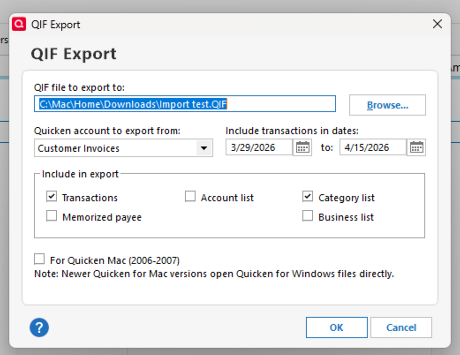
6. Click OK to create the .QIF file.
- Back up your Quicken data before importing to avoid accidental changes or data corruption.
- Go to the File menu in Quicken and select QIF File
- In the QIF Import window, use the dropdown menu to select the appropriate account.
- Browse for and select your QIF file.
- Select the optional items you want to include (Transactions, Category list, etc.) These should match the items you included in your Export.
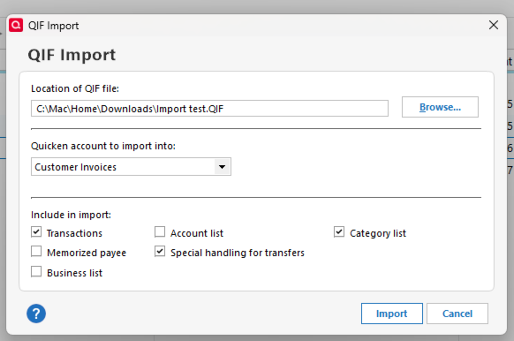
- Click Import to import the file.
- Review the imported transactions in the account register for accuracy.
- Ensure all transactions are correctly categorized, reconciled, and in the appropriate account.
Note: If the destination file does not contain the items associated with the invoices, those items will not be assigned during the import process.
Please let me know if you have any questions. I'm happy to help!
Quicken Laura
Make sure to sign up for the email digest to see a round up of your top posts.
0 -
Thanks for the detailed hints, @Quicken Laura !
Will do it ASAP.Based on my experience, my hunch (usually correct 😉) is the bug ONLY shows up during the upgrade process, NOT when opening a file that needs upgrade.
Right now, I don't have time to go through a downgrade/upgrade cycle (and I'd be paying to do that)… but hopefully your QA people can test this. It's a very painful bug!
0 -
The other thing I will need to do is:
- UN-apply payments to the broken "refund" transactions
- import the QIF with good invoices
- delete the brokn "refunds"
@Quicken Laura Do you have any idea if refunds with refund/invoice number N will interfere with invoice import of the same invoice number? Or do I need to delete the refunds before doing the import?
0 -
Hi @MrPete,
Thank you for trying that. Your theory that the issue may be occurring specifically during the upgrade process is certainly plausible. I’ll make sure to share your findings with the appropriate team.
Quicken does not reliably enforce unique invoice numbers across transaction types (such as Invoice vs. Refund), especially when importing via QIF. However, in practice, having existing “Refund” transactions with the same reference number can still lead to unexpected matching behavior or duplication issues during import.
In the meantime, I suggest the following steps:
- Backup your current file (just in case)
- Delete the broken Refund transactions
- Import the QIF with the correct invoices
- Re-link / reapply payments as needed
If you do end up testing the downgrade/upgrade cycle later, I’d be very interested in what you find, especially whether it’s 100% reproducible. That would help us investigate this more effectively.
Please feel free to reach out if you have additional questions.
Quicken Laura
Make sure to sign up for the email digest to see a round up of your top posts.
0 -
@Quicken Laura I have some additional feedback. The process you defined SHOULD have worked nicely, cleanly. It was neither nice nor clean, due to a few bugs exposed along the way. :(
1) Seemingly at random, imported transactions containing splits were mangled in a specific way:
- The splits were all ok
- The transaction total at the "master" end of the transaction (showing splits) was modified to only include one of the splits. Result: account doesn't balance without going into the transaction and "Adjust" to properly set the total. Had to do that for MANY accounts impacted.
2) I had an old checking acct that had been closed and hidden. But there were transactions involving that account. Importing including that acct did not go well. :( … got that cleaned up.
3) This part not too surprising: lots of duplicate transactions to clean up.
4) Had to redo online downloads for a number of banks.0 -
Thank you for sharing your observations!
The first three issues you mentioned may be due to data inconsistencies that carried over into the QIF file. Since you said you cleaned up the issues, they shouldn't persist.
To clarify, when you say you had to redo online downloads, do you mean that you had to reconnect the financial institutions, or do you mean that, after importing the QIF, transactions went missing?
Thank you!
Quicken Kristina
Make sure to sign up for the email digest to see a round up of your top posts.
0

