Why are my transfers from one account to another showing as expenses

So, I tried to follow the directions on Quicken Help, but to no avail. It says there is a TRANSFER in the category, but I do not see it. I even tried to create one, but when I do, it wants the new category to be described either as an income or expense type. Ergo, all my account transfers are showing up as expenses, which we know they are not…How can I fix this?
[Edited Readability]
Answers
-
Hi @swalsh8770,
Thank you for reaching out! In Quicken, transfer transactions use a special “transfer” format rather than a traditional category. These are treated as neither income nor expense, since they simply reflect money moving between your own accounts. Because of this, transfer transactions are excluded from income and expense reports and charts.
Instead of a category name, transfers appear in the Category field using the destination account in square brackets (for example, [Checking]).
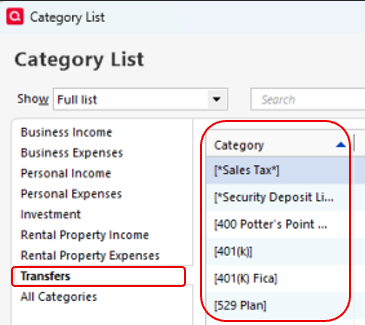
There’s no need to create a separate “transfer” category; doing so would cause the transaction to be treated as income or expense. Instead, you’ll want to use the built-in transfer format, which is already part of Quicken by default. It’s also possible you may have been referencing instructions for Quicken for Mac, which works a bit differently from the Windows version.
Please let me know if you have any questions!
Quicken Laura
Make sure to sign up for the email digest to see a round up of your top posts.
0 -
Okay, so my transfer item does show the bracketed account as you describe. What do you then put in the Payee field? Do you just leave it blank? When I did it, I added ann "Internet Transfer" in that field…was I not supposed to put anything in there? Now, how can I fix it? I tried to delete the Payee, but the transfer is still showing up as an expense. FYI, the transction has already been reconciled…If they can't be fixed, at least let me know for sure how to enter further transfers.
0 -
Some more information: it appears that the only transfers that are showing up are ones that are not to the same institution. For example transfers between two different accounts at the same bank are fine, but a transfer between my bank and an investment account at a different institution does.
0 -
Hi @swalsh8770,
In Quicken for Windows, the key part of recording a transfer is the Category field, not the Payee.
As long as the category points to the correct account (using the format
[Account Name]Quicken will treat the transaction as a transfer. The Payee name is optional and doesn’t affect the transfer logic, you can use something like “Bank Transfer,” the name of the institution, or anything that helps you recognize the transaction later.Transfers should work the same regardless of whether the accounts are at the same institution or different ones, as long as both accounts are included in your Quicken file. If they’re only behaving correctly for accounts at the same bank, that usually indicates something else is affecting how the transactions are being recorded or matched.
Example
In your checking account register, a transfer to a brokerage account would look like this:
- Payee: (anything you prefer, e.g., “Transfer to Brokerage”)
- Category:
[Brokerage Account Name]
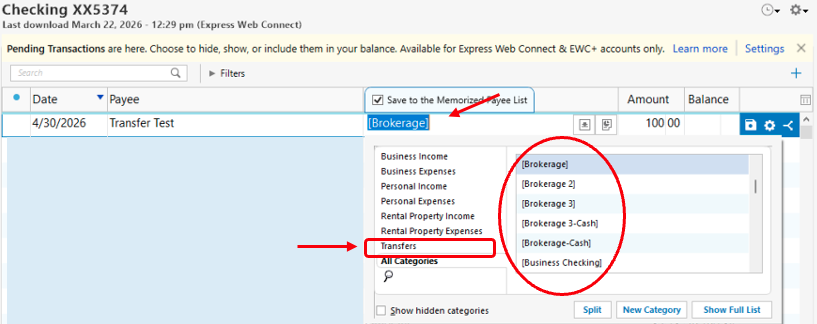
The category—shown in brackets—tells Quicken where the money is going. Quicken will then automatically create the corresponding entry in the destination account.
If you want to select from a list of available transfer accounts, you can click in the Category field and choose from the Transfer group, which displays all eligible accounts.
Please feel free to reach out if you have addtional questions.
Quicken Laura
Make sure to sign up for the email digest to see a round up of your top posts.
0 -
Well then something is not working correctly. The transaction (transfer) item is exactly as you describe. Here's how I entered the transfer::
- From my checking account, I click on the category field
- Scroll to my brokerage account name, ie [brokerage]
- Click on that account name
- Add amount
- Click on save
It creates the entry in both accounts - so that should be good.
But, when I look in the Income vs Expense report, it is lsted as an expense.
I can't figure out this…
0 -
Thank you for following up.
Could you please confirm whether you are running the Spending> Income and Expense by Category, or Income and Expense by Payee report? This will help us better understand the issue.
Thank you, and I look forward to your response.
Quicken Laura
Make sure to sign up for the email digest to see a round up of your top posts.
1 -
Okay, so I do not see an option for the report, but believe it is category. Now, I went into the report and changed some of the options for my accounts. Some were not checked. After that, the transfers are now not showing as expenses. So I think I am good. Appreciate your help.
0 -
One key to how transfers are treated in reports is the Transfer setting on the report customization Advanced tab.
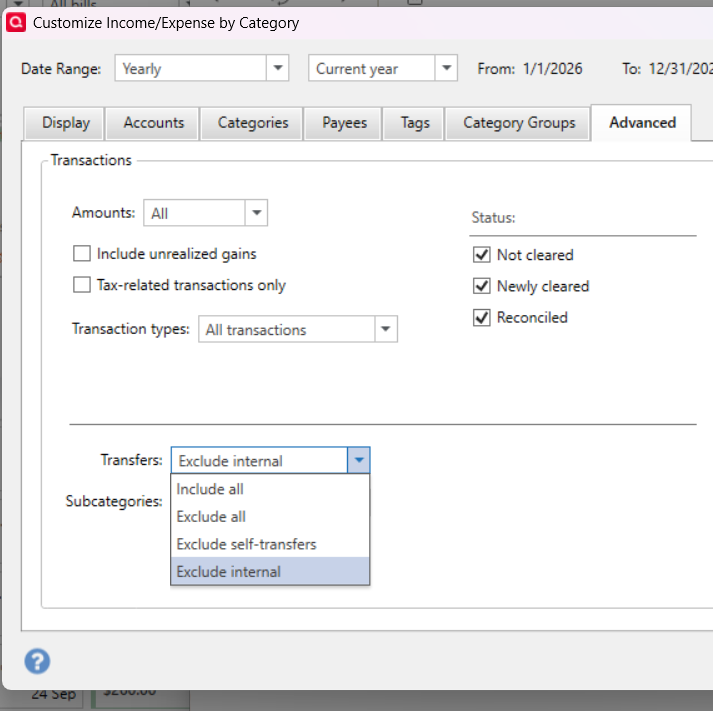
Usually you will want to use the Exclude internal setting. To exclude transfers between accounts from a report:
- Click on the gear to customize the report.
- On the Accounts tab, include both the sending and receiving accounts. Note that the Income and Expense by Category report only includes Banking accounts by default, not Investing or Asset accounts.
- On the Advanced tab, next to Transfers select Exclude internal. "internal" means "accounts that are included in the report".
- If you want to exclude specific transfer accounts from the report, scroll to the bottom of the Categories tab, where you will see all of your accounts listed. Un-check those you want to exclude.
QWin Premier subscription1

