PNC Direct connect and Quicken Mobile

I've had this problem for years. I have a PNC checking account that I access with direct connect. It works fine with Quicken for Windows. However, it doesn't on the mobile app. I have several other PNC accounts I access with web connect and they all work fine. If I go to the Windows app and discount the link and then re-link it works on the mobile app for a day or two then stops working again. It's really frustrating. Any help would be greatly appreciated.
Comments
-
Hello @ralphf,
Thank you for reaching out to tell us about your issue.
If you haven't already, I suggest resetting your cloud data from your Quicken desktop program and see if that may make a difference. However, before doing so, first, verify that the Dataset name and the File name match each other identically by navigating to Edit > Preferences > Quicken ID & Cloud Accounts (see below).

If they do not match, please click Edit dataset name and change the Dataset name to match the File name exactly the same (do not copy the file extension: ".QDF").
Then, click OK in the preferences window and proceed to save a backup (just in case). From there, please follow the steps below to reset your cloud data.
- Sign out of your Quicken Mobile app
- On your desktop program go to Edit
- Preferences...
- Mobile & Web
- Make sure Sync shows it's ON and click on Reset your cloud

- On the following screen you can leave the preselected option for "No, just reset my Cloud data", type Yes in the entry field to confirm, and click Reset
- Wait for the sync reset to finish
- Navigate to the Mobile & Web dropdown menu
- Select Cloud Sync to resync your data and to make sure no errors occur
- Wait for it to finish syncing
- Sign back in on your Quicken Mobile app
Once that is done, see if the issue still persists.
Let us know how it goes!
-Quicken Anja
Make sure to sign up for the email digest to see a round up of your top posts.0 -
Thank you but unfortunately the names were the same. QDATA.
0 -
@ralphf Thanks for confirming that the dataset and file names match. Could you clarify whether you proceeded with the cloud reset steps after confirming this? If not, please try completing the cloud reset as outlined in the previous instructions, then resync your data and check the Mobile app again.
Let us know if the issue persists after that.
-Quicken Anja
Make sure to sign up for the email digest to see a round up of your top posts.0 -
I've done it twice. Makes no difference.
0 -
Thanks for following up!
Since, unfortunately, the previous steps have failed so far, next, I suggest you try manually resetting your cloud data by creating a test file and deleting your cloud account from that test file. After that, you would attempt to resync your main data file, which should then create a new cloud account (this does not affect your data saved within that data file).
First, please proceed to save a backup (just in case). From there, create a new data file (click here to view instructions, and review the section titled: "Creating a new file"). Once the new file opens, follow the steps below to remove your main data file's cloud account.- Go to Edit
- Preferences
- Quicken ID & Cloud Accounts
- Click Cloud accounts associated with this Quicken ID (#) (this is not a button, it is written in blue underneath the "Edit dataset name" button)
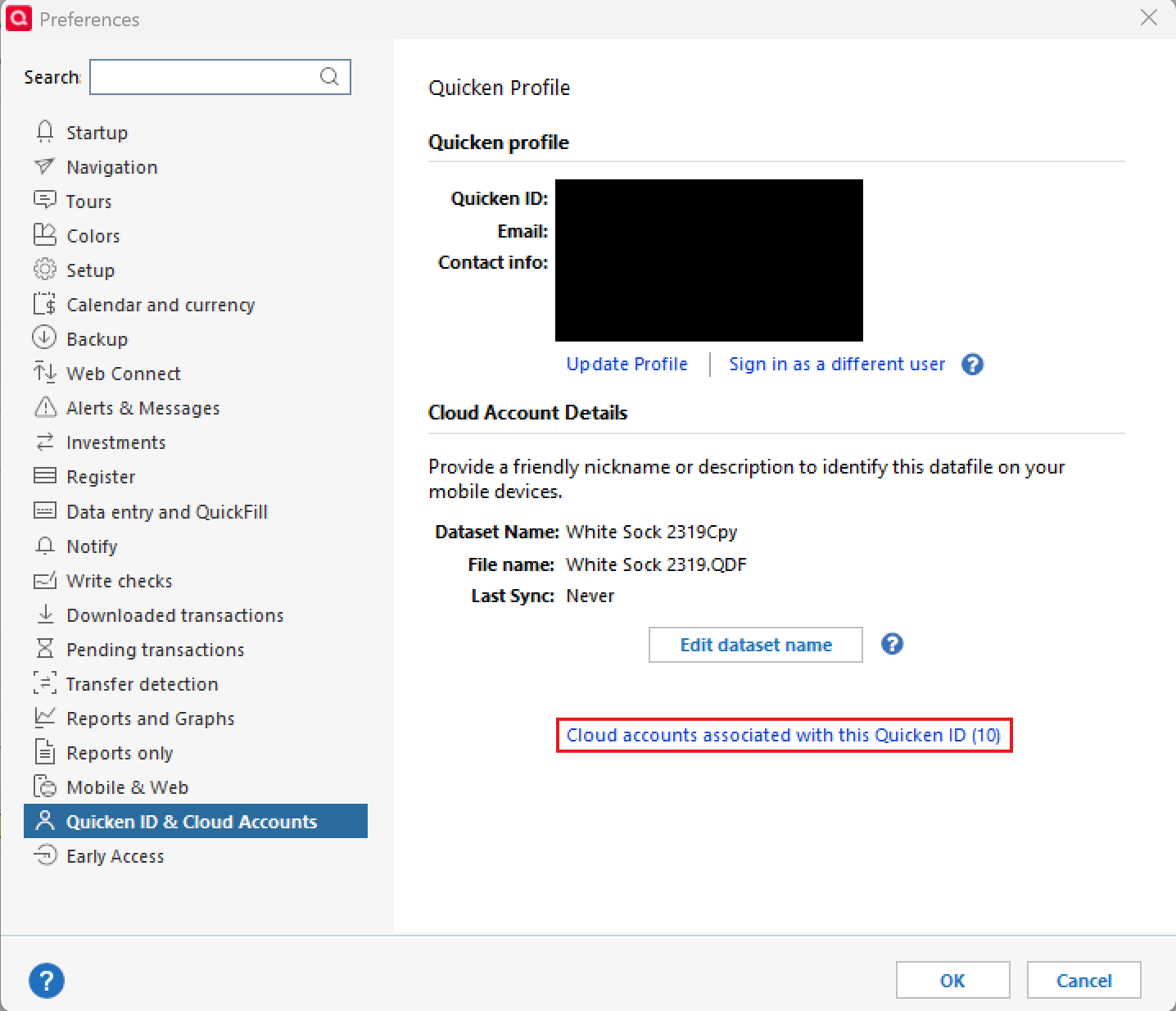
- Select the Cloud Account Name used for your main data file and click Delete
- Type Yes and click Delete
After that, switch back to your main data file (click here to view instructions, scroll down and review the section titled: "How to alternate between multiple files").
Once your main file opens, resync your data by navigating to the Mobile & Web tab and clicking on the blue Get Started button, and then the blue Sync Now button, and see whether or not the errors you were receiving persist. You can then also delete the new file you previously created, as well as its cloud account.
I hope this helps!-Quicken Anja
Make sure to sign up for the email digest to see a round up of your top posts.0 -
It didn't fix this problem. After I reset the cloud data it works fine on the mobile app but once I sync again on the PC app it won't connect to PNC checking on the mobile app anymore. All other PNC accounts are fine.
0 -
Thanks for the update and for all the troubleshooting you’ve tried so far. Since the issue is persisting even after a cloud reset and re-sync, you’ll need to contact Quicken Support so they can investigate further and escalate the issue if necessary.
Be sure to mention the specific PNC Direct Connect checking account and the steps you’ve already tried.
Thank you!
-Quicken Anja
Make sure to sign up for the email digest to see a round up of your top posts.0
