Checking and savings accounts wont sync with Mobile/Web

I recently noticed that my checking and savings accounts show a zero balance on the Web version of quicken and when i go to settings they are labeled as "Disconnected". I tried to add them from the laptop version by checking the boxes and hit update, but it still wont work. I also tried resetting the cloud data too. Has anyone one else had this issue?
Comments
-
Hello @Echocardiologist,
Thanks for reaching out! To help us troubleshoot, could you please provide a screenshot of what you’re seeing in the Web version where your accounts show a zero balance and are labeled as “Disconnected”? If needed, please refer to this Community FAQ for instructions on how to attach a screenshot. Alternatively, you can also drag and drop screenshots to your response if you are not given the option to add attachments.
Also, when you try to re-add the accounts from the desktop version, are you seeing any specific error codes or messages either in Quicken on the Web/Mobile app or in Quicken on your computer?
This information will help us pinpoint what might be causing the sync issue!
-Quicken Anja
Make sure to sign up for the email digest to see a round up of your top posts.0 -
No error codes on the desktop version. I check the boxes to add the accounts to the sync and his okay. It starts like its adding them to sync and then just stops and nothing happened. Will send a screen shot later this morning.
0 -
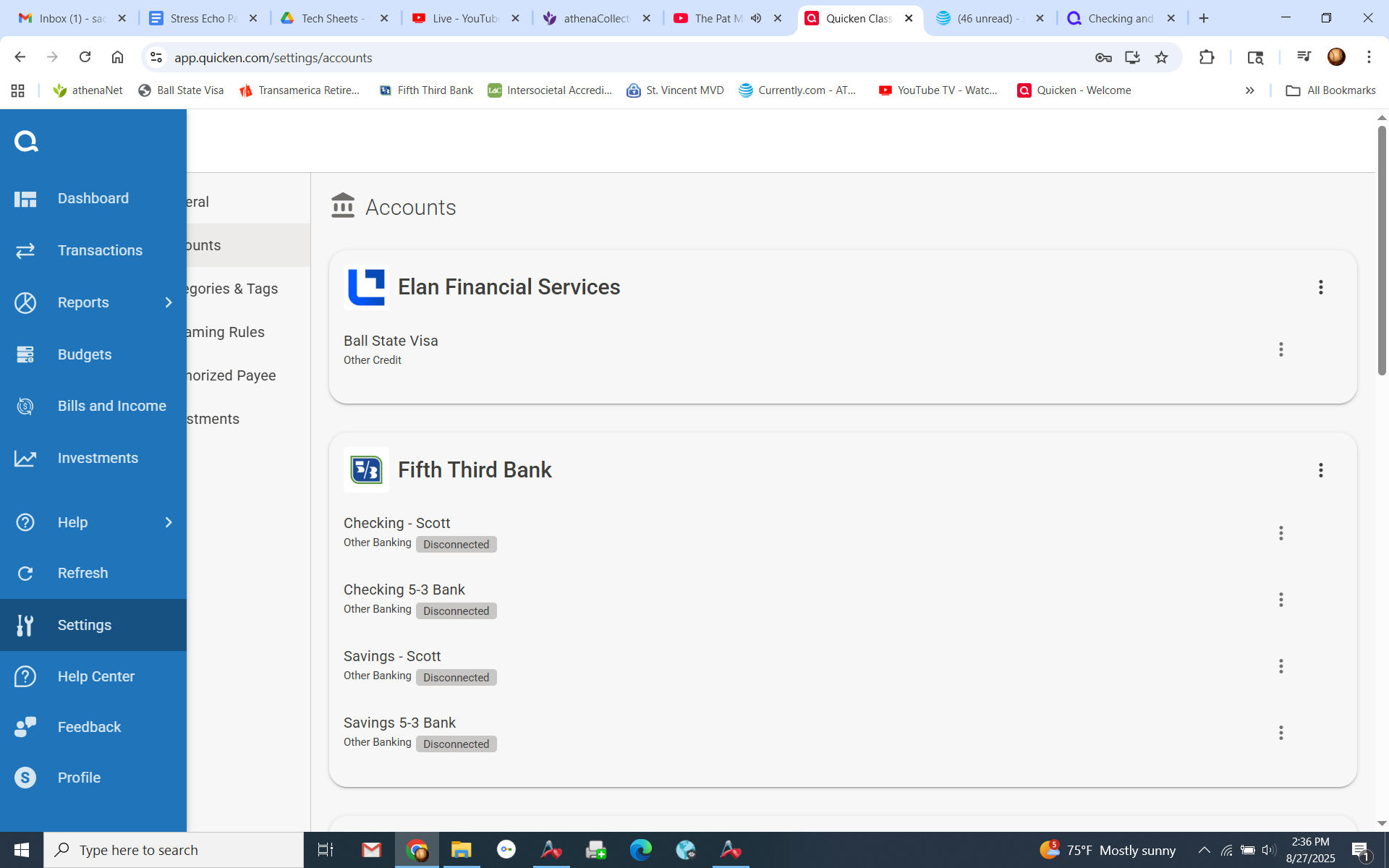
Here is the screenshot of my Quicken Web.
0 -
@Echocardiologist Thanks for following up and providing those details.
To start with, I suggest resetting your cloud data from your Quicken desktop program. However, before doing so, first, verify that the Dataset name and the File name match each other identically by navigating to Edit > Preferences > Quicken ID & Cloud Accounts (see below).

If they do not match, please click Edit dataset name and change the Dataset name to match the File name exactly the same (do not copy the file extension: ".QDF").
Then, click OK in the preferences window and proceed to save a backup (just in case). From there, please follow the steps below to reset your cloud data.
- Sign out of your Quicken Mobile/Web app(s)
- On your desktop program go to Edit
- Preferences...
- Mobile & Web
- Make sure Sync shows it's ON and click on Reset your cloud

- On the following screen you can leave the preselected option for "No, just reset my Cloud data", type Yes in the entry field to confirm, and click Reset
- Wait for the sync reset to finish
- Navigate to the Mobile & Web dropdown menu
- Select Cloud Sync to resync your data and to make sure no errors occur
- Wait for it to finish syncing
- Sign back in on your Quicken Mobile/Web app(s)
Once that is done, see if the issue still persists.
Let us know how it goes!
-Quicken Anja
Make sure to sign up for the email digest to see a round up of your top posts.0

Categories
- All Categories
- 19 Product Ideas
- 34 Announcements
- 246 Alerts, Online Banking & Known Product Issues
- 19 Product Alerts
- 517 Welcome to the Community!
- 682 Before you Buy
- 1.5K Product Ideas
- 55.7K Quicken Classic for Windows
- 16.8K Quicken Classic for Mac
- 1K Quicken Mobile
- 834 Quicken on the Web
- 127 Quicken LifeHub