Please check internet connection and try again.

Threehulls
Threehulls Quicken Windows Subscription Member

This was discussed a year ago with no stated resolution.

I loaded Quicken Classic on my new PC running windows 11. The files are all in Windows Explorer, but when I start Quicken, it quickly cycles through loading but after the log in screen it ends up with "Please check internet connection and try again".

I spent two hours on the phone with a knowledgeable Quicken guy trying everything related to bypassing Defender etc to no avail. I tried everything that comes from Googling the problem but have had no success.

I have been using Quicken for decades and it runs fine on my old computer running windows 10.

Comments

  • Quicken Anja
    Quicken Anja Moderator mod

    Hello @Threehulls,

    Thanks for posting and for the detailed background—sorry to hear how frustrating this has been, especially after already spending so much time troubleshooting.

    To help narrow this down, I have a few follow-up questions:

    • Where is your Quicken data file stored?
      Is it on your local hard drive (C: drive) or in a cloud-based or external location such as OneDrive, Dropbox, or a USB drive?
    • What troubleshooting steps have you already tried, aside from adjusting Windows Defender? (Just want to avoid having you repeat anything unnecessarily.)
    • Are you using a VPN on this new Windows 11 PC? If so, does disabling it make any difference?
    • When did this issue first start occurring?
      Was it immediately after installing Quicken on the new PC?
    • Were there any other recent system or software changes prior to the issue (Windows updates, security software installs, network changes, etc.)?

    If possible, please also attach screenshots of the exact error message you’re seeing. If needed, please refer to this Community FAQ for instructions on how to attach a screenshot. Alternatively, you can also drag and drop screenshots to your response if you are not given the option to add attachments.

    This information will help us better understand what’s happening and determine next steps.

    Thank you!

    -Quicken Anja
    Make sure to sign up for the email digest to see a round up of your top posts.

  • UKR
    UKR Quicken Windows Subscription SuperUser ✭✭✭✭✭

    If you are getting "Oops, something went wrong" or "Check Internet Connection"

    Here's a checklist to go through …
    • Your browser must allow popups from https://www.quicken.com for chat/phone support selections to function. See


    • To make sure that Quicken is allowed to update and save its configuration files please check if Windows Defender Controlled Folder Access feature Ransomware protection is enabled.
    If it is, configure it to add Quicken as an "allowed app" without turning off Ransomware protection. Perform the last step in


    • Have you recently enabled a VPN?
    If so, this might be the problem. Try turning the VPN off, reboot with VPN disabled and see if that helps.
    • Is there a corporate or otherwise external firewall getting in the way? Contact the IT people maintaining the firewall and ask for permission.
    • If you're running Quicken and Windows under a VM, ensure that the VM does not block any incoming or outgoing IP ports.
    • Does your Antivirus software allow Quicken to connect to the Internet?
    Quicken needs to be able to establish outbound Internet connections for the program to work.
    For example, in McAfee Firewall, one user states "By editing the Quicken Firewall entry Selecting Incoming and Outgoing, and changing it from "Default" to "Open to all devices" it now works without having to turn off the entire firewall!"
    See https://www.quicken.com/support/configuring-firewalls
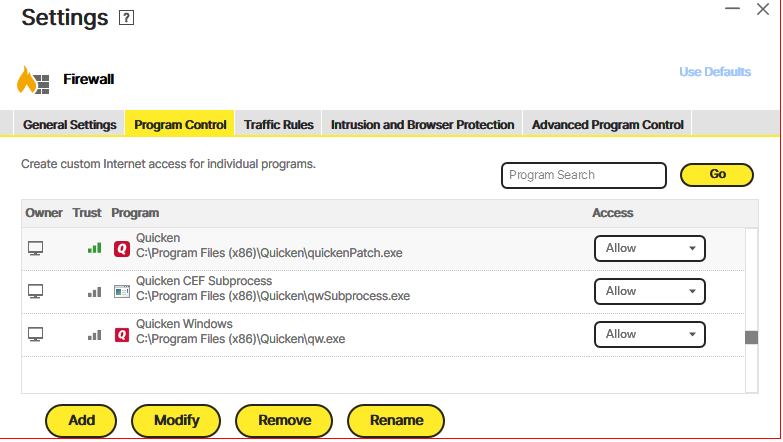
    Check your firewall settings and ensure the following three entries are present, pointing to the Program Files folder that you actually installed Quicken in:

    cap69 firewall settings.png


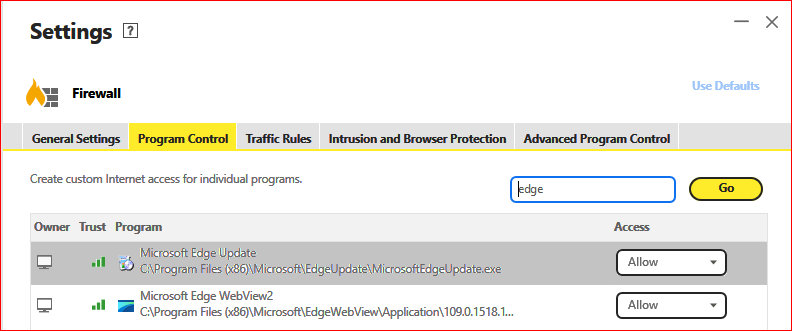
    You also need a firewall entry to allow Microsoft Edge Webview2 to access the Internet

    cap72 webview2 firewall settings.PNG


    The numeric portion in the path name might be different on your system. Use your existing numbers.

    If necessary, contact the Antivirus / Firewall vendor's Support Center for assistance.
    • In older Windows systems go to Windows Control Panel and select Internet Options (or in Internet Explorer, click on Tools / Internet options.)
    Click the Advanced tab.
    Scroll down the list to "Use TLS 1.x" and click to put checkmarks on all available choices even though some of them are no longer supported: "Use TLS 1.0, 1.1, 1.2 and 1.3 (if available)"
    Turn off "Use SSL 3.0"
    Click Apply. Reboot.
    • If all else fails: Try rebooting your network router. When done reboot your PC

    Please let us know which of the above items solved your problem.