Phantom transaction preventing me from fixing will-not-download problem.
In summer 2024, one of my accounts started displaying a red flag — downloaded transactions to accept indicator — even when there weren't any downloaded transactions to accept. I didn't worry about it much. Just shrugged/laughed it off as a silly bug, and kinda got used to it…
…until…
…recently, that same account stopped downloading transactions.
Well, okay. That's happened now and then over the 30-something years I've been using Quicken. I've found out how to fix it. Edit Account Details → Online Services → Reset Account. Works every time.
Nope. Not this time. It complains that I can't do that until I've accepted all the downloaded transactions. Wait, what? I have. There's nothing under the "Downloaded Transactions" tab. But hang on… there's still that pesky red flag that's been there 1.5 years. I guess I need to figure out what to do about that now.
So I searched, found the discussion link at the end of this post. Looks exactly like my problem. So I tried everything — and I mean everything — that was suggested as possible fixes, following the instructions quite carefully. I even the "Super Validate" that one of the non-Quicken-employees mentioned. Nothing worked for me any better than for any of the others in that discussion who complained about the problem. I'm still stuck with the one phantom transaction (Online Center tells me the exact date — 8/10/24), which means I have no way (that I know of) to fix my won't-download problem. And I really want to get it fixed, because that may be my busiest account, and I'd rather not have to enter everything by hand.
So I went to add my encouragement to that other discussion to come up with a working fix. But I couldn't. That discussion has been closed.
Well, the discussion may be closed, but the issue remains open. So I'm opening another discussion about it, strongly urging Quicken to come up with a fix.
One last comment. The jump-through-hoops suggestions on how to deal with it mentioned (and linked to) in that other discussion were kind of annoying — even if they would have worked. This seems like exactly the sort of data file inconsistency that is in "Validate File"'s wheelhouse. Please, please, dear Quicken, make "Validate File" fix this problem.
Thank you for your attention.
Comments
-
Hello @philroy,
Thank you for letting us know you're seeing this issue. To troubleshoot this issue, please follow these steps from our article on when Quicken says there are transactions to accept, but you don't see any:
Before you begin
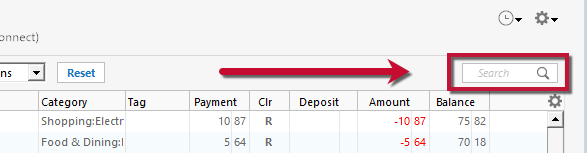
Ensure the Search bar above the register is cleared. Text in the Search bar will adjust the register to only show transactions that match that text.
First, turn automatic entry off
1. Press Ctrl+A on the keyboard to bring up the Account List, then click the Edit button next to the affected account in the list.
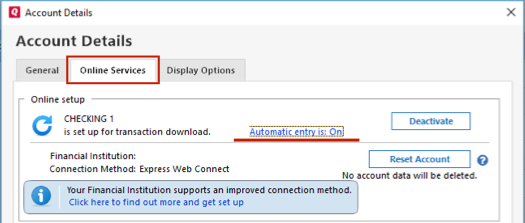
2. In the Account Details window, click on the Online Services tab then click Automatic entry is.
3. Select No on the next dialog box and click OK. Automatic entry should show as "Off" now.
4. Click OK to close the Account Details window, then click Done on the Account List.
5. Close Quicken, wait a few seconds, then re-open it. The transactions should appear upon re-opening Quicken.
If the issue persists, please follow these additional steps from our article:
Correct data issues
If the Quicken data file is damaged, you might receive prompts about downloaded transactions when you don't have any downloaded transactions.
If you know when this issue began, the best solution is to restore a backup created before this issue began.
If you do not have a backup to restore, Quicken has a built-in utility, Validate, that will correct many data issues. Please note this does not correct all issues and these steps should be taken if the other steps outlined did not resolve the problem.
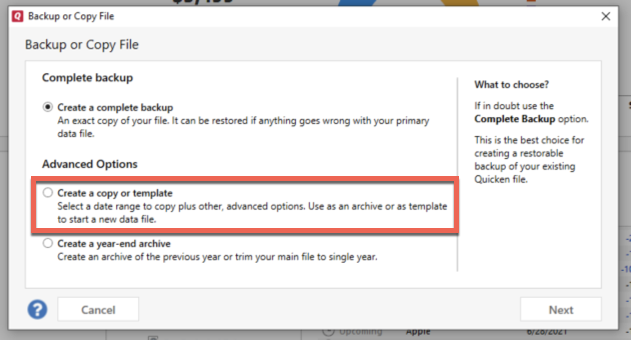
- Choose the File menu > Copy or Backup File.
- Select Create a copy or template, then click Next.
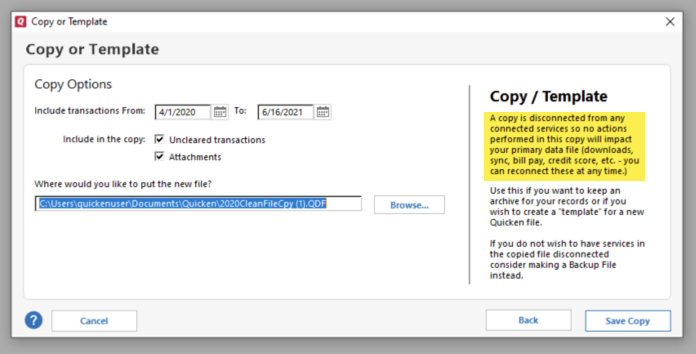
- Accept all defaults and click Save Copy.
- Open the New Copy when prompted.
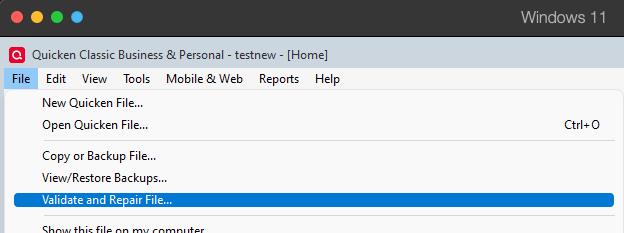
- Choose File > Validate and Repair File.
- Select the new copy created in step 3 and click OK.
Note: Depending on the size of your data file, you may need to wait a while for the validation process to finish. Do not use the Task Manager to close Quicken. Quicken displays an error message if it cannot validate the file. If Quicken is able to validate the file and any errors are found, Quicken displays a message, "Data losses were found in your file." You can view the log file for more information.
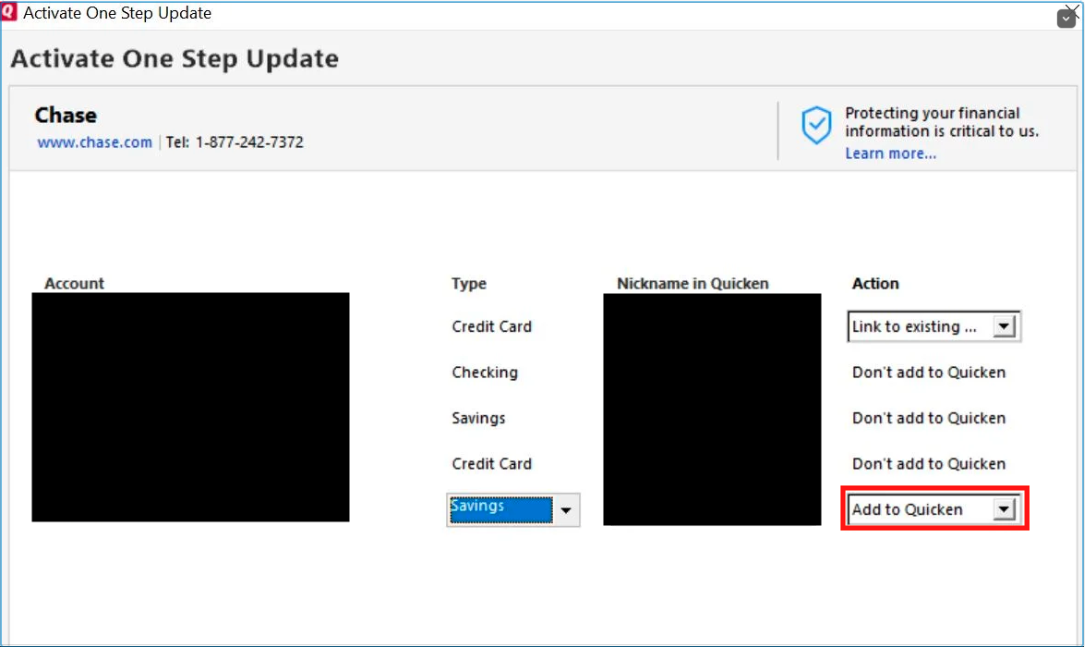
When the validation process is complete, you will need to Reactivate your accounts for transaction download in the new file copy.
- Go to Tools > Add Account.
- Select the bank for the deactivated account(s). If prompted, select the connection method.
- Enter your credentials and click Connect.
- When the list of located accounts appears, choose LINK next to each account you want to reactivate.
- Click Next then Done on the last prompt.
- After all of your accounts have been Reactivated, complete the Check the account register... section steps above again.
Please let me know how it goes!
Quicken Kristina
Make sure to sign up for the email digest to see a round up of your top posts.
0 -
Hello Quicken Christina.
Thank you for your reply.
…but…
These instructions look exactly like the instructions in the discussion to which I provided a link in my first post. And, as I said in that post, I already followed those instructions, and they made no difference.
Nevertheless, I went through it again, to the extent I could, this time using your reply to my message as the playbook, doing what was described as meticulously/carefully as I could. It still didn't help.
As for the first five numbered steps, immediately after FIrst, turn off automatic entry, on arriving at step 5, where I reopened Quicken after a "few seconds" (I counted 15 Mississippis in my head — that enough?), The red flag was still on, and the Downloaded Transactions tab was still empty.
As for the part where I'm supposed to restore from a backup taken before the problem started — you did see the part where I said it start ~1.5 years ago, didn't you? Even if I had a backup that old (hint: I don't), surely you don't expect me to revert back to that and then catch up with 1.5 years worth of discarded transactions, do you? No. Just, no.
As I also said in my prior post, I really shouldn't have to jump through hoops to try to work around the bug in your software. Please fix the bug. Make "Validate File" clear this. Please. No, really. It's not an unreasonable request, is it?
And if I can't have that, I'd tolerate a little jumping through hoops to get this cleared if it actually worked. But please don't ask me to do again what several others, as well as myself, have already said didn't work.
0
Categories
- All Categories
- 42 Product Ideas
- 36 Announcements
- 225 Alerts, Online Banking & Known Product Issues
- 21 Product Alerts
- 497 Welcome to the Community!
- 676 Before you Buy
- 1.3K Product Ideas
- 54.4K Quicken Classic for Windows
- 16.5K Quicken Classic for Mac
- 1K Quicken Mobile
- 814 Quicken on the Web
- 115 Quicken LifeHub