Projected Balances don't include online billers - but Bills and Income display does

Online payments due (bills) paid to Chase Bank by automatic draft (EFT) show up in the Bills and Income tab as expected, but they are not included in the Projected Balances computations. There may be other online billers with the similar issue, but Chase is the only one I have working right now. This just started happening on March 18th, 2026.
Windows 11 Home Ver 25H2 / Quicken Classic Deluxe, Build 27.1.66.23
Comments
-
Hello @JimC52,
Thank you for letting us know you're seeing this issue. To help troubleshoot, please provide more information:
- Was there anything that happened around the same time that this problem started (such as a program/computer update or crash)?
- Do you have reminders linked to the Chase online biller?
- When you say it's not showing in projected balances anymore, are you referring to the Projected Balances tab under Bills & Income?
- If not, then please provide more details on what you are seeing and where you're viewing projected balances.
I look forward to your reply!
Quicken Kristina
Make sure to sign up for the email digest to see a round up of your top posts.
0 -
As far as I can tell, it happened immediately following the previous update. I received another update this morning and am now at 66.28 which has not fixed it and I noticed the little yellow "…new transactions downloaded" doesn't work again. I was at 66.23 when I first noticed this issue but it could have been earlier because I was still working though the loss of online billers 4 or 5 days ago.
I'm going to stop accepting updates for a while, it seems like there have been several very recently…which worries me.
0 -
Thank you for your reply,
Since it started immediately after an update, I recommend restoring a backup from just before the update (if possible) and confirming whether that resolves the issue.
To restore a backup, please follow these steps from our article on backing up and restoring Quicken files:
Restore Quicken data
- Go to File > View/Restore Backups....
- Browse the Local and Online Backups tabs to find the backup file you want to restore. The Quicken backup file has the extension .QDF-Backup.
- Select the file to restore and click Restore Backup.
- Next, you will be given the option to overwrite the file you have open or to create a copy of the backup you're restoring.
- If you Create a copy, you will need to select a location to save the copy to and you will also need to give the copy a unique file name. After naming the file and selecting the location, click Save, then click Yes to open the restored file.
- What does it mean to overwrite a file?: Restoring a backup file replaces your current data with the data stored on the backup. Be aware that you'll lose any changes you made since the backup was created. If you want to preserve the current file, you must rename the current file or the file you are restoring. We recommend avoiding overwriting files.
If you don't have a manual backup, then try restoring an automatic backup. To do so, follow the steps below:
Restore an automatic backup
Quicken creates a copy of your data every seven days and stores five of these copies in a BACKUP folder. If the backup file you've created becomes damaged, you may be able to restore an automatic backup and avoid re-entering data.
First, check to see if automatic backups are turned on (this is on by default)
- In Quicken, go to Edit > Preferences.
- Under Setup on the left, choose Backup.
- Make sure there is a check mark next to Automatic Backups.
- To the right of Automatic Backups, there is an Open/Change backup directory link that goes directly to your BACKUP folder - a good way of finding them fast!
- Choose to back up your Quicken data file after running Quicken X times (between 1 and 99).
- Choose how many backup data files you would like to save (between 1 and 99 copies).
Then, restore the automatic backup
- Go to File > View/Restore Backups....
- Select the file to restore.
- Click Restore Backup.
- Next, you will be given the option to overwrite the file you have open or to create a copy of the backup you're restoring.
- If you Create a copy, you will need to select a location to save the copy to and you will also need to give the copy a unique file name. After naming the file and selecting the location, click Save, then click Yes to open the restored file.
- What does it mean to overwrite a file?: Restoring a backup file replaces your current data with the data stored on the backup. Be aware that you'll lose any changes you made since the backup was created. If you want to preserve the current file, you must rename the file you are restoring. We recommend avoiding overwriting files.
Please let me know how it goes!
Quicken Kristina
Make sure to sign up for the email digest to see a round up of your top posts.
0 -
Definitely not desirable since I would have to restore from 2 prior updates and then recreate multiple entries for each day for the two or three days since. Since my qdata file Validates properly, I'm hopeful the flaw will be reported by others and repaired in an upcoming update.
0 -
Thank you for your reply,
Since restoring a backup isn't a viable option, I recommend making a copy of your file if you'd like to continue troubleshooting.
Making a copy will rebuild all of the internal lists and database tables. If successful, you would then move forward with the copied file. To create a copy, please navigate to File > Copy or Backup File... > Create a copy or template (see examples below), which will also allow you to select a date range to move forward with.
If you wish to move forward with your entire data file, please check the full date range before copying, so you can enter the correct date range if you do not wish to "shrink" your file by eliminating certain dates. Note: Unless you believe that older data is causing the problem, there is no benefit to "shrinking" your file.
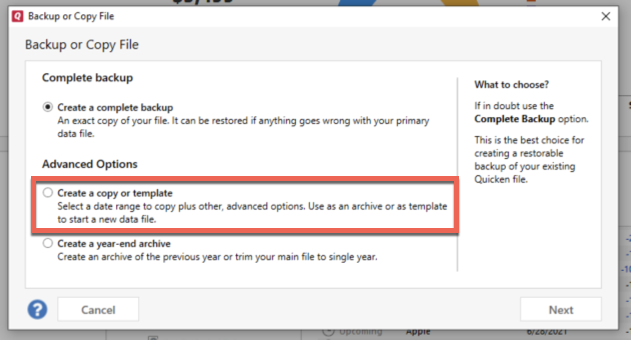
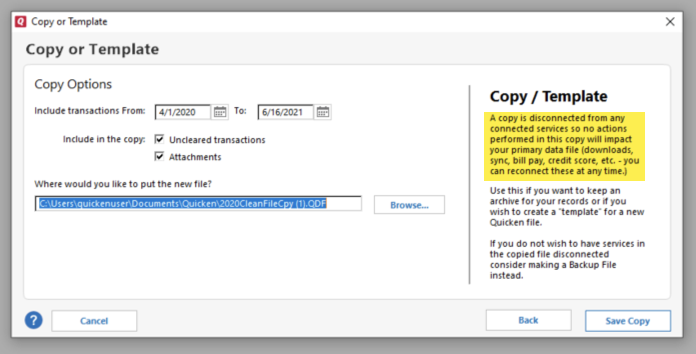
It's important to know that all online services will be disconnected in the copied file, and you will need to sign back in with your Quicken ID and reconnect all of your online accounts, online billers, Quicken Bill Manager services, etc if you plan to use that copied file going forward. This is because the new copy also creates a separate dataset ID.
I recommend starting by reconnecting only what you need to test whether the issue is resolved. If the issue is resolved, then I recommend using the copied file as your main file going forward.
If the issue is not resolved in the copied file either, then please disconnect any online billers and Express Web Connect+ accounts you connected, and then switch back to your original file. For instructions on switching between Quicken files, please click here.
Thank you!
Quicken Kristina
Make sure to sign up for the email digest to see a round up of your top posts.
0 -
You never answered this question that @Quicken Kristina asked:
Do you have reminders linked to the Chase online biller?
The Project Balance shows reminders, not online bills. If the bills aren't linked to a reminder they won't show up.
0 -
Sorry - I didn't see her question. There was no "link to a reminder" after the bill automatically showed up in the Bills and Reminders display. I didn't realize that if a bill showed up in the tabbed display, it wasn't necessarily going to be reflected in the Bills and Reminders panel for the My Money dashboard. I've since created and linked a reminder to that bill, but won't be able to check the results until next month.
1


Categories
- All Categories
- 6 Product Ideas
- 34 Announcements
- 248 Alerts, Online Banking & Known Product Issues
- 19 Product Alerts
- 265 Welcome to the Community!
- 301 Before you Buy
- 1.5K Product Ideas
- 55.8K Quicken Classic for Windows
- 16.9K Quicken Classic for Mac
- 1K Quicken Mobile
- 834 Quicken on the Web
- 129 Quicken LifeHub