Unacceptable situation with OneDrive and Quicken

If I can find a decent alternative to Quicken, I will move there. The situation with it being not recommended to use Quicken with OneDrive is unacceptable. Quicken and/or Microsoft need to provide a way to be using Quicken safely on more than one computer without haveing separate files stored locally. I suspect I am not alone with this concern. When I travel I use a notebook computer and want to have access to and ability to update Quicken such that when I return I don't have to make a copy of what's on my notebook and put the copy on my desktop computer or on my wife's computer. I'm astonished that in 2026 the limitation exists and hasn't been fixed. I guess only when people start canceling their Quickens subscriptions will Quicken make the investment necessary.


Comments

  • Jim_Harman
    Jim_Harman Quicken Windows Subscription SuperUser ✭✭✭✭✭

    I agree 100%

    QWin Premier subscription
  • gtgerbo
    gtgerbo Quicken Windows Subscription Member ✭✭✭

    ditto…

  • Pedro504
    Pedro504 Quicken Windows Subscription Member ✭✭✭✭

    ditto me in too!

    You Don't Have to Have a Point, To Have A Point

  • What he said.

  • Raymikeva
    Raymikeva Quicken Windows 2017 Member ✭✭

    Is this new? I have been using Quicken and One Drive for years. After a Quicken update yesterday, a notice popped up in Quicken about using a local file. I don't know how to fix it, so I guess I'll just get used to seeing this warning every time I open Quicken.

  • judyper
    judyper Quicken Windows Subscription Member ✭✭

    Agree!

  • marcaronson408
    marcaronson408 Quicken Windows Subscription Member ✭✭✭

    I agree and will add that the inability to put the quicken data file into a secure vault like Cryptomator is also a serious shortcoming.

    Marc

  • fmk-in-texas
    fmk-in-texas Quicken Windows Subscription Member ✭✭

    As noted by another comment, my Quicken file has been located on the OneDrive for years without any issues. The new warning should be more specific and clarify what problems Quicken is referring to. From what I deduce, the problems/issues are related to using Quicken with multiple devices.

  • NotACPA
    NotACPA Quicken Windows Subscription SuperUser ✭✭✭✭✭

    @fmk-in-texas There is NO problem with storing one's Q backup files to a folder controlled by OneDrive/etc and then having those backups automatically uploaded to the cloud.

    The problem with storing one's actual, "live" Q data file on OneDrive is that Q's database architecture lacks the "Lock", "Committ" and "Rollback" commands that would make cloud storage safe … and would be very complex to implement in coding as old as Q's.

    What's being risked when one stores their production QDF in the cloud is a "hiccup" in the connection while the file is open, which could irretrievably fry the data file.

    The convenience sought is simply not worth the possible price, at least to me.

    Q user since February, 1990. DOS Version 4
    Now running Quicken Windows Subscription, Business & Personal
    Retired "Certified Information Systems Auditor" & Bank Audit VP

  • marcaronson408
    marcaronson408 Quicken Windows Subscription Member ✭✭✭
    edited April 25

    From what I deduce, the problems/issues are related to using Quicken with multiple devices.

    There are other scenarios that can cause damage to the quicken file that won't be visible for quite some time. I was having issues with file corruption until I stopped placing my file in OneDriver. I don't recall the exact scenarios, but there are other posts in the forum that discuss them.

    You might want to run a validation on your file as a precaution…

    Marc

  • marcaronson408
    marcaronson408 Quicken Windows Subscription Member ✭✭✭

    What's being risked when one stores their production QDF in the cloud is a "hiccup" in the connection while the file is open, which could irretrievably fry the data file.

    In my case I have OneDrive configured to keep all files locally. ie, no attempt to reduce local storage by only "caching" what is active. A connection "hiccup" would not get in the way of accessing and updating the file. I was only accessing it from a single machine.

    It is a bit of a mystery to me as to why this scenario is not safe, but the experience I had demonstrates that it is not safe…

  • markus1957
    markus1957 Quicken Windows Subscription SuperUser, Windows Beta Beta

    For about a year now, OneDrive automatically pauses syncing of the Quicken data file (QDF) when it is opened. No syncing of the QDF takes place until after the file is closed. So, the QDF file is safe from OneDrive interacting with it while it is opened.

    The same is not true for the two .dat files associated with the QDF. You can watch OneDrive sync those files each time Quicken closes them. Quicken opens and closes them frequently during OSU so this can cause conflicts. To remedy that, I changed the settings in OneDrive to exclude all .dat files from syncing.

    I still manually pause OneDrive when Quicken asks to do a software update to avoid conflicts during the update process. Also, if you have a slow internet connection, you need to give OneDrive time to finish the QDF sync after closing Quicken before opening the data file again.

    Bottom line is that OneDrive can be configured so that it does not interfere with Quicken files.

    As for Quicken being able to be used on multiple computers, with mobile sync off, it will work better. But with more reliance on cloud files during OSU sessions and file caching in the local Program Data files (not synced by OneDrive), it tends to get messy. I would not blame OneDrive for Quicken's issues when being used on multiple computers. That problem stems from Quicken storing more information on the local machine outside of the QDF that can result in issues when OSU's are performed on multiple machines.

  • UTMike
    UTMike Quicken Windows Subscription Member ✭✭

    Been syncing the Quicken files to OneDrive for 5 years with no issues. Anyone else notice this new warning comes shortly after the hard-sell of Quicken's backup service? That's been announced a few times recently when we open the application (wondered why since most folks already have cloud storage). Something's changed, and I don't think we're getting the full picture.

  • Chris_QPW
    Chris_QPW Quicken Windows Subscription Member ✭✭✭✭

    I can certainly see where if someone knows what they are doing, could put their data file in OneDrive and never have any problems. In fact, I suspect a large amount of people are doing it without even knowing since the default for storing a data file is in the Documents folder, and when you choose to back up your files to OneDrive that folder is included.

    To me the warnings are there for the same reason there is a warning about storing your data file on a network drive. There are so many possibilities that Quicken Inc could never test them all and Quicken was designed to be on a hard drive which would be expected to be error free and never have anything conflict with it opening the data file. It doesn't have any built-in error correcting that would be needed to run with a "disk" that isn't 100% reliable. That would have had to be built-in from day one.

    What's more with the fact that now so much information is synced to the "Quicken Cloud dataset" that has to stay in sync, if you bring in multiple machines into the picture the risks go up quite a bit.

    There was also an incident not too long ago where for a time OneDrive stopped honoring the lock on the data file and was trying to sync it even when Quicken had the data file open and locked. Which can definitely mess up a file like the Quicken data file that has a database in it that might not be in a good state at certain points in time.

    I just checked this and OneDrive is currently honoring the lock and not syncing until Quicken closes the data file.

    Let me start by saying from what I see Quicken is getting the lock by opening the data file and releasing it by closing the data file. I don't see it locking the file at any other time, and that will become important when I talk about the risks.

    So, what are the risks?

    • There are some operations where Quicken closes the data file and then expects to be able to open it shortly later. Validate is such a case, as is moving investment transactions between one register and another. There probably are other spots. If you see the whole main window go blank except for the title bar that is probably a case of this. The risk here is that when Quicken closes the data file the lock is off and that means something like OneDrive can come in and lock the data file to do its sync to the server. The results might be that when Quicken goes to open the data file it won't be able to do it and will tell you that the data file isn't accessible. This of course means that Quicken won't be able to do the operation it wanted to do. In general, I think that this shouldn't cause any real damage because the data file will be in a consistent state when it is closed, but it can certainly scare people.
    • When you bring a second machine into the picture the risks go up. Of course, first and foremost the user should never open the data file on two machines at the same time, and the user should ensure that the data file has completely sync out from the first machine and into the second before opening it on the second machine (risk #1 that Quicken Inc can't control). And let's face it, no one actually ensures this, they assume it is working correctly. This leads to another problem, one that can also happen when the user is using Restore or a copy of their data file. These days there is a lot of data being stored in the Quicken Cloud dataset that has to stay in sync with your data file, and Quicken seems incapable of doing this sync properly if the data file is even a day (maybe even less) older than what is in the Quicken Cloud dataset.
    • Another risk is something people don't think about. Let's face it, if you have used Quicken for some length of time you have seen some form of corruption. SuperUsers/Long time users tend to skip the riskier features like Sync to Mobile/Web, but even so I think most if not all have seen some kind of corruption. It might have been because of a conversion at update time, or use of another feature, or something that never has been identified. So, what is the risk? You come to the forum or support and tell them you have some corruption. The first thing they are going to do is ask where you keep your data file. If it is in a place that they "don't recommend" then the conversation is probably going to end pretty quickly no matter what really caused the corruption.
  • Ben12
    Ben12 Member ✭✭✭

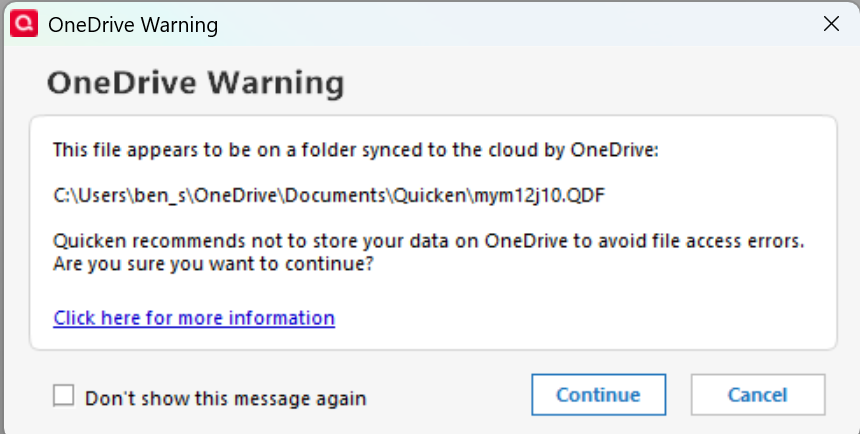
    New to this discussion, I get this warning now (been using OneDrive and Quicken for over a year with no Issues).

    image.png

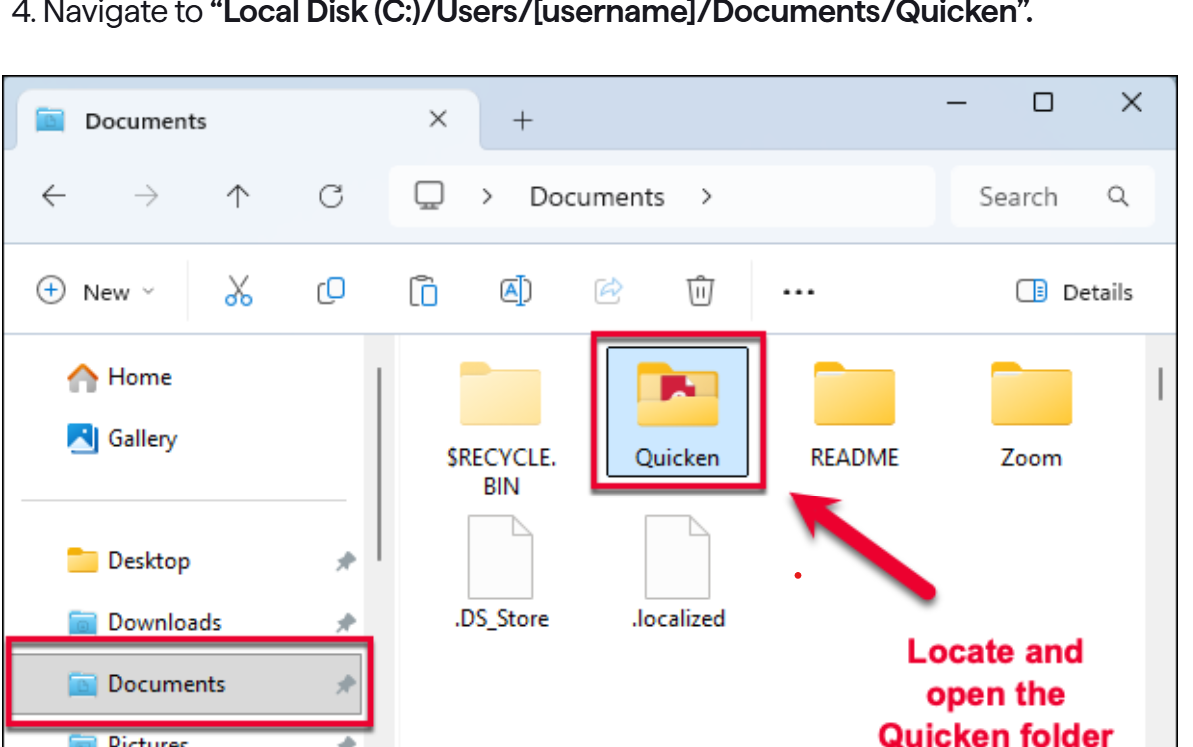
    If I click for more information, it gives a step by step process that takes the quicken file out of OneDrive. Unfortunately, if I follow that procedure, the results it predicts are not what I see on my computer.

    image.png

    The folder on my computer is empty and does not look like above. Anyone else have this issue.

  • Chris_QPW
    Chris_QPW Quicken Windows Subscription Member ✭✭✭✭

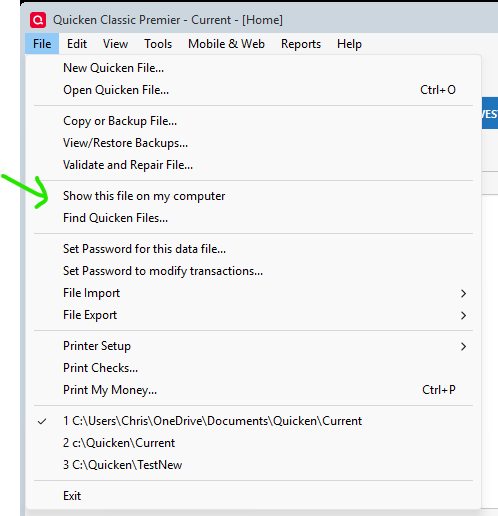
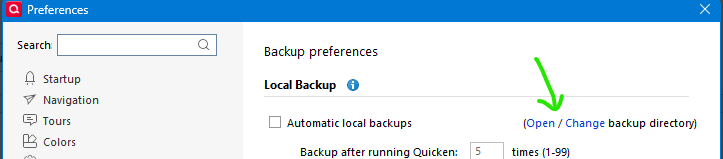
    Did you use "Show this file on my computer"?

    I see that they have skipped some steps, and there might be a confusion about the "Documents" folder.

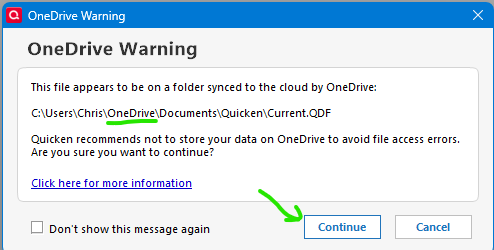
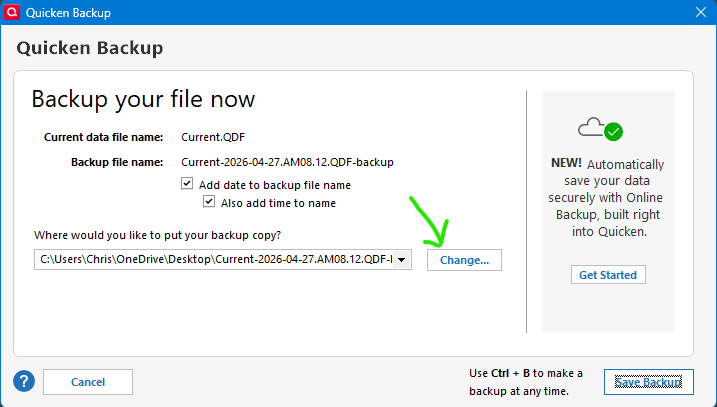
    First off, they don't mention that you need to select Continue in this dialog so that your data file opens and you can even get the "Show this file on my computer" menu item. Note that the warning dialog gives the current full path to the data file:

    image.png image.png

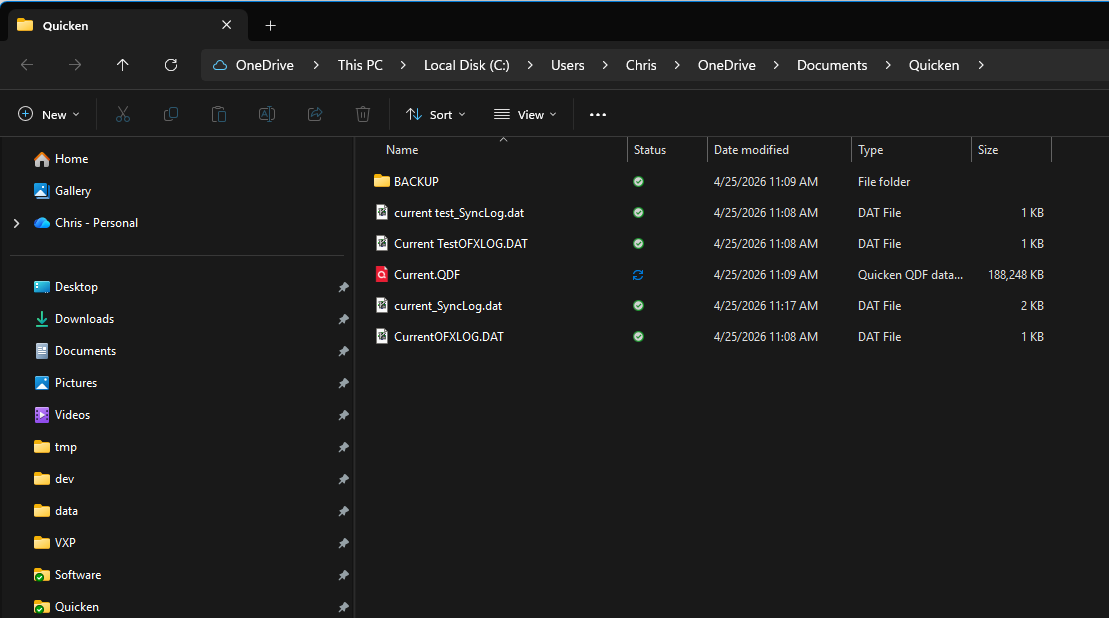
    What "Show this file on my computer" does is open the folder that contains your data file in Windows File Explorer, which in my example above looks like this:

    image.png

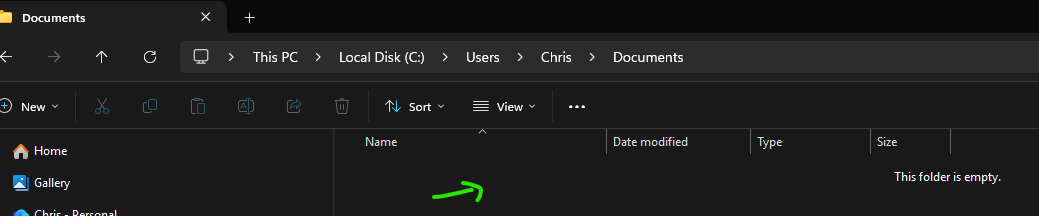
    Then they ask you to close Quicken and right click on your data file (in my case Current.qdf) and then navigate to C:\Users\USERNAME\Documents\Quicken. Here again is where they are missing steps. There isn't going to be a Quicken folder at that place you would have to create it:

    image.png

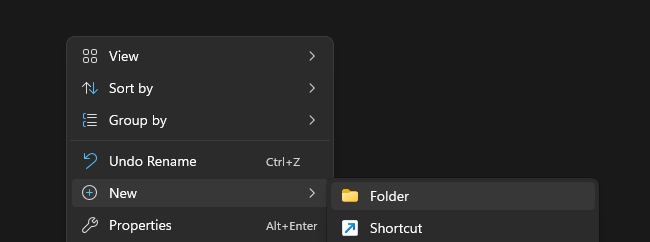
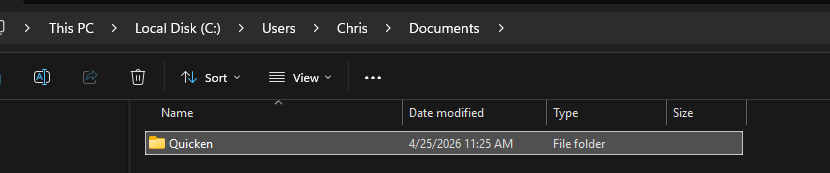
    So, they expect you to do something like right click in that spot I have pointed to and select to create a new folder and name it Quicken and then go into it.

    image.png image.png

    And then in that folder you would right click and paste your Quicken data file and then double click on it to open it there to let Quicken know where it is now.

    Personally, I create a folder at C:\Quicken and put my data file there. I think it is too confusing to be using the now "hidden Documents" folder.

    Notice the difference in these paths.

    C:\Users\Chris\OneDrive\Documents\Quicken

    C:\Users\Chris\Documents\Quicken

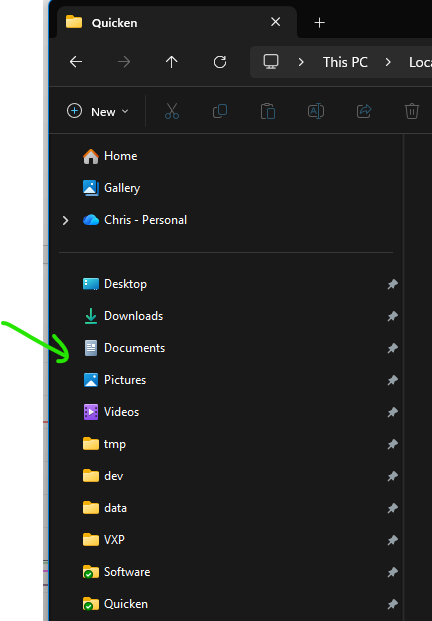
    When you browse for Documents in Windows File Explorer when your data files are being backed up to OneDrive the "Documents" you see like below is going to be the one in OneDrive, and it isn't really easy to get back to the "old/hidden Documents" that is just at C:\Users\USERNAME.

    image.png

    Of course, my C:\Quicken folder isn't an easy one click path either, so that is why when I created it, I right clicked on it and selected "Pin to Quick Access", that is why it appears in the above screenshot.

  • Ben12
    Ben12 Member ✭✭✭

    Thanks, I just posted a separate discussion. Thought this may have gotten lost in the ongoing discussion. Your instructions here make sense with what I have observed. They should change the instruction given for the issue. If I have Quicken open, the data file in OneDrive says waiting to sync. It appears to only sync when I close Quicken. May be helpful to others to copy your response here and paste to my new post.