Improve performance on 12th gen & newer Intel processors by using “CPU affinity”

Background: My LG Gram laptop has an Intel Ultra core 7 H155 processor. Quicken Classic performance was usually "OK" when plugged in but was really bad when using the battery, regardless of whether I was using the "Balanced" or "Performance" power profile. I followed all the steps in the Quicken Performance Troubleshooting | Quicken guide. It helped, but not enough.
How I solved it: I did some digging and learned that many 12th generation and newer Intel processors have 2 different types of cores: "Performance" cores & "Efficiency" cores. Using “CPU affinity”, I was able to force Windows to always execute Quicken Classic on a "Performance" core and now things run much better, especially on battery. The difference is significant: Accessing an investment account that used to take 5-7 seconds to open now only takes 2 seconds. In general, everything is much “snappier”.
My enhancement request: My request is that the quicken development team enhanced the product to do this automatically.
Additional information: I also found that these 2 additional changes helped a bit:
- When qw.exe is running, shift the power profile to "Performance".
- Set the GPU priority to "Above normal".
One can accomplish these changes by writing a PowerShell script. I used "Process Lasso", a 3rd party windows utility that automates this process, so I don’t have a script I can share.
Marc
Comments
-
I think this makes a lot sense. From what I can tell Quicken doesn’t make much use of multiple threads, so if it isn’t running on the highest power cpu core it could certainly slow down its performance.
I did a bit of research since I have never had to use this, but it does seem like there are library calls that can allow a program to set this up in a machine independent manner.
I do find it a bit strange that Windows can’t do this automatically, but it is what it is.
0 -
One can accomplish these changes by writing a PowerShell script. I used 3rd party software that automates this process, so I don’t have a script I can share.
Is there any hint you can share how to do this? I've never even heard of power profiles before.
Quicken user since version 2 for DOS, as of 2025 using QWin Premier (US) on Win10 Pro & Win11 Pro on 2 PCs.
0 -
Power profiles are what you select in Windows Settings > System > Power and Battery > Power Mode. Or you can right click on the battery icon in the Taskbar. These selections are processor independent, with choices of "Best performance", Balanced", and "Best Power efficiency" and on a laptop it can automatically switch between them depending on the power source.
I have not experimented with this, but with Quicken running you can go to the Task Manager > Details and right click on qw.exe. Select Affinity and it will let you pick specific processor cores Quicken is allowed to run on. Depending on your processor, apparently some cores are optimized for speed and some for lower power consumption. Here are the specs for the processor referenced above
The /affinity switch for the start command lets you specify which cores qw.exe is allowed to run on.
Again, I am not an expert on this and YMMV.
QWin Premier subscription2 -
Update: I just exchanged messages with @Quicken Anja and she indicated that it is OK to include the name of the 3rd party product I use as it is not a competing product to Quicken — it is a windows utility named "Process Lasso".
Here is a link to a video that explains how to set CPU affinity using the task manager. There are two challenges with this approach:
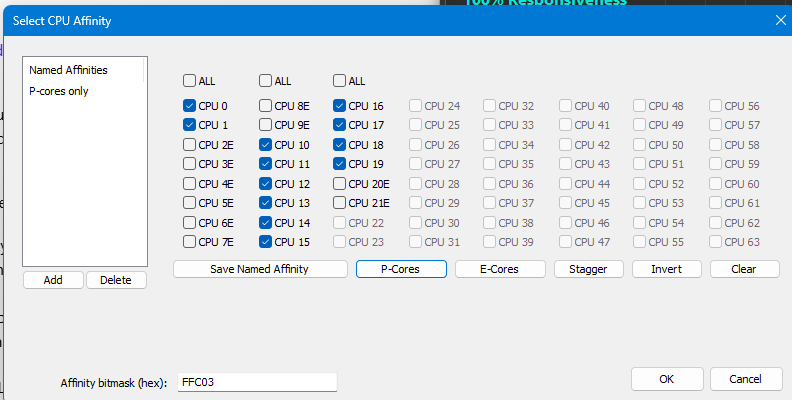
- You need to figure out which of the cores are "performance" cores. On my CPU (Ultra Core 7 155h), it's CPU's numbered 0, 1 and 10-19.
- You will need to follow those instructions every time you launch Quicken.
If you do a Google search for "set affinity permanently windows 11", you will get the following AI synopsis:
To set CPU affinity permanently in Windows 11, use a third-party application like "Process Lasso" or create a shortcut with the
start /affinitycommand, as built-in Windows tools don't offer a permanent solution. Process Lasso automatically applies your desired affinity settings each time the application starts. For the shortcut method, you'll need to create a batch file or script that launches the application with a hexadecimal affinity mask representing the desired CPU coresI am using "Process Lasso" and it works well for me. It clearly indicates which are the "Performance" cores and which are the "Efficiency" cores, per the screenshot below.
Marc
 1
1 -
@Rocket J Squirrel I received the green light from @Quicken Anja to use the product name that I used. It is called "Product Lasso".
Hope this helps you!
Marc
1 -
I was not aware of this. Excellent info provided here. Thank you @marcaronson408
- Q Win Deluxe user since 2010, US Subscription
- I don't use Cloud Sync, Mobile & Web, Bill Pay1 -
To force Windows to use high performance graphics for Quicken, go to Windows settings > System > Display > Graphics or right click on the desktop and select Display settings > Graphics. If Quicken is not listed under Custom settings for applications, click on Add desktop app and enter qw.exe. This should add Quicken Windows to the list. Click on the arrow next to that and check the setting next to GPU preference. For me the default is Let Quicken decide. Choose High Performance and see if that makes a difference.
Changing this did not make a big difference for me.
QWin Premier subscription0 -
Him @Jim_Harman, I also found that setting the GPU preference to "High Performance" did not make a significant difference.
All, I just did some more research and learned that the 12th generation I5, I7 & I9 Intel processors, which were first released in late 2021, also have both types of cores, so the benefit of using CPU affinity is not limited to Ultra core processors.
0