Importing from Financial Institutions

I recently (reluctantly) upgraded to Windows 11. Now, I'm having an issue when attempting to import a QFX file from my bank. I've been successfully doing this for years.
I get a pop-up window that says: "Please wait while Windows configures Quicken". After a few seconds, I get another window: "There are Quicken components currently open and cannot be uninstalled".
Yikes? Did Windows 11 do something to Quicken? Do I have to do something, or, heaven forbid, does the bank have to do something to the QFX file? This window also says to close Quicken and try uninstalling again. Uninstall what? The entire product?
Thanks.
[Edited-Readability]
Comments
-
I am having the same problem but I have Quicken on Windows 10.
0 -
Hello @singerdancer & @nhmartens,
Thank you both for reporting the issues you are having.
What you have described is currently a Known Issue. Our teams are aware, and this has been escalated internally. As stated in the alert, uninstalling and reinstalling the application should resolve the issue.
To be notified of updates as they become available, you can bookmark the linked alert. To do this, click the bookmark ribbon located in the upper right.

If you do not see the bookmark ribbon, please make sure that you are signed into the Quicken Community.
Thank you!
Quicken Alyssa
Make sure to sign up for the email digest to see a round up of your top posts.
0 -
Will uninstalling the product also delete my data base? Or is there a way to preserve the data and restore it after reinstalling the product. Also, how sure is this act of uninstall/reinstall actually going to work? Even your comment says 'should' resolve the issue.
Thank you.
0 -
@nhmartens A program uninstall doesn't touch your data, but you can take a backup first just to be sure.
Q user since February, 1990. DOS Version 4
Now running Quicken Windows Subscription, Business & Personal
Retired "Certified Information Systems Auditor" & Bank Audit VP0 -
Thinking about it further I've come to the conclusion that uninstall/reinstall is NOT acceptable. Correct me if I'm wrong, but doing that will lose the memorized list, renaming rules, custom reports and the other various customization I've done over the years. Which I'm not sure I even remember what I've done. I know I have the windows looking and behaving just as I want them to now and losing all that is not acceptable. So, I believe I have only one option. Give them a reasonable chance to fix the problem (and it should be easy to do) or start looking for a replacement. Yes, a replacement will also lose all of the things I just mentioned above but I only have to do it once. It pains me to say, as a very long time customer, that my trust has been seriously damaged. I hope someone high up the company's food chain is actually listening and paying attention.
0 -
Thinking about it further I've come to the conclusion that uninstall/reinstall is NOT acceptable. Correct me if I'm wrong, but doing that will lose the memorized list, renaming rules, custom reports and the other various customization I've done over the years.
No, uninstalling and reinstalling the software will not affect these things. These are all saved in the data file, not in the application.
FWIW, I had this same issue that you are experiencing now and uninstalling and reinstalling the software resolved the issue for me and it has not returned…and everything in my data file was unaffected. In fact, it seems that almost everyone who does this has posted that it did resolve the issue for them, as well.
The few who have posted that did not fix the issue for them were then able to resolve the issue by also deleting the program folder (not the folder with the data file in it).
There is apparently something in R65.15/17 that seems to sometimes not install properly. Uninstalling and reinstalling Quicken from the online account or from https://www.quicken.com/activate seems to eliminate that issue.
Quicken Classic Premier (US) Subscription: R66.23 on Windows 11 Home
0 -
I will try that. But I did have another thought which I'll keep in my pocket as a last ditch thing. I have access to another computer (I'll call it my Backup). It's a few years older than my current computer but it is running Windows 11. My plan is to install Quicken on the backup computer. Copy the data file and QFX files to a thumb drive. Import the QFX files. I thought the version of Quicken on the backup computer would be fresh out of the box and wouldn't have my renaming rules and I hoped the data file on the backup computer WOULD have the unaccepted imported data. I would copy the data file on the thumb drive back to the current computer and accept them. The downside to this plan is I'd have to repeat the process every time I wanted to import more data. Your solution is, by far, better and it has the advantage of being a one-time, permanent remedy. I guess the only question left is why doesn't quicken put out another release, even an interim release, that fixes the problem?
One final question about your plan. I do want to backup my data file. I'm sure the file in question is called 0QData.QDF. But there are some other 0QData files in the same folder, like OldSynclog.DAT, Synclog.dat and Synclog1.dat. I'm not sure what roll these files play. Is the QDF the ONLY one I need to be concerned with?
Thanks.
0 -
Sorry but I have no idea what 0QData.QDF or 0QData files are. Never heard of those things before. Is 0QData.QDF the name of your primary or some other (maybe a test) Quicken data file?
The Quicken back up data files will have the same file name as the primary data files but will have .QDF-backup as the file extension instead of .QDF. Unless, that is, you give them unique file names.
Quicken has a fuction that creates backup files and will apply the appropriate file extension to them. Go to Edit > Preferences > Backup to see where the backup files are saved and the names of the backup files you have.
When you are ready to proceed with making a backup file go to File > Copy or Backup File > Create a Complete Backup and follow the prompts.
The Synclog.dat files are simply coded log files of Quicken's syncing activities with the Cloud Account. I can't read them so I don't know exactly what is in them. They sometimes can be helpful to the Quicken Dev Team but there is no need to move them at all for any reason. In fact, if you delete them Quicken will simply create new ones to replace them the next time you run OSU.
Also, as mentioned in my last post, Renaming Rules are part of the QDF data file. They are not part of the Quicken application. So if you move the QDF data from from one computer to the next and open it there you will find that everything (and I do mean everything) in the moved data file will be exactly as it was before it was moved.
If you do decide to move your data file between computers, the only file you need to move is the primary QDF file. No other files need to be moved, nor should be moved. But be sure you take care if you do this because if you keep the original QDF file on one computer and then move a Windows copy of it to another computer you can really mess up the data in both copies of the file because they share the same Cloud Account and the same Quicken data file ID so there will be some cross-talk that occurs between them.
And if you are not really careful you can end up trashing them. And MAYBE restoring a backup file will fix the issues but there is no guarantee of that. Just make sure that you are not moving Windows copies of the same data file between computers. If you do move the data file do a cut/paste process to ensure that there is always only one data file regardless of which computer it resides on.
Quite frankly, given that this issue is a Quicken install issue, not a data file issue, I don't see how what you are thinking of doing will do anything to fix it for you. Quicken remembering the QFX file is not an issue because it was never successfully imported to begin with.
If you simply uninstall and then reinstall Quicken you should then be able to import that QFX file without needing to do anything special.
…why doesn't quicken put out another release, even an interim release, that fixes the problem?
Well, that then begs the question about whether or not Quicken has even identified the cause of the problem, even more so, what the fix is. Quicken is a small company and they don't have unlimited resources to address issues and fix them. They have a process to define the priorities and my guess is this one is not near the top of that list because there is a workable workaround that resolves the issue for almost everyone. But, that's just a guess. It will get fixed but we just don't know how soon that will be.
Quicken Classic Premier (US) Subscription: R66.23 on Windows 11 Home
0 -
I thank you for your assistance, comments and insight. Your latest reply did bring up a couple of questions. I was going to ask this question in a separate post, but I'll take advantage of this discussion. Yes, my data file is 0 Qdata (I didn't see any reason to change it).
You mentioned that backup files contain ".QDF-backup" as part of their name. I have several such files. Here's what Windows explorer shows me right now:
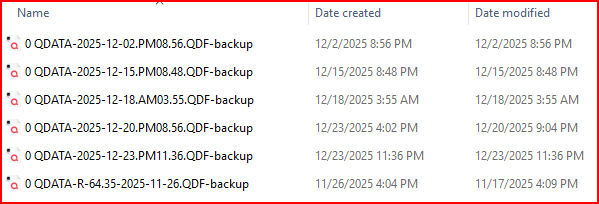
I'm guessing the last one, since it appears to have a release # as part of its name was the result of an automatic update. Especially since the update process ends with a message that a backup was done. The others appear to be created every time I open Quicken. I'm curious what the PM… is trying to tell me. One of the files stands out, the 4th one. It says it was created on 12/23 and modified on 12/20. Maybe this is just one those M/S features but how could a file be modified 3 days before it was created?
I also researched a little more about disabling the cloud sync but I'm a little concerned about taking that route. They all agreed with the procedure but I found one website that had some 'warnings'.
Turning off Sync will only disable Mobile & Web services. It will not stop your Quicken program from syncing with your Cloud Account although the data saved in your Cloud Account going forward will be minimal and it will not include any financial data.
If you want Quicken to stop syncing with your Cloud Account you will need to stop using all of Quicken's Online Services (including downloads via OSU and QFX/Quicken format manual downloads from your financial institutions).
Not sure about that one. All I want to do is avoid the situation you described by having two versions of the data file since both machines share the same cloud account and the possibility of corrupting them.
Here's what I had planned to do for my fallback: 1) mount a flash drive on my primary computer, 2) copy the data file and the QFX files to it, 3) eject the flash drive and mount it on the secondary computer, 4) install quicken on the secondary computer, 5) open the data file on the flash drive, 6) import the QFX files (which I hope would import without a problem), 6) eject the flash drive and remount it on the primary computer, 6) copy the data file to its real home, 7) uninstall Quicken on the secondary computer. Using this approach still leaves me a little concerned. Not knowing how long it will take them to fix the problem I might find myself in the same situation next month when I want to download the data. However, doing this would prove that all of my preferences are indeed preserved, this includes the customization I've made on what my windows look like (e.g. columns selected, etc.).
I'm guessing that Quicken will allow me to install another copy on the secondary computer because it sees my cloud account and knows I'm a legitimate customer?
0 -
I'm guessing the last one, since it appears to have a release # as part of its name was the result of an automatic update. Especially since the update process ends with a message that a backup was done.
Yes, when Quicken updates the version it will automatically make a backup of the last file you had open and insert the version that was being updated from into the file name. In your example, it says that the backup file was made with R64.35 after which the Quicken application was updated to your current version. This was implemented a few years ago to help people identify the last good backup file made before the version was updated just in case the Quicken update installation somehow messes up the primary data file. When that happens restoring that backup file can be a life-saver.
The others appear to be created every time I open Quicken.
From what you posted it appears that you have automatic backups enabled which is good. Backup files are automatically created/saved when the primary data file is closed (i.e., the end of the session), not when it opens.
You can adjust your automatic backup settings at Edit > Preferences > Backup. I generally recommend that people have enough backup files saved to cover at least the last 2-3 wks. 3-4 wks is better, yet, because if/when an issue is identified in a file it might have occurred 2-4 wks prior to identifying it.
I'm curious what the PM… is trying to tell me.
The AM or PM is simply identifying whether the backup file was created in the morning or the afternoon. For instance, the 1st backup file has "-2025-12-02PM08.56" in the file name. It means the backup file was created on Dec 2, 2025, at 8:56 PM.
One of the files stands out, the 4th one. It says it was created on 12/23 and modified on 12/20. Maybe this is just one those M/S features but how could a file be modified 3 days before it was created?
Did you copy or move the file from another location on your drive? The file create date indicates when the file was last saved to that particular location on your drive. It can be the original file creation date but if the file gets moved to another location (i.e., a different folder or pathway change) the create date will get changed to the date that happened. This is not a Quicken thing. It is a Windows thing.
I also researched a little more about disabling the cloud sync but I'm a little concerned about taking that route. They all agreed with the procedure but I found one website that had some 'warnings'.
Turning off Sync will only disable Mobile & Web services. It will not stop your Quicken program from syncing with your Cloud Account although the data saved in your Cloud Account going forward will be minimal and it will not include any financial data.
The first bold paragraph is is not really a warning so much as a FYI. Quicken will always communicate with the Cloud Account provided there is an Internet connection. The Cloud Account is critical for things like software activation, license validate, subscription status and edition subscribed, advising when there is a new version available to be updated to and it is absolutely needed for EWC and EWC+ download connections. Quicken also uses the Cloud Account to know when to send users important messages regarding their financial institutions (such as, regarding connection issues/changes). And there are times (not very often) Quicken will make "soft" changes that will not update the version of Quicken and this is done via the Cloud Account.
Many wrongly think that turning off Mobile & Web Sync stops Quicken syncing with the Cloud Account but that is not the case. Mobile & Web Sync is only used with the companion apps Quicken Mobile and Quicken on the Web. If this Sync is on, it will allow you to see and manage a subset of your Quicken data in a Mobile device app or on an Internet browser. Mobile & Web Sync should be turned off if you will not be using Mobile or Web to reduce the risk of data integrity issues being encountered.
If you want Quicken to stop syncing with your Cloud Account you will need to stop using all of Quicken's Online Services (including downloads via OSU and QFX/Quicken format manual downloads from your financial institutions).
This is partially but not entirely true. The only way to get Quicken to stop syncing with the Cloud Account is to disconnect from the Internet when you are running Quicken. Then Quicken will run entirely offline.
Here's what I had planned to do for my fallback: 1) mount a flash drive on my primary computer, 2) copy the data file and the QFX files to it, 3) eject the flash drive and mount it on the secondary computer, 4) install quicken on the secondary computer, 5) open the data file on the flash drive, 6) import the QFX files (which I hope would import without a problem), 6) eject the flash drive and remount it on the primary computer, 6) copy the data file to its real home, 7) uninstall Quicken on the secondary computer. Using this approach still leaves me a little concerned. Not knowing how long it will take them to fix the problem I might find myself in the same situation next month when I want to download the data. However, doing this would prove that all of my preferences are indeed preserved, this includes the customization I've made on what my windows look like (e.g. columns selected, etc.).
I really don't understand the rationale for doing it this way. As mentioned in my earlier posts, all of the preferences, settings and custom reports are not saved in the software. They are saved in the data file. Your moving a copy of the data file to a different computer where you will do a fresh install at best will accomplish exactly the same thing as uninstalling and reinstalling Quicken on your primary computer…that is, it will do a fresh install of the exact same software (except that it will likely be the more recent version if your current version is not the most recent) and using the exact same ID data file and ID Cloud Account with the exact same Quicken ID.
Your best bet to protect all your preferences is to religiously backup your data file, especially before you do something major. Uninstalling and reinstalling the software can be considered a major event so backup your data file before you do that. Then if there is an issue encountered after the reinstallation you can simply restore that backup file and everything will be as it was before the reinstall.
A couple of things you should note if you do follow through on your plan:
- Move the files on your thumb drive to the drive on the new computer. Opening and running Quicken from any other location other than the local drive can sometimes be problematic and cause data integrity issues.
- Your data file is assigned to your computer. When you move the copy to another computer you will be prompted to assign that copied file to that other computer. Just accept doing that otherwise you will not be able to use that copied file on that other computer. When you move the file back to the original computer you will get the same prompt, again, so accept it.
I'm guessing that Quicken will allow me to install another copy on the secondary computer because it sees my cloud account and knows I'm a legitimate customer?
You are correct. Your active subscription allows you to download and install it on as many computers as you want. Just download and install Quicken from your Quicken.com online account (which is the easiest way to do it because it will automatically be activated) or download and install it from Download & Activate Quicken Classic for Windows.
Quicken Classic Premier (US) Subscription: R66.23 on Windows 11 Home
0