I can't setup the Online services AFTER I created a account

I have multiple accounts that I could not create the download transactions when I created them.
The help files tells me a simple way to do it in the account setting BUT…
Everytime I try the SET UP NOW button in the Online services ot my edit account details, it brings me to create a new account which obviously I don't want to do.
How can I setup my download transactions of an existing account If QUICKEN keeps asking me to create a NEW account each time ?
Thanks for your help
Comments
-
What's the name of the bank you're trying to activate?
Some banks have started to use an authorization process which takes you to panels same as the Tools / Add Account process. Once you go thru that process and identify yourself to the bank, you'll get to a panel which lists all accounts found at the bank. Carefully LINK each of the accounts found to the account registers which you have already set up in Quicken. If you don't link correctly, new account registers will be created instead.
Once all accounts have been linked, the first download will dump about 60 - 90 days' worth of transactions into your registers, so some cleanup work will be necessary to match downloaded transactions to existing register transactions, create new ones or delete duplicates.0 -
Hello @Isa1964,
Thanks for reaching out!
When you click Set Up Now and Quicken takes you into the Add Account flow, that’s actually expected behavior. This process is used both to add new accounts and to link existing accounts for transaction downloads. As long as you choose Link (not Add) when Quicken presents the list of accounts, your existing account will remain intact.
That said, to better understand what’s happening in your case, we’ll need a bit more information.
Could you please let us know:
- The name of the financial institution(s) you’re trying to connect to
- Screenshots showing the screen where Quicken prompts you to create a new account (please redact any personal information)
- If needed, please refer to this Community FAQ for instructions on how to attach a screenshot. Alternatively, you can also drag and drop screenshots to your response if you are not given the option to add attachments.
With that information, we can determine whether Quicken is not detecting eligible accounts from the bank, or if there’s a connection-specific issue preventing the Link option from appearing.
Looking forward to your reply! Thank you.
-Quicken Anja
Make sure to sign up for the email digest to see a round up of your top posts.0 -
Hello
This is what I get everytime I try to connect for download for certain of my accounts wheter I do it in edit my account or in the set up transaction download button.
0 -
@Isa1964 Thank you for sharing the screenshots—they help clarify what’s happening here.
Based on the Step 5 screenshot you posted, it appears you’re trying to connect this account with Tangerine. That explains the behavior you’re seeing.
Tangerine does not support direct online services (Express Web Connect or Direct Connect). Instead, it only supports 2-step download, also known as Web Connect (QFX). Because of that, when you click Set Up Now, Quicken redirects you into the Add Account flow and ultimately creates a new manual account—since there is no direct connection available to link to your existing register.
To download transactions for an existing Tangerine account, you’ll need to use QFX file downloads instead. The instructions you saw in Step 5 are the correct method.
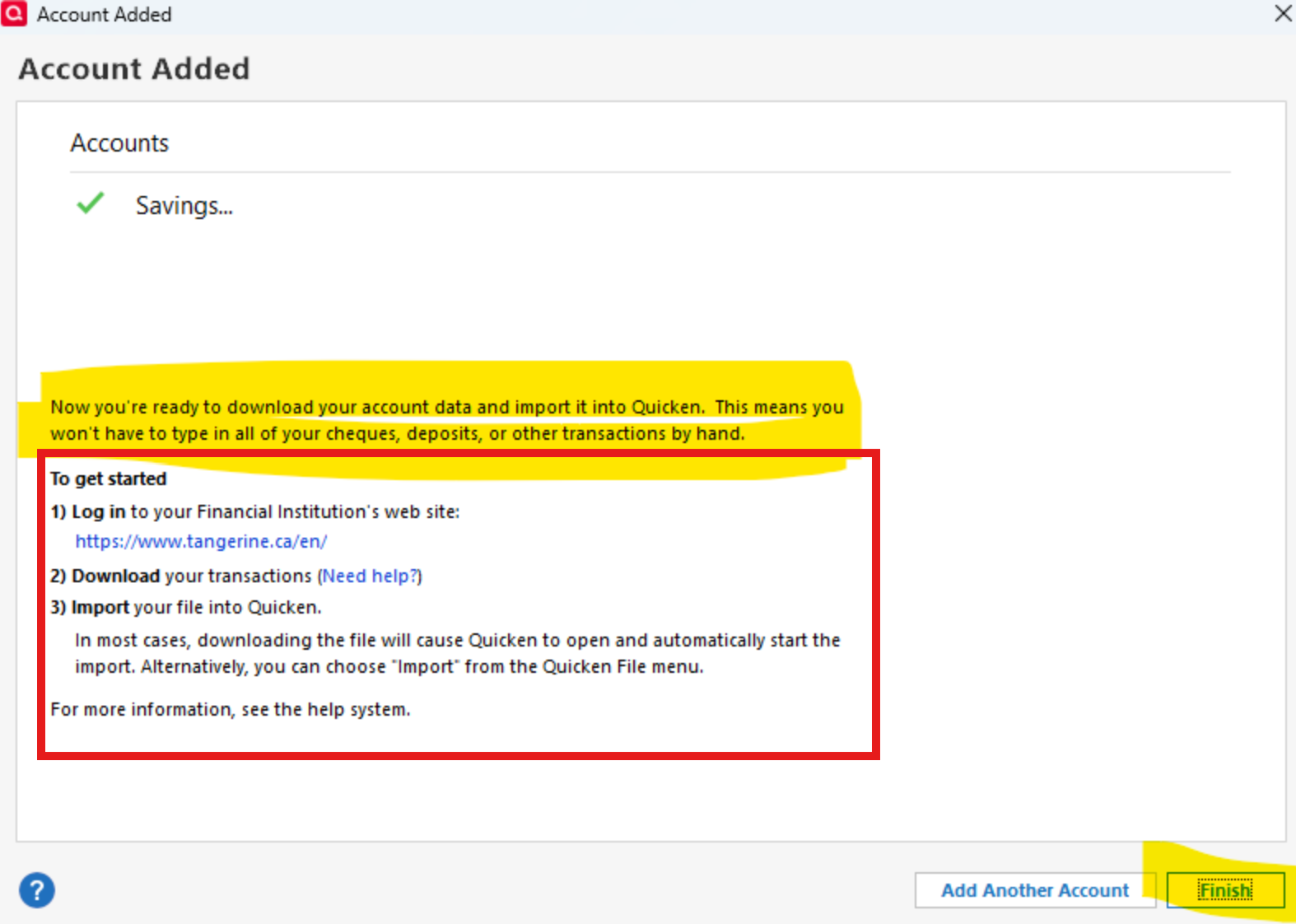
Here’s a summary of how to do it:
Downloading the QFX file from Tangerine
- Log in to Tangerine’s website
- Open the specific account
- Look for an Export or Download option on the transactions page
- Choose QFX / Web Connect as the format
- Select your date range and download the file
Importing a QFX file into Quicken
- Back up your Quicken Data File.
- Go to the File menu and select File Import → Web Connect (.QFX) File….
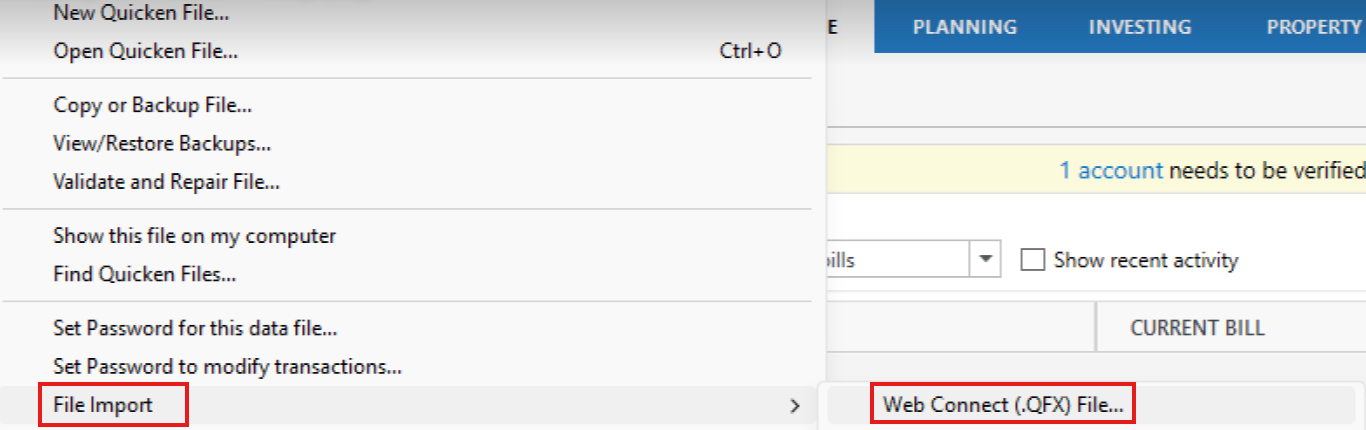 The Import .QFX File screen will appear.
 - Use the Browse button to find and select the file you want to import.
- Click Open or double-click the file to import.
You can also find these instructions in this Help Article.
Because Tangerine only supports QFX downloads, there isn’t a way to enable automatic transaction downloads for these accounts—manual import is the expected workflow.
I hope this clears things up! Let us know if you need help with the import process or run into any issues along the way.
-Quicken Anja
Make sure to sign up for the email digest to see a round up of your top posts.0 -
Hello again,
We haven't heard back from you in a while. Do you still need assistance?
Thank you!
-Quicken Anja
Make sure to sign up for the email digest to see a round up of your top posts.0 -
Hello again,
Checking in once more before this thread is closed.
Let us know if you still need assistance.Thank you!
-Quicken Anja
Make sure to sign up for the email digest to see a round up of your top posts.0 -
Hello again,
Due to the lack of response, I went ahead and closed this post.
If you still require assistance, please feel free to start a new post.
Thank you!
-Quicken Anja
Make sure to sign up for the email digest to see a round up of your top posts.0




