Phantom transaction preventing me from fixing will-not-download problem.

In summer 2024, one of my accounts started displaying a red flag — downloaded transactions to accept indicator — even when there weren't any downloaded transactions to accept. I didn't worry about it much. Just shrugged/laughed it off as a silly bug, and kinda got used to it…
…until…
…recently, that same account stopped downloading transactions.
Well, okay. That's happened now and then over the 30-something years I've been using Quicken. I've found out how to fix it. Edit Account Details → Online Services → Reset Account. Works every time.
Nope. Not this time. It complains that I can't do that until I've accepted all the downloaded transactions. Wait, what? I have. There's nothing under the "Downloaded Transactions" tab. But hang on… there's still that pesky red flag that's been there 1.5 years. I guess I need to figure out what to do about that now.
So I searched, found the discussion link at the end of this post. Looks exactly like my problem. So I tried everything — and I mean everything — that was suggested as possible fixes, following the instructions quite carefully. I even the "Super Validate" that one of the non-Quicken-employees mentioned. Nothing worked for me any better than for any of the others in that discussion who complained about the problem. I'm still stuck with the one phantom transaction (Online Center tells me the exact date — 8/10/24), which means I have no way (that I know of) to fix my won't-download problem. And I really want to get it fixed, because that may be my busiest account, and I'd rather not have to enter everything by hand.
So I went to add my encouragement to that other discussion to come up with a working fix. But I couldn't. That discussion has been closed.
Well, the discussion may be closed, but the issue remains open. So I'm opening another discussion about it, strongly urging Quicken to come up with a fix.
One last comment. The jump-through-hoops suggestions on how to deal with it mentioned (and linked to) in that other discussion were kind of annoying — even if they would have worked. This seems like exactly the sort of data file inconsistency that is in "Validate File"'s wheelhouse. Please, please, dear Quicken, make "Validate File" fix this problem.
Thank you for your attention.
Comments
-
Hello @philroy,
Thank you for letting us know you're seeing this issue. To troubleshoot this issue, please follow these steps from our article on when Quicken says there are transactions to accept, but you don't see any:
Before you begin
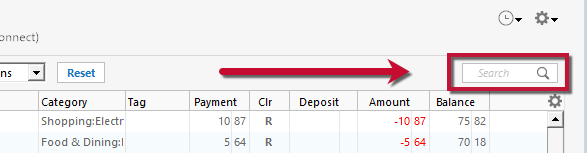
Ensure the Search bar above the register is cleared. Text in the Search bar will adjust the register to only show transactions that match that text.
First, turn automatic entry off
1. Press Ctrl+A on the keyboard to bring up the Account List, then click the Edit button next to the affected account in the list.
2. In the Account Details window, click on the Online Services tab then click Automatic entry is.
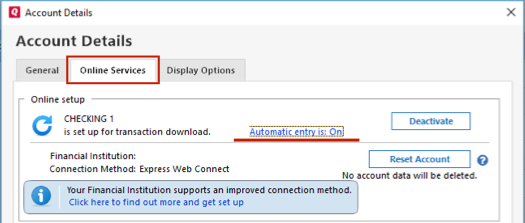
3. Select No on the next dialog box and click OK. Automatic entry should show as "Off" now.
4. Click OK to close the Account Details window, then click Done on the Account List.
5. Close Quicken, wait a few seconds, then re-open it. The transactions should appear upon re-opening Quicken.
If the issue persists, please follow these additional steps from our article:
Correct data issues
If the Quicken data file is damaged, you might receive prompts about downloaded transactions when you don't have any downloaded transactions.
If you know when this issue began, the best solution is to restore a backup created before this issue began.
If you do not have a backup to restore, Quicken has a built-in utility, Validate, that will correct many data issues. Please note this does not correct all issues and these steps should be taken if the other steps outlined did not resolve the problem.
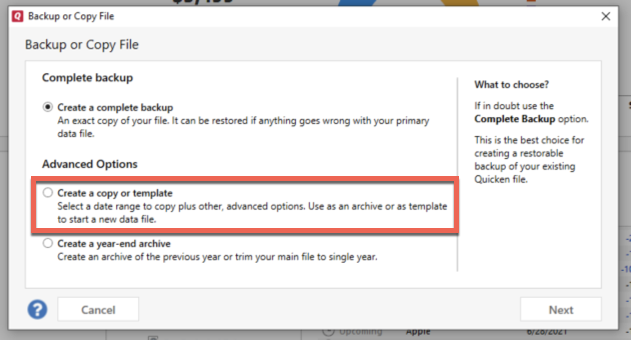
- Choose the File menu > Copy or Backup File.
- Select Create a copy or template, then click Next.
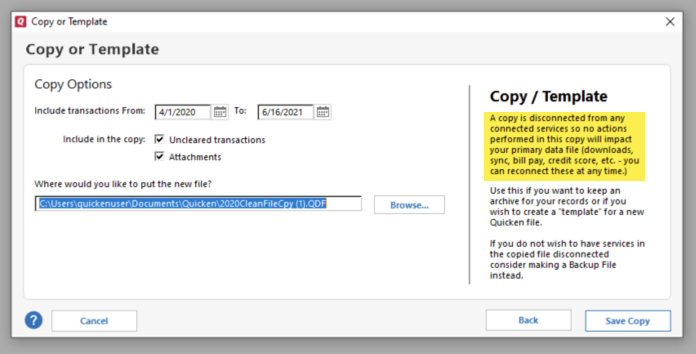
- Accept all defaults and click Save Copy.
- Open the New Copy when prompted.
- Choose File > Validate and Repair File.
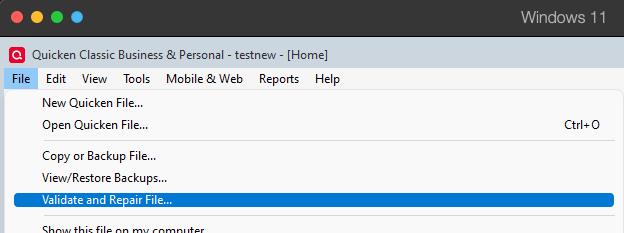
- Select the new copy created in step 3 and click OK.
Note: Depending on the size of your data file, you may need to wait a while for the validation process to finish. Do not use the Task Manager to close Quicken. Quicken displays an error message if it cannot validate the file. If Quicken is able to validate the file and any errors are found, Quicken displays a message, "Data losses were found in your file." You can view the log file for more information.
When the validation process is complete, you will need to Reactivate your accounts for transaction download in the new file copy.
- Go to Tools > Add Account.
- Select the bank for the deactivated account(s). If prompted, select the connection method.
- Enter your credentials and click Connect.
- When the list of located accounts appears, choose LINK next to each account you want to reactivate.
- Click Next then Done on the last prompt.
- After all of your accounts have been Reactivated, complete the Check the account register... section steps above again.
Please let me know how it goes!
Quicken Kristina
Make sure to sign up for the email digest to see a round up of your top posts.
0 -
Hello Quicken Christina.
Thank you for your reply.
…but…
These instructions look exactly like the instructions in the discussion to which I provided a link in my first post. And, as I said in that post, I already followed those instructions, and they made no difference.
Nevertheless, I went through it again, to the extent I could, this time using your reply to my message as the playbook, doing what was described as meticulously/carefully as I could. It still didn't help.
As for the first five numbered steps, immediately after FIrst, turn off automatic entry, on arriving at step 5, where I reopened Quicken after a "few seconds" (I counted 15 Mississippis in my head — that enough?), The red flag was still on, and the Downloaded Transactions tab was still empty.
As for the part where I'm supposed to restore from a backup taken before the problem started — you did see the part where I said it start ~1.5 years ago, didn't you? Even if I had a backup that old (hint: I don't), surely you don't expect me to revert back to that and then catch up with 1.5 years worth of discarded transactions, do you? No. Just, no.
As I also said in my prior post, I really shouldn't have to jump through hoops to try to work around the bug in your software. Please fix the bug. Make "Validate File" clear this. Please. No, really. It's not an unreasonable request, is it?
And if I can't have that, I'd tolerate a little jumping through hoops to get this cleared if it actually worked. But please don't ask me to do again what several others, as well as myself, have already said didn't work.
0 -
Well, I got there. Mostly. For the sake of anyone else with an issue like mine, I'll explain how.
The first time I went down the Correct data issues path, it didn't work. It went like this:
- I did the Create copy or template.
- I opened that file.
- I validated it.
- First thing I did after the validation finished was open Online Center. I was thrilled to find that my phantom transaction was no longer there. But then I realized that the reason it wasn't there was because the process of making the copy turned off transaction download for all accounts, thereby making Online Center rather degenerate. So…
- …I turned on transaction download for the account that used to have the always-on red flag.
- When that was done, the phantom transaction was back in Online Center. And it was the only one there, which means that the account still was not downloading anything.
- So, since I was no better off with this copy of the file than the other — in fact, worse off, because transaction download was off everywhere — I figured, why bother turning on transaction download everywhere in this file? I just threw away that file, and went back the one it was copied from.
Well, as I mentioned in my first post, there were many things suggested in that other discussion I referenced. Including stuff by non-Quicken personnel. Including "super validate" (hold down shift and ctrl while clicking validate in the file menu). But last time, I'd tried super validate in place on my usual file.
Anyway, it occurred to me to wonder what would happened if I combined the two. Do a Create copy or template, but when it's done, super validate that. It went like this:
- I did the Create copy or template.
- I opened that file.
- I super validated it.
- I turned on transaction download for the account that used to have the always-on red flag.
- It download about two weeks worth of transactions! Huzzah! My main goal achieved!
But, though it's good ointment, there's still a fly in it. After I dealt with all those shiny new downloaded transactions, the red flag stayed. And sure enough, when I looked in the Online Center, that same old phantom transaction from way back in August 2024 was still there. <Snort/>.
Well, I'm good for now. As I said, I've kinda got used to my faithful little red flag. But…
…I still would really like Quicken to get that rascal fixed. And I'll tell you why. I've had accounts stop downloading often enough before that I have perfect faith that it will happen again before this account gets closed, or I die. And I really don't want to have to jump through quite that many hoops again. Doing the "Reset" I can handle. This process was painful enough that I'd like to avoid having to repeat it. I haven't even told you the lot of it yet. Here we go:
- There was the backup/copy/supervalidate thing.
- There was having to turn on transaction download in 13 different accounts. (3 were at the same financial institution under the same username, so I guess you could cut that down to 11. Still, validating to each financial institution is not exactly instantaneous, especially with MFA nearly everywhere, so all this took a good half hour or so.)
- Of the bank accounts, two of them, including the very red flag one, ended up with incorrect balances after turning on transaction download. That was quite confusing, and took me a while to work out why (for the first one — after that, the second was easy). It was because turning on transaction download for each of them changed the opening balance from the $0.00 it should have been to something else. I have no idea why, or where those opening balance values came from. Oh well, I just had to change that first transaction back to $0.00 and that problem was solved.
- For all the bank accounts, Quicken figured out on it's own which existing Quicken account went with which financial institution account, and offered linking to that Quicken account as the default. Okay, great. But for the investment accounts, not so much. For every one of them, it wanted to create a new Quicken account. Which is really kinda weird, because for all but one of them, when I told it "No, I want to link to an existing account" — the menu of possible accounts to which to link already had the right Quicken account checked in the list. Well, Quicken, if you have enough of a clue which account is the right one to link to that you can get it checked in the list, why didn't you offer to link to it in the first place? For that one account where the right account wasn't pre-selected in the menu, it was nevertheless in the menu, unchecked, so I got it linked correctly. So, fine. Just weird.
- For every one of the investment accounts, it was "Complete - Positions and Transactions" in my original file, and it was "Complete - Positions and Transactions" in the backup copy, but turning on transaction download for every one of them converted the account to "Simple - Positions Only." NO! Why do you do that? If I wanted it set that why, I'd set it that way myself. Well, I converted each of them back afterwards, but that, too, was not exactly instantaneous.
Anyway, after all that, I'm back where I was before that one phantom transaction account stopped downloading.
0 -
Thank you for your reply,
To continue troubleshooting data issues, please backup your file, deactivate the problem account, then navigate to Tools>Add Account and add the account as a new account rather than linking it to the existing account.
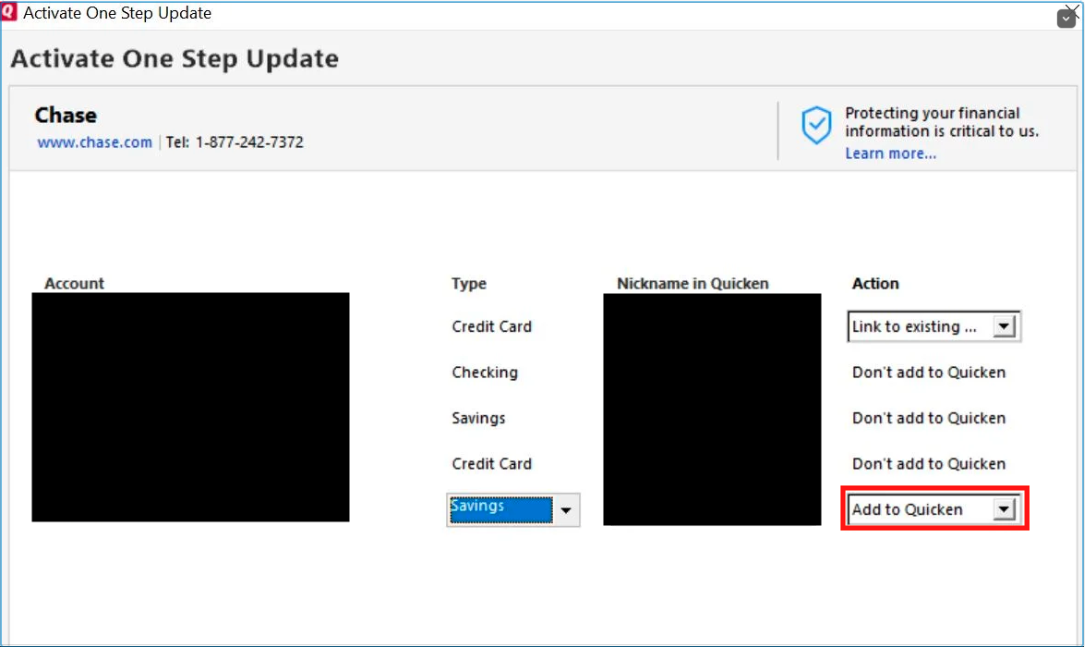
Once that is done, check to see if the issues (with the phantom transaction and with no downloads) is resolved. If it is resolved, then you may want to copy/paste your transaction history from the old account and use the new account going forward.
Thank you!
Quicken Kristina
Make sure to sign up for the email digest to see a round up of your top posts.
0 -
So, just to be clear, are you suggesting that I should, for each transaction in the old account, copy it out of the old account, and paste it into the new account? One transaction at a time?
If so, I feel I should mention that the affected account's transaction count is currently at 4436. No. Just, no.
That is exactly the sort of jumping through hoops that I have been saying all along that I should not have to do. It should be fix in Quicken. No, really. No, really.
Shoot, I'd offer to fix it for you gratis, if I thought you'd give me access to the code. But I don't suppose you would, even if I was willing to sign an NDA. Too bad. It's beginning to look like it's not going to get fixed any other way. (Yeah, I know, that would be jumping through hoops too. Not least trying to wrap my head around 30-year-old code. But it would be a lot more satisfying than thousands of copy-n-pastes. And it would fix it for others too, not just me.)
0 -
Thank you for your reply,
One transaction at a time?
You should be able to bulk select transactions in banking account registers in your Quicken using standard Windows keyboard commands (For example, click to select a transaction at the top of the group you want to copy, scroll to the bottom of the group, hold the shift key, then click on the transaction at the bottom of the group you want to copy, and it should select all the transactions in that group.).
Investment accounts don't let you bulk select that way, but you can move the transactions by clicking the gear icon near the upper right of the account register, selecting Move Transactions, and then using the window that comes up to choose the account to move to and which transactions to move (there is a Select All button).
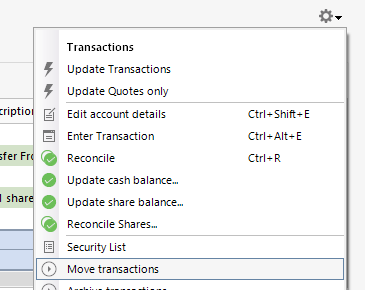
I hope this helps!
Quicken Kristina
Make sure to sign up for the email digest to see a round up of your top posts.
1 -
Huh. It never occurred to me that I could copy multiple transactions at once in Quicken. But I tried it just now — every transaction in the account — and it says it copied them.
For now, I'll take it for granted that it did. I haven't tried pasting it anywhere yet. Because, you see, the first step you gave in your 16 Jan post is to deactivate my account. And, well, I can't. Not by itself. That's what started my whole tirade.
So I reckon, if I want to pursue that 16 Jan advice, I'll have to do the version of the backup that ends up deactivating all accounts. And as I've already posted, recovering from that is not quite trivial. So I'm not going to rush to do it right now. I'll just continue to live with live with my little red flag friend.
Meanwhile, I'll hold out hope (though not much) that it'll get fixed in Quicken, as it should be, before the next time the affected account stops downloading again.
And if not, and I have to jump through the same hoops to recover next time as got me successfully recovered last time, I guess I can add the few extra hoops from your 16 Jan post.
0 -
Wouldn't you know it. Within a day or two of my last post, the affected account — Discover card — changed the way they did authentication. And I just couldn't authenticate the new way with my Quicken account in the state it was. Discover kept giving me a very vague "server problem" error.
<Sigh/>
Okay, fine. I'll jump through all the first batch of hoops again:
- Create a backup in the way that makes all my accounts not have download any more
- Turn download back all for all the accounts except Discover
- Recover from prior bullet: fix all the opening balance mess ups that turning downloading back on messed up (yes, it did it again), put all investing accounts back from simple to detailed.
Then, for the Discover account, jump through the extra hoops:
- Set it up for download, but…
- When it offers me the choice of linking to an existing account or creating a new account, select create new account.
- Copy all the transactions out of the old version of the Discover account, paste them into the new version of the Discover account. (Yow! The checking account out of which all my Discover account payments get made went way in the hole! Because payments are doubled now — one to each version of the Discover account. That's kinda funny. I've really spent that much on credit card purchases?!?)
- Delete all the transactions from the old version of the Discover account. (Phew. Checking account balance normal again.)
- Delete old version of Discover account.
And, at long last — Tada! — everything is fixed. All accounts download, No phantom transactions or unremovable red flags.
So as long as no more phantom transactions show up, I guess I really don't care whether you update "Validate File" to deal with that particular problem. (Whether or not there are other customers stuck in that state that would like a "Validate File" update for it, I leave to you to worry about.)
Thanks for guiding me through the hoops. Feel free to close this discussion, if you like.
1 -
Thank you for the follow-up,
I'm glad to hear that the troubleshooting helped you resolve the issue!
If you need further assistance, please feel free to reach out!
Quicken Kristina
Make sure to sign up for the email digest to see a round up of your top posts.
0 -
Instead of
- Copy all the transactions out of the old version of the Discover account, paste them into the new version of the Discover account. (Yow! The checking account out of which all my Discover account payments get made went
wayin the hole! Because payments are doubled now — one to each version of the Discover account. That's kinda funny. I've really spent that much on credit card purchases?!?) - Delete all the transactions from the old version of the Discover account. (Phew. Checking account balance normal again.)
I would suggest to do this instead:
- Block-select all reconciled transactions in the old account register. Mark them as "cleared". (I'll explain why later)
- Block-select all transactions in the old account register except the Opening Balance transaction.
- Right-click on a selected transaction and pick "Move transactions" from the popup. Select the new account register as the destination of the move.
- When Move is complete, go to new register. Block-select all "cleared" transactions and mark them "Reconciled" again.
- Change all Scheduled Reminders using the old account to use the new account instead.
- Your old account register should now be empty except for the Opening Balance transaction. If you have updated all Reminders, go ahead and delete the old account.
Moving transactions will correctly adjust the from/to-account categories in transfer transactions. That means you don't have to fix up the other side of transfer transactions and delete duplicates.
The "Move transactions" process will prompt you for every single reconciled transaction if it's OK to move this transaction. Marking transactions as not reconciled (i.e., cleared) before move prevents that chore.1 - Copy all the transactions out of the old version of the Discover account, paste them into the new version of the Discover account. (Yow! The checking account out of which all my Discover account payments get made went

