Sync Error
Comments
-
Hello @MarkHunn,
Thank you for letting us know you're encountering this issue. When you update your Quicken program, it also converts your file to the new version. That is why you see the error when you try to open your current file in an older version of Quicken.
Rather than opening your current file in that rolled back version, try restoring a backup from before Quicken updated. That should prevent the version mismatch and allow you to open the file.
I hope this helps!
Quicken Kristina
Make sure to sign up for the email digest to see a round up of your top posts.
0 -
I cannot open my quicken file now that it has updated to 8.4.2 and mac updated to tahoe. It is asking me if i want to start from scratch. it appears to be empty.
0 -
After update to 8.4.2 had problems with doing online updates - sync error with servers suggesting to try later. Retried over a couple of days with no resolution. Saw online (above troubleshooting steps) to try making adjustments to cloud sync. I tried turning ON cloud sync but it was not something I had been using. Anyway, canceled cloud sync before completing but then register balances were inaccurate. Did a restore from recent backup. Then had to reconnect accounts. I noticed that the reported net worth was also incorrect. Anyway, while most Chase accounts reconnected OK, one for a brokerage account failed to reconnect. Restarted computer, tried doing a reconnect from the missing account. It was in the list of authorized accounts reported by Chase but not in the Quicken dialog for linking those accounts. It still did not show as connected after doing a sync.
Regarding the difference in net worth, it seems that some education accounts that had previously been closed with zero balances were now being included in the net worth report with non-zero balances. I reopened these "ghost" accounts to check their actual register/portfolio balances and confirmed the were in fact zero.
I suspect that the "ghost" accounts are related to the mismatch of accounts being updated in the error that is the overall subject of this thread.
Will have another go at enabling/disabling cloud sync to see what happens.
Update: to reconnect the Chase brokerage account, I thought I'd first try disconnecting it. I did so but it still showed as connected! I thought maybe I'd fat-fingered something and repeated the process. It worked. So, now all my accounts are connected but the net worth still shows as being incorrect due to the ghost accounts. Decided not to try the cloud sync again since I'm no longer getting the initially reported sync error and I now have all accounts reconnected. Next challenge is to fix the ghost account issue.
1 -
I am also unable to sync my Mac because of 8.4.2
I have been a Quicken client for decades so this is very frustrating.
2 -
Getting a similar error, the sync numbers are different. I do not have Sync enabled for my local use. This **** feature attempts to get all account info stored on quicken servers - no thanks. You used to have a somewhat decent product that allowed for automatic updates via pull requests from various financial accounts. Apparently this is not working out of the box anymore.
0 -
This worked for me with no problems with existing accounts. Thanks for the tip!
0 -
glad it helped you
0 -
Same - just started after upgrading to the latest quicken version.
Version 8.4.2 (Build 804.59835.100)0 -
When syncing my accounts today, Quicken added some adjustment transactions - adding entries for investments that I clearly do not have in the associated Fidelity account as reported online. After contacting support about the incorrect net worth issue and this adjustment transaction issue I went back to Quicken Mac 8.3.3 and imported the backup from just prior to upgrading to 8.4.2. All is now working as expected, albeit under a non-current release.
0 -
Same here. I had Sync off.
Can someone put step by step instructions and not just "I did this then I did that and it solved my problem…"?
0 -
Hello @jamlevi66,
Thank you for letting us know you're encountering this issue.
To troubleshoot, if you are seeing an "accounts upload: requests number:(#) don't match responses number: (#)" error, try the following steps:
- Steps for the error "accounts upload: requests number:(#) don't match responses number: (#)":
- Click on "Quicken" in the top left corner
- Select "Settings"
- Go to "Mobile, Web & Alerts"
- Click on "Accounts"
- Take note of the accounts that are Sync'd.
- Click on the "none" button to uncheck all accounts
- Click on "Update" or Run an update to check if the error persists
- If the error no longer appears, you can re-select the desired cloud sync accounts. You should no longer encounter this error after re-syncing
- If the error persists, leave all accounts unselected for Cloud Sync and check again after 24-48 hours.
- You can re-enable your desired accounts for sync after an update does not present the error.
If you are not seeing the error listed above or if the troubleshooting above did not correct the issue, then I recommend that you contact Quicken Support directly for further assistance, as they are able to escalate the issue as needed. The Quicken Support phone number can be found through this link here. Phone support is available from 5:00 am PT to 5:00 pm PT, Monday through Friday.
Thank you!
Quicken Kristina
Make sure to sign up for the email digest to see a round up of your top posts.
0 - Steps for the error "accounts upload: requests number:(#) don't match responses number: (#)":
-
Thanks, Yes, I am getting
accounts upload: requests number:(#) don't match responses number: (#)Ok, well, my Sync was Off, so I don't have any accounts to take note of. Of note, perhaps… I started getting the error after I did the Discover card update, so not sure if that caused it or the update to v8.4.2? I suppose since others are having the same issue, it was the upgrade.
0 -
I was able to fix this error message by re-establishing the account connection information for each account.
0 -
Finally this worked for me: Resetting Sync
Reset Cloud Data: Go to Edit > Preferences > Mobile & Web, and click on "Reset your cloud data." This can help resolve persistent sync issues.
0 -
Also unable to sync my Mac because of 8.4.2. I keep all backups on my computer; no cloud or Dropbox. My Discover credit card syncs, but my Discover bank accounts don't. One Schwab account syncs, but the other doesn't. I have already disconnected and connected several times. This isn't a bank problem; this is a Quicken problem that happened immediately after I updated it a few days ago.
When an update is sent out, it should not require disconnect and connect procedures to sync. And in this case, that doesn't work.
I should not have to make a phone call to fix what worked fine a few days ago. When I get this fixed, I will not update Quicken until the update has been out for a long time. And, this is not the first update I have done that had hiccups. I have been using Quicken since the 90's, and this issue is the worst.
0 -
Quicken Classic Deluxe for Mac
Version 8.4.2 (Build 804.59835.100)
MacOS 26.2
I also had this sync error but didn't see any discrepancies in balances between my local registers and online balances so I'm not sure what wasn't syncing.
Anyway, I cleared the error (apparently) by first making a backup (no kidding!) then going
Quicken → Settings →Connected Services → Reset
I haven't seen the sync error since. Hope this helps.
0 -
thank you. this worked for me.
0 -
Thank you for your reply,
Did the troubleshooting steps I posted help correct the issue? If not, then please reach out to Quicken Support directly for further assistance. The Quicken Support phone number can be found through this link here. Phone support is available from 5:00 am PT to 5:00 pm PT, Monday through Friday.
Thank you!
Quicken Kristina
Make sure to sign up for the email digest to see a round up of your top posts.
0 -
This solved the problem for me as well, I turned it on and then back off. I hope all my data does not now reside on some server! Mac classic vesion
0 -
Problem solved for me…
Yesterday I updated from Quicken Classic Premier version 8.3.1 to 8.4.2. I immediately started to received a Sync Error pop-up message (screenshot below).
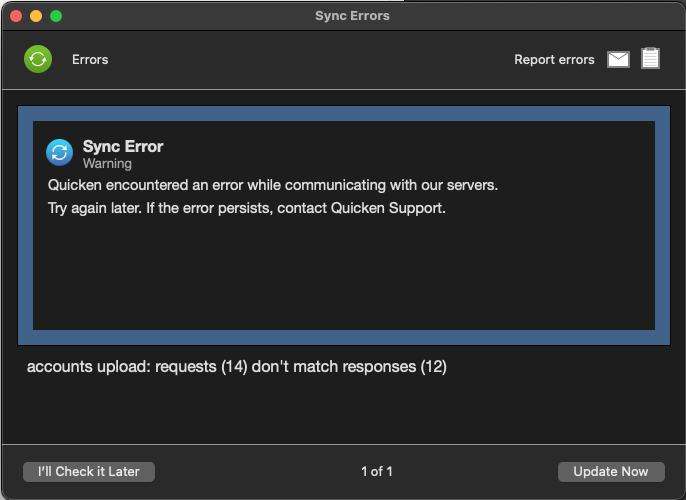
Like some others, I have always had Mobile & Web Sync turned to Off. But, per some of the comments above, turning Sync to On and then back to Off seems to have fixed the problem. Here is exactly what I did to fix the Sync Error pop-up message:
- Click on Quicken > Settings > Mobile, Web & Alerts.
- Turn Sync to On. Quicken took two or three minutes to update the setting, so I was patient and let it finish.
- Turn Sync to Off.
- Close Quicken Settings window.
- Now, updating/syncing my accounts (by clicking circular arrows icon) does not give me an error message. And my accounts are syncing normally.
0 -
Hello @Pothole Damage,
Thank you for sharing your experience and how you resolved the issue! I'm glad to hear that it's working for you now!
Thank you!
Quicken Kristina
Make sure to sign up for the email digest to see a round up of your top posts.
1 -
I turned it on and then back off. I hope all my data does not now reside on some server!
You could go to Setteings > Connected Services and click the cloud Reset button. That would delete the existing cloud file and create a new one — and as long as Sync is off, the new cloud file won't have any of your transaction data or account credentials.
Quicken Mac Subscription • Quicken user since 19931