How can I find files that are missing in the current page that opens?

Working on a Windows 11 desktop PC. I have been using Quicken for years, but have never truly understood how to approach the backups. But I do save them just in case they are needed.
I am having trouble figuring out which backups to open. Also, I discovered that my Quicken files have been saved in two different places. I have made folders labeled with the year, which should help. I will also probably put all into one location. In the past, I had two years in each folder, but now the current ones are only 2026. I opened a couple of older folders/backups, trying to find the one for 2025, but I am worried I am going to mess things up even worse. Plus, when I close a file, it wants me to save it, but then asks if I want to overwrite the one with the same name. Getting quite confused, don't want to have to re-enter all the data. Hoping someone can help me do this right!
Also, the list of folders used to have two parts - one for current folders, and then down near the bottom were the older ones that I wanted to keep. I guess this is why I am having this trouble, because I don't know where they went.
[Edited Readability]
Best Answer
-
Thank you for reaching out and for sharing details about how you save your backup files. I’d be happy to help you with this.
Steps to save a backup:
If you save backups more than once a day and want to keep all of them to avoid overwriting, you can add the time to the file name:- When the backup reminder pops up, click Backup.
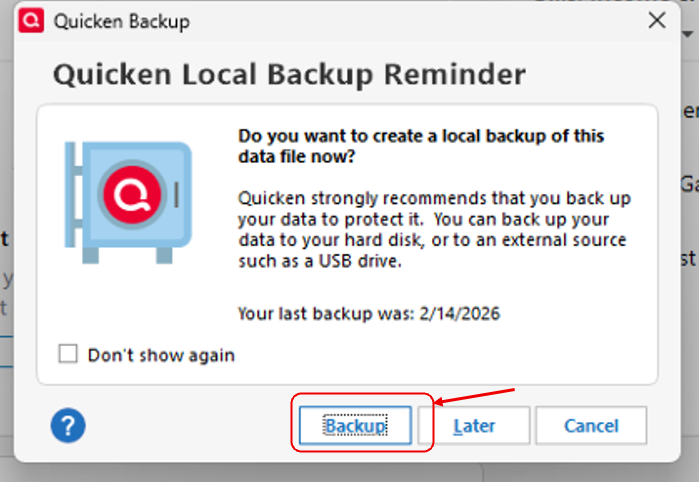
- Check the Add time to name box.
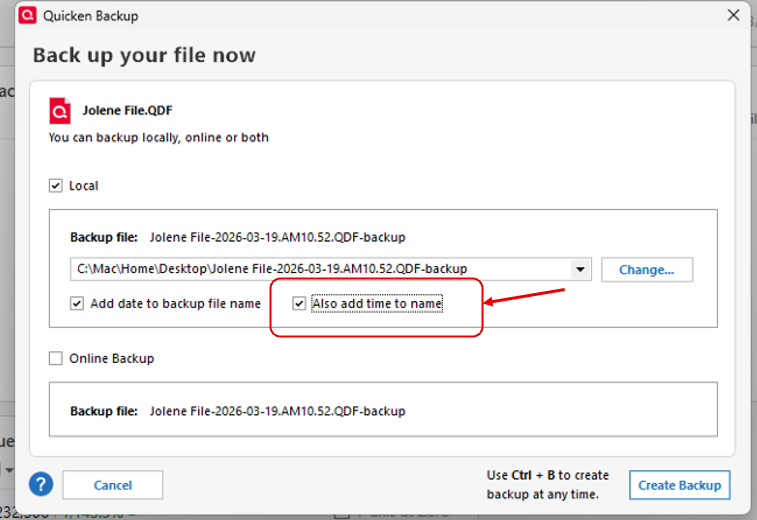
- Click Create a backup.
Note: It’s a good practice to save backups whenever you update your file, but you don’t need to save more than three per day.
How to locate all Quicken backups on your computer:
- Open File Explorer (search for it in your Start menu).
- Type
.QDF-backupin the search bar at the top right. - Each listed file will show its location (e.g.,
C:\Mac\Home\Documents\Quicken\BACKUP).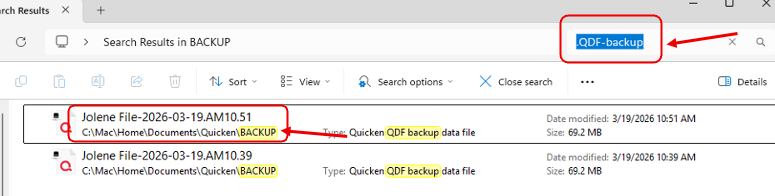
- If you want to store them elsewhere, you can move the files to your desired location.
If you have any questions about these steps, please let me know. I’m here to help!
Quicken Laura
Make sure to sign up for the email digest to see a round up of your top posts.
0 - When the backup reminder pops up, click Backup.

Answers
-
Showing us image snapshots of the backup views you are working with might help us answer your questions.
How do I post a screenshot in the community from a mac
How do I post a screenshot in the community from windows
Please save images to files of file type PNG or JPG only.
The backup files, when created, should have a date stamp as part of the file name. This way you can easily identify which file to use when restoring. And you will have more than backup file to select from, in case there's a problem and you have to go back several backup versions until you find a file that does not exhibit the problem you're trying to recover from.
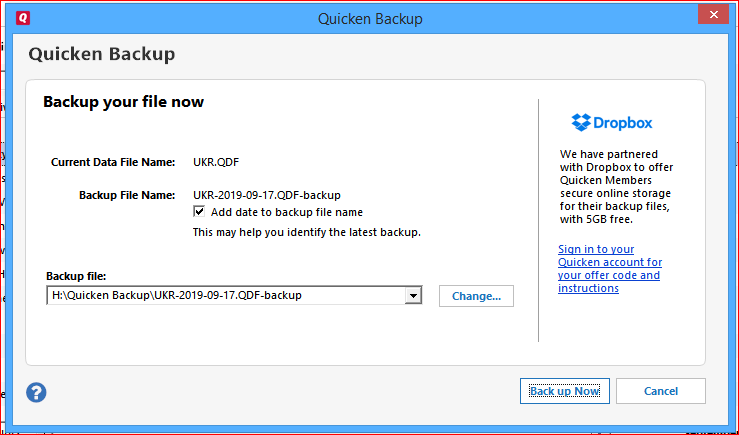
So, do select the "Add date …" option above.
If you want to work with a restored backup file, please be sure to restore this file to a file name different from the current data file! You do not want to replace your current data file with an old backup file (unless that is what you have to do to replace a broken-beyond-repair data file
________________________
I recommend you review your backup settings in Quicken to ensure that you create a backup every single time you close Quicken. That minimizes the number of lost changes since the last backup, should you have to restore your data file again.
How to properly set up Quicken Backup
How to make Quicken create a backup for you automatically every time you close Quicken
What Quicken backups are available where?
For the sake of this discussion it is assumed that your Quicken data file is located in the Default (and recommended) place: C:\Users\username\Documents\Quicken
For this discussion it is also assumed that your Quicken data file is named, for example, QDATA.QDF
Review the backup settings available in Quicken (under Edit / Preferences / Backup).
In there you will find two types of backup: Automatic and Manual Backup.
Automatic Backup should be enabled and by default goes to a \Backup folder that's part of the folder which contains your current Quicken data file, e.g. \Documents\Quicken\Backup. Set it to create a backup after running Quicken [1] times and to keep [9] (or more, your choice) backup copies.
The file name for Automatic Backup files contains a date and time stamp as part of the file name, e.g. QDATA-2020-03-22.PM03.45.QDF-backup
To create a Manual Backup copy of your Quicken data file on an external device (USB-hard drive or USB memory stick recommended), put a checkmark at "Manual Backup Reminder" to enable the function and set "Remind me after running Quicken [xx] times" to [1].
Click OK to save the changes.
From now on, when you close Quicken using the red X button, you will get a popup window.
When you get this window for the first time, on some versions click the radio button for "Backup on my computer".
Change the Backup File name's drive letter and path to point to your external device so that it looks something like this: E:\Quicken Backup\QDATA-2020-04-01.QDF-backup
or use the Change button and work your way through the dialog.
Do not change the filename portion! Just overtype the drive letter and choose a backup folder name. If the folder does not exist, it will be created.
Do not store the Manual Backup files in the same folder as the Automatic Backups, or on a different folder of your internal hard drive. Should your computer or your internal hard drive fail you will have lost ALL your backups!
Also choose the option to "Add date to backup file name".
Every day when you run Backup or close Quicken, an additional backup file is created. Without the Add Date option you only have 1 backup copy which is overwritten every day ... and that may prove bad in a problem recovery situation.
Allow this backup to run to save the changes made on the screen.
There is no limit to the number of Manual Backup files that will be stored, except drive capacity. Once in a while you will have to go in and delete some of the oldest backup files, at your discretion, to avoid filling up your USB device.
One can never have enough backups of a Quicken data file. BTDTGTS to prove it!0 -
Thank you for reaching out and for sharing details about how you save your backup files. I’d be happy to help you with this.
Steps to save a backup:
If you save backups more than once a day and want to keep all of them to avoid overwriting, you can add the time to the file name:- When the backup reminder pops up, click Backup.
- Check the Add time to name box.
- Click Create a backup.
Note: It’s a good practice to save backups whenever you update your file, but you don’t need to save more than three per day.
How to locate all Quicken backups on your computer:
- Open File Explorer (search for it in your Start menu).
- Type
.QDF-backupin the search bar at the top right. - Each listed file will show its location (e.g.,
C:\Mac\Home\Documents\Quicken\BACKUP).
- If you want to store them elsewhere, you can move the files to your desired location.
If you have any questions about these steps, please let me know. I’m here to help!
Quicken Laura
Make sure to sign up for the email digest to see a round up of your top posts.
0 - When the backup reminder pops up, click Backup.
-
Quicken Laura, Thank you for your help in this situation. I have found the backup that was missing. There are three different accounts in this Quicken file, and two of them are complete, but the other one is not. I could re-enter the information for that one, because it isn't that large. But if I should find the complete version in a different backup, is there a way to bring it into that Quicken file?
Also, I would like to re-name each of the accounts to better reflect what is in this Quicken file. I tried that, and could never find that file again! There was a message about not changing the extension and I didn't think I was doing that, but perhaps I did.
In the process of looking for my data, I created more backups, but put them onto a different hard drive in a designated folder. There are a lot of old backups that are no longer relevant, so would also like to know if there is a best way to go about this. I figure I could just delete the ones that are the oldest, then after having several new backups that are accurate, I could delete some more of the old ones.
0 -
To UKR: Thank you for the information you provided. I went through the preferences and changed a couple of them. I hope this will improve my usage of Quicken.
I have used File Explorer in the past, but your mention of it reminded me of how helpful it can be. Discovered that I have backup files in 3 different places. I moved files from one of them and put them in another. I also created a new folder for the backups I found with the information that was missing, as well as a few others of interest.
Slowly, I am re-learning things I forgot due to not using them! Still get confused, but gradually will get things organized in a reasonable fashion. Your suggestions have been very helpful in that endeavor.
Next, I have to figure out re-naming a file, and how to put the records from one into a different file [same account] to replace data that was missing. I certainly do not look forward to re-entering it all again if that becomes necessary!
Thanks again for the help.
0 -
I’m glad to hear you were able to locate your backups!
Regarding your first question, merging Quicken files is possible using either a QIF or QXF file. Here’s how to do it:
Steps to Export/imoprt a .QIF File
- Back up your Quicken data file.
- If the account you want to import data into doesn't yet exist, create a new one.
- If you're importing the data from an external disk, insert the disk, copy the QIF file to your hard disk, and copy the QIF file to your hard disk.
- Choose File menu > File Import > QIF file.
- The Location of QIF file field displays the preset path of the import file. Select the appropriate option:
- Enter a name for the import file at the end of the existing path (make sure there is a backslash \ before the file name). Quicken will automatically add the correct file extension.
- Click Browse to select a different location. If you need help determining where a data file is, Quicken can help. Enter a name in the File name field, and then click OK to return to the QIF Import window.
- In the Quicken account to import into list, select the account you want to import the QIF file into.
- Why aren't all my accounts included? This list is limited to accounts that can import QIF files. Note that to import a list such as the Category List, you must still choose a valid account.
- In the Include in import section, select the items you want to include in the import process.
- Select Special handling for transfers if the file being imported is from Quicken for Mac 2007 or older.
- Click Next and follow the on-screen instructions.
- Select File > File Export > Quicken Transfer Format (.QXF) File.
- In the Select Accounts to Export window, choose one of the following:
- All Accounts – Exports every eligible account in your data file.
- Selected Accounts – Allows you to choose specific accounts to export.
- If you choose Selected Accounts, select the account(s) you would like to export.
- Check the option Export all categories, even if unused, then click OK.
- In the Export to Quicken Transfer File (.QXF) dialog, confirm or enter the file name and location.
- Click OK to create the file. A confirmation message will appear once the export is complete.
- Go to File > File Import > Quicken Transfer Format (.QXF) File.
- Enter the name of the QXF file you want to import, or click Browse to locate it.
- Click Continue to begin the import.
Steps to Rename a Quicken File
- Backup Your Data: Go to File > Copy or Backup File.
- Close Quicken completely.
- Open File Explorer and navigate to your Quicken data folder (usually
Documents\Quicken). - Right-click the
.QDFfile you want to rename and select Rename.
Please let me know if you have any further questions. I’m happy to help!
Quicken Laura
Make sure to sign up for the email digest to see a round up of your top posts.
0
