Any resolution for these issues at LPL Financial?

- Was unable to add an IRA account to Quicken Desktop. Kept getting "You've already used XXXX1234 as an account name", even after changing the account name. Had to create an offline account and activate online services, but was limited to Express Web Connect and Simple accounting.
- Both active and inactive accounts appear. All are duplicated. Tried linking the first IRA and the duplicate IRA to the existing Quicken account.
- Securities and transactions did not download automatically.
- Import of CSV file from LPL fails with "9 items with an invalid action".
So, I now have an Express Web Connect account with no securities, no activity, and a zero balance.
Is my only option to add securities and transactions manually?
Answers
-
Hello @WileyOne,
Thank you for reaching out! To help troubleshoot, please provide more information.
Was unable to add an IRA account to Quicken Desktop. Kept getting "You've already used XXXX1234 as an account name", even after changing the account name.
Which account name were you trying to change? Were you trying to change it in the Account Details screen (Tools>Account List, then click the Edit button by the account you're trying to rename), in the Add/Link screen while trying to connect/reconnect accounts, or did you use another method?
Both active and inactive accounts appear. All are duplicated.
Where are you seeing this? If possible, please include a screenshot with any personal information redacted. If needed, please refer to this Community FAQ for instructions on how to attach a screenshot. Alternatively, you can also drag and drop screenshots to your response if you are not given the option to add attachments.
Securities and transactions did not download automatically.
In #1, you mentioned that you're limited to Express Web Connect and Simple investment tracking. That's why you're unable to view transactions. Even without visible transactions, updated information for your holdings should still be downloaded. What information is not updating for your securities?
Import of CSV file from LPL fails with "9 items with an invalid action".
Does LPL Financial offer Web Connect/QFX files? If they do, that would be an easier way to import the information.
CSV files must be formatted correctly to import successfully into Quicken. That is the most likely reason you're seeing the error. The article linked below provides instructions on importing CSV files; however, there are no instructions for investment transactions, even though it's possible to import them:
If you're willing, please provide a sample of the format you are using when trying to import the CSV into Quicken.
I look forward to your reply!
Quicken Kristina
Make sure to sign up for the email digest to see a round up of your top posts.
0 -
Adding a new account to Quicken from LPL always fails. 20 entries appear representing only 10 accounts, when only 2 of them are active accounts. I've been unchecking all but one. The "already used" error appears even if I edit the name on the screen when trying to add. There are no such names in my Quicken accounts so this message makes no sense.
As I explained, I have limited success when I create an offline account first, then setup online access later.
Yes, LPL offers QFX download, but it fails as well.
0 -
Thank you for your reply,
How are the Web Connect imports failing? Are you seeing any error messages/codes? If not, what happens?
If it's seeing an account name as already in use when you've confirmed that no such account exists in your Quicken, then it's likely a file-specific problem. I suggest that you try validating your data file. Please save a backup file prior to performing these steps.
Validate:
- File
- Validate and Repair File...
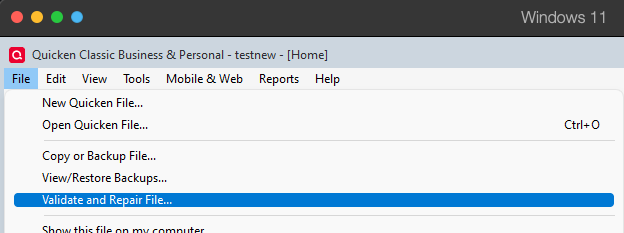
- Validate File
- Click OK
- Close the Data Log
- Close Quicken (leave it closed for at least 5 secs)
- Reopen Quicken and see if the issue persists.
Please let me know how it goes!
Quicken Kristina
Make sure to sign up for the email digest to see a round up of your top posts.
0 -
Have done all that. No change.
0 -
Thank you for your reply,
How are the web connect imports failing? Do you see any error messages/codes? If not, what behavior are you observing?
Does the Validation report show any problems identified and/or corrected?
The next step is to try restoring a backup from before the issue started (if possible). To restore a backup, follow these steps from our article on backing up and restoring Quicken files:
Restore Quicken data
- Go to File > View/Restore Backups....
- Browse the Local and Online Backups tabs to find the backup file you want to restore. The Quicken backup file has the extension .QDF-Backup.
- Select the file to restore and click Restore Backup.
- Next, you will be given the option to overwrite the file you have open or to create a copy of the backup you're restoring.
- If you Create a copy, you will need to select a location to save the copy to and you will also need to give the copy a unique file name. After naming the file and selecting the location, click Save, then click Yes to open the restored file.
- What does it mean to overwrite a file?: Restoring a backup file replaces your current data with the data stored on the backup. Be aware that you'll lose any changes you made since the backup was created. If you want to preserve the current file, you must rename the file you are restoring. We recommend avoiding overwriting files.
If you don't have a manual backup to restore from, you can restore an automatic backup by following the steps below:
Restore an automatic backup
Quicken creates a copy of your data every seven days and stores five of these copies in a BACKUP folder. If the backup file you've created becomes damaged, you may be able to restore an automatic backup and avoid re-entering data.
First, check to see if automatic backups are turned on (this is on by default)
- In Quicken, go to Edit > Preferences.
- Under Setup on the left, choose Backup.
- Make sure there is a check mark next to Automatic Backups.
- To the right of Automatic Backups, there is an Open/Change backup directory link that goes directly to your BACKUP folder - a good way of finding them fast!
- Choose to back up your Quicken data file after running Quicken X times (between 1 - 99).
- Choose how many backup data files you would like to save (between 1 - 99 copies).
Then, restore the automatic backup
- Go to File > View/Restore Backups....
- Select the file to restore.
- Click Restore Backup.
- Next, you will be given the option to overwrite the file you have open or to create a copy of the backup you're restoring.
- If you Create a copy, you will need to select a location to save the copy to and you will also need to give the copy a unique file name. After naming the file and selecting the location, click Save, then click Yes to open the restored file.
- What does it mean to overwrite a file?: Restoring a backup file replaces your current data with the data stored on the backup. Be aware that you'll lose any changes you made since the backup was created. If you want to preserve the current file, you must rename the file you are restoring. We recommend avoiding overwriting files.
I hope this helps!
Quicken Kristina
Make sure to sign up for the email digest to see a round up of your top posts.
0 -
That is a ridiculous and drastic solution to a fairly simple problem.
Why would I want to lose 2 weeks of data?
0 -
Hi @WileyOne,
Thanks for contacting the Quicken Community!
To better understand the issue, I have a couple of questions:
- Could you please upload a screenshot showing the $0 balance?
- Also, could you share a screenshot of any error message you’re seeing?
- Have you tried adding the account to a test file to see if the issue persists?
To create a test file, please follow these steps:
- Go to File > New Quicken File.
- Name the file “Test” and click Save.
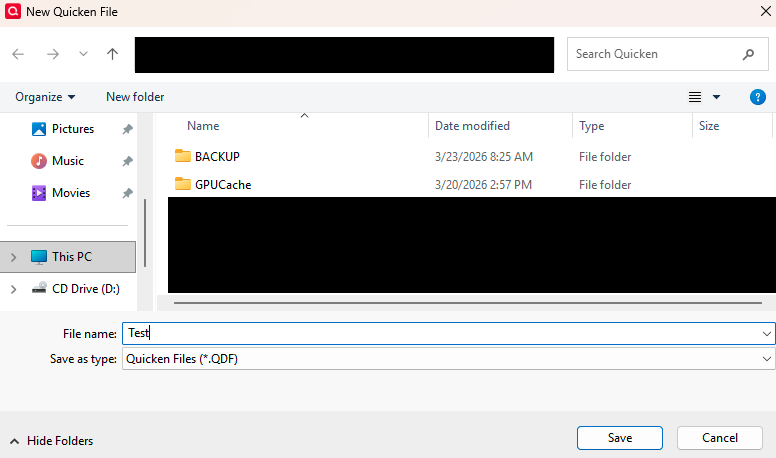
- Make sure Sync to Mobile & Web is turned off.
- Click Next, then select Add Account.
- Search for LPL Financial and try adding the account again.
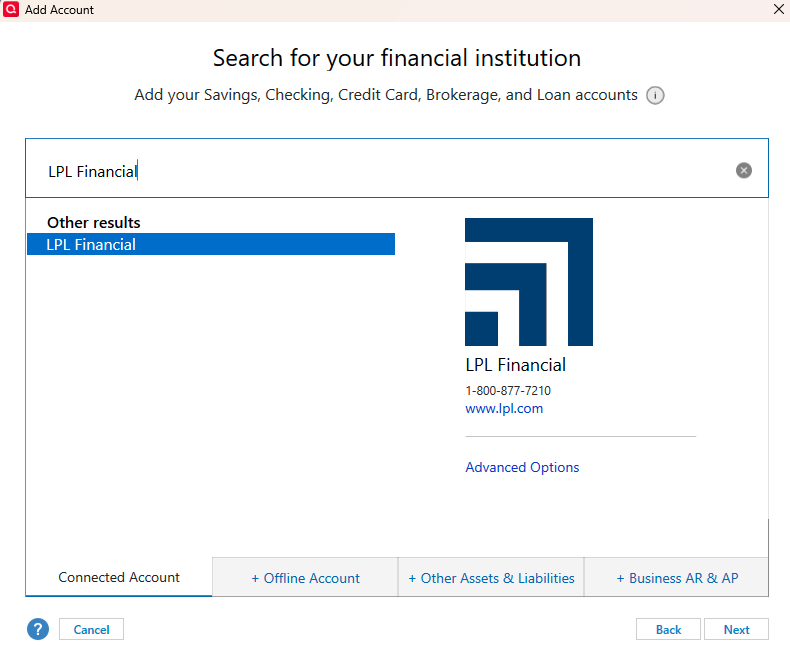
Let me know how it goes. I look forward to your reply!
Quicken Carlos
Make sure to sign up for the email digest to see a round up of your top posts.
0 -
Sorry. I've given up on LPL Financial and transferred the entire IRA to SoFi via ACATS.
That opened up a whole new can of worms that we can discuss in another thread.
0