Dropdown to choose to add Check # or Transaction Type in Write Check window [Edited]

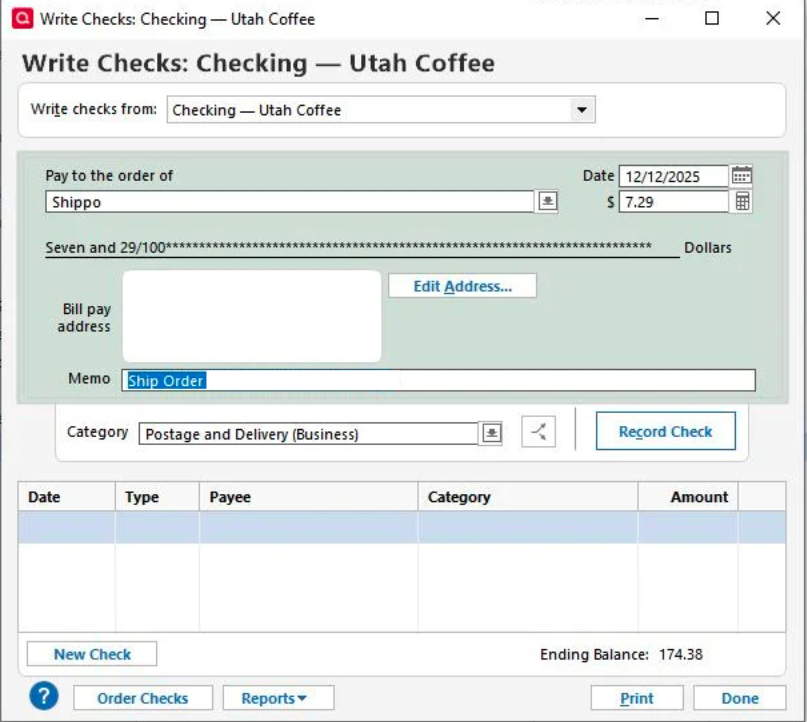
There is no way to enter my check number or type of payment used for my transaction. Can you add a dropdown so I can either use Check number, Debit, Credit Card, Payment Method, or Type in this window? See my Screenshot of my "Write Check" window:
[Edit - Removed Personal Information]
Comments
-
Don't use the "Write Checks" dialog unless you're actually writing a physical check … for which Q will use the "Next" check number in that account.
For debit and EFT transactions in your checking account, just input the transaction directly into the checking account register.
And, WHY would you be recording credit card transactions into your checking account that aren't the payment from checking to the card? Credit card transactions should be recorded in a Credit card account that you've created in Q.
If you're also recording credit card transactions in the checking account, you'll NEVER be able to reconcile your checking account, and reconciling is a strongly advised practice.
Q user since February, 1990. DOS Version 4
Now running Quicken Windows Subscription, Business & Personal
Retired "Certified Information Systems Auditor" & Bank Audit VP0 -
My DEBIT CARD transactions come straight out of my Checking account, and that is why I do not create it in a CREDIT CARD ACCOUNT. Am I still doing this wrong? I just use the field to tell me if it was an AutoDebit for things that automatically come out of my checking, and I use Debit for the ones I swipe or tap at the point of purchase.
Are you saying to just enter it into the Check Register and not the "Write Check" feature?
[Edited - Readability]
0 -
Hello @JerryBSr,
Thank you for reaching out! To answer your question, you can record your debit card transactions directly in your Quicken account register. If the Check # column is active, you can use it to enter the transaction type.
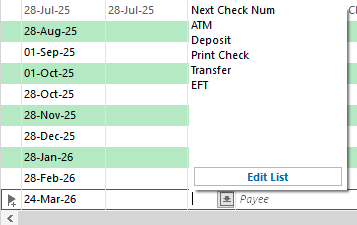
You can click the Edit List button, then click New to add a custom transaction type (limited to 9 characters).
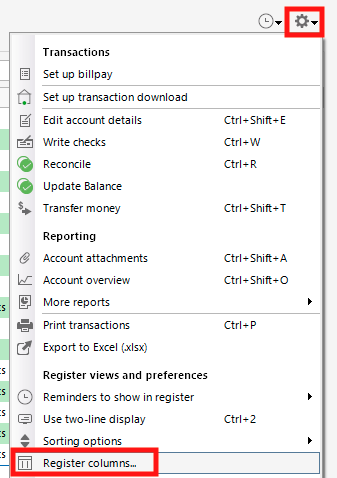
If you need to add the Check # column, click the gear icon near the upper right of your register, then select Register Columns.
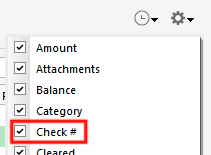
In the Register columns window, make sure Check # is selected, then click Done.
I hope this helps!
Quicken Kristina
Make sure to sign up for the email digest to see a round up of your top posts.
0

