Starting Quicken and One-Step update very slow

I noticed my web account on my iPhone was showing garbage data. I surmised that it was pointing to the wrong file. I changed it to the current file, but then the One-Step update would not work. After validating and super validating, nothing changed. Some AI help said to edit the Mobile and Web settings. I did, but now it takes about a minute for Quicken to run and another minute to do a One-Step update. What could be wrong?
[Edited-Readability]
Answers
-
Hello @brhutch,
Thank you for sharing your experience.
I have some follow-up questions for you.
- How long has this issue been happening?
- Is the One Step update getting stuck on a specific financial institution?
- Are you receiving any error messages?
- How are you opening Quicken?
- Are you using the application icon (red square with a white Q)?
- Or are you using a file icon (rectangular, like a sheet of paper with the corner folded over, with a Q on it)?
- Where is your data file located?
- You can see this by going to File. The first file listed near the bottom of the menu is the file you are currently in. The file path is displayed there, which is what we are looking for.
- Is your file being backed up/synced by any third-party services like OneDrive, Dropbox, or iCloud?
Looking forward to your response!
Quicken Alyssa
Make sure to sign up for the email digest to see a round up of your top posts.
0 -
Well let's see. It's been happening about a week. About 4 months ago I started using a new computer, and in the process of setting it up I changed the name of the Quicken file so my iphone app was accessing the old file…I think. After changing that name I noticed Quicken was taking a very long time to load and to One-Step update. I had edited Preferences Mobile and Web. Someone I believe on here"the community" said turn it off so I did. But something happened so now I've turned it back on, but there is still something wrong.
At least in this case it's not getting stuck on a financial institution..it just takes a couple of minutes to finish.
No error…Red Q…Running from Desktop although one of the recently used is on OneDrive…
0 -
Thank you for following up.
If your file is on OneDrive, I would suggest moving it to C:>Users>username>Documents>Quicken. This is the default location and where we recommend keeping the file. Using a file that is stored externally, or on a cloud service, can potentially cause damage to the file.
Many times, the Desktop of a computer will be synced/backed up to a cloud service. So I would still recommend moving it to the location mentioned above.
After moving the file, we can validate it to see if that helps.
To do that:
- Save a backup.
- Go to File.
- Select Validate and Repair file…
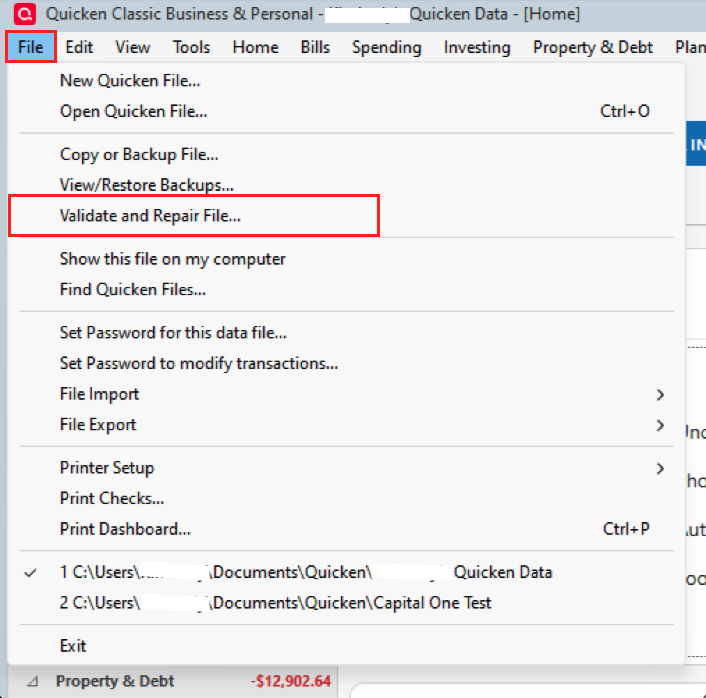
- Check the first box for Validate file.
- Click Ok.
Once the validation has completed, it will produce a report of anything it has found/corrected. After this, try updating your accounts, and let me know if anything has changed.
Let us know how it goes!
Quicken Alyssa
Make sure to sign up for the email digest to see a round up of your top posts.
0 -
Thanks for the help. The Onedrive file is a backup. And yes I've done both the validate and the supervalidate. It just seems like Quicken is running really slow. I figured it was some setting out of kilter.
0 -
Thank you for your reply,
Was there anything else that happened around the same time as this issue, such as a program update? I can see that you updated to R66.28; is it possible you're encountering the issue others reported after the update (see below)?
When you run One Step Update, does it also sync to the Quicken Cloud?
You mentioned that you noticed the slowness after you changed your Quicken file's name. Just in case that's causing a conflict in the cloud, and resulting in slowness, I recommend that you backup your Quicken file, then reset the cloud.
To reset the cloud, follow these steps:
- Go to Edit>Preferences>Mobile & Web.
- Click the blue Reset your cloud data link.
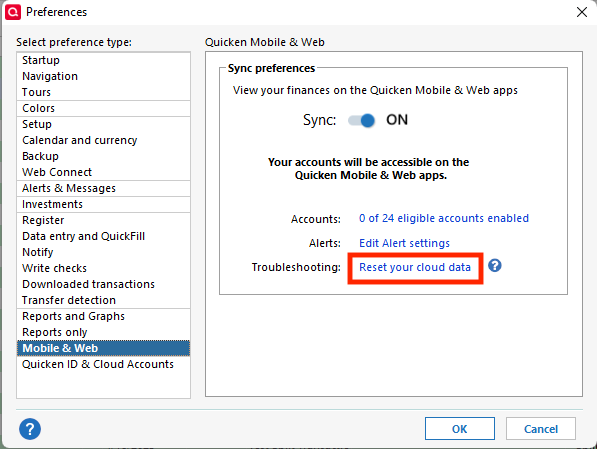
- Wait for the process to finish. Depending on the amount of data and your internet speed, this may take a few minutes.
- Once the cloud reset completes, verify if the slowness persists.
- Note, you will need to log out and back into the Quicken Mobile app, next time you use it.
I hope this helps!
Quicken Kristina
Make sure to sign up for the email digest to see a round up of your top posts.
0 -
I don't OneStep update to the cloud, but I do have a backup on the cloud. It looks like I am experiencing the slow loading data file in your example.
0 -
Thank you for your reply,
Did the cloud reset help at all, or is the issue persisting?
Thank you!
Quicken Kristina
Make sure to sign up for the email digest to see a round up of your top posts.
0 -
I tried the cloud reset, and it just went into a loop and did nothing. After 15 minutes I had to do a Task reset to get it to stop.
0 -
Well Ok I've tried the cloud reset multiple times, but it just appears to get stuck doing transactions. Should it take more than 15 minutes to do the reset?
0 -
Thank you for your replies,
Cloud resets usually take a few minutes, but can take longer depending on how much data you have in the cloud and your internet speed. If possible, please try giving it longer to complete.
Please let me know how it goes!
Quicken Kristina
Make sure to sign up for the email digest to see a round up of your top posts.
0 -
Now after attempting the cloud reset, I can no longer get One-Step update to work. It clears one account and then appears to just be frozen with the cursor flashing on and off.
0 -
Thank you for your reply,
How long are you waiting for One Step Update to complete? Sometimes, it's not completely frozen, just very slow.
If it is completely frozen after the first account, I recommend restoring a backup from before the original issue started. To restore a backup, please follow these steps from our article on backing up and restoring Quicken files:
Restore Quicken data
- Go to File > View/Restore Backups....
- Browse the Local and Online Backups tabs to find the backup file you want to restore. The Quicken backup file has the extension .QDF-Backup.
- Select the file to restore and click Restore Backup.
- Next, you will be given the option to overwrite the file you have open or to create a copy of the backup you're restoring.
- If you Create a copy, you will need to select a location to save the copy to and you will also need to give the copy a unique file name. After naming the file and selecting the location, click Save, then click Yes to open the restored file.
- What does it mean to overwrite a file?: Restoring a backup file replaces your current data with the data stored on the backup. Be aware that you'll lose any changes you made since the backup was created. If you want to preserve the current file, you must rename the current file or the file you are restoring. We recommend avoiding overwriting files.
If you don't have a manual backup from the correct timeframe, you can restore an automatic backup by following the directions below.
Restore an automatic backup
Quicken creates a copy of your data every seven days and stores five of these copies in a BACKUP folder. If the backup file you've created becomes damaged, you may be able to restore an automatic backup and save yourself the need to re-enter data.
First, check to see if automatic backups are turned on (this is on by default)
- In Quicken, go to Edit > Preferences.
- Under Setup on the left, choose Backup.
- Make sure there is a check mark next to Automatic Backups.
- To the right of Automatic Backups, there is an Open/Change backup directory link that goes directly to your BACKUP folder - a good way of finding them fast!
- Choose to back up your Quicken data file after running Quicken X times (between 1 - 99).
- Choose how many backup data files you would like to save (between 1 - 99 copies).
Then, restore the automatic backup
- Go to File > View/Restore Backups....
- Select the file to restore.
- Click Restore Backup.
- Next, you will be given the option to overwrite the file you have open or to create a copy of the backup you're restoring.
- If you Create a copy, you will need to select a location to save the copy to and you will also need to give the copy a unique file name. After naming the file and selecting the location, click Save, then click Yes to open the restored file.
- What does it mean to overwrite a file?: Restoring a backup file replaces your current data with the data stored on the backup. Be aware that you'll lose any changes you made since the backup was created. If you want to preserve the current file, you must rename the current file or the file you are restoring. We recommend avoiding overwriting files.
I hope this helps!
Quicken Kristina
Make sure to sign up for the email digest to see a round up of your top posts.
0 -
Just checking in, we haven't heard back from you in a while.
Do you still need assistance?
Thank you!
Quicken Alyssa
Make sure to sign up for the email digest to see a round up of your top posts.
0 -
Hello again,
Checking in once more before this thread is closed.
Let us know if you still need assistance.
Thank you!
Quicken Alyssa
Make sure to sign up for the email digest to see a round up of your top posts.
0 -
Due to the lack of response, I went ahead and closed this post.
If you still require assistance, please feel free to start a new post.
Thank you!
Quicken Alyssa
Make sure to sign up for the email digest to see a round up of your top posts.
0

