When I try to update my data the one step update starts but freezes and does not do anything.

What is wrong with my one step update, it always freezes and will not run? I even restored a backup copy and it will not run either. What happen?
Answers
-
Hello @Robroy7,
Thank you for visiting the Community to report the issues you are running into.
I have some follow-up questions for you:
- How long has this issue been happening?
- Were there any significant changes/events around the time this began?
- Like Quicken updates, Windows updates, computer crashes, etc?
- Where is your data file located?
- You can see this by going to File and looking toward the bottom of the menu. The first file listed is the one you are currently in. The file location will be shown there, and that is what we are looking for.
- Is your file being synced/backed up by any third-party services like OneDrive, Dropbox, or Carbonite?
We also have a Support Article that covers this issue. Please review it and apply the suggested steps therein. Here is the first one:
In some circumstances, Quicken for Windows may start to slow down, freeze, or crash during the One Step Update process when updating connected accounts. While the actual cause of the performance dip or crash can be hard to isolate, we do have a list of possible fixes and troubleshooting steps to try.
Find and deactivate the affected account
Sometimes, a specific connected account can be the issue and slow down all others when performing a One Step Update. Below are the steps to find the affected account, deactivate it, and then reconnect it to Quicken.
- From the Account List, select the first connected account.
- Click the Actions (gear) icon in the upper right of the transaction window.
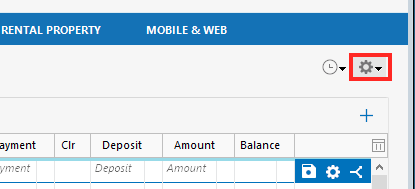
- Choose Update now.
- Repeat the process for each connected account until you find the one freezing during the update.
- Deactivate and reactivate the affected connected account.
- Attempt the One Step Update again.
Let us know how it goes!
Quicken Alyssa
Make sure to sign up for the email digest to see a round up of your top posts.
0 -
Same issue, one step locks, and this started yesterday, 3/5/26. Cannot download anything to my accounts.
[Edited-Readability]
0 -
Thank you for adding to this discussion and reporting the issues you are having.
Please review my previous post.
Answer the questions and check out the linked support article. Once you get there, you would follow the recommended steps in the article.
Let us know how it goes!
Quicken Alyssa
Make sure to sign up for the email digest to see a round up of your top posts.
0 -
having the same issue. Tried all the recommended fixes with no luck
0 -
Hello @Jeff Hitz,
Thank you for letting us know you're also seeing this issue. To help troubleshoot, please provide more information:
- How long has this issue been happening?
- Were there any significant changes/events around the time this began?
- Like Quicken updates, Windows updates, computer crashes, etc?
- Where is your data file located?
- You can see this by going to File and looking toward the bottom of the menu. The first file listed is the one you are currently in. The file location will be shown there, and that is what we are looking for.
- Is your file being synced/backed up by any third-party services like OneDrive, Dropbox, or Carbonite?
You said you tried all the recommended fixes. To clarify, did you follow the troubleshooting in the article linked below?
I look forward to your response!
Quicken Kristina
Make sure to sign up for the email digest to see a round up of your top posts.
0 -
Hello All,
Just checking in, we haven't heard back from you all in a while.
Do any of you still need assistance?
Thank you!
Quicken Alyssa
Make sure to sign up for the email digest to see a round up of your top posts.
0 -
I am having the same issue. OSU worked last week just fine. Over the past several days I keep trying it but it just freezes. I have to close Quicken using Task Manager. I have tried the file validation already. That had no effect. Also, when trying to deactivate any account, Quicken freezes again. There is nothing relating to online account that will not cause the program to freeze. I can manually update accounts and back up my file. ONE account will update, interestingly. Just one. Every other account causes a freeze. And I cannot deactivate any of those accounts.
Should I just re-install Quicken? I use Quicken Deluxe on Windows 11. File is in C: drive. Says R-66.23
0 -
Hello @DDGiz,
Thank you for adding to this discussion.
I see you have answered the first question posted by @Quicken Kristina, would you mind answering the rest of them?
This will help us determine how to move forward.
Looking forward to your response!
Quicken Alyssa
Make sure to sign up for the email digest to see a round up of your top posts.
0 -
The article attached…yes, I did everything that Quicken would let me do without freezing. EXCEPT — I didn't uninstall and reinstall. Also, I didn't understand the instructions for signing in as a different user. That confused me because I don't want to be a different user and lose all my account data. That did not make any sense to me.
My file is: C:\Users\User\Desktop\Quicken Classic-R-66.23
I use a third-party backup to a server called Synology. It doesn't interface directly with Quicken. It merely backs up designated files to a server. I have designated my Quicken backup files to be included in the backup it performs.
0 -
Thank you for your reply,
The "sign in as another user" link is a way to log out of Quicken and log back in. If the problem is being caused by an expired authentication token, then logging out and back in again can correct the issue.
If that doesn't resolve it, please try uninstalling and reinstalling Quicken. If the problem is being caused by a program issue, that should fix it.
If the issue persists, then it is most likely a file issue. To troubleshoot that, restore a backup from before the issue started. To restore a Quicken file, please follow these steps from our article on backing up and restoring files:
Restore Quicken data
- Go to File > View/Restore Backups....
- Browse the Local and Online Backups tabs to find the backup file you want to restore. The Quicken backup file has the extension .QDF-Backup.
- Select the file to restore and click Restore Backup.
- Next, you will be given the option to overwrite the file you have open or to create a copy of the backup you're restoring.
- If you Create a copy, you will need to select a location to save the copy to and you will also need to give the copy a unique file name. After naming the file and selecting the location, click Save, then click Yes to open the restored file.
- What does it mean to overwrite a file?: Restoring a backup file replaces your current data with the data stored on the backup. Be aware that you'll lose any changes you made since the backup was created. If you want to preserve the current file, you must rename the current file or the file you are restoring. We recommend to avoid overwriting files.
If you don't have a manual backup to restore, follow the steps below to restore an automatic backup.
Restore an automatic backup
Quicken creates a copy of your data every seven days and stores five of these copies in a BACKUP folder. If the backup file you've created becomes damaged, you may be able to restore an automatic backup and save yourself the need to reenter data.
First, check to see if automatic backups are turned on (this is on by default)
- In Quicken, go to Edit > Preferences.
- Under Setup on the left, choose Backup.
- Make sure there is a check mark next to Automatic Backups.
- To the right of Automatic Backups, there is an Open/Change backup directory link that goes directly to your BACKUP folder - a good way of finding them fast!
- Choose to back up your Quicken data file after running Quicken X times (between 1 - 99).
- Choose how many backup data files you would like to save (between 1 - 99 copies).
Then, restore the automatic backup
- Go to File > View/Restore Backups....
- Select the file to restore.
- Click Restore Backup.
- Next, you will be given the option to overwrite the file you have open or to create a copy of the backup you're restoring.
- If you Create a copy, you will need to select a location to save the copy to and you will also need to give the copy a unique file name. After naming the file and selecting the location, click Save, then click Yes to open the restored file.
- What does it mean to overwrite a file?: Restoring a backup file replaces your current data with the data stored on the backup. Be aware that you'll lose any changes you made since the backup was created. If you want to preserve the current file, you must rename the current file or the file you are restoring. We recommend to avoid overwriting files.
I hope this helps!
Quicken Kristina
Make sure to sign up for the email digest to see a round up of your top posts.
0 -
So, thanks but no thanks. I signed out and in but the problem continued. So i backed up my file and then uninstalled and reinstalled Quicken. My backup has disappeared. My data is gone. NOT HAPPY.
I do have a backup from last August. Probably from before I updated my laptop to Windows 11. I guess it's better than nothing. If I restore that backup and STILL have issues with OSU, then I am DONE with Quicken. And I have been a loyal Quicken user since before 2009.
0 -
I need more help than what I'm getting here. I have serious issues with the new Quicken install and restored data file. I have attempted to update an account online and still the program gets bogged down and does not respond. This is supremely frustrating. I have one week left to file taxes and cannot access reliable data. This is unacceptable. I need help, please. What can you suggest?
0 -
Hello @DDGiz,
Thank you for following up, though we are sorry to hear the issue has not been resolved yet.
Please contact Quicken Support directly so they can walk you through this in real time. They can help you look for more recent backups and hopefully get this all straightened out.
Hope this helps!
Quicken Alyssa
Make sure to sign up for the email digest to see a round up of your top posts.
0 -
Thank you. Quicken Support is trying some things and hopefully we will find a solution. Part of the problem may be with my CitiBank accounts. I might not have needed to uninstall and reinstall if I had known that earlier. Such is life.
0 -
As it turns out, OSU didn't freeze but it took 90 minutes to run.
0 -
Thank you for the follow-up,
I'm glad to hear that it didn't freeze. Does it take 90 minutes to run every time, or was it slow just that once, and now completes faster?
Thank you!
Quicken Kristina
Make sure to sign up for the email digest to see a round up of your top posts.
0 -
Today the update took a normal amount of time — under 5 minutes, I would estimate. Everything is peachy!
0 -
Thank you for the follow-up,
I'm glad to hear it's taking a normal amount of time now!
If you need further assistance, please feel free to reach out!
Quicken Kristina
Make sure to sign up for the email digest to see a round up of your top posts.
0

