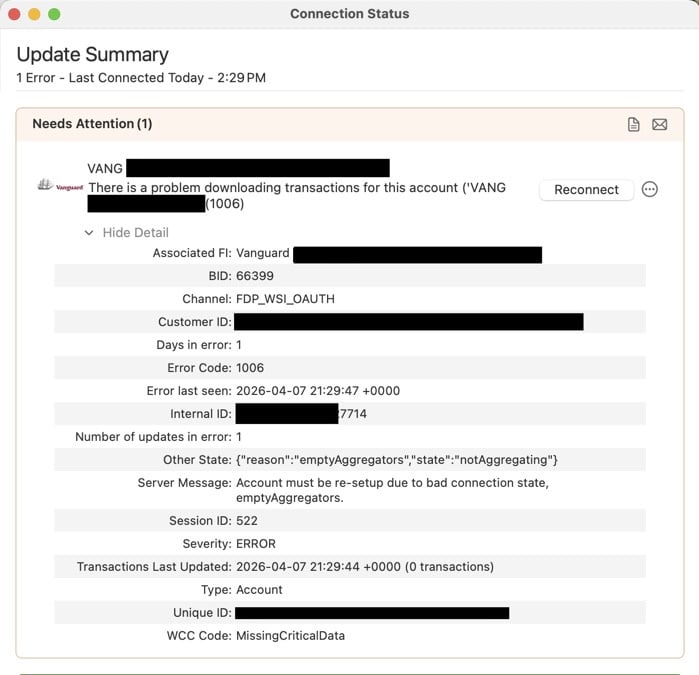
Vanguard connection fails - pic of error window

Hi Quicken for Mac Team,
I’m experiencing a persistent issue with Vanguard account updates. Every time I run “Update Accounts,” the Vanguard connection fails, and I’m required to go through the reconnect process each time. This happens consistently on every update.
This is becoming very disruptive. Can you please advise on a permanent resolution, or let me know if there’s a known issue and timeline for a fix?
I’ve attached a screenshot of the Update Summary showing the Vanguard failure.
Thank you.
Classic Business & Personal, Version 8.5.1 (Build 805.60122.100)
macOS 15.7.5
Thank you
Answers
-
I have tried repeatedly to get ny Vanguard account to be added to Quicken. It always fails. I haven't tried with version 9 but will when I have some free time.
0 -
Hello @Jillartstudio & @noahb,
Thanks for reaching out!
@Jillartstudio—I checked on our end and do not see any internal errors occurring with the Vanguard connection. However, based on the screenshot you shared, I can see that you're receiving Error 1006.
This error is most commonly caused by a temporary server-side issue and is typically resolved within 24–48 hours.
If the issue persists beyond that timeframe, I recommend the following:
To Deactivate the accounts:
- Click on the account name for the affected account(s) in the Accounts toolbar in Quicken.
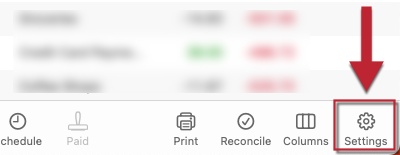
- Click the Settings icon in the bottom right corner of the screen.
- Click on the Downloads tab.
-
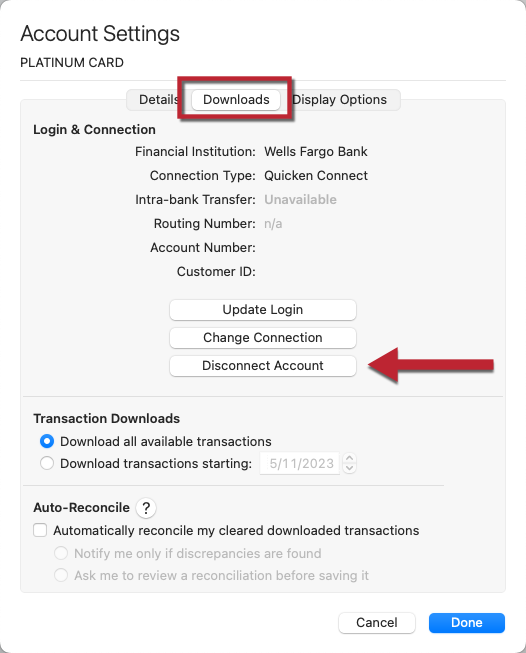
- Click on Disconnect Account.
- Click Done.
- Repeat the above steps for each affected account until they are all deactivated.
To Reactivate the accounts:
- Select Accounts menu > Add Account.
- Enter the name of your bank or select it from the list.
- If prompted, select the connection method, then click Continue.
- Enter the required sign-in credentials you use to access your accounts, and then click Sign In.
- Answer any security questions, etc. required by your bank to sign in, and click Continue.
- Once Quicken has discovered your list of accounts, you will have the option to link them to the existing accounts already in Quicken.
- In the Action section of the Accounts Found window, select the appropriate existing account to link.
- In the Type section, choose the correct account type for each account from the dropdown menus.
- Once you have linked all existing accounts for this bank, click on Continue to complete the activation process for your accounts, and then click Finish.
- Repeat these steps for each bank needing to be reactivated.
@noahb—I also checked your account internally and I’m not seeing any active connections set up at this time.
Could you provide a bit more detail on what you’re experiencing? Are you seeing the same Error 1006 message as described in the OP above?
If possible, a screenshot of what you're seeing would be very helpful so we can better understand what’s happening on your end. If needed, please refer to this Community FAQ for instructions on how to attach a screenshot. Alternatively, you can also drag and drop screenshots to your response if you are not given the option to add attachments.
Thank you!
-Quicken Anja
Make sure to sign up for the email digest to see a round up of your top posts.0
