Repeated Requests for Discover Card Download Authorization

Every time I initiate a download of transactions (Quicken Classic for Windows 66.28) I receive a message that I have to reauthorize Discover Card. After completing the reauthorization, I have to do it again to enable download of transaction for Discover Card. So every time I want to download transactions, I have to authorize Discover Card twice. Why does this keep happening?
Comments
-
Hello @maestrovt,
Thank you for sharing your experience.
Having to reauthorize your accounts with every download is. not the expected behavior. Please try the following to see if it resolves this issue.
- Create a backup of your Quicken file first.
- Deactivate all Discover accounts in Quicken.
- Select the Tools menu and select Account List....
- In the Account List, select the account you want to deactivate, and then click Edit.
- In the Account Details window, click the Online Services tab.
- Click Deactivate next to the service you want to disable.
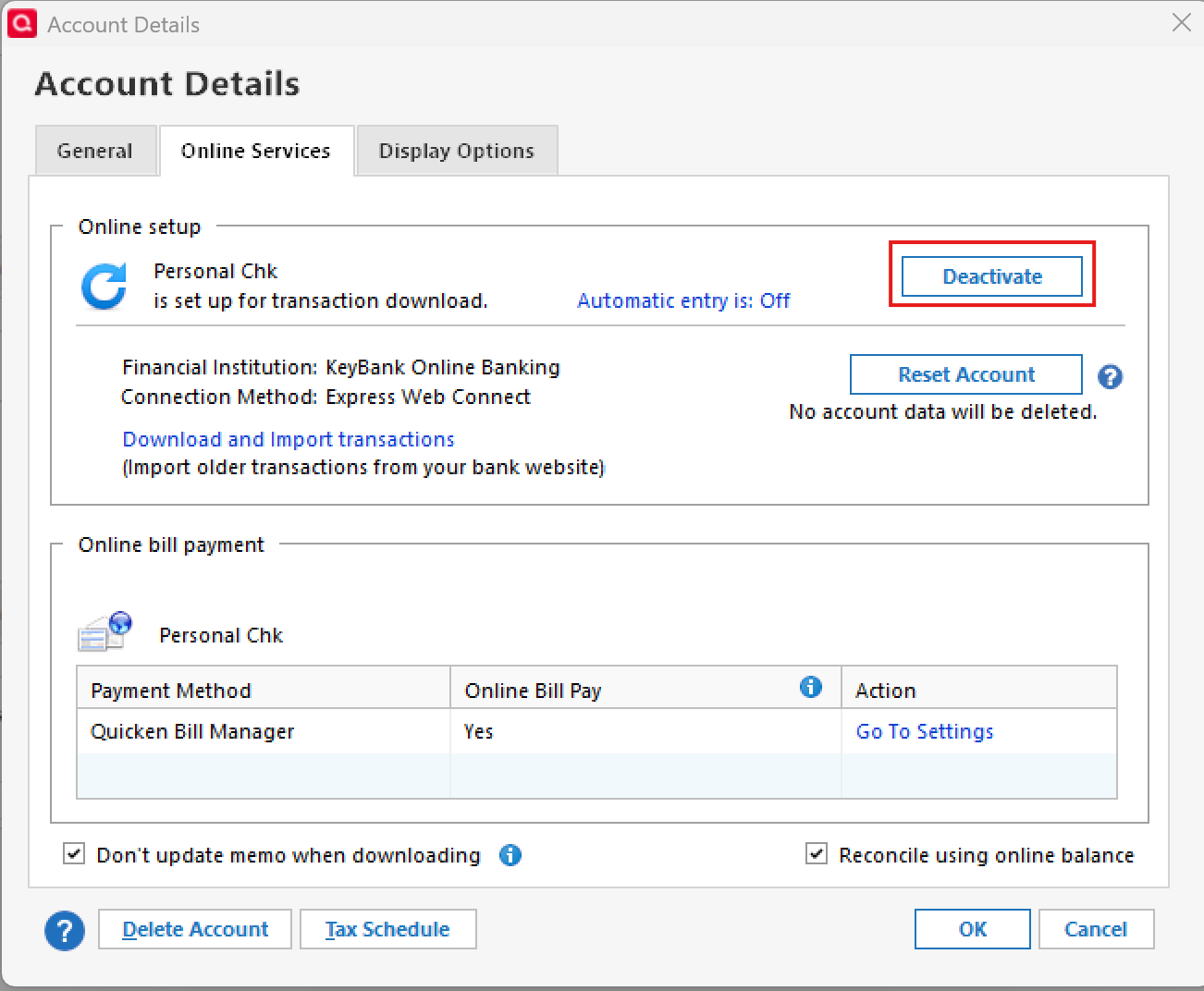
- Click Yes to the message confirming if you want to disable this service. Note: If you do not receive this message, additional information is available below.
- Click OK to the confirmation message.
- If you have an investment account that is linked to a cash account, you need to deactivate the online services from the investment account, which will automatically deactivate the linked cash account.
- Important: If you are deactivating/reactivating an account to fix an issue, you'll need to deactivate all the accounts with the affected financial institution that you have activated in Quicken (including hidden ones). Once they're all deactivated, then you can follow the steps to reactivate.
- Check for old/hidden accounts. If any are present, disconnect them as well.
- Revoke Quicken’s third-party access from the Discover website.
- Reactivate the accounts in Quicken.
- Go to Tools > Add Account.
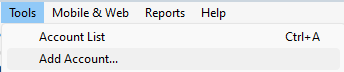
- Select the bank for the deactivated account(s). If prompted, select the connection method.
- Enter your credentials and click Connect.
- When the list of located accounts appears, choose LINK next to each account you want to reactivate.
- Click Next, then Done on the last prompt.
- Go to Tools > Add Account.
Let us know how it goes!
Quicken Alyssa
Make sure to sign up for the email digest to see a round up of your top posts.
0 -
Thanks Alyssa, that procedure seems to clear up the problem! Edward
1 -
Thank you for following up to let us know the suggested steps seem to have resolved the issue!
If you need more help, let us know!
Thanks again!
Quicken Alyssa
Make sure to sign up for the email digest to see a round up of your top posts.
0 -
I will be surprised if this fixes it. I've been having the same issue for a month or two. And just like you, the first time through basically acts like it works, but in reality, all it really does is unlinks the original Account. So then you have to go through the process again to re-link the account. More and More Quicken appears to be losing consistent online access to various accounts.
FYI: I only have 1 Discover account, and it is the CARD. Doing the process above did get me working again, but it came back. I only update 1x per week, so it got me through a week or two (1 or 2 Downloads), and then it broke again. It almost feels like it is a cookie issue that expires and you have to re-authenticate. It would not be so bad if it were not for the fact you have to go through the process 2x to get it to actually work.
[Edited - Readability]
0 -
Hello @Bill L,
Thank you for sharing your experience! I'm glad to hear that following the process shared earlier in this discussion worked (so far).
You mentioned that when you reauthorized the first time, it caused the original account to become unlinked. To clarify, do you mean that the account got added as new instead of linked to the existing account in your Quicken file?
I look forward to your response!
Quicken Kristina
Make sure to sign up for the email digest to see a round up of your top posts.
0 -
Hi Kristina,
No, the linking\unlinking is strange. When you are in the process of Re-Authorizing the Account. There is a dialog where Quicken says it is Adding\Linking\Authorizing the Discover Card in the top half, and the below half says it is Removing\Unlinking\Deathorizing the same Discover Card. (Sorry, I can't recall the exact verbiage). It does appears to know the Existing Account already in Quicken. However, when you proceed, no new account is added, no transactions are downloaded, and the existing account now shows that "Online Services" is cleared out and needs to be setup again (thus the need for the 2nd Authentication process to relink it again).
0 -
Thank you for your reply,
Thank you for the additional information. If the issue returns, please reach out so we can troubleshoot.
Thank you!
Quicken Kristina
Make sure to sign up for the email digest to see a round up of your top posts.
0 -
I am having the same problem, and have had it for over a month. Plus, when it finally downloads my account, it adds a huge "correction" amount." I called Quicken support and was told that "this is an error that Discover and Quicken are working to fix." The agent gave me a link to this thread as a means of tracking the progress, but according to this thread, it does not seem that it is being treated as a systemic problem. Is there another thread I can follow to know when this problem will be fixed?
0 -
Hello @qkenjb,
Thanks for sharing those details. I took the liberty of reviewing the ticket notes of the interaction you mentioned with Support.
It looks like there might have been some confusion in that case. Based on the ticket notes, it seems that the support agent meant to provide you with a link to refer to this Community Alert.
However, based on what I can see when reviewing your account connection internally and from the behavior you’re describing (especially the repeated reauthorization and the “huge correction amount” after download), it does not appear to match the specific issue covered in that alert.
Since there may be more than one underlying cause that can produce similar symptoms, I wanted to check directly with you on the following:
- Have you already tried the troubleshooting steps that @Quicken Alyssa outlined earlier in this thread?
- Deactivating all Discover accounts, revoking access on the Discover site, and then fully reauthorizing and relinking the accounts
If you haven’t yet tried that exact sequence, it would be worth attempting that first, since it has resolved this behavior for some users experiencing repeated authorization loops.
If you have already completed those steps and the issue still returns, let us know, and we can look into this further.
Thank you!
-Quicken Anja
Make sure to sign up for the email digest to see a round up of your top posts.0 - Have you already tried the troubleshooting steps that @Quicken Alyssa outlined earlier in this thread?


