ONLY APP THAT DOES NOT RE-OPEN IN SCREEN LAST USED

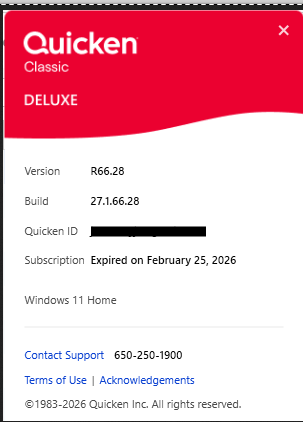
About a month ago, I reset my Windows 11 home laptop, so I had to reinstall Quicken. Since that time, Quicken Classic Deluxe, R66.28, build 27.1.66.28 does not restart in the screen last used, but instead starts in the default screen. Please tell me how to update this setting, even if it requires editing the Registry. Email=; phone=(text OK). Thanks.
P.S. When I click Help, About, it shows my subscription has expired, which is not correct.
[Removed Personal Information]
Answers
-
Within Preferences > Startup you can select what screen you see when you open Quicken, the "default screen." But I don't remember Quicken ever opening on the last-used screen when shut down and then opened again.
0 -
Based on your description, the issue with Quicken Classic Deluxe not remembering your last screen is likely due to the reinstall, which may have reset user preferences, or Quicken is opening in a "maximized" state without properly saving the screen position.Try these steps to resolve the screen positioning issue, the subscription status error, and registry considerations.1. Fix Startup Screen/Positioning
Set Startup Preferences:Go to Edit > Preferences > Startup. In the "On startup open to" dropdown, explicitly select the view or register you want to see first.Avoid Maximized State:If Quicken is closed while in a fully maximized window, it sometimes fails to remember the position on re-opening. Try resizing the window to "Restore Down" (not fully maximized) and closing it.Validate Data File:If Quicken still opens to the default screen, your data file might be corrupted. Go to File > Validate and Repair File, check "Validate file", and click OK.
2. Fix "Subscription Expired" Status (Post-Reinstall)
Subscription Expired:When the "Help > About" screen shows an incorrect expiration date after a re-installation, it usually indicates a synchronization issue between the software and the Quicken server.Sign Out and Back In:Go toEdit > Preferences > Quicken ID & Cloud Accounts. SelectSign in as a different user, type "yes" in the box, and sign out. Close Quicken, reopen it, and sign back in using the same ID.Check Subscription Status:Navigate toHelp > Check Subscription Statusto force a refresh.Use Mondo Patch:If the issue persists, download and apply the latest Quicken "Mondo Patch" (reinstalls the update components).
0 -
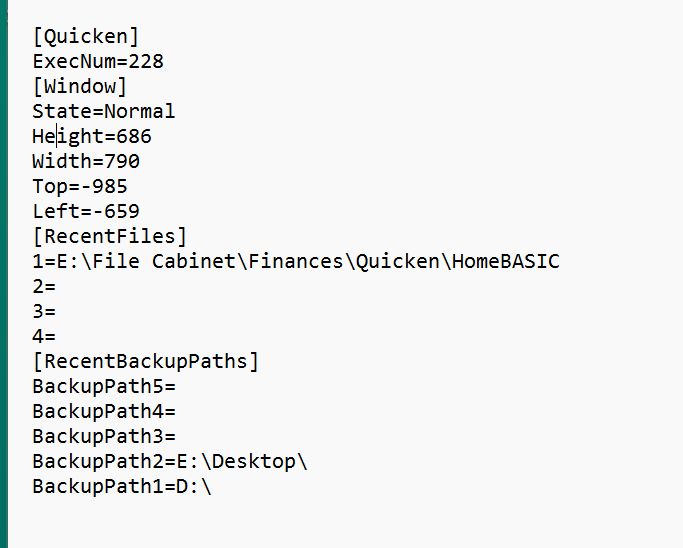
Subscription status fixed, but getting app to open in previously used screen does not work. It is modifying the .ini file, but always opens in the default screen whether it was maximized or normal when closed. If it was mazimized, it opens maximised; if it was normal when closed it opens norm.
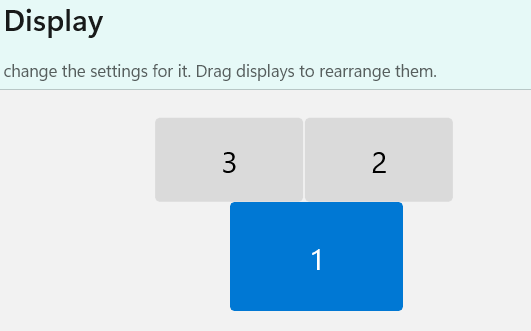
I'm trying to get it to open maximized on display 3.
 0
0 -
By the settings you are showing in the INI file Quicken should come up on your display 3.
0,0 (X, Y) is at the top, left of the primary display, which I believe in your case is display 1.
So, a negative X number is to the left of the primary display and negative Y is above the primary display.
I tried to reproduce your problem, but for me the location "sticks".
0