This discussion was created from comments split from:
Subscription Value Concern: SSFCU Connectivity Unresolved for Months
.
Have not been able to connect to SSFCU in MONTHS!!!! Yes, I can download from their site, one account at a time……. Maybe its over due to open a ticket, or what ever it is you do to fix an issue.
Hello @PikesPompadour,
Thank you for letting us know you're seeing this issue. To help troubleshoot, I checked our internal tools. I can see that you have been encountering a CC-503 (invalid credentials) error when attempting to connect to SSFCU. Is that what you see in your file when you attempt to connect? If not, please provide details on exactly what you see.
To start troubleshooting, please backup your file and follow these steps from our article on CC-503 errors:
New passwords: If you are required to make a new password, be aware that some special characters may cause errors in Quicken. These special characters are the ampersand (&), left carat (<), right carat (>), backslash (\), and forward slash (/). Additionally, while Quicken does not have a character limit, your bank may have one.
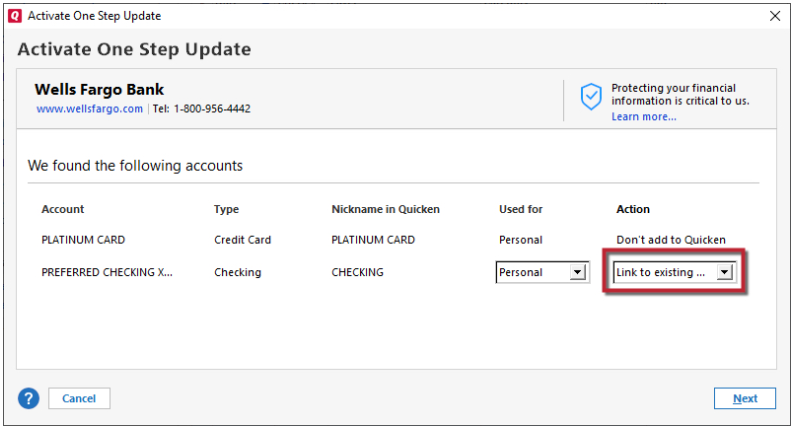
Try Deactivating and Reactivating the affected accounts:
Please reach out to Quicken Support. Phone support is available from 5:00 am PT to 5:00 pm PT, Monday through Friday. Chat support is available from 5:00 am PT to 5:00 pm PT, 7 days a week.
I hope this helps!
CC-501….still no good
Hi @PikesPompadour,
Thank you for following up. I can see that your account is showing a CC-502 error on our end, along with some successful connection attempts from yesterday.
Could you please confirm whether you encountered this error at any point yesterday or today, and whether the account connected successfully afterward?
I look forward to your response.