Discover Bank stopped downloading transactions beginning 5/2/2026

I have two Discover Bank accounts, one savings and one money market. The last transaction download I received successfully was 5/1/2026. No errors are reported and the update message shows the update was completed successfully with no new transactions even though I know there are new transaction as shown on the Discover website. The register Online Balance matches the Discover website balance, but the register Ending Balance does not due to missing transactions. I have reset and reauthorized all of my Discover accounts. The credit card accounts seem to be working fine for now.
Answers
-
Hello @MS-DOS 6.0,
Thank you for reporting this issue. Missing transactions—especially when no error code appears—can happen for a few different reasons. Below are some things to check which you can also review in more detail in this support article.
First, for a one-time occurrence:
- Sort order or filters: Make sure your account register is sorted by Date (click the top of the Date column) and click Reset at the top of the register to clear any filters.
- Pending transactions: Check your Discover website—transactions that are still pending may not download until they clear.
- Download window: Some banks only allow downloads for the last 90–200 days. Older transactions may need to be manually downloaded via Web Connect.
- Matching or renamed transactions: Sometimes downloaded transactions match incorrectly to existing entries and don’t appear as new.
- Deleted or moved transactions: If a transaction was deleted or moved to another account, it will not download again automatically.
If this happens frequently:
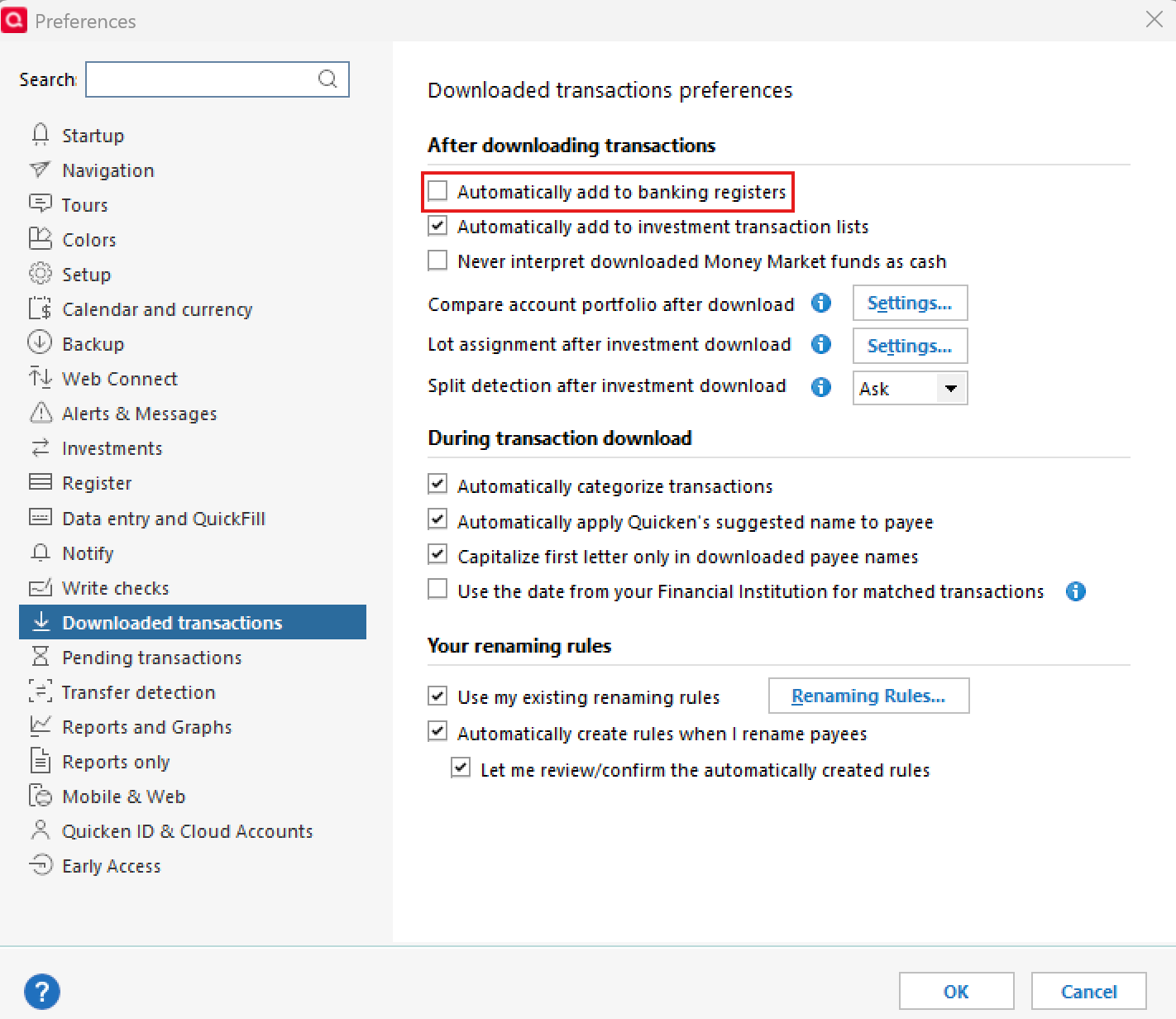
- Go to Edit > Preferences > Downloaded Transactions and ensure Automatically add to banking registers is unchecked.
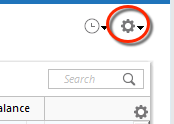
- Use the Actions Gear Icon in the register and select Update Now to refresh online account information.
- Check that the Sort Order is by Date and click Reset to remove filters.
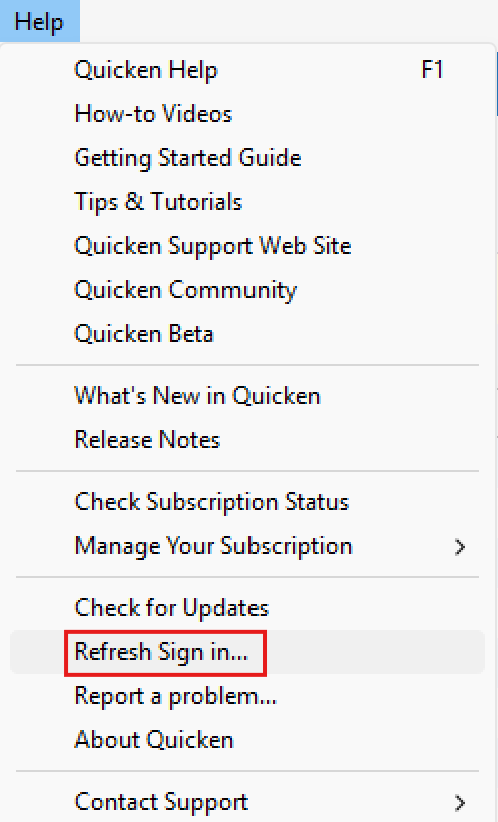
- Refresh your login session via Help > Refresh Sign In, then try One Step Update again.
- Verify that downloaded transactions aren’t hidden by checking Tools > Account List > Show Hidden Accounts.
- If using Direct Connect, please note that only Discover can escalate any data delivery issues, as the download comes directly from their servers.
If none of these steps resolve the issue, please reach out to Quicken Support for further assistance.
Thank you!
-Quicken Anja
Make sure to sign up for the email digest to see a round up of your top posts.0 -
I've tried all these and nothing is helping. I cannot download any of my Discover transactions!
0 -
Hello @Stephrt,
Thank you for letting us know you're unable to download your Discover transactions. If you followed the troubleshooting steps from earlier in this discussion and the issue persists, please contact Quicken Support directly for further assistance. They have tools that we can't access on the Community, and they can escalate the issue as needed. The Quicken Support phone number can be found through this link here. Phone support is available from 5:00 am PT to 5:00 pm PT, Monday through Friday.
I apologize that I could not be of more assistance!
Quicken Kristina
Make sure to sign up for the email digest to see a round up of your top posts.
0 -
Thanks, I will try them on Monday as I have gone though every step listed.
0 -
I just tried the below and the Discover populated, but all the payees were incorrect. It mostly used three names for all the entries. Any tricks here?
If you haven't already, I suggest you try to deactivate all accounts for this financial institution, then force Quicken to "discover" all available accounts and see if this will help resolve it. Please, follow the instructions below in order to do so. It is recommended to save a backup before proceeding (just in case).
- Open the Account List in Quicken (Tools > Account List OR Ctrl + A)
- If present, select the Show Hidden Accounts checkbox at the bottom of the Account List
- Edit each account with this financial institution to Deactivate (or Remove From One Step Update) on the Online Services tab
- Click on the General tab and remove any info displayed in the Financial Institution, and Account/Routing Number fields. Note: The account must be deactivated first before these fields can be edited.
- When finished, close the Account List
- Close, then re-open Quicken
- Navigate to Tools > Add Account
- Walkthrough this process as if you were going to add a new account, providing the login credentials and answering any security questions/processes presented until you reach the screen where Quicken displays the Accounts Discovered at the financial institution
- Very carefully LINK each of the found accounts to the appropriate account you already have set up in Quicken.
0 -
Thank you for your reply,
To troubleshoot incorrect payees, first right-click a transaction with an incorrect payee and check what the Revert to option shows.
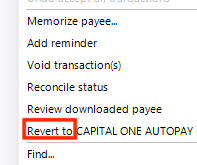
If the Revert to option shows the correct payee, then it's likely that a Renaming Rule is causing the problem. To check your renaming rules, navigate to Tools>Renaming Rules.
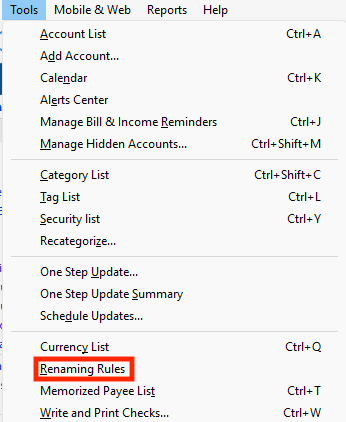
If you see incorrect or overly general rules, you can edit or delete them, as appropriate, to prevent them from changing payees going forward.
To edit or delete a rule, click on it to select it, then click the pencil icon to edit it or the red circle with a minus sign to delete it.

I hope this helps!
Quicken Kristina
Make sure to sign up for the email digest to see a round up of your top posts.
0


