I am using Quicken Classic Basic on a PC for my personal data. I have created a seperate Quicken ID
I am using Quicken Classic Basic on a PC for my personal data.
I have created a seperate Quicken ID and purchased Quicken Classic for a club I am Treasuer of.
When I open Quicken it automatically opens a personal file. The bot said I should right click the logo and open Quicken where it will ask for my ID but I keep going direct to my personal data file.
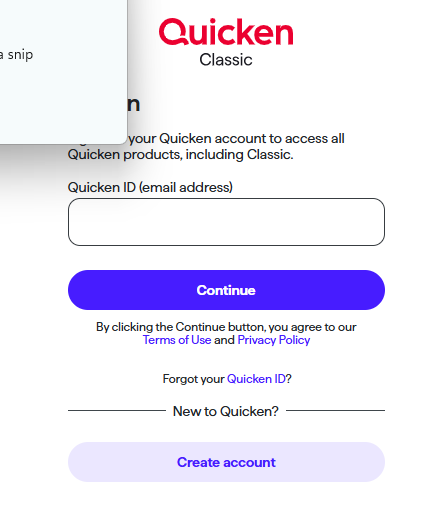
How do I open Quicken to get to this screen and chose my ID?
Answers
-
At one point I used to use 3 separate files. One for me, and one each for two other members of the family. What I used to do at that time was save a shortcut to each of the data files on my PC desktop. Then, depending on which file I wanted to open I would just double click that icon and it would open Quicken with the file I wanted.
Quicken Windows user since 1993.
0 -
Hello @David Viking,
Thanks for reaching out! Just to confirm, are you trying to create a brand-new data file for the club using the other Quicken ID, or do you already have an existing file for the club and just need to switch the Quicken ID that file is associated with?
That will help determine whether we need to walk through creating a new file under the second ID or switching the Quicken ID on an existing file.
Check back and let us know! Thank you.
-Quicken Anja
Make sure to sign up for the email digest to see a round up of your top posts.0 -
I want to create a brand-new data file for the club using the other Quicken ID
0 -
@David Viking Thanks for confirming!
To create a brand-new data file for the club under your other Quicken ID, please follow the steps in this support article.
While going through the process of creating the new file, Quicken should prompt you to sign in with a Quicken ID—at that point, sign in using the other Quicken ID you set up for the club.
If you don’t receive a prompt to sign in, please follow these steps to change the Quicken ID after the new file has been created:
- Navigate to Edit
- Preferences...
- Quicken ID & Cloud accounts
- Click Sign in as a different user (or it might say Sign in using a different Quicken ID)
- Follow the prompts to Sign Out
- Sign back in using the other Quicken ID (email) and password
Once that is done, you may receive a prompt requesting to Change Owner. If that happens, simply click on the Change Owner option, and you should be all set from there.
Hope this helps!
-Quicken Anja
Make sure to sign up for the email digest to see a round up of your top posts.0 -
That sounds good.
Once I have the new club account created and assigned it to the Club Quicken ID I should back it up to (Dropbox, OneDrive, or Google Drive) and then the other user can restore from that drive. I understand we cannot work on the data at the same time or not work directly with a Quicken Classic data file saved in the cloud
0 -
@David Viking If you click on the Q program icon to begin, it will automatically re-open the last file used.
To open the "other" file, depends upon if it already exists, or you need to create it.
To Create it, click FILE, New Quicken FileIf it already exists, you can either click on the file name at the bottom of the FILE menu (with Q open), or you can click on the DATA FILE icon for the other file, when Q isn't currently open
Q user since February, 1990. DOS Version 4
Now running Quicken Windows Subscription, Business & Personal
Retired "Certified Information Systems Auditor" & Bank Audit VP0 -
You can switch between Quicken Ids by going thru EditPreferencesQuicken Id, "login as different user".
To prevent hiccups in your separate data files, make sure that they are both uniquely named and switch between them using this process.
Create a dummy data file named something like go_between.qdf with no accounts in it, it is just for transitioning between the two Quicken IDs.
Now, you do NOT want to open your personal data file while the Quicken program is setup for the Club's ID and the same holds true for opening the Club's data file with your personal ID.
So, that is where the dummy data file comes into play. Lets say you are using your data file and now want to work with the Club's data file.- Open the dummy data file using either FileOpen Quicken file or picking it from the recent file list on the File menu.
- Do EditPreferencesQuicken Id and then "login as different user" using the Club's ID.
- Open the Club's data file using either FileOpen Quicken file or picking it from the recent file list on the File menu.
- Do what ever you needed to do.
Now, when you want to work with your personal data file, follow the same procedure except substitute your personal data file and Quicken ID where you used the Club's information.
I suggest always returning the state of registration of Quicken to your personal Quicken ID and only have it in "Club mode" when it needs to be so that you don't inadvertently open your personal data file with the Club ID which would require you do do steps 1 & 2 again as 5 & 6 using personal ID.-splasher using Q continuously since 1996
- Subscription Quicken - Win11 and QW2013 - Win11
-Questions? Check out the Quicken Windows FAQ list1 -
Also since nobody mentioned it, You can't have 2 program versions installed at the same time. So that piece might be missing from the discussion. You didn't need to buy another version. Except that you might need a higher version than Basic to use for the club data. You could have just paid the upgrade price.
I'm staying on Quicken 2013 Premier for Windows.
0 -
The problem with using the same Quicken Id for both personal and club is that it makes it harder to hand-off the job to the next treasurer.
Also, with subscription, the program installed is the same whether it is Starter or Home & Business, it is the edition of the subscription that turns on/off the features in Quicken. So, to go from Starter to Premier, it just takes signing in the correct Quicken Id.
-splasher using Q continuously since 1996
- Subscription Quicken - Win11 and QW2013 - Win11
-Questions? Check out the Quicken Windows FAQ list1 -
My bank does not provide QFX file download.
It does provide OFX but I don't see the option in Quicken to import OFX
I am trying to do CSV but it is cumbersome
Any suggestions?
0 -
@David Viking What is the name of the bank you’re trying to import from? Also, if the bank offers automatic downloads (through Express Web Connect/Direct Connect), is there a reason you prefer not to set that up?
You can try importing the OFX file by selecting the QFX import option in Quicken, though please note that OFX files aren’t officially supported, so this method may not work.
In the meantime, you can refer to this Help Article for step-by-step instructions on importing a CSV file into Quicken.
Let me know the bank name, and we can check if there are any better connection options available for you.
Thank you!
-Quicken Anja
Make sure to sign up for the email digest to see a round up of your top posts.0 -
I am in Canada, the bank is Dejardins
0 -
@David Viking Thank you for confirming! Since Desjardins doesn’t support automatic downloads in Quicken, you can try importing the OFX file by using the QFX import option in Quicken as mentioned above. However, please note that OFX files aren’t officially supported, so this method may not work.
If the OFX import doesn’t go through, then CSV import will be the only available option for manually adding transactions from Desjardins.
I apologize for any inconvenience!
-Quicken Anja
Make sure to sign up for the email digest to see a round up of your top posts.0
Categories
- All Categories
- 56 Product Ideas
- 36 Announcements
- 223 Alerts, Online Banking & Known Product Issues
- 22 Product Alerts
- 701 Welcome to the Community!
- 671 Before you Buy
- 1.2K Product Ideas
- 53.7K Quicken Classic for Windows
- 16.3K Quicken Classic for Mac
- 1K Quicken Mobile
- 813 Quicken on the Web
- 111 Quicken LifeHub